
GetDataBack is a professional, advanced data recovery software developed by Runtime Software, a company with decades of experience in data recovery technology. Designed to retrieve lost, deleted, or inaccessible files from various storage devices, GetDataBack has earned a reputation as one of the most powerful recovery tools available, particularly for complex scenarios where the drive is no longer recognized by Windows.
Data recovery software is non-destructive and read-only, capable of providing safe and accurate retrieval of data from inaccessible, formatted, corrupted, or undetectable storage media. All data including photos, pictures, videos, audio files, music, documents, emails, archives, and other file types lost due to accidental deletion, virus damage, drive corruption, formatting, partition loss, software failure, or system crash can be effectively recovered from all types of storage devices such as internal/external HDDs, SSDs, USB flash drives, pen drives, thumb drives, SD cards, memory sticks, and digital cameras.
GetDataBack works with storage devices of all capacities and supports Windows operating systems. The software is available in several editions targeting different file systems, including GetDataBack for FAT, GetDataBack for NTFS, and GetDataBack Pro (which combines support for multiple file systems including FAT, NTFS, exFAT, EXT, HFS+, and APFS). The software is known for its ability to recover data even when the drive is no longer detected or recognized by Windows, making it a tool of last resort for many IT professionals.
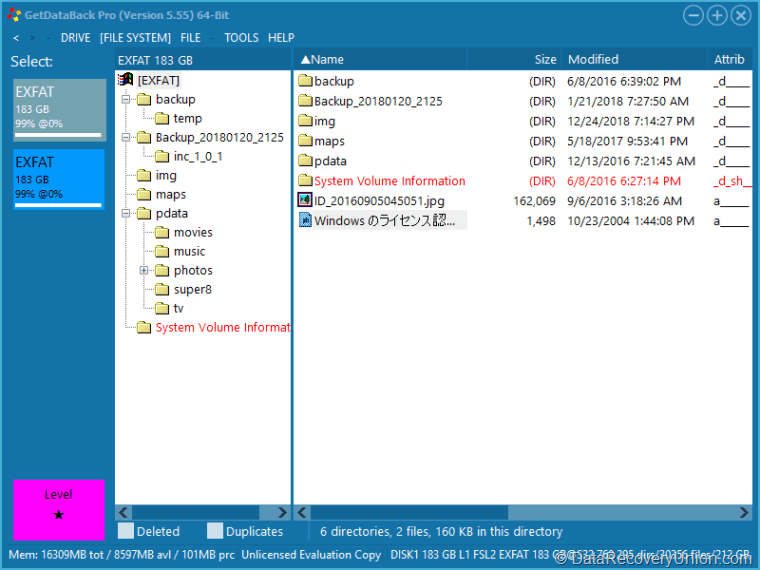
Key Features of GetDataBack
Here are the key features typically associated with GetDataBack:
Comprehensive File System Support by Edition
GetDataBack is offered in different editions tailored to specific file systems:
- GetDataBack for FAT: Recovers from FAT12, FAT16, FAT32, and exFAT file systems. Ideal for USB drives, memory cards, and legacy systems.
- GetDataBack for NTFS: Recovers from NTFS and NTFS5 file systems. Standard for modern Windows hard drives, including compressed and encrypted files.
- GetDataBack Pro: All-in-one solution combining support for FAT, exFAT, NTFS, EXT2/3/4 (Linux), HFS+/APFS (Mac), and other file systems.
Advanced Recovery When Drives Aren’t Detected
Unlike many competitors, GetDataBack is specifically designed to recover data when Windows does not recognize the drive. It can work with drives that:
- Are no longer detected by Windows (RAW or “Not Formatted” errors)
- Have corrupted or missing partition tables
- Have been reformatted, repartitioned, or had the operating system reinstalled
- Have damaged boot sectors or MBR/GPT corruption
- Cannot be accessed due to file system damage
Two Recovery Modes
GetDataBack features two primary recovery modes:
- Quick Scan: For straightforward recovery scenarios where the drive is still accessible and the file system structure is mostly intact. Fast and efficient for standard deletions.
- Full Scan (Comprehensive)
For severely damaged drives where the file system cannot be read, GetDataBack can ignore the file system entirely and perform a raw scan based on file content and structure, allowing it to recover data when traditional methods fail.
The software employs multiple analysis phases. It analyzes the drive regardless of the file system being present or not, can search for lost boot sectors and partition information, reconstruct directory structures even when damaged, and organize recovered files into the original folder hierarchy when possible.
File Preview and Selective Recovery
During and after the scan, files can be previewed (including images and text documents) to confirm integrity before recovery. You can select individual files or entire folder structures for recovery, saving time and storage space.
The ability to preview files before recovery is a standard feature in GetDataBack, helping users verify that the correct data is being recovered.
Drive Imaging and Cloning
GetDataBack includes the ability to create sector-by-sector drive images, which is critical when dealing with failing hardware. Instead of repeatedly attempting to read from a problematic drive, you can:
- Create a disk image (byte-for-byte copy) of the entire drive or specific ranges
- Work on the image file instead of the original drive, preventing further stress on failing hardware
- Clone drives with bad sectors, with options to skip unreadable areas
This feature is particularly important for data recovery professionals and IT specialists dealing with drives that exhibit signs of physical deterioration.
Direct Sector Access and Analysis
The software provides low-level access to the drive’s sectors, giving users insight into the recovery process. This includes:
- Hex viewer for examining raw sector data
- Information about the detected file system structures
- Detailed logging of the recovery process
- Ability to manually specify recovery parameters for advanced users
These features are invaluable for advanced users who need to troubleshoot complex recovery scenarios.
Native Support for Compressed and Encrypted Files
GetDataBack for NTFS and Pro editions include native support for:
- NTFS compressed files (recovered and decompressed automatically)
- NTFS encrypted files (when the decryption key is available)
- EFS (Encrypting File System) files
Bootable Media Creation
Included with the Pro edition is the ability to create bootable recovery media (USB or CD/DVD). This allows you to:
- Recover data from computers that will not boot into Windows
- Run GetDataBack directly from the boot environment
- Access drives that are not bootable due to system corruption or virus damage
To use this feature, you need a secondary working computer to create the bootable media.
Supported File Types
GetDataBack supports recovery of all common file types across all major categories. Since it works at the file system and raw level, virtually any file type can be recovered.
| Category | Supported File Types |
|---|---|
| Documents | DOC, DOCX, XLS, XLSX, PPT, PPTX, PDF, RTF, TXT, HTML, XML, and more |
| Images & Graphics | JPG, JPEG, PNG, BMP, GIF, TIFF, PSD, CR2, NEF, RAW, DNG, HEIC, and more |
| Audio | MP3, WAV, WMA, AAC, FLAC, M4A, OGG, and more |
| Video | AVI, MOV, MP4, MKV, WMV, FLV, 3GP, MTS, M4V, MPEG, and more |
| Archives | ZIP, RAR, 7Z, TAR, GZ, CAB, and more |
| PST, OST, DBX, EML, MSG, MBOX, and more |
How to Use GetDataBack
Follow these steps to recover your lost data using GetDataBack:
- Download and Install – Download GetDataBack from the official website (Runtime Software). Important: Do not install the software on the drive from which you want to recover data. Install it on a different drive or a secondary computer.
- Prepare the Drive – If possible, connect the problematic drive as a secondary drive to another computer. This prevents Windows from writing any data to the affected drive during normal operation. If the drive is clicking or making unusual noises, power it off immediately and seek professional hardware repair.
- Launch the Correct Edition – Launch the appropriate version for your file system (FAT, NTFS, or Pro). The Pro edition can auto-detect the file system.
- Select the Target Drive – The software will display all physical disks detected on your system. Select the drive you want to recover (not the partition letter, but the physical drive itself, especially if the partition is lost).
- Choose Scan Method – Select the scan range (typically the entire drive) and whether to perform a quick scan or a comprehensive scan. For severely damaged drives, the comprehensive scan is recommended.
- Wait for Scan Completion – The scan may take several hours depending on the drive size and condition. GetDataBack displays its progress and the file structures it is rebuilding.
- Browse and Preview – Once the scan is complete, browse the reconstructed directory tree. Deleted or lost files are typically visible alongside existing ones. Preview files (especially images and documents) to verify integrity.
- Recover Files – Select the files or folders you wish to restore. Click “Recover” and choose a destination location on a different drive to avoid overwriting data.
Editions and Pricing
GetDataBack is available in three editions priced according to the file systems supported:
| Edition | Price (One-Time) | Supported File Systems | Description |
|---|---|---|---|
| GetDataBack for FAT | $79 | FAT12, FAT16, FAT32, exFAT | For USB drives, memory cards, older Windows systems |
| GetDataBack for NTFS | $79 | NTFS, NTFS5 | For modern Windows hard drives and SSDs |
| GetDataBack Pro | $119 | FAT, exFAT, NTFS, EXT2/3/4, HFS+, APFS | All-in-one solution for mixed environments |
Note: The Pro edition represents the best value for most users, providing support for all common file systems in a single purchase. Runtime Software offers a free trial (demo) version that allows scanning and previewing of recoverable files, enabling you to verify that your files can be recovered before purchasing. The software is available for both Windows and can be run from bootable media (Pro edition).
System Requirements
Before installing GetDataBack, ensure your system meets the following requirements:
- Processor: Any Intel-compatible processor
- RAM: 1GB minimum (2GB or more recommended)
- Hard Disk Space: Approximately 50-100MB for software installation, plus additional space for recovered files
- Supported Operating Systems:
- Windows 11, 10, 8.1, 8, 7 (32-bit and 64-bit)
- Windows Server 2022, 2019, 2016, 2012, 2008
- Permissions: Administrative privileges required for installation and low-level disk access
Known Limitations
While GetDataBack is a powerful professional tool, users should be aware of the following limitations:
- No Free Recovery Tier: The free trial allows scanning and previewing only. You cannot recover any files without purchasing a license, unlike some freemium competitors that offer limited free recovery (1GB-2GB).
- Windows-Centric: While the Pro edition can read Mac (HFS+/APFS) and Linux (EXT) drives, the software itself runs exclusively on Windows.
- Complex Interface for Beginners: The software is designed with professionals in mind. The interface and terminology may be intimidating for casual home users compared to one-click recovery tools.
- Scan Time Can Be Extensive: The comprehensive scan mode, especially on large drives, can take many hours or even days. This is due to the thoroughness of the analysis, which is necessary for complex recovery scenarios.
- Not a Disk Repair Tool: GetDataBack recovers data but does not repair damaged file systems or hardware. It is designed to retrieve data so you can copy it to a safe drive.
- Physical Damage Not Covered: Cannot recover data from physically damaged drives (clicking, grinding, water damage). Hardware repair is required first, though the imaging feature can help if the drive is still readable.
- Overwritten Data Cannot Be Recovered: If lost files have been overwritten by new data on the drive, recovery becomes impossible regardless of software quality.
- TRIM on SSDs: On modern SSDs with TRIM enabled, recently deleted files may be permanently erased almost immediately, affecting all recovery software, including GetDataBack.
Comparison at a Glance
| Feature | GetDataBack (Professional editions) | Typical Competitors |
|---|---|---|
| Free Tier | Scan & preview only (no recovery) | Often 1GB-2GB free recovery |
| Price (Pro) | $119 one-time | $70-$150 one-time or subscription |
| File Systems (Pro) | FAT, NTFS, exFAT, EXT, HFS+, APFS | Often Windows only |
| Drive Imaging | ✓ Built-in | Not always available |
| Bootable Media | ✓ (Pro Edition) | Often premium feature |
| Work on Undetected Drives | ✓ Specialty | Limited or not available |
| Hex Viewer | ✓ Included | Not typically available |
Common Data Loss Scenarios Where GetDataBack Excels
- Drive Not Detected by Windows: When the drive shows as “RAW,” “Not Formatted,” or does not appear at all, GetDataBack can often bypass the missing file system and recover the data directly from the disk sectors.
- Corrupted or Missing Partitions: After accidental partition deletion or corruption of the partition table, GetDataBack can scan the physical drive and locate lost partitions.
- Formatting and Reformatting: Whether a quick format or a full format, GetDataBack can retrieve data from the drive, including scenarios where Windows has been reinstalled.
- Deleted Files on Large Drives: The software’s ability to reconstruct directory structures makes it effective for recovering specific files from drives with extensive data.
- Cross-Platform Recovery Needs: The Pro edition is ideal for IT professionals who manage mixed environments with Windows, Mac, and Linux drives.
- Failing Hardware: The disk imaging feature allows you to create a backup image of a questionable drive before attempting recovery, minimizing stress on the failing hardware.
- System Crash Recovery: Using the bootable media (Pro edition), you can recover data from a computer that will not boot into Windows.
Final Verdict: Is GetDataBack Right for You?
GetDataBack is a professional-grade data recovery tool that stands out for its ability to recover data from drives that other software cannot even detect. Its focus on low-level disk analysis and file system reconstruction makes it a powerful tool for complex recovery scenarios. While the interface is more technical than consumer-focused competitors, it provides the depth and control that IT professionals and data recovery specialists require.
This software is ideal for:
- IT Professionals and System Administrators: The ability to work with multiple file systems (Pro edition), recover from undetected drives, and create bootable media makes it a versatile toolkit.
- Data Recovery Specialists: The low-level disk access, hex viewer, and drive imaging capabilities provide the granular control needed for professional recovery work.
- Advanced Users with Complex Scenarios: When drives are not recognized, have been reformatted, or have damaged file systems, GetDataBack often succeeds where consumer tools fail.
- Cross-Platform Environments: The Pro edition’s support for Mac and Linux file systems is valuable for organizations with mixed operating systems.
- Users Who Value One-Time Purchases: Runtime Software offers a straightforward one-time pricing model without subscriptions.
- Businesses with Failing Drives: The disk imaging feature provides a safe way to create backups before attempting recovery from questionable hardware.
Consider alternatives if:
- You need a simple, one-click recovery tool with a consumer-friendly interface.
- You need free recovery capability – GetDataBack offers no free recovery (scan/preview only).
- You are a Mac or Linux user – GetDataBack runs only on Windows (though it can read Mac/Linux drives).
- You primarily need to recover recently deleted files from a healthy drive – simpler tools may suffice.
- Your drive is physically damaged – professional hardware repair services are required regardless of software.
Pro Tip: After data loss, stop using the affected drive immediately. Do not add new files, run disk repair tools like CHKDSK, or attempt to format the drive. The more you use the drive, the lower your chances of successful recovery. If the drive is making clicking or grinding sounds, power it off immediately – this indicates physical damage that requires professional hardware repair. For best results, connect the problematic drive as a secondary drive to another computer before running GetDataBack. Use the free trial version to scan and preview your files first – this confirms whether your data can be recovered before you purchase a license. Always save recovered files to a different drive than the one you’re recovering from.
Official website: www.runtime.org
Disclaimer: Recovery success depends on multiple factors, including how long ago data was lost, whether the drive has been used since the loss, and the extent of corruption or physical damage. No data recovery software can guarantee 100% recovery in all situations. This article is for informational purposes only. All product names, logos, and brands are property of their respective owners.
