
Data recovery on vintage hard drives like the HGST HUH728080ALE600 starts with identifying the failure type – electronic, firmware, or mechanical. Each requires a different approach, and misdiagnosis can make things worse. Here’s a quick guide to help you assess your situation and decide on the next step.
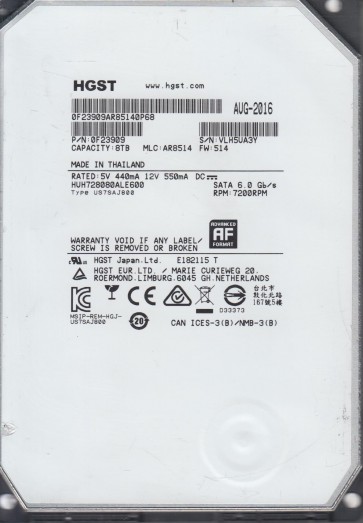
The HGST HUH728080ALE600 is a 8TB 3.5-inch enterprise-class hard disk drive belonging to the Ultrastar He8 series. It utilizes helium-filled technology to reduce friction and power consumption, and typically operates at 7200 RPM with a 4Kn (4K native) or 512e sector format. This drive is designed for high reliability (rated for 2M hours MTBF) and 24/7 operation in RAID arrays and data centers. It features a SATA 6Gb/s interface and advanced error recovery controls. Failures can stem from mechanical wear, electronic component degradation, or logical corruption. Due to its helium-sealed enclosure, any physical breach requires specialized cleanroom procedures. The drive’s firmware is tailored for error handling and may aggressively retry or reassign sectors in response to media defects.
Identifying Common Failure Types
1. Mechanical Head/Platter Failure (Physical)
Symptoms include clicking, scraping, or whirring sounds, the drive spinning up but not being detected, or repeated cycling power. Causes: head crash, spindle motor seizure, or contamination from particles. This is common in helium drives due to potential helium leaks leading to increased internal friction. The drive may report a “Click of Death” or error logs indicating head assembly failure. Prognosis: severe; data is recoverable only by opening the sealed unit in a class 10 cleanroom.
2. Electronic / PCB Failure (Physical)
Symptoms: Drive not spinning up or detected, no activity lights, burning smell. Caused by damaged SATA connector, failed power supply components (TVS diodes, capacitors), or static discharge. The drive may show no signs of life when connected but platters spin freely. The PCB (printed circuit board) can often be repaired if no damage extends to the preamplifier within the HDA. A simple blown TVS diode can be bypassed by a technician.
3. Bad Sectors / Media Degradation (Physical/Logical)
Symptoms: Slow read/write speeds, file corruption, system hangs or blue screens while accessing data, S.M.A.R.T. attributes showing high Reallocated Sector Count (05), Current Pending Sector Count (C5), or Uncorrectable Sector Count (C6). Caused by head instability, media wear, or shock damage. The drive’s firmware may attempt to remap sectors, but performance degrades. Data in bad sectors becomes unrecoverable without specialized firmware tools that can adjust read parameters or skip the media.
4. Firmware Corruption / Logic Board Mismatch (Logical)
Symptoms: Drive detected with incorrect capacity (e.g., 0GB or 8MB), stuck in “Busy” state, or not ready. Caused by failed firmware update, power loss during firmware write, or incorrect ROM data on a swapped PCB. The drive may respond to SATA commands but refuse to spin down or report ready. This is recoverable via firmware recovery tools that reflash the module region or translate the module table.
5. Encryption / Security Lock (Logical)
Symptoms: Drive requests a password at BIOS or OS level, shows as “Locked” or “Secure Erase” status in diagnostic tools. Caused by BIOS security setting, accidental user lock, or failed ATA security commands. Without the correct password and knowledge of the encryption scheme (if hardware-based), data is inaccessible. Some drives allow a master password reset if configured.
Potential Recovery Paths
Professional Data Recovery Services
When to use: For physical (mechanical, electronic, severe head crash) and complex logical failures (firmware corruption, severe S.M.A.R.T. degradation). Process: Involves cleanroom disassembly (for helium drives, specialized tools to maintain seal if possible), head stack replacement with matched donor parts (same firmware version and manufacturing batch), PCB repair or replacement (with ROM transplant), and using tools like PC-3000, DeepSpar, or Ace Lab systems to image the platters directly. For helium drives, the donor drive must be from the same series and factory. Cost: $500 ¨C $3000+ depending on severity. Advantage: Highest success rate for physically damaged drives. Warning: Do not attempt to open a helium drive yourself; the helium will escape, causing immediate platter damage.
DIY Recovery Methods (for logical failures only)
1. Drive Image Cloning: Use a tool like ddrescue (Linux) or R-Studio (Windows) to create a sector-by-sector image onto a healthy target drive. Steps: Connect the failing drive as secondary (use a SATA-to-USB adapter if necessary but avoid UASP). Boot from a Linux live USB. Run ‘sudo ddrescue -d -r3 /dev/sdX /mnt/target/image.img /mnt/target/logfile.log’. Monitor status: stop if the read rate drops below 1MB/s or error count increases rapidly. Risk: Can stress the drive and worsen damage. Best for drives with intermittent slowness but no bad sectors. 2. S.M.A.R.T. Monitoring: Use CrystalDiskInfo or HDD Sentinel to check attributes. If reallocated and pending sectors are low (under 100), you may attempt a controlled clone. 3. File-Level Recovery: If the drive is detected but files are corrupted, use Recuva or PhotoRec to scan for file signatures. This bypasses the filesystem damage. 4. Firmware Fix (Advanced): If the drive shows 0GB capacity, it may require a firmware module repair. This requires tools like VSC (Victory Service Center) commands or specialized equipment. Not recommended for beginners. Safety: Always work from a cloned image, never directly on the failing drive.
What Not to Do
- Never open the drive enclosure. The HUH728080ALE600 is helium-filled. Opening it will release the gas, causing immediate platter stiction and destroying all chances of recovery. Even for non-helium drives, dust will contaminate the platters.
- Do not apply power if the drive has made clicking or scraping sounds. This can cause a head crash, grinding physical debris into the platters. Disconnect immediately and seek professional service.
- Avoid using “HDD Regenerator” or similar software that attempts to “repair” bad sectors by rewriting them. This can force a write operation on a failing head, accelerating damage. Only use read-only imaging.
- Do not freeze the drive (the “freezer trick”). Helium drives are sealed; temperature changes can cause condensation and internal moisture. This is ineffective and often causes additional problems.
- Do not shake or tap the drive. Vibration can move internal components or accelerate bearing wear.
- Do not attempt a PCB swap without transferring the original ROM chip. The drive’s firmware is tied to the PCB’s MCU. Swapping just the board will result in a “SA Not Ready” error, making the drive inaccessible.
- Do not run a high-level format or disk check (chkdsk /f). These operations modify the file system and can overwrite or delete data that is already in a fragile state. Use only read-only checks.
Summary
The HGST HUH728080ALE600 is a robust enterprise drive but is susceptible to mechanical failure, media degradation, and firmware faults. Preliminary diagnostics: listen for abnormal sounds, check S.M.A.R.T. attributes (especially Reallocated and Pending Sectors), and test if the drive spins up and is detected. For physical failures (clicks, no spin, burning smell), avoid any power-on attempts and immediately contact a professional data recovery lab with cleanroom capabilities for helium drives. For logical failures (slow performance, bad sectors), create a sector-by-sector clone using ddrescue onto a healthy drive before attempting any file recovery. The most common mistake is attempting DIY repairs on mechanical damage, which converts a recoverable drive into an unrecoverable one. Always prioritize creating a forensic image as the first step. For firmware-related issues (0GB capacity, locked state), professional tools like PC-3000 are typically required. The cost of professional recovery is justified by the critical nature of enterprise data. In all cases, stop using the drive at the first sign of trouble to minimize further data loss.