
Data recovery on vintage hard drives like the Toshiba MQ01ACF050 starts with identifying the failure type – electronic, firmware, or mechanical. Each requires a different approach, and misdiagnosis can make things worse. Here’s a quick guide to help you assess your situation and decide on the next step.
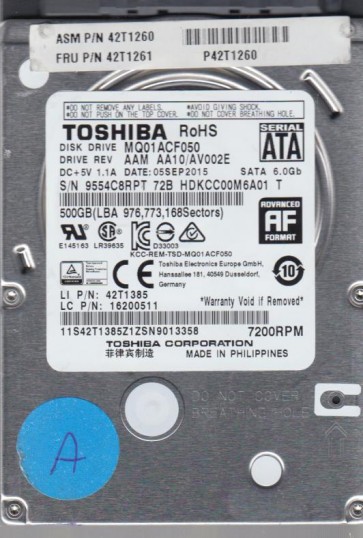
The Toshiba MQ01ACF050 is a 2.5-inch, 500GB, 7200 RPM SATA hard disk drive designed for mainstream laptop and external storage applications. It utilizes perpendicular magnetic recording (PMR) technology and typically features a 16MB cache buffer. This model is known for its balance of speed and capacity, making it a common component in mid-range portable computers. As a mechanical drive, it relies on precision moving parts, including a voice coil actuator, read/write heads, and rotating platters. Understanding that this is a physical device vulnerable to shock, wear, and environmental factors is crucial for successful data recovery. The drive’s controller board (PCB) manages all logical operations and power regulation, making it a potential point of failure separate from the internal mechanics.
Identifying Common Failure Types
1. Head Crash or Mechanical Failure
Symptoms include audible clicking, scratching, or grinding noises from the drive. The drive may be detected in BIOS but fails to read any data, or it may spin up and then immediately spin down. This is often caused by physical shock, dropping the device, or normal wear over time where the read/write heads contact the platter surface. The MQ01ACF050’s platter surface can be damaged, leading to bad sectors that progressively worsen. In severe cases, the heads may be physically destroyed, preventing any data access.
2. Firmware Corruption or Logical Failure
This category includes symptoms such as the drive spinning up normally and being detected by the system but showing an incorrect capacity (e.g., 0GB or 1.2TB), a RAW file system, or constant “Please Insert Disk” errors. The drive may also freeze the system during initialization. This is a software-level issue on the drive’s internal chip. Causes include improper shutdowns, power surges, or virus attacks that corrupt the drive’s translator, SMART data, or other system modules. Unlike mechanical failure, the drive usually sounds healthy.
3. Stuck or Spindle Motor Failure
A distinct symptom is the drive not spinning at all when powered up, or spinning up and then quickly stopping. There is no clicking, but complete silence is common. This can be due to a seized spindle motor bearing (often from age or manufacturing defects) or a stuck actuator (where the heads are parked in the landing zone but the arm is physically unable to move). Sometimes, the drive can be heard trying to spin but failing to reach operating speed. This is a severe mechanical issue requiring intervention.
4. Bad Sectors and Media Degradation
This failure type presents as read errors, slow file access, frequent system crashes, and the eventual inability to boot. The drive may remap bad sectors internally, but as degradation continues, the rate of remapping exceeds the drive’s spare sector pool. SMART data will show high values for Reallocated Sectors, Current Pending Sectors, or Uncorrectable Sector Counts. This is often a precursor to a head crash and indicates the magnetic coating on the platters is breaking down.
Potential Recovery Paths
Professional Data Recovery Services
Indication: For any physical failure (clicking, grinding, no spin, burning smell), or if data value exceeds $500 and the user lacks a cleanroom environment. The MQ01ACF050’s sealed chamber must never be opened in normal conditions.
Process: A lab with Class 100 cleanroom facilities and specialized tools (e.g., PC-3000, DeepSpar Disk Imager) is required. For head crashes, the platters are typically transferred to a donor drive of the exact same model and firmware revision. For stuck motors, the spindle may be carefully lubricated or replaced. For firmware issues, professional tools can directly reflash chips or patch modules without damaging data.
Cost: Typically $300 to $2000+ depending on severity and urgency.
Success Rate: High (80-95% for non-overwritten mechanical failures, lower for severe platter damage).
DIY Software Recovery (Logical Issues Only)
Indication: The drive spins normally, is detected correctly by BIOS, and makes no unusual sounds. The issue is likely file system corruption, accidental deletion, or formatting.
Steps:
1. Use a write-blocker or connect the drive as a secondary (non-boot) drive to a known good computer.
2. Use imaging software like ddrescue (Linux) or HDDSuperClone to create a full byte-for-byte image of the drive to a healthy target drive. Avoid direct scanning on the failing drive.
3. From the image, use file recovery tools such as R-Studio, DMDE, or Recuva to extract lost files.
Warning: Do not install recovery software onto the failing drive. Do not run chkdsk or fsck on a mechanically suspect drive, as it can cause further damage.
Success Rate: Moderate to high for logical errors, but only if no physical damage is present.
What Not to Do
1. Do not power on the drive repeatedly if it is making unusual noises. Each spin-up can scrape more data off the platters.
2. Never attempt to open the drive’s cover. The Toshiba MQ01ACF050 has a sealed enclosure with a desiccant filter. Opening it in a non-cleanroom environment will introduce dust particles that will destroy the platters and heads.
3. Do not apply freeze, heat, or shock to the drive. Urban legends regarding freezing drives may cause condensation, irreversible head damage, and internal corrosion.
4. Do not run advanced utilities like chkdsk /f or fsck on a drive with physical symptoms. These tools attempt to repair file systems by aggressively reading and modifying data, which can kill a failing drive.
5. Do not attempt to swap the PCB (controller board) from a donor drive without verifying its compatibility. Modern drives have adaptive parameters stored on the board and the motor platters. A simple PCB swap will often not work and can send wrong voltages to the heads.
6. Do not use the drive for continued operation if bad sectors are detected. Continued use will likely cause rapid degradation and permanent data loss.
Summary
The Toshiba MQ01ACF050 is a reliable but mechanical device with distinct failure modes: head crashes (audible clicks), firmware corruption (wrong capacity, RAW), stuck motors (silence), and media degradation (bad sectors). The single most critical factor in successful recovery is accurate diagnosis. If the drive makes any abnormal sound or fails to spin, immediately disconnect power and seek professional cleanroom assistance. For logical failures with a healthy-sounding drive, DIY imaging and file recovery software offer a viable path, provided a write-blocker is used and the working drive is never treated as a primary device. Always prioritize creating a disk image over direct access to the original drive. Remember that time is the enemy; every operation on a failing drive risks permanent data loss.

