
Data recovery on vintage hard drives like the Western Digital WD3009FYPX starts with identifying the failure type – electronic, firmware, or mechanical. Each requires a different approach, and misdiagnosis can make things worse. Here’s a quick guide to help you assess your situation and decide on the next step.
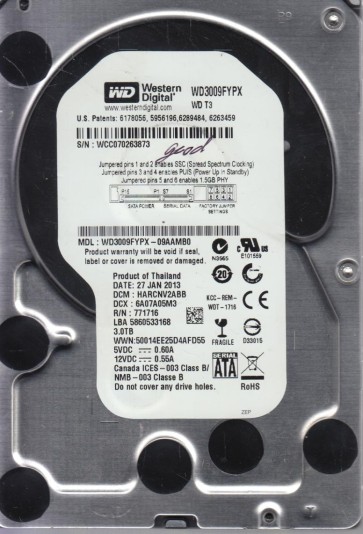
The Western Digital WD3009FYPX is a 3TB, 3.5-inch, 7200 RPM enterprise-class SATA hard drive. It is designed for high-capacity storage in surveillance, RAID arrays, and nearline storage applications. It features WD’s proprietary technologies including StableTrac (shaft-mounted motor for reduced vibration) and RAFF (Rotary Acceleration Feed Forward) for enhanced performance in multi-drive enclosures. This drive typically uses Advanced Format (4096-byte sectors) and may employ Shingled Magnetic Recording (SMR) in later revisions, which complicates data recovery.
Common Failure Types
1. Mechanical Failure (Head Crash / Stiction)
Symptoms: Loud clicking or scratching noises (head slap), drive not spinning up (no motor sound), or a high-pitched whine. The system detects the drive as an unknown device or not at all.
Causes: Physical shock, age, manufacturing defects, power surges, or contamination from particles inside the drive enclosure.
Recovery Complexity: Extreme. Requires a cleanroom (Class 100 or better) and donor parts.
2. Firmware Corruption (Media Cache / Translator Issues)
Symptoms: Drive spins up but is not detected in BIOS, shows incorrect capacity (e.g., 0GB or 32MB), or gives a “Ready” status but hangs during access. May be recognized with a strange model number or “LBA” error.
Causes: Power loss during firmware update, bad head-media interaction corrupting the Service Area (SA), or overload due to bad sectors.
Recovery Complexity: High. Requires specialized tools like PC-3000 or MRT to rebuild or patch the firmware modules.
3. Logical Damage / File System Corruption
Symptoms: Drive is detected correctly and sounds healthy, but files are inaccessible, folders appear empty, or the drive prompts to be formatted. Error messages may include “The file or directory is corrupted and unreadable” or “Data error (cyclic redundancy check).”
Causes: Improper shutdowns (power outage), file system errors (NTFS or EXT3/4 corruption), accidental formatting, partition deletion, or virus attacks.
Recovery Complexity: Low to Moderate. Often recoverable with software tools, provided no underlying physical or firmware problem exists.
4. Bad Sectors / Media Degradation
Symptoms: Slow read/write speeds, frequent I/O errors (CRC errors), system hangs or crashes when accessing specific files, and reallocated or pending sector counts increasing in S.M.A.R.T. data.
Causes: Physical wear (platter aging), thermal stress, manufacturing defects, or prior head contact.
Recovery Complexity: Moderate to High. Software can sometimes mask bad sectors, but physical damage can spread. Cloning with hardware tools (e.g., DeepSpar DDI) is often required.
5. Electronic Failure (PCB Failure)
Symptoms: Drive is completely dead (no power on spin, no detection). The PCB shows visible damage like a burnt component (TVS diode or controller chip) or a blown fuse. Possibly emits a burning smell.
Causes: Power surge (overvoltage), short circuit, or aging of electronic components (capacitors).
Recovery Complexity: Moderate. A compatible donor PCB with the same firmware version is needed. The drive’s original NVRAM (ROM) chip must often be transferred to the new PCB for proper head map and adaptive data.
Potential Recovery Paths
DIY Methods (Only for Logical Issues / No Physical Damage)
- Software Cloning: Use tools like ddrescue (Linux) or HDD Raw Copy Tool (Windows) to create a sector-by-sector image to a healthy drive. This is critical before any file recovery attempts.
- File Recovery Software: Run applications like R-Studio, DMDE, or GetDataBack on the cloned image. Recover files to a separate drive. Never write anything back to the failing drive.
- S.M.A.R.T. Monitoring: Use tools like CrystalDiskInfo or HD Tune to check current health. A high Reallocated Sector Count or Current Pending Sector Count indicates media degradation. Do not reformat.
- Power Cycling: Sometimes a single bad sector can hang the drive. Power off, wait 30 seconds, power on. If drive spins down again, stop. This is not a fix, only a diagnostic step.
Professional Recovery Services (For Physical & Firmware Issues)
- Cleanroom Head Replacement: A Class 100 cleanroom is mandatory to open the drive and replace crashed heads with exact donor parts (same model, same firmware generation). The technician then adjusts head maps and performs firmware adaptations.
- Firmware Repair: Using professional tools like PC-3000 (ACE Lab) or MRT (VRT), the recovery engineer reads the Service Area, repairs corrupted modules (e.g., Translator, Media Cache, Overlays), and creates a virtual copy of the drive.
- PCB Replacement with ROM Transfer: If the electronics board (PCB) is faulty, a donor board is sourced. The original ROM chip (often a 25-series SPI flash) is desoldered and transferred to the donor PCB to preserve the drive’s unique calibration data.
- Laser Cleaning / Platter Transplant: If heads were damaged and touched the platters, the platters may need to be moved to a new chassis in a cleanroom. This is high-risk and expensive but sometimes the only option for deep media damage.
What Not to Do
- Never open the drive outside a cleanroom. Even a tiny dust particle (smoke, skin flake) is far larger than the flying height of the head (typically 3-5 nanometers). Opening it will destroy any chance of recovery.
- Do not use defragmenters, chkdsk / fsck, or repair utilities. These tools write to the drive and can overwrite data, worsen file system corruption, or cause the heads to repeatedly hit bad areas, leading to total failure.
- Do not apply high voltage or freeze the drive. Freezing can cause condensation inside the sealed chamber, leading to short circuits and corrosion. It is a myth from older drives and offers no benefit for modern sealed units.
- Do not repeatedly power cycle the drive hoping it will start. Each power cycle may cause the heads to park on the ramp or crash on the platters if the suspension is weak. Excessive spinning can damage the spindle motor.
- Do not use any “data recovery” software on a drive that is clicking or making scraping noises. Physical damage requires hardware intervention. Running software will attempt to read, which will further destroy the platter surface and heads.
Summary
The Western Digital WD3009FYPX is a robust enterprise drive but vulnerable to head crashes, firmware corruption (especially Service Area issues), and logical damage from improper dismounts. Immediate recovery success depends on correct diagnosis: Do not assume a logical problem without ruling out physical or firmware failure. For any audible anomaly or BIOS detection failure, stop all DIY attempts and consult a professional data recovery lab with cleanroom facilities and PC-3000 capability. For logical issues only, create a sector-by-sector image to a healthy drive first, then recover files from the clone. The single most important rule is to avoid any write operations to the failing drive.