
Data recovery on vintage hard drives like the Western Digital WD3200BMVV starts with identifying the failure type – electronic, firmware, or mechanical. Each requires a different approach, and misdiagnosis can make things worse. Here’s a quick guide to help you assess your situation and decide on the next step.
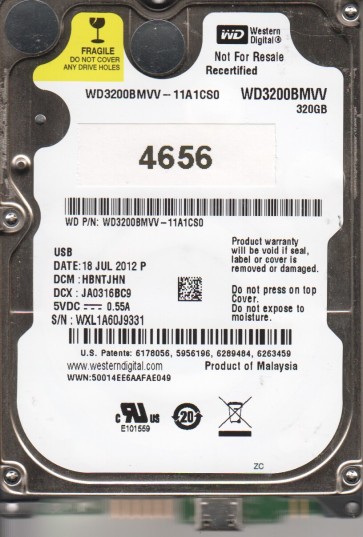
The Western Digital WD3200BMVV is a 2.5-inch SATA hard drive typically found in external My Passport enclosures. It features a proprietary USB interface integrated onto the drive’s PCB, a high-density platter, and a complex firmware architecture. This model is known for its compact size and power efficiency but presents specific challenges due to its integrated USB bridge and susceptibility to specific firmware and mechanical issues.
Common Failure Types
1. Mechanical Failure: Head Crash / Stiction
Symptoms: Loud clicking, grinding, or scratching noises. The drive spins but is not recognized, or is recognized with an abnormal capacity. Causes: Physical shock, manufacturing defects, or aging lubricant leading to heads sticking to the platter surface. Data cannot be read due to physical damage to the magnetic media or the read/write heads.
2. Logical Damage: File System Corruption
Symptoms: The drive is detected but shows as unallocated, RAW, or prompts to format. Files are missing, corrupted, or inaccessible. Causes: Improper ejection, power loss during write operations, virus attacks, or file system errors without physical damage. Data sectors remain intact but the structural layout (FAT, MFT, directory tree) is compromised.
3. Firmware Failure: Module Corruption / Translator Issues
Symptoms: The drive spins but is not detected, is detected with a wrong model number or capacity, or clicks without full recognition. SMART reports high numbers of pending sectors or reallocated sectors. Causes: Failed firmware updates, sudden power loss while updating firmware tables, logical errors in the drive’s internal microcode, or physical degradation causing the firmware to be unreadable. The drive’s internal translation system mapping logical to physical sectors is damaged.
4. Electronic Failure: SATA-to-USB Bridge / PCB Failure
Symptoms: The drive is completely dead (no spin, no sound) or is detected but not accessible. The USB bridge on the PCB may only provide power or data, but not both. Causes: Power surges, static discharge, liquid damage, or failure of the voltage regulator, motor controller, or the integrated USB bridge chip on the PCB. The drive’s main controller or preamplifier may also fail.
5. Degraded Media: Bad Sectors / Surface Wear
Symptoms: The drive operates slowly, freezes during reads, reports read errors, or causes file system corruption. S.M.A.R.T. attributes like Reallocated Sectors Count, Current Pending Sector Count, and Uncorrectable Sector Count are high. Causes: Normal aging, thermal expansion, or localized platter damage from head contact. The magnetic coating on the platter is no longer reliable, causing errors when reading or writing data.
Potential Recovery Paths
DIY Methods (Low-Risk Logical Issues Only)
– If the drive is mechanically healthy and only shows file system corruption: Use data recovery software such as R-Studio, DMDE, or GetDataBack. Create a full sector-by-sector image to a healthy drive first, then scan the image file. Do not write to the affected drive. If the RAW file system appears, attempt to recover the file system structure without formatting. For slight bad sectors on non-critical areas, use a tool like HDDSuperClone to image the drive, skipping or retrying problematic sectors.
Professional Services (Required for Mechanical, Firmware, or Complex Electronic Failures)
– For head failures (clicking/scratching): Immediate cleanroom intervention is required. A donor drive of the exact same model and firmware revision must be sourced. The heads are replaced in a Class 100 cleanroom environment, followed by a specialized firmware adaption. For stuck heads (stiction), the drive is carefully opened to release the heads without further platter damage.
– For firmware corruption (wrong capacity, no detection with spin): Professionals use specialized tools like PC-3000 or MRT to access the drive’s service area. They can reprogram the firmware modules, rebuild the translator, or copy the service area from a donor drive. This is not possible with standard software.
– For failed PCB (dead drive): A donor PCB of the exact same model and revision is paired. The original ROM chip (usually an 8-pin serial EEPROM) must be desoldered from the failed PCB and transplanted to the donor board. Simply swapping the PCB without ROM transfer will fail.
What Not to Do
1. Do not repeatedly power cycle a clicking or scratching drive. Each spin attempt scrapes the heads across the platter, destroying data permanently. Immediately stop any power attempts if you hear abnormal sounds.
2. Do not open the drive enclosure in a non-cleanroom environment. Even microscopic dust particles can contaminate the platters and destroy data upon any head movement. The internal atmosphere is filtered and must remain particle-free.
3. Do not run chkdsk, fsck, or any disk repair tool on a RAW or failing drive. These tools write new data to the drive, potentially overwriting your files. They also force the heads to retry reading bad sectors, exacerbating the damage and rendering data unrecoverable.
4. Do not freeze the drive. This is an old myth. Freezing causes condensation inside the drive, leading to catastrophic head failure and platter corrosion. It will not fix mechanical or firmware issues.
5. Do not attempt to replace the PCB yourself without transferring the original ROM chip. The WD3200BMVV’s PCB is locked to its original ROM. Simply swapping the board will result in an incompatible drive that may not spin or will corrupt data.
Summary
The Western Digital WD3200BMVV is subject to mechanical head failures, firmware corruption, logical damage, and electronic bridge failure. For logical issues, DIY imaging with recovery software is viable. For any mechanical sound, electrical death, or detection problems with wrong capacity, immediate professional service is the only safe path. The drive’s integrated USB bridge and locked ROM make PCB swaps complex. The key to successful recovery is immediate cessation of use upon detection of failure and avoiding any DIY physical intervention. Prioritize professional evaluation for non-logical failures.