
Data recovery on vintage hard drives like the Western Digital WD40NMZM starts with identifying the failure type – electronic, firmware, or mechanical. Each requires a different approach, and misdiagnosis can make things worse. Here’s a quick guide to help you assess your situation and decide on the next step.
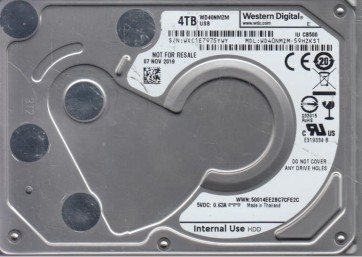
The Western Digital WD40NMZM is a 4TB, 2.5-inch, 5400 RPM SATA hard drive commonly used in external storage solutions and portable drives. It utilizes Shingled Magnetic Recording (SMR) technology to achieve high storage density. This design means the drive’s write head overlaps adjacent tracks, making overwriting data efficient but random write operations slower. The drive is known for its cost-effectiveness in bulk storage but has specific failure characteristics due to its SMR architecture and mechanical components.
Common Failure Types
- Mechanical Head Crash or Stiction: The read/write head physically contacts the platter surface or the spindle motor fails to spin up. Symptoms include a clicking, grinding, or buzzing sound, the drive not being detected, or a loud whirring followed by silence. Causes include physical shock, drops, manufacturing defects, or excessive wear.
- Bad Sectors and Media Degradation: The magnetic coating on the platters becomes unstable or damaged. Symptoms include very slow read/write speeds, frequent operating system freezes, file corruption, or the drive producing reallocated sector counts in S.M.A.R.T. data. This is accelerated by heat, physical stress, or age, and the SMR architecture can complicate subsequent write attempts to these areas.
- Firmware Corruption: The internal code controlling the drive’s operation becomes corrupted. Symptoms include the drive being detected with an incorrect capacity (e.g., 0GB or 1MB), clicking without seeking data, or the drive spinning up but being invisible to the BIOS. This can be caused by power surges, abrupt disconnection during write cycles, or internal logic errors.
- Logical File System Damage: The partition table, file system metadata (MFT/FAT), or directory structure is corrupted or damaged. Symptoms include “RAW” partition errors, “Drive not formatted” prompts, permissions issues, or files appearing as garbage characters. This is typically caused by improper ejection, virus attacks, or software crashes during write operations. Unlike mechanical issues, the drive hardware is physically healthy.
- SMR-Specific Performance Collapse (Write Amplification): The drive enters a deep garbage collection or re-formatting cycle. Symptoms include periods where the drive is detected and responds but writes at extremely slow speeds (e.g., bytes per second) or completely stops writing for minutes. This is not a hardware failure but a firmware behavior limitation when the SMR cache is exhausted under heavy random write loads or after a forced rebuild.
Potential Recovery Paths
- Professional Service for Physical Failures: For mechanical issues (head crash, stiction, motor failure), firmware corruption, or severe bad sectors, professional recovery is mandatory. A cleanroom (ISO Class 5 or better) is required to open the drive. Technicians will perform head gasket swaps, platter transfers, or advanced firmware repair using specialized tools (e.g., PC-3000, DeepSpar). Expect costs ranging from $500 to $3000+ depending on complexity.
- DIY for Logical File System Damage: If the drive spins up normally and is detected in Disk Management, use data recovery software like R-Studio, DMDE, or EaseUS Data Recovery Wizard. Do not attempt to repair the drive (e.g., chkdsk with /f) as this can permanently overwrite data. Create a full disk image using a tool like DDRescue or HDDSuperClone onto a healthy drive, then scan the image for recoverable files.
- DIY for Bad Sectors (with caution): If the drive has a few bad sectors but no physical damage, use a sector-by-sector imaging tool (DDRescue, HDDSuperClone). Set the tool to ignore errors and retry low-reads. Monitor the S.M.A.R.T. data (Reallocated Sectors, Current Pending Sectors). Stop imaging if the rate drops to 0 or the drive starts clicking. Do not attempt to write to the failing drive.
- Firmware Fix (Professional Level): If the drive is recognized with wrong capacity or clicks but spins, specialized tools like PC-3000 can access and rewrite the service area. This is not a DIY task. The firmware contains unique drive adaptives, and incorrect modification leads to permanent drive destruction.
- SMR Cache Management (DIY for Performance): If the drive is very slow (not clicking or failing structurally), it is likely in a write amplification state. The only reliable DIY recovery for performance is to secure your data by cloning the drive while the drive is still functioning. Then, perform a full, secure erase using a tool like Western Digital’s Dashboard or Parted Magic. This forces a complete firmware reset and garbage collection cycle. While this recovers drive responsiveness, it erases all data.
What Not to Do
- Never open the drive enclosure in non-cleanroom conditions. Hard drives are sealed and require Class 100 cleanroom environments. Even a speck of dust on a platter can destroy the drive and make data unrecoverable.
- Do not run chkdsk /f or chkdsk /r on a failing drive. These commands attempt file system repairs and read-verify operations. On a failing drive, they will likely cause further data overwrite and increase the number of bad sectors, potentially killing the drive.
- Avoid repeated power cycles or forced spin-ups. If the drive is making unusual noises or is not detected, repeatedly powering it on can damage the spindle motor or read/write heads. Secure your data immediately or seek help.
- Never use the SMR drive for heavy random writes before recovery. The SMR cache fills quickly. Writing new data to the failing drive increases the workload, potentially triggering a write amplification cascade that makes data access impossible.
- Do not attempt DIY firmware repair without professional tools. Software claiming to repair firmware typically only works on logical corruption. Modifying the firmware on an SMR drive requires specific, advanced hardware and knowledge. A mistake here is irreversible.
Summary
The WD40NMZM, using SMR technology, presents a unique set of failure modes beyond mechanical breakdown. For physical or complex firmware issues, professional cleanroom recovery is essential. DIY recovery is feasible only for logical file system damage or mild bad sectors, provided you stop immediately if symptoms worsen. The most critical warning is to never overwrite the failing drive or run system repair tools. The best initial step is to create a sector-by-sector forensic image of the drive onto a healthy storage device. Successful recovery depends on accurately identifying the failure type and acting with patience and caution.