
Data recovery on vintage hard drives like the Western Digital WD5000M22K starts with identifying the failure type – electronic, firmware, or mechanical. Each requires a different approach, and misdiagnosis can make things worse. Here’s a quick guide to help you assess your situation and decide on the next step.
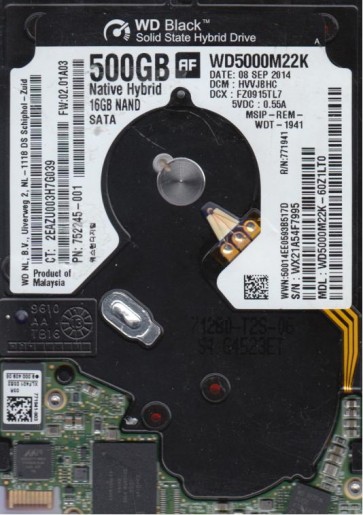
The Western Digital WD5000M22K is a 500GB 2.5-inch SATA hard disk drive, typically found in external portable drives like the My Passport series. It features a USB bridge board integrated directly onto the drive’s SATA interface, making it a “native USB” drive. This design complicates recovery as the USB bridge often fails before the drive mechanism. It utilizes SMR (Shingled Magnetic Recording) technology for higher data density, which can introduce specific performance and recovery challenges due to its complex write management.
Common Failure Types
1. USB Bridge Board Failure
Symptoms: Drive is not recognized, shows as “Unknown Device” in Device Manager, or is detected with a very generic name (e.g., “USB Mass Storage Device”). The drive may be physically spinning but inaccessible. This is one of the most frequent failures for this model.
Cause: Electrostatic discharge, power surges, physical damage to the micro-USB port, or component burnout on the small PCB (Printed Circuit Board) attached to the drive.
2. Media & Logical Damage (Bad Sectors / File System Corruption)
Symptoms: Slow performance, freezing during file access, file read errors, drive is recognized but shows as “RAW” or “Unallocated.” Frequent clicking or grinding noises during read/write operations.
Cause: Head crashes, surface scratches, defective platters, sudden power loss during write operations, or file system corruption from improper ejection. SMR drives are particularly vulnerable to performance degradation during heavy write operations, which can mimic logical failure.
3. Mechanical Head Failure (Stiction / Head Crash)
Symptoms: Loud clicking, repetitive ticking (the “click of death”), whining, or scraping noises. The drive may spin down after several attempts. Drive is completely unrecognized.
Cause: Physical shock (dropping the drive), manufacturing defect, or age-related wear leading to the read/write head contacting the platter surface. SMR heads are delicate and more prone to stiction.
4. Firmware Corruption / Servo Failure
Symptoms: Drive spins up but immediately spins down, or remains in a “busy” state (never ready for commands). It may be detected with a correct model number but shows zero capacity or incorrect capacity.
Cause: Corrupted firmware modules on the system area, damaged SA (Service Area) sectors, or a failed preamp on the flex circuit. This often presents as a “head failure” but is actually a logical firmware lock.
5. PCB (Printed Circuit Board) Electronics Failure
Symptoms: Drive is completely dead (no spin, no sound, no detection). No electrical activity on the SATA or USB interface.
Cause: Damaged TVS diodes, burnt motor controller chip, failed read channel IC, or broken traces on the mainboard. This is less common on native USB drives but can occur due to power issues.
Potential Recovery Paths
DIY Methods
For USB Bridge Failure: Attempt to remove the USB bridge board. Carefully detach the drive from its proprietary USB interface. Purchase a third-party USB 3.0 to SATA adapter (e.g., Startech, Sabrent) and connect the bare drive to a computer. This bypasses the failed bridge. Do not power the bridge board.
For Logical/File System Damage: Use a data recovery software tool like DMDE, R-Studio, or ddrescue (Linux). For ddrescue, create a disk image first to avoid further damage to a failing drive. Clone the drive to a healthy one of equal or larger capacity before attempting file extraction. Do not use Windows chkdsk /f on a failing drive.
For Bad Sectors: Run ddrescue in multiple passes to attempt to read as much data as possible. After the clone, use recovery software on the cloned image.
Professional Services
For Mechanical / Head Failure: This requires a cleanroom (Class 100 or better). A professional will open the drive, replace the damaged read/write heads with a matched donor head stack, and perform a direct head-to-head read. Cost typically ranges from $500 to $2500+.
For Firmware Failure: Professional tools like PC-3000 or MRT can access the drive’s Service Area, reflash damaged firmware modules, and restore translator data. This is complex and often proprietary to each drive family. Average cost: $300 – $800.
For Severe Media Damage: If the platters themselves are damaged, the drive may need to be disassembled, platters removed, and cleaned. This is a last-resort procedure that can cost over $3000.
For PCB Failure: A specialist can either repair the original PCB (soldering new components) or perform a ROM transplant from the original board to a donor PCB. A simple PCB swap without ROM transfer will not work due to adaptive parameters stored in the ROM.
What Not to Do
Do not open the drive in a non-clean environment. A single speck of dust can scratch the platters and destroy all chances of recovery. The internal air is filtered and must not be contaminated.
Do not run chkdsk, ScanDisk, or any disk repair utility. These tools will attempt to fix the file system by rewriting to the disk, which can permanently overwrite your data and corrupt the directory structure further.
Do not use a standard “dd” command without understanding its behavior. A failing drive requires ddrescue with careful options (like direct mode and retry counts) to avoid breaking the read channel. An improper dd command can lock the drive.
Do not apply power to a clicking or grinding drive. Repeated power-on cycles can cause further head damage and scrape additional data from the platters. Stop immediately and seek professional help.
Do not attempt a head transplant without specialized training and a clean bench. Head alignment is microscopic; even a slight misalignment can cause immediate head crash and total data loss. Donor drives must be of the exact same model, firmware, and head map revision.
Summary
The Western Digital WD5000M22K drive has a high failure rate due to its integrated USB bridge, making this the most common single point of failure. Logical corruption from SMR write behavior is also frequent. The safest path for valuable data is to first bypass the USB bridge with a direct SATA adapter. If the drive shows physical symptoms like clicking, grinding, or no spin, immediately power it off and consult a professional data recovery lab. DIY recovery is only advisable for logical issues or bridge failures; physical or firmware problems require specialized equipment and a controlled environment. Never write to the failing drive and always work from a block-level clone.