
Data recovery on vintage hard drives like the Western Digital WD6400BPVT starts with identifying the failure type – electronic, firmware, or mechanical. Each requires a different approach, and misdiagnosis can make things worse. Here’s a quick guide to help you assess your situation and decide on the next step.
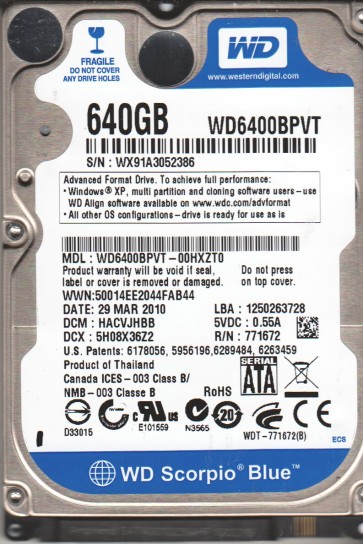
The Western Digital WD6400BPVT is a 2.5-inch, 640GB, 5400 RPM SATA hard drive commonly used in laptops and external enclosures. It utilizes perpendicular magnetic recording (PMR) technology. This model is known for its balance of capacity and power efficiency, but like all mechanical drives, it is susceptible to specific failure modes. Understanding these is critical for successful data recovery. The drive typically operates with a single platter and a low power consumption profile, which influences its failure characteristics.
Common Failure Types
- Mechanical Head Crash: A physical contact between the read/write heads and the spinning platter surface. Symptoms include repeated clicking or scratching noises, the drive not being detected, or immediate failure upon power-up. Causes: physical shock, drive aging, or manufacturing defects in the head assembly.
- Stiction (Stiction/Friction): The read/write heads become stuck to the platter surface due to lubricant degradation or a rough landing zone. Symptoms: the drive spins up, makes a faint buzzing or whirring sound, but fails to spin fully or produces a clicking noise. The drive will often not be recognized by the BIOS.
- Firmware Corruption: The drive’s internal firmware, which controls spindle motor speed, head positioning, and error correction, becomes damaged. Symptoms: the drive is detected but with incorrect model/name (e.g., “WD 640GB” as “WD 0GB”), shows very slow performance, or hangs during initialization. It may cause a system to freeze at the BIOS screen.
- Bad Sectors (Logical/Physical): Portions of the platter become unreadable. Logical bad sectors caused by software errors or power loss can often be remapped. Physical bad sectors due to platter damage or head wear cause repeated read errors, system crashes, and corrupt files. Symptoms: Read/Write errors, file system corruption, the drive entering a “safe mode” or read-only state.
- Electronic Failure (PCB): The Printed Circuit Board (PCB) connecting the drive to the computer fails. This is often caused by a power surge, faulty power adapter, or component aging (e.g., a failed TVS diode or voltage regulator). Symptoms: the drive is completely dead (no spin, no sound, no detection). The drive may smell burnt or show visible damage on the PCB.
Potential Recovery Paths
DIY Methods (For Logical/Software Issues Only)
- For Bad Sectors (Logical): Use a tool like HDD Regenerator or Victoria to scan for and attempt to remap bad sectors. This is risky with physical damage. Do this on a cloned drive, not the original.
- For File System Corruption: Use data recovery software like R-Studio, GetDataBack, or DMDE. The process: Create a sector-by-sector disk image of the failing drive onto a healthy drive first. Then, scan the image for lost partitions and files. Never work directly on the failing drive.
- For Firmware Issues (Advanced DIY): If the drive is recognized but has incorrect parameters, a firmware repair (e.g., using PC-3000 or similar) is typically required. This is not recommended for general users as it can destroy the drive permanently.
- For PCB Failure (Donor Drive): If the fault is a damaged TVS diode or a simple fuse, a competent electronics repair person or an advanced DIY user can replace the component. Replacing the whole PCB from an identical donor drive is complex and requires transferring the ROM chip (married to the platters) from the original PCB to the donor PCB. This is a high-risk procedure.
Professional Recovery Services
- Assessment & Diagnostics: A professional lab will first diagnose the exact failure type using tools like PC-3000 or DeepSpar. They will assess if the heads are damaged, if the platters are scratched, or if the firmware is corrupt.
- Mechanical Repair: For head crashes or stiction, the drive must be opened in a Class 10 or better cleanroom. The technician will replace the read/write head assembly with a donor head stack from an identical drive. This is the most complex and expensive procedure.
- Firmware Repair: Using specialized tools, technicians can re-flash or repair the firmware. This is often a core part of recovery for modern drives.
- Imaging & Data Extraction: Once the drive is mechanically sound and firmware is working, the data is extracted using advanced imaging tools that can handle unstable sectors and bypass bad areas.
- Cost & Time: Professional recovery for the WD6400BPVT can range from $300 to $1500+ depending on the damage. Head replacements are at the high end. Successful recovery rates are high for mechanical failures but lower for heavily scratched platters.
What Not to Do
- Do not open the drive outside a cleanroom. The internal platters are exquisitely sensitive to dust and particles. Opening the drive even for a moment will likely contaminate it, making professional recovery much harder and often impossible.
- Do not continue to power-cycle a clicking drive. Each click is a head crashing into the platter. Repeated power-ons will destroy the platter surface and the read/write heads, rendering data unrecoverable.
- Do not run chkdsk or fsck on a failing drive. These tools aggressively try to “fix” errors by remapping sectors or deleting files. This can erase the very data you need to recover.
- Do not apply physical force or freeze the drive. Freezing a drive to “contract the platter” is a dangerous myth. It can cause condensation and thermal shock, damaging the platters and heads.
- Do not attempt to replace the PCB without transferring the ROM chip. A direct swap from a donor drive will likely fail because the firmware (stored on the ROM) is unique to the original platters. The drive will not spin up and can be bricked.
Summary
The Western Digital WD6400BPVT is prone to mechanical head crashes, stiction, firmware corruption, logical bad sectors, and electronic PCB failure. For logical issues (bad sectors, corruption), a cautious DIY approach using disk imaging and software recovery is possible. For mechanical issues (noise, clicks, stiction) or severe firmware corruption, professional cleanroom recovery is the only safe path. Never open the drive, avoid power-cycling, and never use repair tools like chkdsk. A professional lab provides the highest chance of success for physical damage, while a careful, image-first approach is best for software-based problems.