
CHKDSK (Check Disk) is a built-in Windows utility that scans your hard drive for file system errors and physical issues, optionally repairing them.
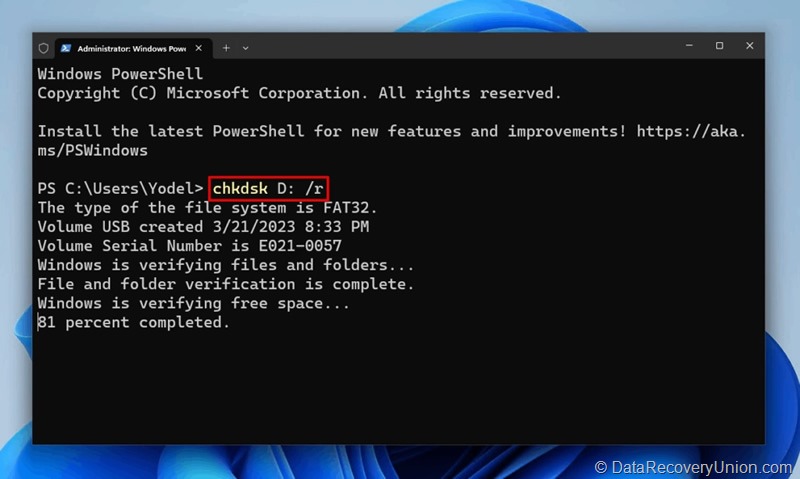
How It Works
- Without parameters: Only checks and reports status, does not fix.
- With repair parameters: Adding
/for/rinstructs CHKDSK to fix issues.
Common CHKDSK Commands
| Parameter | Function | Key Implication |
|---|---|---|
/f | Fixes errors on the disk | Corrects logical file system errors |
/r | Locates bad sectors and recovers readable information | Most thorough; includes all functionality of /f |
/x | Forces the volume to dismount before scanning | Includes functionality of /f |
/scan | Runs an online scan (NTFS only) | Less intrusive, can run while system is active |
How to Run CHKDSK
Via Command Prompt (Recommended for advanced users)
- Open as Administrator: Right-click Start → “Windows PowerShell (Admin)” or “Command Prompt (Admin)”.
- Type the command:
chkdsk [drive:] [parameters]- Example: Scan and fix drive D:
chkdsk D: /f - Thorough scan including bad sector recovery on C:
chkdsk C: /r
- Example: Scan and fix drive D:
- Schedule if needed: If drive is in use, prompted to schedule at next restart. Type
Yand restart.
Via Graphical Interface (Beginner-friendly)
- Open File Explorer → right-click the drive → Properties.
- Select Tools tab → under Error checking, click Check.
- Follow on-screen instructions; can select options to auto-fix errors and scan for bad sectors.
Important Notes
- Time: Can take minutes to several hours, depending on drive size, file count, and options.
- Interruption: Do not interrupt the process by restarting, as it can cause additional errors.
- Permission: Running CHKDSK with repair parameters requires administrative privileges.