
Recuva is a lightweight, user-friendly data recovery software designed to quickly retrieve lost, deleted, or inaccessible files from various storage devices, including hard drives, USB flash drives, memory cards, and more. Developed by Piriform Software Ltd., which is now part of Gen Digital Inc. (formerly Symantec), Recuva has been one of the most popular free data recovery tools since its initial release in August 2007.
Data recovery software is non-destructive and read-only, capable of providing safe and accurate retrieval of data from accidentally deleted files. All data including photos, pictures, videos, audio files, music, documents, and other common file types lost due to accidental deletion, virus damage, or emptying the Recycle Bin can be effectively recovered from all types of storage devices such as internal/external HDDs, SSDs, USB flash drives, pen drives, thumb drives, SD cards, memory sticks, and digital cameras.
Recuva works with storage devices of various capacities and supports Windows operating systems from Windows XP through Windows 11. The software is notable for its extremely user-friendly interface and its genuinely free version that imposes no limits on the amount of data you can recover.
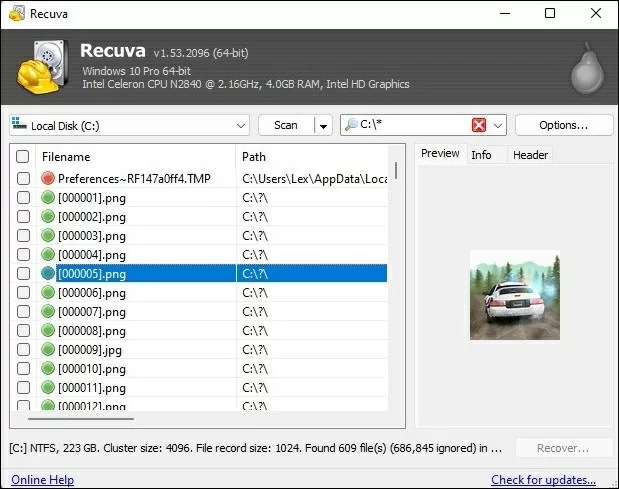
Key Features of Recuva
Here are the key features typically associated with Recuva:
Comprehensive Device Support
- Storage Devices: Supports HDD, SSD, USB flash drive, memory card (SD, microSD, CompactFlash), external hard drive, digital camera, MP3 player, and more.
- Recovery Sources: Can recover from Recycle Bin, document folders, media cards, and directly from storage devices.
- Optical Media: Can read from CDs, DVDs, and Blu-ray discs.
Multiple Data Loss Scenarios
- Accidental Deletion: Recovers files deleted from Recycle Bin or using Shift+Delete.
- Formatting Recovery: Retrieves data from drives that have been quick-formatted or reformatted.
- Corrupted Drive Recovery: Extracts data from damaged or corrupted drives.
- Virus Attack Recovery: Recovers files hidden or deleted by malware.
- Empty Recycle Bin Recovery: Recovers files after the Recycle Bin has been emptied.
File System Compatibility
Works with common Windows file systems including:
- FAT12, FAT16, FAT32 – Commonly used on USB drives and older systems.
- exFAT – Used on large-capacity flash drives and SDXC cards.
- NTFS/NTFS5 – Standard for Windows hard drives.
Simple and Lightweight Design
Recuva is designed to be as simple and lightweight as possible:
- Small File Size: The installer is approximately 25MB, making it quick to download and install.
- Wizard Interface: Includes a step-by-step recovery wizard that guides users through the entire process, making it ideal for beginners.
- Clean Interface: Simple, uncluttered user interface with no unnecessary complexity.
- Portable Version: Can be run directly from a USB drive without installation.
Color-Coded File Status Indicators
One of Recuva’s most useful features is its color-coded file status indicators:
- Green: Excellent – file is in good condition and very likely recoverable
- Yellow: Fair – file may be partially overwritten but still recoverable
- Red: Poor – file is likely overwritten and may be unrecoverable
These indicators help users quickly assess which files are worth attempting to recover without needing technical expertise.
Quick Scan and Deep Scan Modes
Recuva offers two scan modes to balance speed and thoroughness:
- Quick Scan: For recently deleted files and simple recovery scenarios. Fast and efficient for standard deletions.
- Deep Scan: For more difficult cases where files cannot be found by the standard scan. This mode thoroughly searches the drive sector by sector, looking for any traces of deleted files.
File Preview Functionality
Allows users to preview recoverable files before initiating the recovery process. This enables you to verify file integrity and content before committing to recovery, ensuring you only recover files that are intact and needed.
Secure File Deletion (Overwrite)
Recuva includes a secure file deletion feature that uses industry and military-standard overwriting techniques to ensure that sensitive files are permanently removed and cannot be recovered by any software.
Selective Recovery
Provides the option to selectively recover specific files or folders rather than restoring the entire scan results. You can use the filter and search functions to quickly locate specific files.
Supported File Types
Recuva can recover all common file types, including:
| Category | Supported File Extensions |
|---|---|
| Documents | DOC, DOCX, XLS, XLSX, PPT, PPTX, PDF, RTF, TXT, HTML, XML, WPS, EML, PST, DBX, CSV, ODT, ODS, ODP |
| Images & Graphics | JPG, JPEG, PNG, BMP, GIF, TIFF, PSD, CR2, NEF, ORF, RAW, DNG, HEIC |
| Audio & Video | MP3, WAV, WMA, AAC, FLAC, M4A, AVI, MP4, MOV, WMV, MKV, FLV, 3GP, MTS, M4V |
| Archives | ZIP, RAR, 7Z, TAR, GZ, CAB, ISO |
How to Use Recuva
Follow these simple steps to recover your lost data using Recuva:
- Download and Install – Download Recuva from the official website (www.ccleaner.com/recuva). Important: Do not install the software on the drive from which you want to recover data, as this may overwrite lost files. Install it on your local hard drive or another safe location.
- Launch Recuva – Double-click the Recuva icon to run the software. If this is your first time running the program, the recovery wizard will launch automatically.
- Select File Type (Optional) – Choose the type of file you want to recover (Pictures, Music, Documents, Videos, Emails, or All Files). Selecting a specific file type can speed up the scan.
- Select File Location – Choose where the file was located before deletion. Options include:
- Recycle Bin
- Documents folder
- Memory card/removable drive
- Specific location (browse to select a folder or drive)
- Scan the Drive – Click the “Scan” button to begin searching for deleted files. The quick scan is usually very fast. If you cannot find wanted files, enable “Deep Scan” for a more thorough search.
- Review Scan Results – Once scanning is complete, browse the recoverable files. Pay attention to the color-coded status indicators:
- Green – Excellent chance of recovery
- Yellow – Fair chance of recovery
- Red – Poor chance of recovery
- Select and Recover Files – Check the files you wish to recover. You can select multiple files using Ctrl or Shift keys. Click the “Recover” button and choose a destination location on a different drive to avoid data overwriting.
Editions and Pricing
Recuva is available in both free and paid versions:
| Edition | Price | Description |
|---|---|---|
| Free Version | Free | No limits on recovery amount. Includes advanced file recovery, deep scan mode, and secure overwrite. Does not include virtual hard drive support, auto-updates, or priority support. |
| Professional (Yearly Subscription) | $24.95/year | Adds virtual hard drive support, automatic updates, and priority customer support. Same recovery capabilities as free version. |
? Important Note: The free version of Recuva has no limitations on the amount of data you can recover. The Free version does exactly the same recovery as the Professional version. The Professional version primarily adds virtual drive support, auto-updates, and priority support – not better recovery capabilities.
System Requirements
Before installing Recuva, ensure your system meets the following requirements:
- Processor: Any Intel-compatible processor
- RAM: 256MB minimum (512MB or more recommended)
- Hard Disk Space: Approximately 25MB for software installation
- Supported Operating Systems:
- Windows 11, 10, 8.1, 8, 7, Vista, XP (32-bit and 64-bit)
- Windows Server 2022, 2019, 2016, 2012, 2008
- Permissions: Administrative privileges may be required for certain recovery operations
Known Limitations
While Recuva offers effective basic recovery features, users should be aware of the following limitations:
- SSD Recovery Limitations: Recuva struggles to restore files from SSD drives due to TRIM technology that permanently erases deleted data almost immediately.
- Lower Recovery Rate on Complex Cases: For complex recovery scenarios or severely corrupted drives, more powerful tools may achieve better results.
- No Virtual Drive Support in Free Version: The free version cannot recover from virtual drives (drives in memory only, not physical drives).
- No Automatic Updates in Free Version: Free users must manually download new versions.
- Limited Customer Support: Support is primarily via email, and response times may be slow for free users.
- Windows Only: Recuva is designed for Windows operating systems only. Mac users need alternative solutions.
- Physical Damage Not Covered: Cannot recover data from physically damaged drives. Hardware repair is required first.
- Overwritten Data Cannot Be Recovered: If lost files have been overwritten, the red status indicator will show this, but recovery remains impossible.
- No Recent Function Updates: There have been no major function updates to Recuva for many years – only minor maintenance updates.
Comparison at a Glance
| Feature | Recuva Free | Recuva Pro | Typical Competitors |
|---|---|---|---|
| Price | Free | $24.95/year | $70-$150 one-time |
| Recovery Limit | No limit | No limit | Often 1GB-2GB free tier |
| Deep Scan Mode | ✓ Included | ✓ Included | Usually included |
| File Preview | ✓ Included | ✓ Included | Standard feature |
| Virtual Drive Support | No | ✓ Yes | Not typical |
| SSD Recovery | Poor (TRIM issue) | Poor (TRIM issue) | Also affected by TRIM |
| Platforms | Windows only | Windows only | Often Windows & Mac |
| Ease of Use | Very easy (wizard mode) | Very easy | Varies |
Common Data Loss Scenarios Where Recuva Excels
- Accidental Deletion from Recycle Bin: You emptied the Recycle Bin – Recuva can quickly scan and recover recently deleted files.
- Shift+Delete Mistakes: Files deleted without going to Recycle Bin can be recovered effectively if not overwritten.
- Quick Format Recovery: Quick-formatted drives where the data hasn’t been overwritten – Recuva can retrieve files in many cases.
- USB Drive and Memory Card Recovery: Highly effective for recovering from USB flash drives and memory cards.
- Virus-Affected Drives: Files hidden or removed by malware can often be recovered.
- Quick File Checks: Need to see if a deleted file is still recoverable – the color-coded status indicators provide instant assessment.
Scenarios Where Recuva May Not Be Sufficient:
- SSD Recovery: Due to TRIM technology, recently deleted files on SSDs are often permanently erased almost immediately.
- Severely Corrupted Drives: Drives with extensive file system damage may require more powerful tools.
- Lost Partitions: Recuva cannot recover entire lost partitions like some competitors.
- System Crash Recovery: No bootable media option means you cannot recover from a computer that won’t start.
- Physically Damaged Drives: Hardware issues require professional repair first.
Final Verdict: Is Recuva Right for You?
Recuva is an excellent choice for users who need a simple, fast, and genuinely free data recovery tool for basic recovery scenarios. Its user-friendly wizard interface, color-coded status indicators, and completely free unlimited recovery make it stand out as one of the best free data recovery tools available.
This software is ideal for:
- Home Users: Perfect for recovering accidentally deleted family photos, school documents, or personal files without spending money.
- Budget-Conscious Users: The completely free version with no recovery limits is rare and valuable.
- Quick Recovery Needs: When you need to recover a recently deleted file quickly without complex setup.
- Beginners: The wizard-driven interface makes Recuva one of the easiest recovery tools to use.
- USB Drive Recovery: Highly effective for recovering from USB flash drives and memory cards.
- Anyone Who Wants to Test Recoverability: The free version lets you scan any drive and see exactly which files are recoverable (green/yellow/red indicators) without any cost.
Consider alternatives if:
- You need to recover data from an SSD where TRIM has been active.
- You need to recover a lost partition.
- Your drive is severely corrupted – more powerful tools like Disk Drill or R-Studio may be needed.
- You need to recover data from a computer that won’t boot (no bootable media in Recuva).
- You are a Mac user – Recuva is Windows-only.
- You need professional-grade recovery for RAID arrays or enterprise storage.
Pro Tip: After data loss, stop using the affected drive immediately. Do not add new files, run disk repair tools like CHKDSK, or attempt to format the drive. The more you use the drive, the higher the chance that lost files will be overwritten and become permanently unrecoverable. Use Recuva’s color-coded status indicators to quickly assess your chances – green means excellent, yellow means fair but possible, and red means the file is likely gone. Always save recovered files to a different drive than the one you’re recovering from. For SSD recovery, time is especially critical – TRIM can permanently erase data within hours of deletion.
Official website: www.ccleaner.com
Disclaimer: Recovery success depends on multiple factors, including how long ago data was lost, whether the drive has been used since the loss, and the extent of corruption. No data recovery software can guarantee 100% recovery in all situations. This article is for informational purposes only. All product names, logos, and brands are property of their respective owners.

