
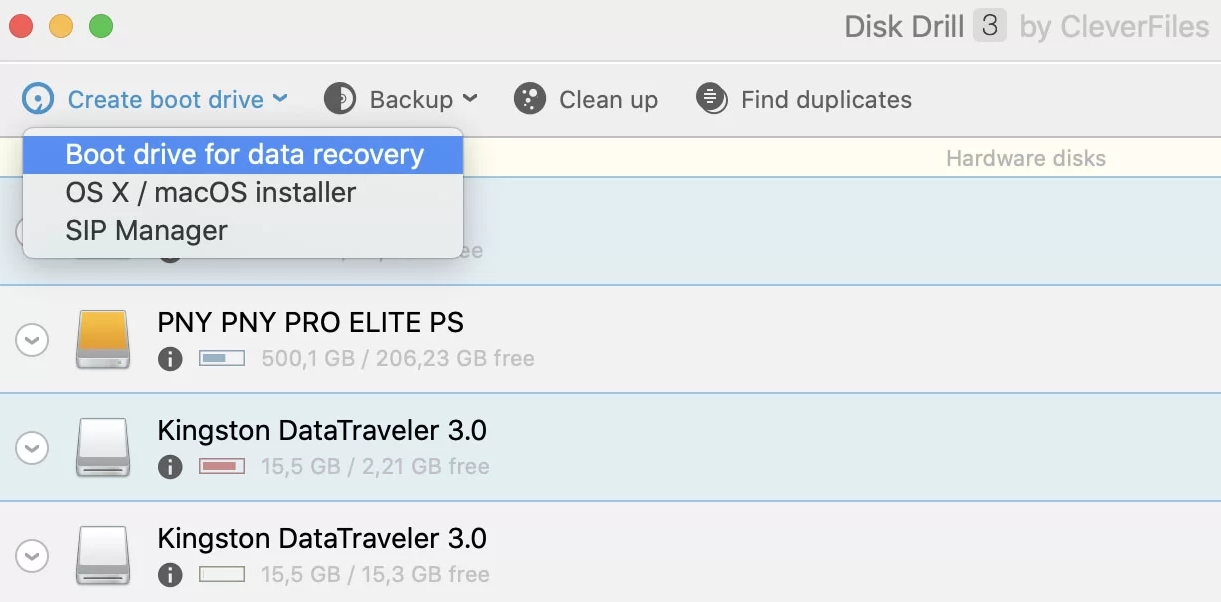
Disk Drill has the capability to create a bootable macOS USB drive specifically for data recovery purposes. This feature is designed to help users recover files from a Mac that may not start up normally or when you want to avoid writing any new data to the drive you are trying to recover.
Purpose of the Bootable USB Feature
The primary reason for creating a bootable drive is to perform data recovery in the safest possible environment. When a Mac is running normally, the operating system and background processes are constantly writing data to the system drive, which can overwrite deleted files and make them unrecoverable. Booting from a separate USB drive allows you to run Disk Drill without touching the problematic internal drive, maximizing the chance of a successful recovery.
How to Create a Bootable USB Drive with Disk Drill
The process is designed to be straightforward and automated, requiring just a few steps.
1. Install Disk Drill on a Working Mac
You will need to use a working Mac to create the bootable drive. Download and install Disk Drill on this machine, but be aware that it is best to install the software on a different drive than the one you intend to recover data from.
2. Connect a USB Drive
Connect a USB flash drive or an external hard drive to the working Mac. The drive needs to be at least 8GB in size, and Disk Drill will format it, erasing all existing data.
3. Use the “Create Boot Drive” Feature
Launch Disk Drill and look for the “Create Boot Drive” option on the main toolbar or within the “Extra Tools” section. This feature is available in all versions of the software.
4. Follow the On-Screen Prompts
Disk Drill will guide you through the selection of a source volume (which contains the system files to copy) and the destination USB drive. The application automates the process of creating the bootable macOS drive.
Important Considerations and Limitations
- macOS Version Support: The bootable drive feature is compatible with macOS versions from 10.11 (El Capitan) through the latest releases. The source for the system files must come from a macOS installation on the Mac you are using to create the drive.
- Recent macOS Changes: Starting with Disk Drill 4, the application introduced a new method to launch in macOS Recovery Mode without needing a separate USB drive. This was due to changes in macOS Big Sur that made creating a bootable USB more complex. Both methods serve the same purpose of avoiding writes to the source drive.
- Use for Data Recovery: The bootable drive created by Disk Drill is specifically for running its data recovery algorithms. It is not designed to be a general-purpose macOS installer, though the tool also includes a separate “macOS Installer” feature for creating installation drives.
- Booting from the USB: To use the drive, insert it into the Mac with the lost data, restart, and hold down the Option (⌥) key during boot to select the “Disk Drill Recovery” drive from the Startup Manager.
In summary, Disk Drill does offer a functional and user-friendly method for creating a bootable macOS USB drive. While recent versions have also introduced a USB-free Recovery Mode option, the bootable drive remains a valuable tool for data recovery, particularly on older systems or when you need a physical, independent recovery environment.
Official website: www.cleverfiles.com