
Recover My Files is a professional-grade data recovery software designed to retrieve lost, deleted, or inaccessible files from various storage devices, including hard drives, USB flash drives, memory cards, and more. Developed by GetData, a company with over two decades of experience in data recovery technology, Recover My Files has been a trusted solution for both home users and IT professionals since its initial release.
Data recovery software is non-destructive and read-only, capable of providing safe and accurate retrieval of data from inaccessible, formatted, corrupted, or undetectable storage media. All data including photos, pictures, videos, audio files, music, documents, emails, archives, and other file types lost due to accidental deletion, virus damage, drive corruption, formatting, partition loss, software failure, or system crash can be effectively recovered from all types of storage devices such as internal/external HDDs, SSDs, USB flash drives, pen drives, thumb drives, SD cards, memory sticks, and digital cameras.
Recover My Files works with storage devices of all capacities and supports Windows operating systems from Windows 7 through Windows 11, as well as Windows Server editions. The software is known for its powerful scanning engine that can detect files deleted years ago, provided the hardware has not been replaced or the data overwritten.
Key Features of Recover My Files
Here are the key features typically associated with Recover My Files:
Comprehensive Device Support
- Storage Devices: Supports HDD, SSD, USB flash drive, memory card (SD, microSD, CompactFlash), external hard drive, digital camera, and more.
- Disk Interfaces: Compatible with SATA, IDE, SCSI, NVMe, and USB interfaces.
- File Systems: Supports FAT16, FAT32, exFAT, NTFS, ReFS, and more.
Multiple Data Loss Scenarios
- Accidental Deletion: Recovers files deleted from Recycle Bin or using Shift+Delete.
- Formatting Recovery: Retrieves data from drives that have been quick-formatted or fully formatted.
- Partition Recovery: Restores lost or deleted partitions and rebuilds corrupted partition tables.
- Corrupted Drive Recovery: Extracts data from drives that appear as RAW or are inaccessible.
- System Crash Recovery: Recovers data from unbootable systems when used as a secondary drive.
- Virus Attack Recovery: Recovers files hidden, deleted, or encrypted by malware.
- Emptied Recycle Bin: Recovers files after the Recycle Bin has been emptied.
Three Specialized Recovery Modes
Recover My Files features three dedicated recovery modes, each designed for specific data loss scenarios:
- Fast Search: For recently deleted files and simple recovery scenarios. This mode searches for recently deleted files, recently deleted folders, and temporary files. It is the fastest option and ideal for standard deletion cases.
- Complete Search: For more complex recovery needs. This mode performs a full cluster-level search of the hard drive for lost files. While it takes longer than Fast Search, it can potentially recover significantly more files, including those lost to formatting or corruption.
- Format Recovery: Specifically designed for retrieving data from drives that have been formatted. This mode is optimized for scanning drives where the file system has been reinitialized.
File Signature Recognition Technology
Recover My Files uses advanced file signature recognition technology to identify and recover files even when the file system is damaged. This technology works by scanning the raw data on the drive and matching patterns (headers and footers) that are unique to specific file types. This allows the software to recover files from drives with severely damaged file systems where traditional recovery methods fail.
File System Structure Reconstruction
The software can reconstruct damaged or missing file system structures, enabling it to recover folder hierarchies and original filenames whenever possible. This advanced feature sets Recover My Files apart from basic file carving tools that can only recover files with generic names.
File Preview Functionality
Allows users to preview recoverable files before initiating the recovery process. The preview feature supports a wide range of file types including images, documents, videos, and audio files. For common document types like Word and Excel files, you can preview the content before deciding to recover. This enables you to verify file integrity and content before committing to recovery, ensuring you only recover files that are intact and needed.
Selective & Filtered Recovery
Provides the option to selectively recover specific files or folders rather than restoring the entire scan results. Files are organized by file type and directory structure for easy browsing. You can filter results by file name, size, date modified, and status to quickly locate specific files.
RAW Disk Recovery
Specialized recovery feature that can extract data from RAW drives and drives with no detectable file system. This is particularly useful when Windows cannot recognize the drive or when the partition table is completely destroyed.
Save and Resume Scan Results
Allows you to save scan results to a file and reload them later. This eliminates the need to rescan large drives repeatedly – simply load the previous recovery result and proceed directly to file recovery. This is especially valuable for large capacity drives where scanning takes hours. However, it is important to note that you should avoid writing new data to the problem drive after saving scan results, as this can invalidate the saved data.
Export Folder Structure
Can export the recovered folder structure, making it easier to organize and manage recovered files. This feature is particularly useful when recovering large numbers of files from complex directory hierarchies.
Supported File Types
Recover My Files supports recovery of hundreds of file types across all major categories, including:
| Category | Supported File Extensions |
|---|---|
| Documents | DOC, DOCX, XLS, XLSX, PPT, PPTX, PDF, RTF, TXT, CSV, WPD, PUB, PST, DBX, MDB |
| Images & Graphics | JPG, JPEG, PNG, BMP, GIF, TIFF, TIF, PSD, DWG, CDR, WMF |
| Audio & Video | MP3, WAV, WMA, AVI, MP4, MOV, WMV, ASF, MPEG, VOB |
| Archives | ZIP, RAR, 7Z, TAR, GZIP, CAB |
| Web & Other | HTML, XML, PMD, VSD, ZDP, SDR |
How to Use Recover My Files
Follow these simple steps to recover your lost data using Recover My Files:
- Download and Install – Download Recover My Files from the official website. Important: Do not install the software on the drive from which you want to recover data, as this may overwrite lost files. Install it on your local hard drive or another safe location. If possible, connect the problem drive as a secondary drive to another computer to minimize the risk of data overwriting.
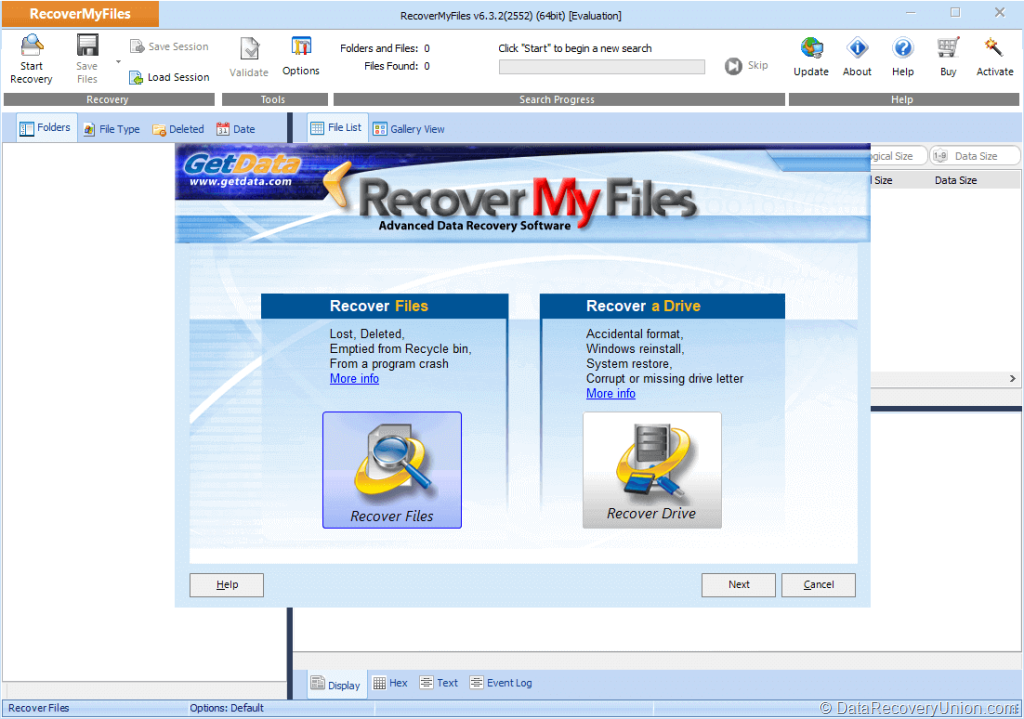
- Launch and Select Recovery Mode – Launch Recover My Files. The main window presents two primary options:
- Recover Files: For recovering accidentally deleted files from a specific drive or folder.
- Recover Drive: For recovering data from formatted drives, lost partitions, or severely corrupted media.
- Select the Target Drive – Choose the drive, partition, or storage device you want to scan. The software displays all connected drives and partitions for easy selection.
- Select Recovery Type – Choose the appropriate recovery option based on your data loss situation:
- Fast Search: For recently deleted files – fastest option.
- Complete Search: For more thorough recovery – slower but more comprehensive.
- Format Recovery: Specifically for formatted drives.
- Scan the Drive – Click “Start” to begin the recovery process. The software displays found files in real-time as the scan progresses. You can stop the scan when the file count stabilizes to save time.
- Preview and Select Files – As files are found, you can preview them. Browse the recoverable files, organized by file type and directory structure. Use the preview function to verify file integrity. You can sort results by clicking column headers: Name, Folder, Size, Date Modified, Status.
- Recover Files – Select the files or folders you wish to restore. You can select multiple files using Ctrl or Shift keys. Click the “Recover” or “Save” button and choose a destination location on a different drive to avoid overwriting data.
Advanced Tips for Best Results
- Use as a secondary drive: If your data loss affects an entire drive, the best approach is to connect the problem drive as a secondary drive to another computer (via USB external enclosure is easiest). Install Recover My Files on the working computer’s C: drive and scan the problem drive. This minimizes the risk of data overwriting.
- Save scan results: Use the “Save Scan” option to preserve scan results and reload them later without rescanning.
- Sort and filter: Use column sorting and file type filtering to quickly locate specific files among thousands of results.
- Act quickly: The sooner you attempt recovery after data loss, the higher your chances of success.
Editions and Pricing
Recover My Files is shareware – the free version allows scanning and previewing of recoverable files, but actual recovery requires a paid license.
| Edition | Description |
|---|---|
| Free Trial / Demo Version | Allows scanning and previewing of recoverable files. File recovery is disabled in the unregistered version. Use the trial to verify that your files can be recovered before purchasing. |
| Standard License | Full recovery capabilities for personal use on a single PC. Includes all recovery modes and features. |
| Professional / Technician License | For data recovery professionals and IT support. Includes advanced features and commercial usage rights. |
Note: Recover My Files is shareware, meaning the free version is fully functional for scanning and previewing, but you must purchase a license to actually recover files. This allows you to verify that the software can find your lost files before you commit to purchasing.
System Requirements
Before installing Recover My Files, ensure your system meets the following requirements:
- Processor: Intel-compatible processor
- RAM: 512MB minimum (1GB or more recommended for better performance)
- Hard Disk Space: Approximately 8-15MB for software installation, plus additional space for recovered files
- Supported Operating Systems:
- Windows 11, 10, 8.1, 8, 7, Vista, XP (32-bit and 64-bit)
- Windows Server 2019, 2016, 2012, 2008, 2003
- Windows 9X, Me, NT, 2000
- Permissions: Administrative privileges may be required for certain recovery operations
Known Limitations
While Recover My Files offers powerful and comprehensive recovery features, users should be aware of the following limitations:
- No Free Recovery Tier: The free version allows scanning and previewing only. You cannot recover any files without purchasing a license, unlike some competitors that offer 1GB-2GB free recovery.
- Windows Only: Recover My Files is designed for Windows operating systems only. Mac and Linux users need alternative solutions.
- Physical Damage Not Covered: Cannot recover data from physically damaged drives (broken connectors, burned circuit boards, water damage, or mechanical failures). Hardware repair is required first.
- Overwritten Data Cannot Be Recovered: If lost files have been overwritten by new data on the drive, recovery becomes impossible regardless of software quality.
- TRIM on SSDs: On modern SSDs with TRIM enabled, recently deleted files may be permanently erased almost immediately due to garbage collection. This affects all data recovery software, including Recover My Files.
- Deep Scans Take Time: Complete Search and Format Recovery scans of large capacity drives can take many hours. The scan engine’s thoroughness comes at the cost of speed.
- Older Interface: The user interface has a dated appearance compared to modern competitors like Disk Drill or EaseUS.
- No Bootable Media: Does not include the ability to create bootable recovery media for system crash scenarios.
Comparison at a Glance
| Feature | Recover My Files | Typical Competitors |
|---|---|---|
| Free Tier | Scan & preview only (no recovery) | Often 1GB-2GB free recovery |
| Recovery Modes | 3 dedicated modes (Fast, Complete, Format) | Often Quick + Deep Scan only |
| File Preview | ✓ Included for many file types | Standard feature |
| File Signature Technology | ✓ Advanced recognition | Usually included |
| Folder Structure Recovery | ✓ File system reconstruction | Often limited |
| Save Scan Results | ✓ Available | Not always available |
| Bootable Media | Not available | Often premium feature |
| Platforms | Windows only | Often Windows & Mac |
| Years in Market | 20+ years | Varies |
Common Data Loss Scenarios Where Recover My Files Excels
- Accidental Deletion: You emptied the Recycle Bin or used Shift+Delete – Recover My Files can quickly scan and recover recently deleted files using Fast Search mode.
- Formatting: Whether quick format or full format on a USB drive, hard drive, or memory card – the Format Recovery mode is specifically designed for this scenario.
- Corrupted or RAW Drive: When Windows says “You need to format the disk before you can use it,” Recover My Files can bypass the corruption and extract your files using Complete Search and RAW disk recovery.
- Lost Partition: After partition deletion or MBR corruption, the Recover Drive option can scan the entire physical drive and recover lost partitions.
- USB Drive Recovery: Recover My Files is particularly effective at recovering data from USB flash drives that have been formatted or corrupted.
- Old Deleted Files: The software’s scanning engine can detect files deleted years ago, provided the hardware has not been replaced or the data overwritten.
Best Practices for Recovery
To maximize your chances of successful recovery, follow these best practices:
- Stop using the affected drive immediately – Any new data written could overwrite your lost files. This is the single most important factor in successful recovery.
- Install the software on a different drive – Do not install Recover My Files on the drive you want to recover from. Use a different drive or a USB drive if necessary.
- Use the affected drive as a secondary drive – For the best results, connect the problem drive to another computer as a secondary drive. This eliminates any risk of the operating system writing data to the drive during normal operation.
- Save recovered files to a different drive – Never save recovered files back to the same drive you’re recovering from.
- Act quickly – The sooner you attempt recovery after data loss, the higher your chances of success.
- Use the appropriate recovery mode – Fast Search for recent deletions, Complete Search for complex cases, and Format Recovery specifically for formatted drives.
- Preview before recovering – Use the preview function to verify that files are intact before recovery.
Support and Customer Service
GetData, the developer of Recover My Files, offers customer support options for registered users:
- Email Support: Available for technical questions and troubleshooting
- Knowledge Base: Online documentation and FAQ covering common issues
- User Guide: Comprehensive help documentation included with the software
- Video Tutorials: Step-by-step video guides for common recovery scenarios
Final Verdict: Is Recover My Files Right for You?
Recover My Files is a mature, reliable data recovery tool that has been serving users for over 20 years. Its three specialized recovery modes, advanced file signature recognition, and file system reconstruction capabilities make it a powerful solution for Windows-based data recovery. The software is particularly known for its ability to recover files from formatted drives and its effectiveness in retrieving older deleted files.
This software is ideal for:
- IT Professionals and System Administrators: The comprehensive recovery modes and advanced scanning engine provide the depth needed for complex recovery scenarios.
- Windows Users: Anyone running Windows who needs a reliable, time-tested recovery solution.
- Recovering from Formatted Drives: The dedicated Format Recovery mode makes it particularly effective for this common data loss scenario.
- Users with Older Deleted Files: The powerful scanning engine can detect files deleted years ago.
- Budget-Conscious Users (with verification): The free trial allows you to verify that your files are recoverable before you purchase.
Consider alternatives if:
- You need free recovery capability – Recover My Files offers no free recovery (scan/preview only), while competitors like Recuva offer unlimited free recovery.
- You are a Mac or Linux user – Recover My Files is Windows-only.
- You need bootable media for system crash recovery – this feature is not available.
- You prefer a modern, visually polished interface – the interface has a dated appearance.
- Your drive is physically damaged – professional hardware repair services are required regardless of software.
Pro Tip: After data loss, stop using the affected drive immediately. Do not add new files, run disk repair tools like CHKDSK, or attempt to format the drive. The more you use the drive, the higher the chance that lost files will be overwritten and become permanently unrecoverable. For the best results, connect the problem drive as a secondary drive to another computer before running Recover My Files. Use the free trial first to scan and preview your files – this confirms whether your data can be recovered before you purchase a license. Always save recovered files to a different drive than the one you’re recovering from.
Office website: www.recovermyfiles.com
Disclaimer: Recovery success depends on multiple factors, including how long ago data was lost, whether the drive has been used since the loss, and the extent of corruption or physical damage. No data recovery software can guarantee 100% recovery in all situations. This article is for informational purposes only. All product names, logos, and brands are property of their respective owners.
