
DMDE Data Recovery is a powerful, professional-grade data recovery software designed to retrieve lost, deleted, or inaccessible files from various storage devices, including hard drives, SSDs, USB flash drives, memory cards, and RAID arrays. Developed by Dmitry Sidorov, a software engineer who has been continuously improving DMDE since 2006, this tool has earned a reputation among IT professionals, data recovery specialists, and advanced users for its ability to handle complex recovery scenarios that other software cannot solve.
Data recovery software is non-destructive and read-only, capable of providing safe and accurate retrieval of data from inaccessible, formatted, corrupted, or undetectable storage media. All data including photos, pictures, videos, audio files, music, documents, emails, archives, and other file types lost due to accidental deletion, virus damage, drive corruption, formatting, partition loss, software failure, or system crash can be effectively recovered from all types of storage devices such as internal/external HDDs, SSDs, USB flash drives, pen drives, thumb drives, SD cards, memory sticks, and digital cameras.
DMDE works with storage devices of all capacities and supports Windows, macOS, Linux, and DOS operating systems. Unlike many competitors that charge high subscription fees, DMDE offers one of the most generous free tiers on the market, making it accessible to users with modest data loss needs.
What is DMDE?
DMDE stands for DM Disk Editor and Data Recovery software. It is a multi-functional tool that combines three core capabilities:
- Data Recovery: Recovers deleted files and data from damaged or formatted drives
- Disk Editor: Allows low-level editing of disks, partitions, and sectors
- Partition Management: Creates, deletes, and manages disk partitions
The software is designed for users who need granular control over the recovery process. Unlike one-click recovery tools, DMDE gives you direct access to the underlying disk structures, allowing you to analyze and reconstruct data manually when automatic scans fail.
Key Features of DMDE
Here are the key features typically associated with DMDE Data Recovery:
Comprehensive Device Support
- Storage Devices: Supports HDD, SSD, USB flash drive, memory card (SD, microSD, CompactFlash), external hard drive, digital camera, and more.
- RAID Support: Supports RAID 0, RAID 1, RAID 4, RAID 5, RAID 6, and RAID 10 configurations through automatic and manual parameter detection.
- Virtual RAIDs: Can work with virtual RAID configurations including Windows Storage Spaces, Linux mdadm, and other software RAIDs.
- Disk Images: Supports popular disk image formats including raw (dd), ISO, AFF, and EWF (E01).
File System Compatibility
DMDE supports an extensive range of file systems:
- Windows: FAT12, FAT16, FAT32, exFAT, NTFS, NTFS5, ReFS
- macOS: HFS, HFS+, HFSX, APFS
- Linux/UNIX: Ext2, Ext3, Ext4, XFS, JFS, ReiserFS, UFS, UFS2, ZFS
- Other: VMFS (VMware), BSD, Sun Solaris, and more
Advanced Scanning Technologies
DMDE features multiple scanning modes for different recovery scenarios:
- Quick Scan (Deleted File Recovery): For recently deleted files where the file system metadata is still intact. This mode is fast and efficient.
- Full Scan (Partition Search): For lost or deleted partitions. Scans the drive for partition boot sectors and superblocks to reconstruct partition tables.
- RAW Scan (File Carving): For formatted or severely damaged drives. Scans every sector of the drive using file signatures to recover files regardless of file system integrity.
File Preview Functionality
Allows users to preview recoverable files before initiating the recovery process. The preview feature supports a wide range of file types including images, documents, and text files. This enables you to verify file integrity and content before committing to recovery, ensuring you only recover files that are intact and needed.
Disk Editor and Hex Viewer
One of DMDE’s standout features is its built-in disk editor, which provides:
- Hex View: View and edit disk sectors in hexadecimal format
- Disk Cloning: Create sector-by-sector copies of entire drives or selected ranges
- Manual Partition Repair: Edit partition tables and boot sectors directly
- Search and Replace: Find specific hex patterns and replace them
- Undo Function: Revert changes made during editing
RAID Recovery Capabilities
DMDE is known for its powerful RAID reconstruction features:
- Automatic Detection: Automatically detects RAID parameters including block size, order, offsets, and parity placement.
- Manual Configuration: Allows manual specification of RAID parameters for complex or custom RAID setups.
- RAID Levels: Supports RAID 0 (striping), RAID 1 (mirroring), RAID 4, RAID 5, RAID 6, and RAID 10.
- Virtual RAIDs: Can reconstruct data from Windows Storage Spaces, Apple CoreStorage, Linux mdadm, and other software RAID implementations.
Partition Management Tools
DMDE includes built-in partition management capabilities:
- Partition Creation and Deletion: Create and delete disk partitions
- Partition Formatting: Format partitions with various file systems
- Boot Sector Management: View and edit boot sectors
- MBR and GPT Editing: Directly edit Master Boot Record and GUID Partition Table structures
Disk Imaging and Cloning
DMDE includes comprehensive disk imaging capabilities:
- Sector-by-Sector Cloning: Create exact copies of entire drives
- Range Selection: Clone only specific LBA ranges to save time
- Skip Bad Sectors: Configure the software to skip unreadable sectors during cloning
- Image Formats: Supports raw (dd), ISO, and custom DMDE image formats
Lightweight and Portable
DMDE is designed to be small and fast:
- Small File Size: The entire program is typically under 10MB, making it easy to download and run from a USB drive.
- No Installation Required: Can run directly from the executable file without installation (portable version available).
- Low Resource Usage: Uses minimal RAM and CPU, making it suitable for older computers and bootable recovery environments.
- Fast Scanning: The scanning engine is optimized for speed, often completing scans faster than competitors.
Multiple Language Support
DMDE is available in multiple languages, including English, Russian, German, French, Spanish, Italian, Portuguese, Chinese, Japanese, and Korean, making it accessible to users worldwide.
Supported File Types
DMDE supports recovery of hundreds of file types across all major categories. Unlike many competitors, DMDE’s file signature database is constantly updated. Supported types include:
| Category | Supported File Extensions |
|---|---|
| Documents | DOC, DOCX, XLS, XLSX, PPT, PPTX, PDF, RTF, TXT, HTML, XML, ODT, ODS, ODP, WPD, PST, DBX, EML, MBOX, NSF, MDB, ACCDB, SQLITE, and more |
| Images & Graphics | JPG, JPEG, PNG, BMP, GIF, TIFF, TIF, PSD, CR2, CR3, NEF, ORF, RAW, ARW, DNG, HEIC, HEIF, WEBP, SVG, AI, EPS, CDR, DWG, DXF, ICO, and more |
| Audio & Video | MP3, WAV, WMA, AAC, FLAC, M4A, OGG, AVI, MP4, MOV, WMV, MKV, FLV, 3GP, MTS, M2TS, M4V, MPEG, MPG, VOB, and more |
| Archives | ZIP, RAR, 7Z, TAR, GZ, BZ2, CAB, ISO, DMG, and more |
How to Use DMDE
DMDE is a powerful tool with a more technical interface than consumer-focused alternatives. Follow these steps to recover your lost data:
- Download and Extract – Download DMDE from the official website. You can choose between the installer version or the portable version (no installation required). Important: Do not run the software from the drive from which you want to recover data. Extract and run from a different drive.
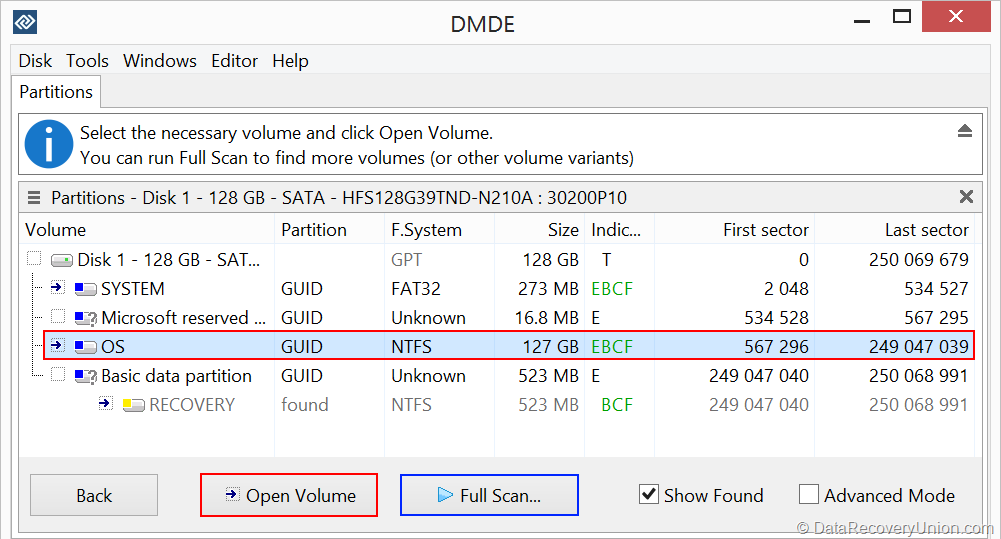
- Select the Disk – Launch DMDE. The main window displays a list of all physical drives detected on your system. Select the drive containing your lost data. You can select a physical disk or a logical volume.
- Select the Partition – DMDE will scan the drive for partitions and display them in a list. Select the partition where your data was lost. If the partition is missing or deleted, use the “Full Scan” option to search for it.
- Open Volume – Click “Open Volume” to access the file system structure of the selected partition. If the volume is damaged or cannot be opened, use the “RAW Scan” option.
- Browse and Recover – Navigate the file tree to find your lost files. Deleted files are typically marked with a special icon (often a red “X” or similar indicator). Select the files or folders you wish to recover.
- Recover Files – Right-click on the selected files and choose “Recover”. Specify a destination folder on a different drive to avoid overwriting data. You can also choose to recover the original folder structure.
Advanced Usage: Full Scan for Lost Partitions
If your partition is lost or deleted:
- Select the physical disk, not a logical volume
- Click “Full Scan” and choose the scan parameters
- DMDE will scan the drive for partition boot sectors and superblocks
- Review the found partitions and select the correct one
- Insert the partition into the partition table (or recover files directly from the found partition)
Advanced Usage: RAW Scan for Formatted Drives
If the file system is damaged or the drive has been formatted:
- Select the physical disk or logical volume
- Click “RAW Scan” (sometimes labeled as “File Carving” or “Scan by Signatures”)
- Select the file types you want to recover
- Configure scan parameters (start LBA, end LBA, cluster size)
- Start the scan – this may take hours depending on drive size
- Browse recovered files by file type and recover them
Editions and Pricing
DMDE offers a very generous free tier and reasonably priced paid editions:
| Edition | Price | Description |
|---|---|---|
| Free Version | Free | Allows recovery of up to 4000 files from one folder per session. Sufficient for many personal recovery needs. No time limits. Includes all features including disk editor, RAID reconstruction, and partition management. One of the most generous free tiers available. |
| Standard Edition | Approximately $20 (one-time) | Removes the 4000-file recovery limit. Includes all recovery features. For personal use on one computer. Lifetime license with free updates. |
| Professional Edition | Approximately $50 (one-time) | For commercial and professional use. Includes all features plus technician-level tools. Lifetime license with free updates. |
Note: DMDE’s free tier is exceptionally generous compared to competitors. It allows recovery of up to 4000 files in one session – this is enough for most personal data loss incidents. The Standard edition is also very affordable at approximately $20, making DMDE one of the best value data recovery tools available.
System Requirements
Before using DMDE, ensure your system meets the following minimal requirements:
- Processor: Any x86 or x86-64 processor (including older CPUs)
- RAM: 256MB minimum (512MB or more recommended)
- Hard Disk Space: Approximately 10-15MB for the software, plus additional space for recovered files
- Supported Operating Systems:
- Windows 11, 10, 8.1, 8, 7, Vista, XP, 2000 (32-bit and 64-bit)
- Windows Server 2022, 2019, 2016, 2012, 2008, 2003
- macOS 10.9 and later (M1/M2/M3 Apple Silicon compatible)
- Linux (all major distributions)
- DOS
- Permissions: Administrative privileges required for direct disk access
Known Limitations
While DMDE offers powerful and professional-grade recovery features, users should be aware of the following limitations:
- Technical Learning Curve: DMDE has a more technical interface than consumer-focused tools like EaseUS or Recuva. Beginners may find the interface intimidating, and many features require understanding of disk structures.
- No Bootable Media: Unlike some competitors, DMDE does not include a bootable media creation tool. For system crash recovery, you would need to run DMDE from a bootable live Linux USB or similar environment.
- Limited Preview Function: The preview function works for many file types but does not support as many formats as premium competitors like Disk Drill or Wondershare Recoverit.
- No Built-in Video Repair: DMDE focuses on recovery, not repair. Unlike some competitors that offer video repair features, DMDE cannot fix corrupted video files after recovery.
- Older Interface: The user interface has a dated, utilitarian appearance compared to modern competitors. This reflects its focus on functionality over aesthetics.
- Physical Damage Not Covered: Cannot recover data from physically damaged drives (broken connectors, burned circuit boards, water damage). Hardware repair is required first.
- Overwritten Data Cannot Be Recovered: If lost files have been overwritten by new data, recovery becomes impossible regardless of software quality.
- TRIM on SSDs: On modern SSDs with TRIM enabled, recently deleted files may be permanently erased almost immediately. This affects all data recovery software, including DMDE.
Comparison at a Glance
| Feature | DMDE | Typical Competitors |
|---|---|---|
| Free Tier | 4000 files per session | Often 500MB-2GB limit |
| Standard License Price | ~$20 one-time | Often $70-$150 one-time |
| Professional License | ~$50 one-time | Often $100-$899 |
| Disk Editor | ✓ Advanced | Rarely available |
| RAID Recovery | ✓ RAID 0/1/4/5/6/10 | Often limited or premium |
| File Preview | ✓ Basic | Extensive |
| File Systems Supported | 15+ | Often 3-5 |
| Platforms | Windows, Mac, Linux, DOS | Often Windows only |
| Ease of Use | Technical | User-friendly |
Common Data Loss Scenarios Where DMDE Excels
- Complex Partition Issues: When partition tables are corrupted, overwritten, or deleted, DMDE’s Full Scan can locate lost partitions that other tools miss. The ability to manually edit partition structures gives advanced users complete control.
- RAID Reconstruction: When a RAID array has failed and the RAID controller is not functioning, DMDE can reconstruct the array virtually by analyzing the individual drives.
- Formatted Drives: After accidental formatting, DMDE’s RAW scan can recover files by signature, even when the file system is completely overwritten.
- Bad Sectors and Failing Drives: The disk cloning tool can create images of failing drives, skipping bad sectors to preserve as much data as possible.
- Cross-Platform Recovery: When you need to recover files from a Mac or Linux drive using Windows, DMDE supports all major file systems.
- Forensic Analysis: The hex editor and low-level disk access make DMDE suitable for forensic data analysis and manual data carving.
Advanced Features for Power Users
DMDE includes several features specifically designed for advanced users and IT professionals:
Disk Cloning with Bad Sector Handling
The disk cloning tool allows you to create sector-by-sector copies of drives while handling bad sectors. You can configure the software to:
- Skip unreadable sectors after a set number of retries
- Log the location of bad sectors for later analysis
- Clone only specific LBA ranges
- Continue cloning after interruption
Hex Editor with Templates
The built-in hex editor allows you to view and edit raw disk sectors. DMDE includes templates that parse common data structures, making it easier to understand what you are looking at:
- Partition table templates (MBR and GPT)
- Boot sector templates (FAT, NTFS, exFAT)
- Superblock templates (Ext, XFS, ReiserFS)
- Custom templates for advanced users
File System Browser
DMDE includes a file system browser that shows the raw file system structures:
- Directory entries and file records
- Cluster chains and allocation maps
- Metadata structures (MFT for NTFS, inodes for Ext, etc.)
RAID Parameter Detection
The RAID reconstruction tool can automatically detect RAID parameters including:
- Stripe/block size
- Drive order
- Parity distribution and rotation
- Parity direction (left/right, sync/async)
- Delay (offset) for each drive
Support and Customer Service
DMDE offers customer support options for registered users:
- Email Support: Available for technical questions and troubleshooting
- Documentation: Comprehensive user manual included with the software (PDF format)
- Online Help: Built-in help system with context-sensitive assistance
- FAQ: Extensive frequently asked questions covering common issues
Final Verdict: Is DMDE Right for You?
DMDE Data Recovery is one of the most powerful and affordable data recovery tools available. Its combination of advanced features, extensive file system support, and generous free tier make it an excellent choice for users who need more than basic undelete capabilities. The software is particularly well-suited for IT professionals, data recovery technicians, and advanced users who are comfortable working with technical tools.
This software is ideal for:
- IT Professionals and System Administrators: The disk editor, RAID reconstruction, and partition management tools are invaluable for professional environments.
- Data Recovery Technicians: Low-level access to disk structures and advanced scanning options provide the control needed for complex recovery cases.
- Advanced Users: Users who understand disk structures (MBR, GPT, file systems) and want granular control over the recovery process.
- Budget-Conscious Users: The free tier (4000 files per session) is generous enough for many personal recovery needs. The Standard edition is also very affordable at approximately $20.
- Cross-Platform Environments: Support for Windows, Mac, Linux, and DOS makes DMDE versatile for mixed environments.
- RAID Users: Those with RAID 0, 1, 5, 6, or 10 arrays need specialized recovery tools like DMDE.
Consider alternatives if:
- You prefer a simple, one-click interface with guided workflows – consumer tools like EaseUS or Recuva are easier for beginners.
- You need video repair capabilities – DMDE focuses on recovery, not repair.
- You need bootable media for system crash recovery – DMDE requires an external OS to run.
- You want extensive file preview across many file types – competitors like Disk Drill offer broader preview support.
- Your drive is physically damaged – professional hardware repair services are required regardless of software.
Pro Tip: After data loss, stop using the affected drive immediately. Do not add new files, run disk repair tools like CHKDSK, or attempt to format the drive. The more you use the drive, the higher the chance that lost files will be overwritten. DMDE’s free tier allows recovery of up to 4000 files – try this first before purchasing. For best results on complex cases, create a disk image before attempting recovery. The disk editor and hex viewer are powerful tools – use them carefully as changes cannot be undone. Always save recovered files to a different drive.
Official website: dmde.com
Disclaimer: Recovery success depends on multiple factors, including how long ago data was lost, whether the drive has been used since the loss, and the extent of corruption or physical damage. No data recovery software can guarantee 100% recovery in all situations. This article is for informational purposes only. All product names, logos, and brands are property of their respective owners.
