
Data recovery on vintage hard drives like the Hitachi HDT722525DLAT80 starts with identifying the failure type – electronic, firmware, or mechanical. Each requires a different approach, and misdiagnosis can make things worse. Here’s a quick guide to help you assess your situation and decide on the next step.
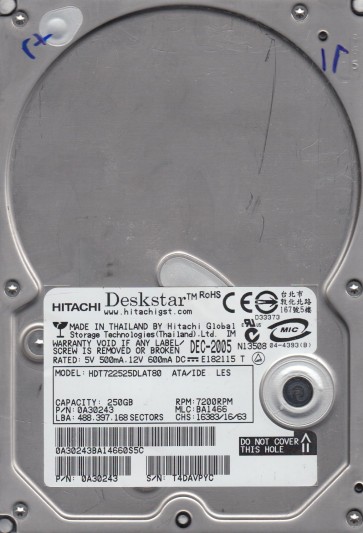
The Hitachi HDT722525DLAT80 is a 250GB 3.5-inch PATA (Parallel ATA) hard drive from the Deskstar 7K250 series, manufactured by Hitachi Global Storage Technologies (now part of Western Digital/now defunct as a brand). This drive utilizes a conventional magnetic recording technology with a rotational speed of 7200 RPM. Key components include a fluid dynamic bearing spindle motor, a rotary voice coil actuator, and a single glass or aluminum platter. The HDT722525DLAT80 is known for its relatively quiet operation but has a recognized failure pattern concerning read/write head degradation and firmware issues common to the 7K250 platform. It uses a FDB (Fluid Dynamic Bearing) motor which is generally robust but can suffer from stiction over time. The controller board features a Marvell or similar controller chip and a flash memory chip for storing adaptive data and firmware.
Identifying Common Failure Types
1. Mechanical Failure – Head Crash / Stiction
This is a prevalent issue in older drives like the 7K250 series. Symptoms include a repetitive ticking sound (heads attempting to reset) or a loud scratching noise. The drive may fail to spin up, or spin and then stop abruptly. A head crash often leads to physical damage to the platter surface, making data recovery highly complex. Stiction (sticktion) occurs when the read/write heads adhere to the platter surface, typically after prolonged inactivity, causing the motor to be unable to spin the platters free.
2. Firmware Corruption / Translator Issues
Deskstar 7K250 drives are susceptible to firmware corruption, particularly within the SA (System Area) on the platters. Symptoms include the drive being detected incorrectly (e.g., as “0GB” or a nonsensical model number), clicking but no rotation, or the drive spinning up but not being recognized by the operating system. This is a logical failure that mimics physical damage. A corrupt translator module can lead to incorrect LBA addressing and data misalignment.
3. Electronic Failure – PCB / Preamp Failure
The drive’s printed circuit board (PCB) can fail due to voltage spikes, capacitor degradation, or a shorted preamplifier. Symptoms: the drive is completely dead (no spin, no sound) or it spins but the heads never move. A common failure point is the TVS diode or the motor controller chip. The preamplifier (preamp) is located on the flex cable inside the drive and can be damaged by static discharge or physical shock, manifesting as immediate head failure after spin-up.
4. Bad Sectors / Media Degradation
Over time, the magnetic media can degrade, leading to sectors that cannot be read. This is often accompanied by slow read times, file system errors (chkdsk stops), or the operating system freezing. While often a software-addressable issue, if the degradation is severe and affects the firmware area, it becomes a hardware-level recovery case. With this drive, media wear is common in high-use environments.
Potential Recovery Paths
Professional Services (Recommended for Physical or Complex Issues)
For Mechanical/Firmware Issues: If you hear clicking, scratching, or the drive is not detected, professional intervention is mandatory. A recovery lab (e.g., DriveSavers, Ontrack, or a local certified HDD recovery center) will use a class 100 cleanroom to open the drive, perform a head transplant (if needed using a donor drive of identical model and firmware revision), or use specialized tools (e.g., PC-3000, DeepSpar DDI) to read firmware modules and clone the platters sector-by-sector. Cost: $500 – $3000+ depending on complexity.
For Electronic Failure (PCB): A professional can replace the PCB with a matched donor board, transplant the firmware ROM chip (or re-program it) to make the new PCB compatible with the original drive’s adaptive data. This bypasses the need for a cleanroom for purely electronic failures. Cost: $200 – $800.
DIY Methods (Only for Limited Logical Failures)
For Bad Sectors (No physical damage): Use a tool like HDDRegenerator or Clonezilla (for disk-to-disk cloning). 1) Connect the drive as a secondary (slave) drive in a desktop PC. 2) Download and create a bootable USB with a Linux live distribution (e.g., Ubuntu). 3) Use the `ddrescue` command: `sudo ddrescue -d -r3 /dev/sdX /dev/sdY logfile.log`. This will attempt to read the source drive and skip unreadable areas, logging attempts. Never run chkdsk or fsck on a failing drive as it will further stress the heads.
For Firmware Corruption (Very Advanced DIY): Use specialized software like PC-3000 or MRT Pro (expensive, $1000+) or a cheaper equivalent like HDD Regenerator’s “Fix Firmware” option for some Hitachi models. This requires soldering skills (to connect to the drive’s serial port) and deep knowledge of the drive’s command set. Not recommended for beginners.
What Not to Do
- Do not open the hard drive’s sealed enclosure. Even a single speck of dust can destroy read/write heads and damage platters permanently. Cleanroom access is mandatory.
- Do not apply power repeatedly if you hear unusual noises (clicking, grinding). Each power cycle can cause further media damage from head slaps.
- Do not use data recovery software (EaseUS, Recuva) on a physically failing drive. These tools read all sectors, which can push a failing drive over the edge.
- Do not freeze the drive. This is a myth that can cause condensation and ruin the platters. Freezing only temporarily helps with some old bearing stiction but is not a practical recovery method.
- Do not attempt to swap PCBs without transferring the original firmware ROM. A generic donor PCB will not work and may short the preamp.
- Do not run CHKDSK /F or /R on a drive with bad sectors. It forces read attempts and can corrupt the file system.
Summary
The Hitachi HDT722525DLAT80 is a legacy PATA drive with known failure modes including head crashes (mechanical), firmware corruption, and PCB failures. For data recovery success: 1) Immediately stop using the drive upon first sign of trouble. 2) Identify failure type by listening and checking detection. 3) For ticking, clicking, or complete silence, seek a professional data recovery service with cleanroom capabilities. 4) For slow performance or bad sectors, attempt a sector-by-sector clone (using `ddrescue` on a stable secondary system) as a DIY option only if you are technically proficient. 5) Never open the drive, never use software that writes to the drive, and never apply power during physical failure. The risk of permanent data loss is highest with continued DIY attempts. Prioritize professional assessment for any hardware-related symptom. Data recovery costs for this drive typically range from $300 to $2000, depending on the specific failure and required equipment.