
Data recovery on vintage hard drives like the Hitachi HTS545032A7E680 starts with identifying the failure type – electronic, firmware, or mechanical. Each requires a different approach, and misdiagnosis can make things worse. Here’s a quick guide to help you assess your situation and decide on the next step.
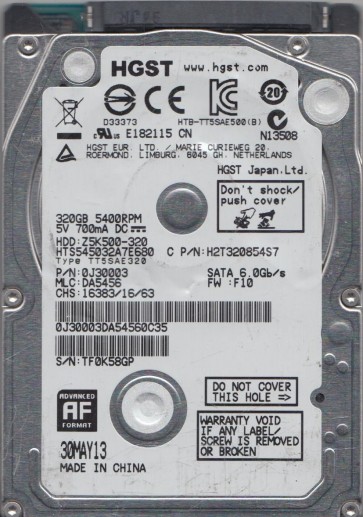
The Hitachi HTS545032A7E680 is a 500GB 2.5-inch SATA hard disk drive (HDD) from the Travelstar 5K500 series, manufactured primarily by Hitachi Global Storage Technologies (now part of Western Digital). This drive features a rotational speed of 5400 RPM, a 16MB cache, and uses perpendicular magnetic recording technology. It is commonly found in laptops, external enclosures, and older portable gaming consoles (e.g., PlayStation 4). The drive uses a Marvell-based controller and typically employs the Smooth LBA firmware architecture, which can be sensitive to specific failure patterns. Key components include the read/write heads, platters with magnetic coating, spindle motor, voice coil actuator, and a SATA interface board with a preamp chip. Understanding that this is a mechanical device with moving parts is critical, as physical damage is far more complex to resolve than logical corruption.
Identifying Common Failure Types
1. Mechanical Head Crash or Stiction
This is a hardware failure where the read/write head makes physical contact with the rotating platter surface, damaging the magnetic layer. Symptoms include loud clicking, scraping, or grinding noises (often described as a ‘death click’). The drive may be detected briefly in BIOS but then stop responding. Stiction occurs when the heads ‘stick’ to the platter surface, often after a sudden shock or prolonged inactivity. This failure type is irreversible without professional intervention. Data on the damaged platter area is likely lost, but recovery of undamaged sectors is possible with proper equipment.
2. Firmware Corruption or Translator Module Failure
This is a software-level failure within the drive’s internal firmware, specifically the translator module that maps logical sectors to physical locations. Symptoms include the drive powering up and spinning normally but being detected as an unknown device, showing 0GB capacity, or producing long delays during access. No abnormal noises are present. The drive may respond to S.M.A.R.T. commands but report unrecoverable errors. This is a common issue on this series due to unstable capacitors on the PCB affecting firmware loading. In many cases, the data is still intact on the platters, but the drive cannot access it.
3. Bad Sectors and Media Degradation
This is a gradual failure where the magnetic coating on the platters becomes weak or damaged, causing read/write errors. Symptoms include slow system boot, file copy failures with I/O errors, disk scanning showing reallocated sectors, and frequent system crashes. The drive may produce a steady, normal hum without unusual clicking. This can be caused by age, excessive heat, or a single drop event. While the drive may continue to operate, data integrity is at risk. The number of reallocated sectors in S.M.A.R.T. often increases over time.
4. PCB (Printed Circuit Board) Failure
This involves electrical damage to the drive’s external control board, usually from power surges, improper shutdowns, or static discharge. Symptoms are simple: the drive does not spin up, no noise at all, and is not detected by the system. The chip near the SATA connector, or the motor driver IC, may show visible burn marks or be physically cracked. In rare cases, a faulty preamp chip on the head assembly can also cause PCB failure. Data on the platters is typically intact if the drive was not writing during the surge.
Potential Recovery Paths
DIY Attempts (Only for Software/Firmware Issues)
For Bad Sectors: Clone the drive using a tool like DDRescue or HDDSuperClone on Linux. Boot from a live USB, target the failing drive as source, and write to a healthy destination drive. Use the tool’s retry options but limit head movement by not forcing excessive reads on damaged areas. Expected success: 30-70% for drives with no mechanical noise. For Firmware Corruption: Some advanced users may attempt to rebuild the translator using PC-3000 or MRT tools, but this requires deep technical knowledge and specific adapters. A simpler DIY approach is to freeze the drive (placing it in a sealed bag in a freezer for 2 hours) to contract the spindle bearing, which can temporarily release stuck heads in some non-destructive cases:this is risky and often fails. For PCB failure: If the board is undamaged but a component like a TVS diode is blown, you can use a multimeter to locate the short and remove the defective diode. Alternatively, find a donor PCB from an identical model with the same firmware version and swap the PCB’s ROM chip (requires hot air station). Do not swap PCBs without transferring the ROM, as the drive will not spin up.
Professional Data Recovery Services
For Mechanical Failures (Head Crash, Stiction): Immediately stop powering on the drive. Find a cleanroom facility (ISO Class 10 equivalent) where technicians can replace the read/write heads from a compatible donor drive. The process involves opening the drive, swapping the head stack assembly, and then using specialized imaging tools to extract data sector by sector. Cost: $500 to $2,000+ depending on complexity. For Severe Bad Sectors: Professionals use deep-scan tools that can bypass damaged areas and recover partial directories. They also perform platter transplants if the damage is isolated to one head. For Firmware Corruption: Professional tools like PC-3000 can directly read the service area (SA) and rebuild firmware modules. Success rate for this model is high (over 80% if no mechanical damage). For PCB Failure: A professional will test the entire electrical path, replace the PCB, program the correct ROM, and verify the drive’s health. Cost: $200 to $400. Always request a free diagnostic quote first.
What Not to Do
Never: run CHKDSK with the /R flag on a drive with clicking noises:this causes further head damage. Never: open the drive enclosure in a non-clean environment. Even one speck of dust can destroy the platter surface. Never: use commercial file recovery software (like Recuva or EaseUS) on a drive that is physically failing or has firmware issues, as this can overwrite data and stress the heads. Never: shake or tap the drive to try to ‘free’ a stuck head:this can dislodge the heads and damage the platters. Never: attempt to swap PCBs from a different model or revision without verifying the ROM compatibility. A mismatch can burn out the preamp. Never: use strong magnets near the drive, as they can corrupt the embedded servo data and make recovery impossible. Never: continue using the drive if you hear any unusual noise. Power it off immediately and evaluate your options. Never: attempt to freeze the drive for more than 2 hours, and never freeze a drive that has been powered on (condensation risk).
Summary
The Hitachi HTS545032A7E680 is a reliable but aging 2.5-inch hard drive. Its most common failures include head crashes (mechanical), firmware corruption (software), bad sectors (media degradation), and PCB electrical failure. For DIY users: if the drive powers on and is detected but shows errors (bad sectors), cloning with DDRescue is the best approach. For firmware issues, specialized software is required. For PCB failure, swapping the board with ROM transfer can work. For any clicking or grinding sounds, stop all DIY attempts and contact a professional data recovery service immediately. The key to successful recovery is accurate diagnosis:listening to the sounds and checking S.M.A.R.T. data:and avoiding any action that physically stresses the drive. Always back up important data before the drive shows any symptoms. For critical data, professional cleanroom recovery is the only safe option for mechanical failures.