
Data recovery on vintage hard drives like the Hitachi HTS722012K9SA00 starts with identifying the failure type – electronic, firmware, or mechanical. Each requires a different approach, and misdiagnosis can make things worse. Here’s a quick guide to help you assess your situation and decide on the next step.
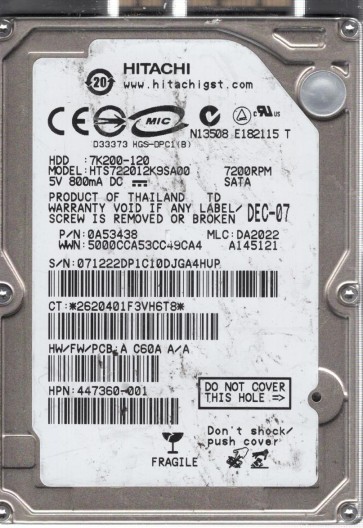
The Hitachi HTS722012K9SA00 is a 2.5-inch SATA hard disk drive (HDD) from the Travelstar 7K200 family, typically with a 120GB platter capacity and a rotational speed of 7200 RPM. It utilizes perpendicular magnetic recording (PMR) technology and features a standard SATA 3.0 Gbps interface. This model is commonly found in older laptops, external enclosures, and portable storage devices. Understanding its specific architecture:including the Marvel or similar controller chip and the head stack assembly (HSA):is crucial for effective data recovery. The drive’s firmware is sensitive to power fluctuations and physical shock, making it susceptible to specific failure patterns.
Identifying Common Failure Types
1. Mechanical Failure (Head Crash or Stiction)
Symptoms include clicking, grinding, or whining noises, or the drive failing to spin up. This is often caused by a drop, bump, or manufacturing defect. The read/write heads have made contact with the platters, damaging the magnetic layer and potentially creating debris. The drive may also be stuck due to lubricant degradation (stiction).
2. Electrical Failure (PCB or Component Damage)
The drive may be completely silent or emit a single brief spin then stop. This is frequently due to a failed preamplifier, a damaged controller chip (often from overheating), or a blown TVS diode (transient voltage suppression diode) caused by power surges. The printed circuit board (PCB) may show visible burn marks or swelling capacitors.
3. Firmware Corruption
The drive may be detected by the BIOS/OS but is inaccessible, shows incorrect capacity (e.g., 0GB or 1MB), or makes clicking sounds that mimic a head crash. This occurs when the service area modules (SA modules) on the platters become corrupt due to bad sectors, sudden power loss, or a faulty firmware update. The drive may also be stuck in a “busy” or “ready but not ready” state.
4. Bad Sector Growth / Media Degradation
The drive operates normally but is extremely slow, constantly making read retry sounds, or shows “CRC errors” and “IMB” (Interface Message Block) errors in diagnostics. This is a progressive failure of the magnetic media, often accelerated by vibration, high temperatures, or manufacturing defects. It can lead to eventual mechanical failure if not addressed.
Potential Recovery Paths
Professional Data Recovery
For Hitachi HTS722012K9SA00 drives, especially with mechanical or complex firmware issues, professional intervention is heavily recommended. A reputable lab will have a cleanroom (Class 100 or better) for head replacements and platter transplants. They use specialized equipment like PC-3000 UDMA/Express or DeepSpar Disk Imager to bypass bad sectors and rebuild firmware. Costs range from $300 to $3000+ based on damage severity. Look for labs with specific Hitachi experience and a “no data, no fee” policy.
DIY Recovery (For Software Issues Only)
Before attempting DIY, confirm the failure is not mechanical or electrical. If you hear physical noises or the drive is unrecognized, STOP and seek professional help.
Step 1: Isolate the Drive. Connect it as a secondary (non-boot) drive via a known-good USB-to-SATA adapter or direct SATA connection to a desktop. Do not use a potentially faulty internal cable.
Step 2: Use Imaging Software. Use a block-level imaging tool like ddrescue (Linux) or HDDSuperClone (Windows/Linux). Do not run CHKDSK, scandisk, or any repair utilities. Example command: ddrescue -d -f -n /dev/sdb /mnt/recovery/disk.img /mnt/recovery/disk.log. This creates a forensic image, skipping problematic areas first.
Step 3: Extract Data. Mount the recovered image using a tool like OSFMount (Windows) or VMDK. Then copy important files to a separate, healthy drive. Do not write any data back to the failing drive.
Note: DIY success for firmware corruption (like incorrect capacity) is extremely low without professional tools. Power cycling the drive or freezing it (a common myth) often causes final failure.
What Not to Do
- Attempt to open the drive. Exposing the platters to any air particle can cause irreversible damage. A single speck of dust can destroy the magnetic surface.
- Run CHKDSK / FSCK / Disk Utility repair. These tools are designed for healthy drives and can cause further data loss by misinterpreting bad sectors as correctable errors or actively writing to corrupt areas.
- Perform a factory reset or firmware update. This will erase the unique SA modules needed for operation, rendering the drive completely unrecognizable without specialized equipment.
- Freeze the drive. This was dangerous even for older drives with stiction. For PMR drives, it can cause condensation that rusts the platters and shorts the electronics.
- Shake, slap, or drop the drive. Physical shock can easily worsen a head crash or misalign the actuator.
- Use data recovery software that writes to the drive. Always work from a read-only image. Write-blocking is essential.
Summary
The Hitachi HTS722012K9SA00 is a robust but aging drive vulnerable to mechanical head crashes, electrical component failure, firmware corruption, and media degeneration. Accurately diagnosing the failure type is critical: noise or spin failure indicates hardware damage requiring a cleanroom lab. Capacity issues or slow access may be software-based, but DIY attempts are risky and often fruitless without professional tools. Never open the drive, run diagnostic software like CHKDSK, or apply aggressive physical treatment (freezing, shock). The safest path for valuable data is immediate professional assistance from a lab experienced with Hitachi/IBM drives. For non-critical data, create a read-only forensic image using ddrescue and then extract files from that image. Prioritize prevention by maintaining backups and avoiding powering a failing drive.