
Data recovery on vintage hard drives like the Toshiba MG03SCA200 starts with identifying the failure type – electronic, firmware, or mechanical. Each requires a different approach, and misdiagnosis can make things worse. Here’s a quick guide to help you assess your situation and decide on the next step.
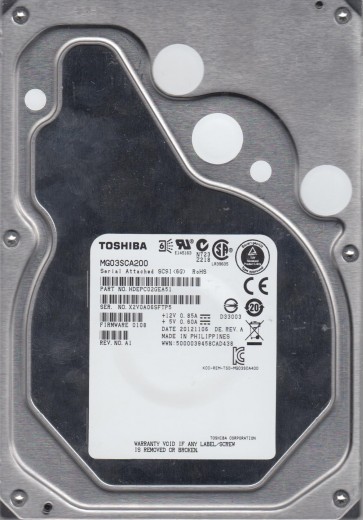
The Toshiba MG03SCA200 is a 2TB enterprise-class 3.5-inch SATA hard disk drive, part of Toshiba’s MG03 series. It typically features a 7200 RPM spindle speed and a 64MB cache buffer. Designed for high duty cycles in server and storage array environments, this drive utilizes Conventional Magnetic Recording (CMR) technology. Key components include the SATA controller board (PCB) located under the drive, the voice coil motor (VCM) for head positioning, the spindle motor for platter rotation, and the head stack assembly (HSA) which contains the read/write heads. The platters are sealed within a clean room environment inside the drive enclosure. Understanding these components is critical for distinguishing between electronic, mechanical, and logical failures.
Identifying Common Failure Types
1. Electronic / PCB Failure
Symptoms: The drive does not spin up, makes no sound, is not detected by the BIOS or operating system, or may be detected with an incorrect model name or capacity. You might also see a burning smell or visible damage on the PCB components such as burnt TVS diodes or damaged controller chips.
Cause: Power surges, faulty SATA cables, defective power supply units, or electrostatic discharge (ESD) can damage the controller board. The most common point of failure is the TVS (Transient Voltage Suppression) diode on the 5V or 12V power rail. A failed controller chip or ROM corruption can also occur.
2. Mechanical / Head Failure
Symptoms: The drive powers on (spins up) but produces clicking, grinding, scraping, or whining noises. The system may detect the drive but cannot read data, or the drive may spin up and then immediately spin down in a repetitive cycle. This is one of the most critical and dangerous failure modes.
Cause: Physical shock or drop while the drive is operating, manufacturing defects, or wear over time. The read/write heads may crash onto the platters, or the VCM actuator can become stuck or fail. Contamination from debris inside the drive enclosure can also cause head damage.
3. Firmware / Logical Failure
Symptoms: The drive spins up normally, is detected in BIOS, but shows as uninitialized, RAW, or inaccessible. The operating system may prompt to format the drive. You might encounter file system errors, directory structures are missing, or the drive appears with the wrong capacity. The drive operates quietly without unusual noises.
Cause: Corrupted partition table or boot sector, damaged file system (e.g., NTFS corruption), bad sectors that corrupt file system metadata, accidental deletion or formatting, or a fault in the drive firmware that prevents normal access to user data. Anti-virus operations or power loss during write operations can trigger this.
4. Bad Sectors / Media Degradation
Symptoms: The drive works but becomes increasingly slow, freezes during file access, produces read/write errors, and shows reallocated sector counts increasing in S.M.A.R.T. data. Data may be partially recoverable, but critical files might be corrupted.
Cause: Physical damage to the platter surface due to head contact, shock, or age-related degradation. Manufacturing imperfections can also lead to weak magnetic domains that degrade over time.
Potential Recovery Paths
Professional Data Recovery Services
Recommended for: Mechanical failures (clicking, grinding), severe head crashes, drives with physical damage (burnt PCB with charred components), or if the data is critical and irreplaceable. Professional labs have class 100 or better cleanrooms to safely open the drive.
Process: For electronic failure, a lab can perform a PCB swap with a donor drive, combined with firmware translation and ROM transplant using specialized tools (e.g., PC-3000, DeepSpar). For head failure, they will open the drive in a cleanroom, replace the head stack assembly with a matched donor from an identical drive, and then use imaging tools to read the platters. For firmware/logical issues, they utilize hardware and software tools to rebuild the translator, extract media cache, and create a sector-by-sector image.
Cost: Typically ranges from $300 to $3,000 depending on the failure complexity and required parts. Head replacement is among the most expensive procedures.
Do-It-Yourself (DIY) Approaches
WARNING: DIY recovery is only viable for specific, non-physical failure scenarios. Any attempt to open the drive, replace heads, or modify the PCB without proper tools will likely destroy the drive and make data recovery impossible even for professionals.
1. Software-Based Recovery (Logical Failures Only): If the drive spins normally and makes no unusual sounds, use free or commercial data recovery software like R-Studio, DMDE, or TestDisk. Create a full sector-by-sector disk image to a healthy drive using tools like ddrescue (Linux) or HDD Raw Copy Tool (Windows). Work on the image, not the original drive. Do not attempt to format or chkdsk.
2. PCB Replacement for TVS Diode Failure: If you see a visibly burnt TVS diode on the PCB but the controller chip is intact, this is a very specific and risky DIY. You must source a donor PCB with the exact same board number (P/N). The critical step is to transfer the original drive’s 8-pin serial flash ROM (containing adaptive parameters) from the faulty PCB to the donor PCB using a hot air station or soldering iron. Without this transplant, a simple PCB swap will not work due to unique calibration data. This requires advanced soldering skills and knowledge of SMD components.
3. Dealing with Bad Sectors: Use ddrescue to image the drive in a controlled manner. It will skip bad areas and retry later. Configure the tool to lower the UDMA mode and disable read retries to minimize further stress on the head. This can recover the majority of healthy data but will be a slow process. Ensure the drive is cool and on a stable surface.
What Not to Do
- NEVER open the drive enclosure. The interior is a cleanroom environment. Even a single dust particle on a platter can destroy the head and data. Any attempt to open the drive outside a professional cleanroom will immediately void any chance of professional recovery and likely cause permanent data loss.
- Do not apply power to a drive that smells burnt or has visible damage. Check the PCB for short circuits. Applying power may exacerbate the damage and short the SATA port or power supply.
- Avoid running chkdsk, disk repair, or formatting tools. These utilities can overwrite critical file system structures and make recovery far more difficult or impossible. Always image the drive first before any repair attempts.
- Do not freeze the drive. This is a persistent myth. Thermal contraction can cause platter warpage, increase bearing friction, and lead to condensation which causes corrosion and head stiction. It will not fix mechanical issues.
- Do not tap or shake the drive to try to unstick the heads. This can cause the heads to crash into the platters, scratching the magnetic surface and destroying data unrecoverably.
- Never swap a PCB without first transferring the firmware (ROM). The original drive’s unique calibration data is stored on the ROM chip. A direct PCB swap from a donor drive will not work and can corrupt the translator, making data access impossible even after a proper ROM transplant later.
Summary
The Toshiba MG03SCA200 is a reliable enterprise drive but is susceptible to PCB failure via power surges, head crashes from physical shock, and file system corruption from improper shutdowns. The most critical distinction is between physical and logical faults. If the drive makes any abnormal mechanical noise (click, grind, whine), do not power it on again and engage a professional data recovery service immediately. For logical failures (no noises, detected but unreadable), DIY software imaging using ddrescue or similar tools on a separate healthy drive offers a viable path. Never open the drive enclosure, never use freezing or tapping methods, and always prioritize creating a disk image before attempting any file system repairs. With careful diagnosis and the correct approach, data from a failed MG03SCA200 can often be restored, but the window of opportunity is narrow if physical damage is present.