
TestDisk is a powerful, completely free, open-source data recovery software designed primarily to recover lost partitions and repair non-booting disks. Developed by Christophe Grenier since 1998, TestDisk has become one of the most trusted and widely used data recovery tools in the world, particularly among IT professionals, forensic analysts, and advanced users. Its companion tool, PhotoRec, specializes in file-based recovery, ignoring the file system entirely to carve out files based on their unique signatures.
Unlike commercial data recovery software, TestDisk and PhotoRec are completely free and open-source, with no limitations on recovery amount, no premium upgrades, and no hidden costs. The software is distributed under the GNU General Public License and has been translated into over 20 languages, making it accessible to users worldwide.
TestDisk works with storage devices of all capacities and supports virtually every operating system, including Windows, macOS, Linux, FreeBSD, NetBSD, OpenBSD, SunOS, and DOS. Its ability to handle a vast range of file systems and partition types has made it an essential tool in the arsenal of data recovery professionals for over two decades.
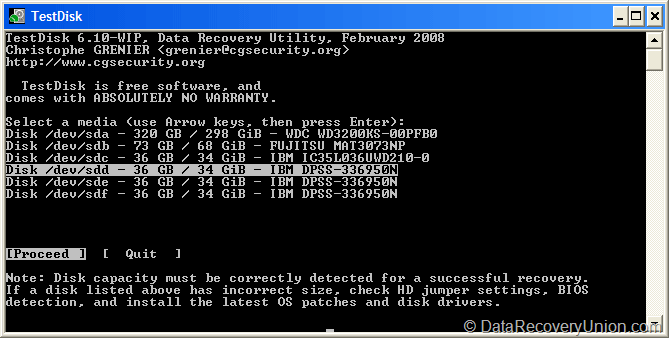
What is TestDisk?
TestDisk is primarily designed to recover lost or damaged partitions and make non-booting disks bootable again. It can:
- Recover deleted or lost partitions on hard drives, SSDs, USB drives, and memory cards.
- Rebuild corrupted partition tables and boot sectors.
- Fix MBR (Master Boot Record) and GPT (GUID Partition Table) corruption.
- Recover boot sectors from backups (FAT32 and NTFS).
- Repair partition table errors and logical drive issues.
- Copy files from deleted or inaccessible partitions.
PhotoRec is a companion tool designed for file-based recovery. It:
- Ignores the file system entirely and reads data sector by sector.
- Uses file signatures (unique headers and footers) to identify and recover files.
- Recovers over 480 different file types, including photos, videos, documents, archives, and more.
- Works even when the file system is severely damaged or completely missing.
- Can recover files from formatted, repartitioned, or RAW drives.
Key Features of TestDisk & PhotoRec
Extensive File System and Partition Support
TestDisk supports a vast range of file systems and partition types:
- File Systems: FAT12, FAT16, FAT32, exFAT, NTFS, NTFS5, ext2, ext3, ext4, btrfs, XFS, HFS+, HFSX, APFS, JFS, ReiserFS, UFS, UFS2, ZFS, and more.
- Partition Types: Intel/PC, EFI/GPT, Mac (Apple partition map), Sun Solaris, Xbox, and many others.
- Volume Labels: Supports long volume names and non-ASCII characters.
Advanced Partition Recovery Capabilities
TestDisk excels at recovering lost partitions through sophisticated scanning techniques:
- Deeper Scan: Performs a thorough sector-by-sector search for partition boundaries, including FAT32 boot sectors, NTFS boot sectors, ext2/ext3/ext4 superblocks, and HFS+ volume headers.
- Partition Table Reconstruction: Can rebuild both MBR and GPT partition tables, including handling of logical drives in extended partitions.
- Boot Sector Repair: Detects and repairs corrupted boot sectors by rewriting them from backups.
- Backup Boot Sector Recovery: For NTFS and FAT32, TestDisk can recover the primary boot sector from its backup copy.
File Carving with PhotoRec
PhotoRec’s signature-based recovery is one of its most powerful features:
- Supports Over 480 File Types: Including JPEG, PNG, GIF, TIFF, BMP, AVI, MOV, MP4, MP3, WAV, DOC, XLS, PDF, ZIP, RAR, and many proprietary formats.
- Custom File Signature Addition: Advanced users can add their own file signatures to recover proprietary or less common file types.
- Preservation of File Metadata: When possible, PhotoRec preserves EXIF data in JPEG files, Date/Time stamps, and other metadata.
- Recovery from Damaged File Systems: Works when the file system is unrecognizable, including after formatting, repartitioning, or corruption.
Low-Level Sector Editing
For advanced users, TestDisk provides hex dump and editing capabilities:
- Hex Dump: Display sector content in hexadecimal format.
- Sector Copying: Copy sectors from one location to another for manual repair.
- Manual Partition Creation: Create partitions manually when automatic detection fails.
Cross-Platform Compatibility
TestDisk runs on virtually every operating system:
- Windows: Supports Windows 10, 8, 7, Vista, XP, 2000, NT, Me, 98, 95.
- macOS: Runs on Intel and Apple Silicon Macs.
- Linux: Available in most distribution repositories.
- BSD: FreeBSD, NetBSD, OpenBSD, DragonFly BSD.
- SunOS / Solaris.
- DOS (real mode).
Bootable Media Creation
TestDisk can be run from bootable media when the operating system cannot start:
- TestDisk Live CD: A bootable Linux CD that includes TestDisk and PhotoRec.
- SystemRescueCD: Includes TestDisk as a standard tool.
- USB Boot Drive: Create a bootable USB drive with TestDisk for emergency recovery.
How to Use TestDisk for Partition Recovery
TestDisk is a command-line tool, but it includes an interactive text-based interface that guides users through the recovery process. Follow these steps to recover lost partitions:
- Download and Extract: Download the TestDisk package from the official website. Extract the archive to a folder on a different drive than the one you want to recover.
- Run TestDisk:
- Windows: Run testdisk_win.exe as Administrator.
- macOS: Run testdisk from the command line (requires sudo).
- Linux: Run sudo testdisk from the terminal.
- Create a Log File: Choose whether to create a log file (usually yes for the first run).
- Select the Disk: Use arrow keys to select the disk you want to recover, then press Enter.
- Select Partition Table Type: TestDisk will typically auto-detect the correct partition table type (Intel/PC, EFI/GPT, Mac, etc.). Accept the default selection.
- Analyse the Current Partition Structure: Select [Analyse] to search for partitions. Press Enter.
- Quick Search: Select [Quick Search] to begin scanning for lost partitions. This scans the disk for partition boundaries and boot sectors.
- Review Found Partitions: After the quick search, TestDisk displays all found partitions. Review the list to identify your lost partitions.
- Deeper Search (if needed): If quick search does not find your partitions, select [Deeper Search] for a more thorough sector-by-sector scan.
- Write the Partition Table: Once you have identified the correct partition structure, select [Write] to save the partition table to disk.
- Reboot: After writing, reboot your computer for changes to take effect.
How to Use PhotoRec for File Recovery
PhotoRec is ideal for recovering files from formatted, corrupted, or RAW drives:
- Run PhotoRec:
- Windows: Run photorec_win.exe.
- macOS/Linux: Run photorec from the terminal.
- Select the Disk: Choose the disk or partition containing the lost files.
- Select Partition: Choose the specific partition to scan, or select [Whole disk] to scan the entire drive.
- Select File System Type: Choose the file system type of the partition (typically auto-detected).
- Select Scan Area: Choose between [Whole] (entire partition) or [Free] (only unallocated space). For formatted drives, choose [Whole].
- Select Destination Folder: Choose a folder on a different drive to save recovered files.
- Select File Types: Choose which file types to recover (all types or a custom selection).
- Start Recovery: Press Y to begin scanning and recovery. This may take hours depending on drive size.
- Browse Recovered Files: After completion, recovered files are saved in recup_dir.1, recup_dir.2, etc. directories.
Supported File Types in PhotoRec
PhotoRec supports over 480 distinct file types. Here are the most common categories:
| Category | Examples of Supported Formats |
|---|---|
| Images | JPEG, PNG, GIF, BMP, TIFF, RAW (CR2, NEF, ARW, DNG, ORF, PEF, SR2, RAF), PSD, HEIC, WebP, SVG, ICO, PCX, TGA, XPM |
| DocumentsNon | DOC, DOCX, XLS, XLSX, PPT, PPTX, PDF, RTF, ODT, ODS, ODP, TXT, HTML, XML, WPD, PUB, PAGES, NUMBERS, KEY, ABW, ZABW |
| AudioNon | MP3, WAV, WMA, OGG, FLAC, M4A, AAC, AIFF, AU, RA, RM, AC3, DTS, MID, MIDI |
| VideoNon | AVI, MOV, MP4, MPG, MPEG, WMV, ASF, MKV, FLV, 3GP, M4V, MTS, M2TS, VOB, RMVB, OGV, WEBM |
| ArchivesNon | ZIP, RAR, 7Z, TAR, GZ, BZ2, XZ, CAB, ISO, DMG, CPIO, AR, LHA, LZH |
| Email & DatabasesNon | PST, OST, DBX, EML, MBOX, MBX, NSF, MDB, ACCDB, SQLITE, FDB, GDB |
| ExecutablesNon | EXE, DLL, SYS, DRV, OCX, COM, BAT, CMD, MSI, APK, APP, DMG, PKG, DEB, RPM |
Editions and Pricing
TestDisk and PhotoRec are completely free, open-source software with no commercial editions:
| Product | Price | Description |
|---|---|---|
| TestDisk | Free | Complete partition recovery tool. No limitations. GNU GPL license. |
| PhotoRec | Free | Complete file carving tool. No limitations. GNU GPL license. |
Important Note: TestDisk and PhotoRec are completely free and open-source. There are no “Pro” versions, no paid upgrades, no subscription plans, and no feature restrictions. The software is funded entirely through donations and contributions from users who find it valuable.
System Requirements
TestDisk has minimal system requirements, making it suitable for older hardware and bootable recovery environments:
- Processor: Any x86, x86-64, ARM, or PowerPC processor
- RAM: Minimal (less than 64MB)
- Hard Disk Space: Approximately 5-10MB for the executable files
- Supported Operating Systems:
- Windows 10, 8, 7, Vista, XP, 2000, NT, Me, 98, 95
- macOS (Intel and Apple Silicon)
- Linux (all major distributions)
- FreeBSD, NetBSD, OpenBSD, DragonFly BSD
- SunOS / Solaris
- DOS
- Permissions: Administrator/root access required on Windows and Unix-like systems for device access
Known Limitations and Considerations
While TestDisk and PhotoRec are incredibly powerful tools, users should be aware of the following limitations:
- Command-Line Interface: TestDisk has a text-based interface, not a graphical user interface (GUI). This can be intimidating for beginners, though the interface is interactive and menu-driven.
- No Undo Function: Changes made by TestDisk (such as writing a new partition table) cannot be automatically undone. Users must be certain of their actions before committing changes.
- File Name Loss in PhotoRec: Because PhotoRec ignores the file system, recovered files lose their original filenames and folder structures. Files are renamed with generic names like “f1234567.jpg” and organized by file type.
- No Preview Feature: Unlike commercial tools, TestDisk and PhotoRec do not offer file preview before recovery. You cannot verify file contents before recovering.
- Overwritten Data Cannot Be Recovered: If lost files have been overwritten, neither TestDisk nor PhotoRec can recover them.
- TRIM on SSDs: On modern SSDs with TRIM enabled, deleted files may be permanently erased almost immediately, making recovery impossible.
- Physical Damage Not Covered: Cannot recover data from physically damaged drives (clicking, grinding, water damage). Hardware repair is required first.
- Encrypted Drives: TestDisk cannot recover data from encrypted drives without the decryption key. For BitLocker, FileVault, or LUKS, the volume must be unlocked first.
- Learning Curve: Understanding how to use TestDisk effectively requires reading documentation and some technical knowledge about partition tables and file systems.
Comparison at a Glance
| Feature | TestDisk & PhotoRec | Typical Commercial Competitors |
|---|---|---|
| Price | Free (open-source) | $50-$150 |
| Recovery Limit | No limit | Often limited in free versions |
| Partition Recovery | ✓ Excellent (primary focus) | Often available |
| File Carving (Signature) | ✓ Over 480 file types | Often available |
| File Preview | Not available | Usually included |
| Graphical Interface | Text-based (interactive menu) | Modern GUI |
| Preserve File Names | TestDisk: Yes / PhotoRec: No | Usually preserves when possible |
| Platforms Supported | Windows, Mac, Linux, BSD, Solaris, DOS | Often Windows only |
| Bootable Recovery | ✓ (Live CD/USB) | Often premium feature |
Common Scenarios Where TestDisk Excels
- Deleted or Lost Partitions: After accidental partition deletion or MBR/GPT corruption, TestDisk can scan the drive and recover the original partition structure.
- Non-Booting Computers: When Windows displays “Operating System Not Found” or similar errors, TestDisk can repair damaged boot sectors or MBR.
- Formatted Drives: After accidentally formatting the wrong partition, TestDisk can often recover the original partition structure.
- Corrupted Partition Table: When partition table errors prevent access to data, TestDisk can rebuild a working partition table.
- Dual-Boot Recovery: When one operating system overwrites another’s boot information, TestDisk can restore the original configuration.
Common Scenarios Where PhotoRec Excels
- Formatted or Repartitioned Drives: After a drive has been formatted or repartitioned, PhotoRec can still recover files by ignoring the new file system.
- RAW or Unreadable Drives: When a drive appears as RAW or shows “Not Formatted,” PhotoRec can recover data without needing a valid file system.
- Corrupted File Systems: When file system corruption prevents normal access, PhotoRec can extract files based on their content, not their directory entries.
- Recovery After Virus/Formatting: When a virus has destroyed the file system or the drive has been formatted, PhotoRec can still carve out recoverable files.
- Memory Card Recovery: Digital camera memory cards that have been formatted or corrupted can often be recovered with PhotoRec.
Final Verdict: Is TestDisk Right for You?
TestDisk and PhotoRec represent the gold standard of free, open-source data recovery. With over 20 years of development, they have recovered countless drives that commercial tools could not handle. Their ability to work across virtually every operating system and file system, combined with their completely free nature, makes them indispensable tools for anyone serious about data recovery.
This software is ideal for:
- IT Professionals and System Administrators: The ability to recover partitions, repair boot sectors, and run from bootable media makes TestDisk an essential toolkit item.
- Forensic Analysts: Low-level sector editing, cross-platform compatibility, and open-source transparency are valuable for forensic work.
- Advanced Users and Technicians: Users comfortable with command-line or text-based interfaces will appreciate the power and control TestDisk provides.
- Budget-Conscious Users: Completely free with no limitations – there is no cheaper or more effective free solution for partition recovery.
- Cross-Platform Environments: Works on Windows, Mac, Linux, BSD, and even DOS – no other recovery tool covers as many platforms.
- Recovery from Severely Damaged File Systems: PhotoRec’s signature-based recovery works when all other tools fail because the file system is completely destroyed.
Consider alternatives if:
- You need a graphical user interface (GUI) with point-and-click operations.
- You need file preview before recovery to verify file contents.
- You need to preserve original filenames and folder structures in all recovery scenarios (PhotoRec does not preserve names).
- You are uncomfortable with text-based, menu-driven interfaces.
- Your drive is physically damaged – professional hardware repair services are required regardless of software.
- You need to recover from BitLocker, FileVault, or other encrypted drives without the decryption key.
Pro Tip: After data loss, stop using the affected drive immediately. Do not add new files, run disk repair tools like CHKDSK, or attempt to format the drive. When using TestDisk, always create a full disk image of the drive before making any changes. This provides a backup in case something goes wrong. For PhotoRec, always save recovered files to a different drive. If you are unfamiliar with TestDisk’s text interface, practice on a test drive first – there is no undo function for partition table writes.
Official website: testsdisk.com
Disclaimer: Recovery success depends on multiple factors, including how long ago data was lost, whether the drive has been used since the loss, and the extent of corruption or physical damage. No data recovery software can guarantee 100% recovery in all situations. TestDisk can write changes to your partition table – ensure you have confirmed the correct partition structure before writing. This article is for informational purposes only. All product names, logos, and brands are property of their respective owners.
