
Data recovery on vintage hard drives like the Toshiba MK2561GSY starts with identifying the failure type – electronic, firmware, or mechanical. Each requires a different approach, and misdiagnosis can make things worse. Here’s a quick guide to help you assess your situation and decide on the next step.
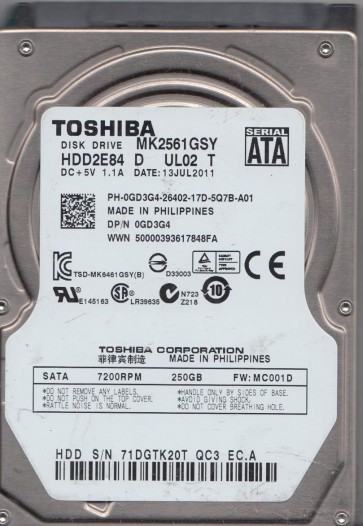
The Toshiba MK2561GSY is a 2.5-inch, 250GB, 7200 RPM SATA hard disk drive. It belongs to Toshiba’s mainstream mobility series and is commonly found in laptops and external enclosures from the late 2000s. This drive utilizes perpendicular magnetic recording technology and features a standard SATA 3.0Gb/s interface. Key components include the head stack assembly (HSA) with its read/write heads, the platters coated with magnetic media, the spindle motor, and the printed circuit board (PCB) which houses the controller chip, motor driver, and firmware. Understanding this architecture is crucial for identifying whether a failure is mechanical, electronic, or logical.
Identifying Common Failure Types
1. Mechanical Failure (Head Crash or Stiction)
Symptoms: A clicking, grinding, or scratching noise from the drive; the drive is not detected by the BIOS; or the drive spins up but makes repetitive clicking sounds. The MK2561GSY, like many 7200 RPM drives, is susceptible to head crashes, often caused by physical shock or manufacturing defects. Stiction (where the heads stick to the platters) is rarer but possible after prolonged inactivity or extreme temperature exposure. This is a hardware failure that requires cleanroom intervention.
2. Electronic Failure (PCB or Component Damage)
Symptoms: The drive is completely dead (no spin, no sound) when powered on; a burning smell is present; or the drive appears in the BIOS with incorrect capacity (e.g., 0GB or unrecognized). This can be caused by a power surge, faulty external enclosure, or capacitor/controller chip failure on the PCB. A common failure point is the TVS (Transient Voltage Suppression) diode which can short, protecting the rest of the circuit but requiring a board-level repair or replacement. This is a hardware failure, but sometimes recoverable with a compatible donor PCB and firmware adaptation.
3. Logical Failure (File System Corruption or Bad Sectors)
Symptoms: The drive spins normally and is detected by the BIOS, but shows as RAW, unformatted, or prompts for initialization; files are missing or inaccessible; data reads very slowly; or the operating system reports CRC errors. This can result from improper shutdown, virus attacks, or the natural degradation of magnetic domains causing weak sectors. The MK2561GSY’s firmware may also enter a “safe mode” if too many reallocated sectors are detected, making data recovery more complex. This is a software/firmware issue, but if bad sectors are widespread, it can mimic mechanical failure.
4. Firmware Corruption
Symptoms: The drive spins up but is not recognized by the computer; it makes normal sounds but becomes “stuck” or unresponsive; or the drive identifies with a wrong model number or capacity. Toshiba drives, particularly the MK series, can suffer from firmware corruption due to power loss during drive self-test or a failed firmware update. This is a complex hardware/software hybrid issue. Specialized tools (like PC-3000 or MRT) are typically required to reload or repair the firmware modules.
Potential Recovery Paths
Professional Data Recovery Services (Recommended for Hardware Failures)
Best for: Mechanical failures (head crash, stiction), severe electronic damage, firmware issues, and drives with excessive bad sectors. A professional lab will have a Class 100 cleanroom to open the drive, replace heads with matched donors, or perform platter transplants. They use specialized tools like PC-3000, DeepSpar Disk Imager, and Atola Insight for firmware repair and selective imaging. Cost typically ranges from $300 to $2000+, depending on complexity. Look for labs with ISO 5 cleanroom certification and a “no data, no charge” policy for diagnostics.
DIY Software Recovery (Only for Logical Non-Physical Failures)
Best for: Accidental deletion, formatting, or file system corruption without physical damage or noise. Steps: (1) Immediately stop using the drive. (2) Connect it via a write-blocker (essential) to a healthy computer. (3) Use professional-level software like R-Studio, UFS Explorer, or DMDE. Avoid free tools like Recuva if the drive is failing. (4) Create a full disk image to a healthy target drive. (5) Scan the image for lost partitions and recover files. Do not install the recovery software on the failing drive.
DIY Hardware Recovery (Limited Success, High Risk)
Best for: Simple PCB failures (e.g., burnt TVS diode) where the donor board is identical and firmware adaptation is possible. This involves: (1) Finding an exact donor PCB (same model, firmware version, and hardware revision). (2) Removing the original PCB and donor PCB. (3) Transplanting the original 8-pin serial flash (U12) from the original PCB to the donor board (requires hot air rework station). (4) Testing the drive. Warning: Even a small electrostatic discharge can kill the heads. This is not for beginners and voids any chance of low-cost professional recovery.
What Not to Do
- Do not power on a clicking or grinding drive. Running a mechanically failing drive can damage the platter surfaces, making data unrecoverable. Each click may be a head ploughing into the media.
- Do not open the drive in a normal environment. The platters are sensitive to airborne particles. Opening the drive in a dusty room will contaminate the media and destroy the heads. A single fingerprint or dust speck can cause a head crash.
- Do not use file system repair tools (e.g., chkdsk /f on Windows, fsck on Linux) on a failing drive. These tools can aggressively rewrite metadata, and if the drive has bad sectors, they may cause further corruption and permanently destroy file system structures.
- Do not freeze the drive. This is an outdated, dangerous myth. Freezing any modern hard drive (especially high-RPM ones like the MK2561GSY) will cause condensation, thermal stress on the spindle bearing, and potential platter warping, leading to permanent damage.
- Do not attempt to swap heads without cleanroom training. Head alignment is sub-micron precision. Even a single attempt in a non-cleanroom environment will destroy the donor heads and the original platters.
- Do not ignore the smell of burnt electronics. If you smell smoke, disconnect immediately. Powering a shorted PCB can spread damage to the preamplifier inside the drive, making recovery vastly more complex.
Summary
The Toshiba MK2561GSY is a reliable but aging 7200 RPM laptop drive. Data recovery success depends on correct failure diagnosis. For mechanical or electronic issues, professional services are the only safe path. For logical issues, immediate imaging with a write-blocker using professional software is feasible. Avoid all DIY “tricks” like freezing or prying open the drive. The golden rule: if the drive makes unusual noises, stops spinning, or has physical damage, disconnect it and consult a professional. Your data is worth far more than the cost of the drive itself.