
Data recovery on vintage hard drives like the Western Digital WD1002FBYS starts with identifying the failure type – electronic, firmware, or mechanical. Each requires a different approach, and misdiagnosis can make things worse. Here’s a quick guide to help you assess your situation and decide on the next step.
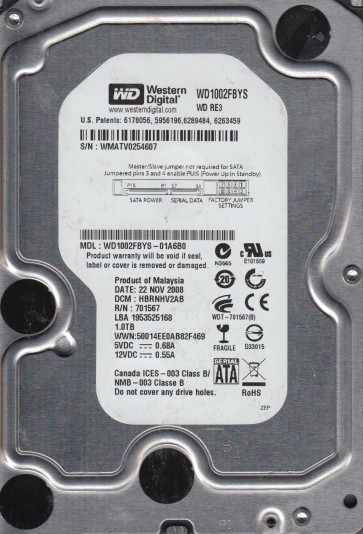
The Western Digital WD1002FBYS is a 1TB 3.5-inch hard drive from the WD RE2 (RAID Edition) series, designed for enterprise and nearline storage applications. It features a 7200 RPM spindle speed, a 16MB cache, and a SATA 3.0Gb/s interface. This drive is known for its reliability in RAID environments and 24/7 operation, utilizing technologies like StableTrac and RAFF (Rotary Acceleration Feed Forward) to reduce vibration. It employs perpendicular magnetic recording and typically uses a Marvell or LSI-based controller. Understanding its niche as a high-duty-cycle drive is critical for diagnosing failures.
Common Failure Types
1. Mechanical Head Crash
Symptoms: Loud clicking, grinding, or scraping noises; drive not spinning up; repeated ticking sounds; drive detected but with a “click of death”; SMART attributes showing high numbers of reallocated or pending sectors.
Causes: Physical shock, drop, or vibration; age-related wear of the head actuator; contamination from airborne particles; over-voltage or power surge damaging the preamp; worn spindle motor bearings causing wobble.
2. Firmware Corruption & Microcode Failure
Symptoms: Drive spins up but is not detected in BIOS/drive manager; drive shows incorrect capacity (e.g., 0GB or 32GB); SMART access fails; drive reports “System Files Missing”; unexpected immediate spin-down after spin-up; drive resetting in a loop (click, spin down, spin up).
Causes: Abrupt power loss during firmware update; accumulated bad sectors in the SA (Service Area); corrupted translator module; failed or degraded SA headers; electrostatic discharge (ESD) or voltage spikes; improper power connector or cable.
3. Logical Damage & Bad Sector Clusters
Symptoms: Very slow file access; file system errors (e.g., “File or directory is corrupted and unreadable”); operating system hanging on startup; repeated disk check prompts; loss of partition table or volume becoming RAW; occasional “cyclic redundancy check (CRC)” errors.
Causes: ATA command timeout due to marginal media; file system corruption (NTFS/FAT32); virus or malware damage; improper shutdowns; controller misinterpreting sector data due to weak magnetic signal; sudden power loss during write operations.
4. Stiction & Spindle Motor Failure
Symptoms: Drive fails to spin up; no audible sound, then a faint hum; a single click or brief whirr, then silence; motor is physically locked; drive heats up rapidly due to electrical resistance.
Causes: Stiction: a combination of lubricant/grease on the platter and the head parking ramp; motor bearing seizure due to wear; dried or degraded lubricant preventing rotation; head assembly physically stuck on the platter surface (stiction).
5. Electronics Board (PCB) Failure
Symptoms: Drive appears completely dead (no spin, no sound, no detection); strong burning smell; visible burned components (e.g., TVS diodes, motor controller chip); drive detected with a correct model number but refuses to operate; intermittent detection.
Causes: Power surge or lightning strike; failed TVS diode preventing drive power-up; failed motor controller or preamplifier ICs; capacitor failure (bulging or leaking); corrosion from moisture or improper handling; mechanical damage to board mounting holes.
Potential Recovery Paths
DIY (Do-It-Yourself) Methods
Logical/Software Recovery: For file system corruption or accidental deletion with no physical damage: Use trusted data recovery software (e.g., R-Studio, GetDataBack, Reclaime, DMDE) by creating a full sector-by-sector image to a healthy target drive using a tool like ddrescue (Linux) or HDDSuperClone (Windows). Always recover from the image, not the original.
PCB Swap (for specific cases): If the electronics board is clearly dead (e.g., burned component) and no platter or head damage is suspected, swap the PCB with an exact matching replacement. The donor PCB must have the same model, revision (printed on the board), and ideally the same firmware version. You may need to transfer the original ROM/EEPROM (8-pin serial flash) to the donor board for proper drive initialization. This requires fine soldering skills.
SMART Monitoring & Pre-emptive Cloning: For drives with developing bad sectors (pending sectors) but still operational: Immediately clone the drive using ddrescue or HDDSuperClone, which can handle read errors and retries better than standard tools. Do not run chkdsk or defragment.
Professional Data Recovery Services
When to Use: Physical issues like a head crash, stiction, spindle motor seizure, severe firmware corruption requiring SA repair, platter damage, or when DIY attempts have failed or are unsafe. Heads for these drives are rare and specific.
Steps: Professional labs use cleanroom environments (Class 10 or better) to open the drive for head replacements, motor repairs, or platter transplants. For firmware failures, they use specialized tools (e.g., PC-3000, MRT, DeepSpar) for SA recovery, translator rebuilding, and data extraction. A typical recovery from a head crash costs $500¨C$3000+ USD per drive.
Benefits: High success rate for complex failures; no irreversible damage; often the only path for physically seized drives; proper handling of delicate components by trained technicians.
What Not to Do
Never open the drive enclosure. The sensitive platters and read/write heads must be kept in an ultra-clean environment. Even a single dust particle can destroy the drive. Opening outside a cleanroom guarantees total data loss.
Do not run chkdsk /f or any disk checking tool. This can cause more damage on a failing drive, as the tool will try to move unreadable sectors, exacerbating media damage and potentially corrupting the file system further.
Do not apply voltage or power-up a physically dead drive repeatedly. If a drive shows no signs of life (no spin), repeated power-cycling can damage the spindle motor or the preamplifier, making professional recovery much harder.
Do not freeze the drive. This is a dangerous myth that applies only to very specific, dated hard drive designs. Freezing a modern drive introduces condensation, damages the heads and platters, and usually reduces any chance of recovery to zero.
Do not try to re-flash the firmware yourself unless you are an expert. Using incorrect firmware versions or tools can brick the drive permanently, as the SA might become completely unreadable, requiring specialist equipment to even identify the correct code.
Summary
The WD1002FBYS is a reliable enterprise drive but is susceptible to mechanical head crashes, firmware corruption, logical errors, spindle stiction, and PCB failure. For logical issues, create a raw image using ddrescue. For physical failure (noises, no spin), do not attempt any opening or freezing; seek a professional service immediately. For PCB failure, a controlled board swap with ROM transfer can succeed if no physical damage exists. The most critical rule is to stop using the drive at the first sign of trouble to prevent permanent data loss.