
Data recovery on vintage hard drives like the Seagate ST10000DM005 starts with identifying the failure type – electronic, firmware, or mechanical. Each requires a different approach, and misdiagnosis can make things worse. Here’s a quick guide to help you assess your situation and decide on the next step.
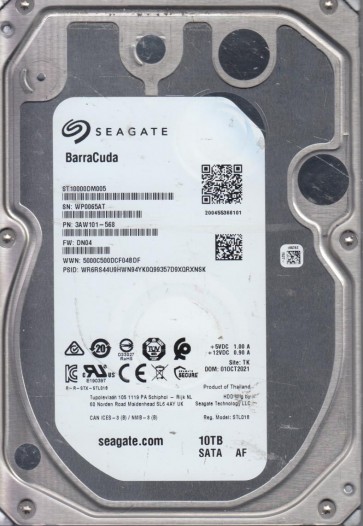
The Seagate ST10000DM005 is a 10TB, 3.5-inch, 5400 RPM SATA hard disk drive from the BarraCuda Pro series. It utilizes Conventional Magnetic Recording (CMR) technology, also known as Perpendicular Magnetic Recording (PMR), which offers consistent read/write performance and is generally more reliable for data recovery than Shingled Magnetic Recording (SMR) drives. This model is commonly used in desktop computers, external enclosures, and entry-level NAS systems due to its high capacity and cost-per-gigabyte efficiency. The drive features a standard SATA 6Gb/s interface and typically uses a multi-platter design with a high areal density. Understanding that this is a CMR drive is crucial, as it means the data layout is straightforward, with no overlapping tracks, simplifying the recovery of fragmented or partially overwritten data compared to SMR drives. The drive’s firmware is responsible for managing bad sectors, the translation layer (LBA to PCHS mapping), and power management features like idle spin-down.
Identifying Common Failure Types
1. Mechanical Failure (Head Crash / Stiction)
This is a physical failure where the read/write heads make contact with the spinning platters. Symptoms include a loud clicking, scraping, or grinding noise. The drive may be detected with an incorrect capacity or not at all. This is a catastrophic failure that can rapidly destroy the platter surface and data. Another variant is stiction, where the heads stick to the platters due to parking ramp failure or lubricant degradation, preventing the motor from spinning up. The drive may be completely silent except for a faint hum or no sound at all.
2. Electronic Failure (PCB / Controller Board)
This involves failure of the Printed Circuit Board (PCB) attached to the underside of the drive. Common causes include power surges, static discharge, or component aging. Symptoms include the drive not spinning up, no detection by the BIOS/OS, or a burning smell. Typical failed components include the TVS diodes (Transient Voltage Suppression), the preamplifier circuit, or the main controller chip. A drive with a failed PCB may show signs of life, like a brief power-on spin that stops, but no communication via SATA.
3. Firmware Corruption
The drive’s internal firmware, stored in the ROM chip and on the service area of the platters, can become corrupted due to a bad update, power loss during a firmware operation, or sector degradation on the system area. Symptoms include the drive spinning up but not being recognized, being detected with incorrect model/serial number, or exhibiting long delays before responding to commands. The drive may also produce a repetitive “click of death” that sounds different from a head crash (a regular, rhythmic click). This issue is often repairable with specialized tools.
Potential Recovery Paths
Professional Data Recovery Services
Recommended for: All mechanical failures, severe electronic damage, and complex firmware corruption. Professional cleanroom labs (Class 10 or better) are required for head stack replacements and platter transplants. For the ST10000DM005, a specialist will first diagnose the failure type. For a head crash, they will isolate the drive, replace the head stack assembly (HSA) with a compatible donor part, and use a PC-3000 or similar tool to read the platters in a controlled manner. For PCB failures, they may perform a direct component-level repair or transplant the ROM chip from the patient board to a donor board. Firmware issues are handled using tools that can access the Service Area (SA) to rebuild translator modules, fix bad sector lists, or recover the drive to a state where data can be cloned sector-by-sector. The cost can range from $500 to $2000+ depending on the severity.
DIY Recovery (Advanced Users Only)
For Electronic Failure (TVS Diode): If the drive is dead after a power surge, check the PCB for a visibly blown TVS diode (usually a small component near the power connector). If only the diode is damaged, you may be able to replace it with a soldering iron and a donor component from an identical board. Warning: Do not attempt this if you are not skilled in micro-soldering. Also, ensure you do not damage the nearby controller chip. For Bad Sectors (Non-Mechanical): If the drive is clicking or making scraping noises, do not continue. If it is just slow, you can use software like ddrescue (Linux) or HDD Regenerator to create a low-level image. Run: ddrescue -d -f -r3 /dev/sdX /target/image.img /target/logfile.log. This attempts to skip bad sectors and retry them later. Caveat: This method puts extreme stress on the drive and can cause a head crash if the media is degraded. Only do this if you have no other option and accept the risk of total data loss.
What Not to Do
- DO NOT run CHKDSK / fsck. This command will rewrite the file system structure and overwrite damaged areas, often making data permanently unrecoverable.
- DO NOT open the hard drive enclosure. The internal environment is a cleanroom level. A single dust particle can destroy the platter surface if lodged between the head and the disk.
- DO NOT spin a drive that is making abnormal noises. Continuing to operate a drive with a head crash will grind the platters, destroying the magnetic coating and making recovery impossible.
- DO NOT apply excessive force or shake the drive. This can misalign the heads or cause further mechanical damage.
- DO NOT freeze the drive. This is an old myth that can cause condensation and internal corrosion, worsening the problem.
- DO NOT use software that claims to “fix” the drive by rewriting firmware or resetting S.M.A.R.T. counters. This can corrupt the drive’s service area and require professional intervention anyway.
Summary
The Seagate ST10000DM005 is a reliable CMR drive but is still susceptible to mechanical, electronic, and firmware failures. The most critical step is correct diagnosis: a clicking drive requires immediate professional help, while a silent dead drive may be repairable at the board level. DIY recovery is only realistic for simple electronic repairs (like a blown diode) or logical corruption (deleted files, bad sectors with no physical damage symptoms). For anything involving head noise, physical damage, or complex firmware issues, immediate professional intervention is the only safe path. Remember, any incorrect attempt at recovery can easily turn a recoverable situation into permanent data loss. Always prioritize data safety over cost savings.