
Data recovery on vintage hard drives like the Seagate ST380020A starts with identifying the failure type – electronic, firmware, or mechanical. Each requires a different approach, and misdiagnosis can make things worse. Here’s a quick guide to help you assess your situation and decide on the next step.
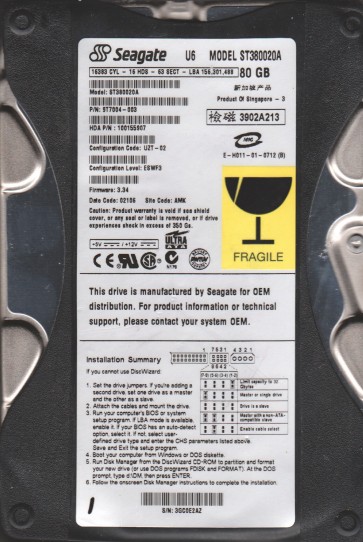
The Seagate ST380020A is a 80GB 3.5-inch Parallel ATA (PATA) hard disk drive from the early 2000s. It features a 7200 RPM spindle speed and typically uses an IDE interface. This drive belongs to the U-Series or Barracuda ATA family and is known for common firmware and mechanical issues related to its age. Key internal components include the platters, read/write heads, spindle motor, voice coil actuator, and a system-on-chip controller. Understanding that this is a parallel ATA drive is crucial for correct interface handling.
Identifying Common Failure Types
1. No Spin / Clicking (Mechanical Stiction or Seized Spindle)
The drive powers on but the platters do not rotate. You may hear a faint whir from the spindle motor struggling or no sound at all. This is often caused by aged lubricants between the spindle bearing and the platter hub becoming viscous or drying out, a condition known as stiction. Alternatively, the drive may make a single click then stop, indicating a failed preamp or shorted voice coil.
2. Repetitive Clicking (Head Crash or Failed R/W Head)
The drive repeatedly parks and unparks the read/write heads, producing a distinct clicking sound (often three or four clicks followed by a pause). This indicates a failed head stack assembly (HSA) or a severe head crash where the slider makes contact with the platter surface, damaging the magnetic media. The firmware may also loop trying to load a failed head.
3. Not Detected / All Lights On (Firmware Corruption or PCB Failure)
The drive is detected by the BIOS at power-on but the system hangs, or the drive shows a 0GB capacity. The PCB (printed circuit board) may have failed components such as a blown TVS diode, failed preamp, or a corrupted firmware module. Common symptoms include the drive being recognized as the wrong model number or reporting a full capacity when empty.
4. S.M.A.R.T. Errors or Slow Operation (Degraded Media or Weak Head)
The drive is detected but the operating system reports extremely slow read/write speeds, frequent CRC errors, or unrecoverable bad sectors. This is often the result of a weak or failing read/write head (not yet crashed), or media degradation (dings, scratches, or oxidation on platters). The drive may have pending sector reallocation counts.
Potential Recovery Paths
Professional Services (Recommended for critical data)
Hardware mechanical failures: For no-spin or stiction, a professional lab can disassemble the drive in a cleanroom, release the seized spindle (often by applying controlled torque or using specialized tools), and replace the heads if needed. For head crashes, a donor HSA from a matching drive (same model and firmware) is required. The cost typically ranges from $300 to $1500 per drive module. Firmware/PCB failures: Professionals use tools like PC-3000 or MRT to rebuild corrupted firmware modules (e.g., module 11, module 37) or change the PCB after swapping the original ROM chip. They can also bypass bad sector areas in a bit-by-bit image. Media degradation: Advanced techniques include using a specialized reader head or copying sectors from a donor platter mating procedure. Expect a 80-95% success rate for logical failures but lower for severe physical damage.
DIY Approaches (Only for logical failures with no audible problems)
1. Check connections and power: Ensure the IDE cable is properly seated and the jumper is set correctly (Master, Slave, or Cable Select). Try a different IDE cable or a USB-to-IDE adapter. 2. Test with a different controller: Connect the drive to a known working desktop computer (not a laptop) via the motherboard IDE port. Avoid using cheap USB adapters with integrated bridges. 3. Use data recovery software: If the drive spins up and is detected, run a non-invasive tool like HDDSuperClone or ddrescue (on Linux) to create a sector-by-sector image to a healthy destination drive. Set the retry count low (e.g., 1-3 retries) to avoid further stressing the heads. Do NOT use write-backed software or attempt to format/scan with CHKDSK. 4. Replace the PCB (same model only): If the drive is not detected but spins normally, you can try swapping the PCB from a donor drive with the exact same model and firmware revision (e.g., Rev A vs Rev B). You must transfer the original 8-pin ROM chip (serial EEPROM) from the failed PCB to the donor PCB. This is a medium-skill soldering task. 5. Freeze trick (temporary only): For stiction, placing the drive in a sealed anti-static bag in a freezer for 2-4 hours can sometimes help the spindle release. This is a last-resort method and often causes moisture damage. Success is low and data may be partially corrupt.
What Not to Do
1. Do not open the drive outside a cleanroom. The platters are extremely sensitive to dust and fingerprints. Even a single particle can destroy the drive surface. 2. Do not run any file system repair tools (CHKDSK, fsck, scandisk). These tools will attempt to fix the file system by writing to the drive, which can overwrite the very data you need to recover. 3. Do not apply excessive voltage or tap the drive. Tapping or hitting the drive can cause the heads to scrape the platters, turning a recoverable firmware issue into permanent data loss. 4. Do not use aggressive magnetic degaussers or strong magnets near the drive. This will erase the data permanently. 5. Do not attempt to remove the platters yourself. Physical platter removal is only possible in a professional lab with proper handling tools. 6. Do not attempt to use generic ¡°data recovery¡± software on a failing drive. They often stress the drive by intensive read cycles.
Summary
The Seagate ST380020A is a legacy PATA drive with common mechanical and firmware failure modes. Key failure types include spindle stiction (no spin), repetitive clicking (head crash), and PCB/firmware corruption (not detected). For critical data, professional recovery is the safest path due to the need for cleanroom environment and specialized tools. DIY recovery is only viable if the drive is logically healthy (spinning and detected) and you use read-only imaging tools like ddrescue. Always avoid writing to the drive, opening it, or applying physical force. The best survival strategy is to stop using the drive immediately upon noticing signs of failure. Remember that success rates decline steeply with continued power-on attempts.