
Data recovery on vintage hard drives like the Seagate ST250LT021 starts with identifying the failure type – electronic, firmware, or mechanical. Each requires a different approach, and misdiagnosis can make things worse. Here’s a quick guide to help you assess your situation and decide on the next step.
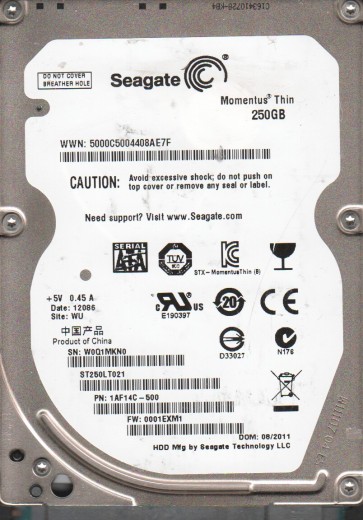
The Seagate ST250LT021 is a 2.5-inch, 250GB laptop hard drive, typically found in older notebooks and external enclosures. It operates at 5400 RPM and uses a SATA interface. This drive is known for its relatively low power consumption but is also subject to specific mechanical and firmware-related failure modes common in Seagate drives of this generation. Understanding the drive’s internals:including the voice coil motor, read/write heads, platters, and the system-on-a-chip (SoC) firmware:is crucial for diagnosing issues. Common physical characteristics include a thin profile and a single-platter design, which can simplify head replacement but makes the platter highly sensitive to shock.
Identifying Common Failure Types
1. Mechanical Head Failure (Click of Death)
This is a frequent failure for the ST250LT021. Symptoms include the drive powering on but emitting a repeated clicking or ticking sound. The drive may be detected in BIOS but become unresponsive or cause the system to freeze. This indicates the read/write heads have physically crashed onto the platter surface or are unable to park correctly. The damage is often caused by physical shock, drops, or wear over time. Data recovery from a clicking drive typically requires professional cleanroom intervention to replace the head assembly.
2. Firmware Corruption (Unresponsive or Incorrect Capacity)
Seagate drives, including the ST250LT021, can suffer from firmware corruption. Symptoms include the drive spinning up but not being recognized by the OS, being detected as “0GB” or “LBA 0,” or showing unusual errors like “SMART status bad” without any physical noise. This can result from a sudden power loss, bad sectors, or a corrupted translator module. While sometimes fixable with specialized software tools, DIY firmware repairs carry significant risk of bricking the drive permanently if not done precisely.
3. Bad Sectors or Media Degradation
Over time, the magnetic coating on the platters can degrade, leading to bad sectors. Symptoms include slow read/write speeds, file corruption, system crashes during file access, and repeated chkdsk or fsck errors. The drive may still spin and be detected but will make a repetitive “whirring” or “grinding” sound while trying to read data. This is a progressive issue; continued use can cause further damage. While software can map out bad sectors, this does not recover the lost data from those sectors and can stress other healthy parts of the drive.
4. PCB (Printed Circuit Board) Failure
Electrical failure can occur on the drive’s logic board. Symptoms include the drive not spinning up at all, emitting a brief hum then silence, or being detected with incorrect model information. This can be caused by a power surge, overvoltage, or component burnout. A common issue is a damaged TVS diode (transient voltage suppression). While swapping a PCB might seem straightforward, the ST250LT021 often stores unique calibration data on the board’s NVRAM; a simple swap without transferring this data will likely not work.
Potential Recovery Paths
Professional Data Recovery Services (Recommended for Hardware Failures)
For mechanical head failure, severe firmware corruption, or PCB damage, professional services are the most reliable option. A cleanroom environment (Class 10 or better) is required for any head or platter manipulation. Specialized tools like a PC-3000 or DeepSpar are needed to read firmware modules and bypass corrupted sectors. Costs range from $300 to $3000+ depending on the complexity and urgency. Choose a lab offering a “no data, no charge” evaluation. For the ST250LT021, a reputable lab will have experience with Seagate head stiction and firmware issues.
DIY Recovery Paths (Only for Non-Physical, Software-Level Issues)
Software Scanning: If the drive is detected, makes no unusual sounds, and is not clicking, you can try software like R-Studio, DMDE, or TestDisk. Create a sector-by-sector image of the drive to a healthy, new drive, avoiding any direct writes to the failing drive. Never run chkdsk or fsck on a failing drive as it can make data unrecoverable.
PCB Swap (Advanced DIY): For a dead PCB with no physical damage, you can attempt to swap the PCB with an identical donor board. However, you must transfer the original board’s NVRAM (often a small chip) to the donor board. This requires soldering skills and a hot air station. Simply matching the board part number is not sufficient due to individual drive calibration. This is risky and not recommended for beginners.
Firmware Repair (Advanced DIY): Using tools like HDAT2 or Seagate-specific terminal commands, you can sometimes fix firmware issues like corrupted translators. This requires a terminal cable, a serial adapter, and deep technical knowledge of Seagate commands. A single wrong command can permanently brick the drive.
What Not to Do
- Do not open the drive enclosure. The internal platters are extremely sensitive to dust and static. Exposing them to open air will guarantee permanent data loss.
- Do not apply power to a clicking or grinding drive repeatedly. Each attempt can further damage the platter surface and destroy more data.
- Do not run chkdsk /f or fsck on a failing drive. These tools attempt to repair file system structures, which can overwrite or modify critical data areas.
- Do not use the drive as a daily driver after detecting failure. Continued use will accelerate the failure and reduce recovery chances.
- Do not freeze the drive. This old myth is ineffective for modern drives and often causes moisture damage inside the sealed unit.
- Do not attempt to swap the PCB without verifying the firmware alignment. A mismatched PCB can short out the drive’s main motor controller.
Summary
Recovering data from a Seagate ST250LT021 requires a clear diagnosis of whether the issue is physical, firmware, or electrical. For any physical symptoms (clicking, grinding, not spinning), immediate professional intervention is the only safe path. For software corruption or bad sectors (with no unusual noise), careful, read-only imaging using professional software offers a DIY chance. Never underestimate the risk of further damage. The safest, most reliable recovery approach for valuable data is always to consult a professional data recovery service with experience in Seagate laptop drives. Prioritize creating a full backup of all healthy data immediately.