
Data recovery on vintage hard drives like the Seagate ST3146855SS starts with identifying the failure type – electronic, firmware, or mechanical. Each requires a different approach, and misdiagnosis can make things worse. Here’s a quick guide to help you assess your situation and decide on the next step.
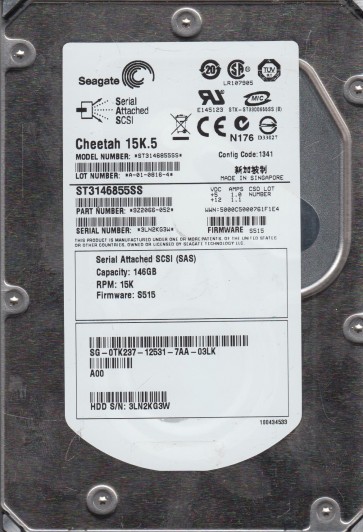
The Seagate ST3146855SS is a 146GB, 15,000 RPM SAS (Serial Attached SCSI) hard drive from Seagate’s Cheetah family. It features a Fibre Channel interface (often used in enterprise servers and RAID arrays) and employs a robust design for 24/7 operation. These drives are known for high reliability but are susceptible to specific failure modes due to their age, high spindle speed, and enterprise workload history. The drive uses perpendicular recording technology and a sealed head-disk assembly (HDA). Common applications include database servers, SANs, and high-performance computing environments. Understanding that this is a legacy drive is crucial, as parts and expertise may be scarcer than for consumer models.
Identifying Common Failure Types
1. Preamp or Head Failure: This is the most frequent hardware issue in high-speed enterprise drives. Symptoms include clicking sounds (often rhythmic), repeated recalibration cycles, or the drive being detected but with massive bad sectors or read/write errors. The 15K RPM spindle places extreme stress on the heads and preamplifier chip. A head crash can lead to visible media damage, rendering DIY recovery impossible.
2. SAS Interface/PCB (Printed Circuit Board) Failure: The SAS controller chip (often a Marvell or LSI chip) or the motor driver IC on the PCB can fail due to power surges, age, or electrostatic discharge. Symptoms: The drive may not spin up, may not be detected on the SAS bus, or may show a “device not ready” status. A common error is a blown TVS (Transient Voltage Suppression) diode, which can sometimes be a simple fix. However, replacing the PCB requires transferring the unique adaptive data from the original PCB’s firmware chip to the donor board; simply swapping PCBs will not work.
3. Stiction or Spindle Motor Failure: Due to age, the lubricant in the spindle motor can dry out or the bearings can seize. Symptoms: The drive makes no sound when powered, or you hear a very faint hum but the platters do not spin up. Sometimes, a gentle tap can free a stuck motor, but this is highly risky. If the platters are stuck to the heads (stiction), forcing the spin can cause immediate media damage.
4. Bad Sector Proliferation (Firmware or Media Degradation): The drive may be detected but take a very long time to be ready, or it will report a high number of reallocated sectors. In severe cases, the firmware’s translator or defect list becomes corrupted, leading to the drive locking up and demanding an immediate power cycle. This is often confused with a head failure as the behavior (clicking or hunting) can be similar.
Potential Recovery Paths
DIY Methods (For Software/Interface Issues Only – Extreme Caution Required):
1. Check SAS Controller and Cable: Ensure the SAS cable is properly seated and the controller (e.g., LSI 8600E) is recognized in the BIOS. Try a different SAS port or cable. This is the safest first step.
2. Test the PCB for Blown TVS Diodes: If the drive is completely dead, visually inspect the PCB near the SAS connector for any burnt or bulging components, especially small diodes labeled “TVS.” Using a multimeter, you can test for shorts. A simple repair is to remove a shorted TVS diode (especially the 5V or 12V lines), but this requires soldering skill and carries a risk of further damage. Do not power up the drive with a shorted TVS unless you are certain which one.
3. Use DDRescue (Linux) or HDD Raw Copy Tool (Windows) for Logical Issues: If the drive spins up and is detected but has many bad sectors, create a sector-by-sector image to a healthy drive. Use the command ddrescue -d -r3 /dev/sdb /dev/sdc logfile.log (replace device names). This is the only safe DIY software method. Do not run chkdsk, fsck, or any file system repair tool on the failing drive.
Professional Services (Highly Recommended for Physical/Firmware Issues):
1. Clean Room Head Replacement: For clicking or head crash symptoms, the only viable path is a professional clean room. A technician will open the drive in a Class 100 environment, replace the head stack assembly (HSA) with an identical donor (matching firmware version, specific head zones, and DCM number), and use specialized software (like PC-3000 SAS or DeepSpar) to extract the data. The cost for this model is typically $500-$2000 USD depending on damage severity.
2. PCB Firmware Transfer: If the PCB is damaged, a professional can transplant the original firmware microchip (often an 8-pin SPI flash or an EEPROM) from the bad PCB to a matching donor PCB. This is far more reliable than attempting to adapt the drive electronically (which requires advanced tools like a hot air station and NAND programmer).
3. Firmware Repair via Serial Terminal: If the drive has a firmware corruption (e.g., “short DCM” or “too many bad sectors” lockup), professionals can use a serial terminal connection (via an FTDI adapter) to send firmware commands to disable error handling, recover the translator, or rebuild the defect list. This is extremely complex and can brick the drive if done incorrectly.
What Not to Do
1. Do Not Open the Drive: The ST3146855SS HDA is sealed with a foil filter. Opening it at home instantly introduces dust particles that will scratch the platters. Even lifting the lid for one second can destroy all data.
2. Do Not Freeze the Drive: Freezing the drive can cause condensation, which leads to electrical shorts, platter corrosion, and head contamination. It is an urban legend and ineffective for SAS enterprise drives.
3. Do Not Swap PCBs Without Expert Guidance: As mentioned, the adapter data is unique. Installing a donor PCB without transferring the firmware can cause the drive to spin but not read, or worse, can corrupt the firmware zone on the platters permanently.
4. Do Not Use Data Recovery Software (like Recuva or R-Studio) on a Failing Drive: Scanning a physically damaged drive with file recovery software will cause it to thrash, generating heat and vibration that can turn a recoverable head issue into a full head crash. Always image the drive first.
5. Do Not Force a Power Spooling: If the drive does not spin up, do not tap it, shake it, or apply manual force to the spindle. This can break the heads or deform the platters.
Summary
Recovering data from a Seagate ST3146855SS is challenging due to its age and high-speed enterprise design. The most common failures are head crashes (requiring clean room work) and PCB issues (requiring firmware transfer). For any symptom involving physical noise, non-detection, or rapid bad sector growth, immediate professional intervention is advised. DIY methods are limited to checking cables and creating a low-level image via ddrescue if the drive is logically accessible. Avoid all folklore fixes (freezing, opening, tapping) and never attempt to repair the firmware or PCB without specialized tools and donor components. The cost of professional recovery for this drive is typically justified by the critical data it often stored, and the first step should always be to power down the system and discontinue all writes.