
Data recovery on vintage hard drives like the Hitachi HDS725050KLA360 starts with identifying the failure type – electronic, firmware, or mechanical. Each requires a different approach, and misdiagnosis can make things worse. Here’s a quick guide to help you assess your situation and decide on the next step.
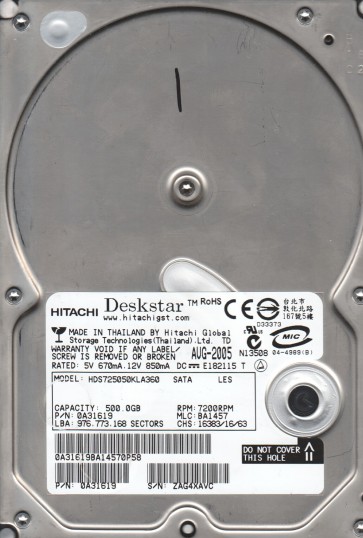
The Hitachi HDS725050KLA360 is a 500GB, 3.5-inch, 7200 RPM SATA hard drive from the Deskstar series, known for its balance of performance and capacity. Drives in this series typically use an FDB spindle motor and high-density platters. Understanding the specific generation of the controller chip (often a Marvell or Infineon based SoC) and the firmware architecture is critical. The HDS7250 series is generally considered reliable but does have known failure patterns. The drive features a standard SATA interface, making it accessible for most recovery attempts, but its mechanical and electronic design requires caution.
Identifying Common Failure Types
1. Head Crash / Surface Damage
A head crash occurs when the read/write head makes physical contact with the spinning platter surface. Symptoms include loud clicking or grinding noises, or the drive spinning up but immediately spinning down. The heads can become seized against the platter, causing media damage and data loss at the contact point. This is a hardware failure. If you hear unusual sounds, do not power the drive on repeatedly.
2. Stiction (Spindle Motor Lock)
The drive may fail to spin up entirely, with a single click or a buzzing sound from the motor. This is often caused by the magnetic platter sticking to the parking ramp or head assembly, or a seized spindle bearing. A common cause is a power surge or a damaged motor driver IC. Attempting to forcibly spin the platters can cause permanent damage.
3. Bad Sectors / Media Degradation
The drive appears in BIOS but fails to boot or shows file system errors, bad block errors in SMART data, or very slow read speeds. This is a media fault, often progressive. The drive may report reallocated, pending, or uncorrectable sectors. While sometimes recoverable via software, attempting to force bad sector reads can cause the heads to overheat or skip, leading to a head crash.
4. PCB Failure (Electronic Faliure)
The drive does not spin up, spins up but is not detected, or detects with incorrect parameters. This can be caused by a blown TVS diode (overvoltage protection), a damaged preamplifier IC, or a failed motor controller. Often the circuit board looks physically intact. Do not replace the PCB with a donor board without transferring the original firmware ROM chip, as the firmware is uniquely matched to the drive’s platters.
Potential Recovery Paths
Professional Recovery (Recommended)
Do Not Attempt DIY if: The drive is making unusual noises (clicking, grinding, whistling), has been dropped, or has an obviously broken PCB (burnt component). Professional labs have class 100 cleanrooms (sometimes class 10) to open the drive safely. They use specialized tools like a PC-3000 or DeepSpar to image sectors sequentially, bypass bad areas, and repair firmware. For head crashes, they can perform a head stack replacement (donor heads). For stiction, they can carefully release the heads with controlled force. Expect costs between $300 to $2000+ depending on severity. Look for a lab with a proven track record on Deskstar drives and with a controlled environment.
DIY Recovery (Risky – only for media degradation)
Conditions: Only attempt if the drive is detected perfectly, makes no abnormal sounds, and you only need to recover a small amount of data that is not critical.
1. Connect the drive as a secondary drive (not boot) using a quality SATA-to-USB adapter or a direct internal SATA cable.
2. Use a tool like DDRescue or R-Studio (run from a separate healthy system). Use the `ddrescue` command on Linux to create a sparse image. For example: `sudo ddrescue -d -r3 /dev/sdb /mnt/recovery/image.dd /mnt/recovery/logfile.lg`. The logfile is critical to avoid rereading bad sectors.
3. Do not write to the failing drive. Only read from it.
4. Stop immediately if you hear new sounds or the tool reports rapid increases in errors.
5. Image then analyze. Once the image is complete (or as much as possible), run recovery software on the image file, not the source drive.
What Not to Do
- NEVER open the drive enclosure. The interior must be maintained in a cleanroom environment (Class 100 or better). Even a single dust particle can destroy the platter. Any attempt to open the lid voids all chances of professional recovery.
- NEVER power cycle the drive repeatedly. If it fails to spin up or makes a clicking sound, each power-on risks further head damage or media scoring.
- DO NOT run chkdsk / fsck / any repair utility. These tools will write to the drive while trying to fix the file system, potentially corrupting remaining data and making the drive worse. Only use read-only access.
- DO NOT freeze the drive. This is a myth and can cause condensation, leading to a short circuit or head crash. Drives must be kept at room temperature.
- DO NOT attempt to replace the PCB using a generic donor board. The firmware on the original board is unique. Swapping PCBs without transferring the firmware ROM (or matching the exact same firmware version) will render the drive non-functional and can corrupt data.
Summary
The Hitachi HDS725050KLA360, while robust, can fail due to head crashes, media degradation, PCB issues, or stiction. For any physical failure (noise, no spin, dropped drive), immediate professional intervention is the only safe path. For logical or bad sector failures, a careful DIY approach using a read-only imaging tool (like ddrescue) and operating on a clone or image is possible, but only if the drive makes no abnormal sounds. Damage from well-intentioned but incorrect recovery attempts is far more common than complete drive death. Always back up critical data from any new drive. If the data is irreplaceable, send it to a professional lab.