
Data recovery on vintage hard drives like the Seagate ST3400833NS starts with identifying the failure type – electronic, firmware, or mechanical. Each requires a different approach, and misdiagnosis can make things worse. Here’s a quick guide to help you assess your situation and decide on the next step.
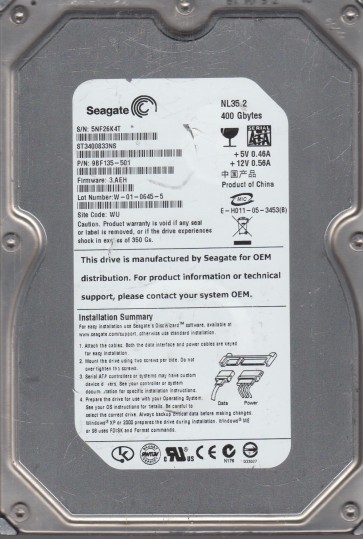
The Seagate ST3400833NS is a 400GB 3.5-inch SATA hard drive from the Barracuda ES (Enterprise Storage) series. This model is designed for 24/7 operation in RAID arrays and network-attached storage (NAS) environments. It features a rotational speed of 7200 RPM and a 16MB cache. The drive uses perpendicular recording technology and has a standard SATA 3.0Gb/s interface. As an enterprise-grade drive, it is built with robust components but is still susceptible to mechanical wear, electronic failure, and logical corruption over time, especially after years of continuous use.
Identifying Common Failure Types
1. Mechanical Failure (Head Crash or Spindle Motor Seizure) This is a physical failure where the read/write heads make contact with the platters, or the spindle motor that spins the platters stops working. Symptoms include audible clicking, grinding, or whirring noises from the drive. The drive may be recognized by the system briefly but fails to read data, or it may spin up and then immediately stop. This is often caused by physical shock, power surges, or age-related degradation of the fluid dynamic bearings.
2. Electronic Failure (PCB Corruption or Component Burnout) The printed circuit board (PCB) on the bottom of the drive contains the controller chip, motor driver, and other critical electronics. Failure can occur due to power spikes, overheating, or component aging. Symptoms include the drive not spinning up at all, no activity lights, or the drive being completely unrecognized by the BIOS. In some cases, a visible burn mark or a blown capacitor may be present.
3. Logical Failure (Firmware Corruption or Bad Sector Development) This is a non-physical issue related to the drive’s internal firmware or the file system. Common symptoms include the drive being detected but showing an incorrect capacity (e.g., 0GB or 32GB), making clicking sounds without physical damage, or becoming extremely slow to respond. Bad sectors can develop over time, causing file system errors, operating system freezes, or the drive being recognized as “RAW” or “Unformatted”. This often occurs due to voltage fluctuations, improper shutdowns, or simple wear from heavy usage.
Potential Recovery Paths
Professional Data Recovery Services For mechanical failures (head crash, motor seizure) or advanced electronic damage, professional intervention is the only safe option. Specialized cleanroom facilities (Class 100 or better) are required to open the drive and perform head replacements or platter transplants. This process is expensive (typically $300 to $1500+ depending on severity and urgency). Look for a service provider with Seagate-specific tools (e.g., PC-3000, DeepSpar Disk Imager) and a proven track record with Barracuda ES drives. Direct customer support and a no-data-no-fee policy are indicators of a reputable lab.
DIY (Do-It-Yourself) Methods (For Logical Failures Only) If the drive is making unusual noises, do NOT attempt DIY recovery. For logical failures (bad sectors, firmware glitches, or file system corruption), you can try software-based recovery. Boot from a separate healthy drive and use data recovery software like R-Studio, GetDataBack, or DMDE. Create a byte-by-byte image of the failing drive to a healthy target drive using tools like HDDSuperClone or ddrescue (Linux). This process can take days for a 400GB drive with many bad sectors. After imaging, mount the image file and extract needed files. Never write new data back to the failing drive.
Firmware Repair (Advanced DIY) If the drive is detected but shows incorrect capacity or makes no noise, the firmware may be corrupt. This requires specialized hardware like a PC-3000 or a simpler tool like a Seagate terminal adapter (e.g., FTDI cable) and software like HyperTerminal. Commands can be sent via serial connection to rebuild the translator or clear bad sectors. This is extremely risky for non-experts and can render the drive permanently inaccessible if done incorrectly.
What Not to Do
1. Do NOT power on the drive if it makes clicking, grinding, or scraping sounds. Each second of operation can further damage the platters, making recovery impossible. 2. Do NOT open the drive enclosure for any reason. Hard drives are sealed in a cleanroom environment; even a single speck of dust can destroy the heads and platters. 3. Do NOT run CHKDSK /F or any disk repair tool on a failing drive. These utilities attempt to fix file system errors by writing new data, which can overwrite bad sectors and corrupt the file table permanently. 4. Do NOT freeze the drive. This is a persistent myth that can cause condensation inside the drive, leading to catastrophic failure. 5. Do NOT attempt to swap the PCB with a donor drive unless you have the exact same firmware revision and know how to transfer the original ROM chip. PCB swaps without ROM transfer often fail due to adaptive tuning data unique to each drive. 6. Do NOT continue using the drive for normal operations if you suspect failure. Immediate unplugging and professional evaluation is the best course for valuable data.
Summary
The Seagate ST3400833NS is an enterprise-class SATA drive prone to three primary failure modes: mechanical (head crashes, motor seizure), electronic (PCB damage), and logical (firmware corruption, bad sectors). For mechanical and electronic failures, professional recovery in a cleanroom is mandatory. For logical issues, DIY recovery via disk imaging and software is possible but requires caution. Never attempt to open the drive, run repair tools, or apply extreme temperatures. The safest path for irreplaceable data is to immediately stop using the drive and consult a specialized recovery service. A proper backup strategy remains the only reliable protection against data loss.