
Data recovery on vintage hard drives like the Seagate ST9640322AS starts with identifying the failure type – electronic, firmware, or mechanical. Each requires a different approach, and misdiagnosis can make things worse. Here’s a quick guide to help you assess your situation and decide on the next step.
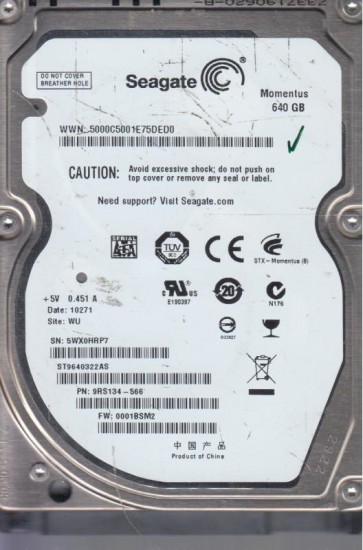
The Seagate ST9640322AS is a 640GB 2.5-inch SATA hard disk drive typically found in laptops and external enclosures. It features a 5400 RPM spindle speed and a perpendicular recording technology. Designed for mainstream portable storage, it is known for being a workhorse but is susceptible to specific failure modes common to its generation. Key to its operation is an internal firmware zone on the platters which, if corrupted, can render the drive inaccessible even with functional hardware.
Common Failure Types
1. Mechanical Head Crash or Stiction
Symptoms: Loud clicking, scratching, or grinding noises. Drive fails to spin up or spins up and then stops. System does not detect the drive. Cause: Physical contact between the read/write heads and the platter surface, often due to shock, drop, or particulate contamination. The heads may also stick to the platter surface (stiction) after prolonged inactivity.
2. Firmware Corruption (SA Failure)
Symptoms: Drive spins up normally but is not detected, detected with incorrect capacity (e.g., 0GB or 32MB), or gets stuck in a “busy” state (BSY). May click a few times before going silent. Cause: Corruption of the System Area (SA) modules on the platters. This is often triggered by a power surge, an improper shutdown, or the development of bad sectors in the system area.
3. Bad Sectors and Media Degradation
Symptoms: Extremely slow read/write speeds, file read errors, corrupted files, system crashes, and the operating system reporting I/O errors. CHKDSK may find “unreadable” sectors. Cause: Gradual degradation of the magnetic media, manufacturing defects, or physical damage to the platter surface. The drive’s internal remapping process is overwhelmed.
4. Head Stack Assembly (HSA) Failure
Symptoms: One or more heads fail to read/write while others function. This leads to partial data loss, inability to access certain files or partitions, and sometimes a grinding noise. Cause: The preamplifier chip on the flexible circuit of the HSA degrades or fails. Mechanical wear of the head suspension arm can also occur over time.
5. PCB (Printed Circuit Board) Failure
Symptoms: Drive is completely dead (no spin, no sound). Visible damage like a burnt chip on the board, often near the power connector. Cause: Power surges, age-related capacitor failure, or electrostatic discharge (ESD) damaging the motor controller chip (e.g., a Smooth or LSI chip).
Potential Recovery Paths
Professional Services (Recommended for Mechanical/Firmware Issues)
- Mechanical Head Crash or HSA Failure: Requires a cleanroom (Class 100 or better) to replace the HSA. A donor drive of the exact same model and firmware revision is needed. This is high-risk for DIY.
- Firmware Corruption: Specialized tools like PC-3000 or MRT are used to repair or rebuild the system area modules. This requires deep technical knowledge.
- PCB Failure: A donor PCB is used after transferring the original ROM chip (or reprogramming it) to ensure the drive’s specific adaptive data is matched. Simple PCB swaps without ROM transfer almost never work.
DIY Methods (Only for Logical Issues & Specific PCB Scenarios)
- Bad Sectors (Software Recovery): Use data recovery software like R-Studio, DMDE, or ddrescue (Linux). Do not use CHKDSK /F on a failing drive. Create a sector-by-sector disk image to a healthy drive first. This is a low-level copy that reads as much data as possible.
- PCB Board Swap (Specific Case): If you visually identify a burnt component (e.g., a TVS diode) on the power input, you can replace that single component with a soldering iron (by a skilled person). For a full PCB swap, you must desolder and move the 8-pin serial flash ROM from the original board to the exact-match donor board. This requires fine-pitch soldering skills and a hot air station.
- Freezing the Drive: This is a dangerous urban legend for older drives. It provides temporary relief in rare cases of stiction but will almost certainly cause condensation and kill the drive. Avoid this at all costs.
What Not to Do
- Never open the drive’s sealed chamber. Even a single speck of dust can destroy the heads and platters. The drive is assembled in a cleanroom. Opening it outside of a cleanroom will guarantee data loss.
- Do not run CHKDSK /F or any repair utilities. These tools can cause the drive to remap bad sectors into a “free” space, permanently overwriting your data. Use read-only imaging tools instead.
- Avoid multiple power-on/off cycles. If the drive is clicking or struggling, each power cycle can cause the heads to scrape the platter, creating more damage.
- Do not attempt to swap the PCB with a “matching” board without transferring the ROM. A drive’s unique adaptive data (including head map and defect lists) is stored on its ROM chip. Using a donor PCB without this data will result in no detection or further damage.
- Never apply excessive force or tools to the drive casing. Prying or bending the casing can misalign the internal components or short the PCB.
Summary
The Seagate ST9640322AS is vulnerable to mechanical head crashes, firmware corruption, and PCB electronics failure. The primary principle for recovery is to stop using the drive immediately upon noticing a physical symptom (clicking, no spin). For any mechanical, firmware, or complex PCB issue, a professional data recovery service with a cleanroom and specialized tools is the only safe path. DIY attempts should be strictly limited to logical imaging of a drive with bad sectors using reliable read-only software. The key to maximizing data recovery success is immediate, correct action and avoiding common household remedies that cause irreversible physical damage.