
Data recovery on vintage hard drives like the Western Digital WD30EURX starts with identifying the failure type – electronic, firmware, or mechanical. Each requires a different approach, and misdiagnosis can make things worse. Here’s a quick guide to help you assess your situation and decide on the next step.
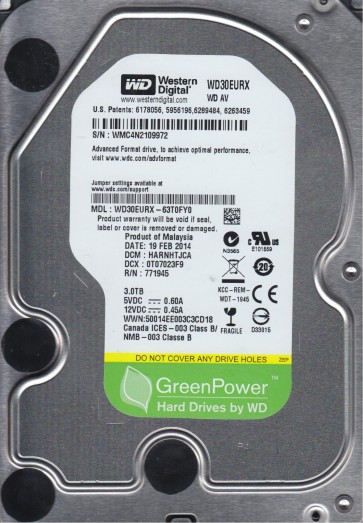
The Western Digital WD30EURX is a 3TB 3.5-inch hard drive belonging to the WD AV-GP (Audio-Video General Purpose) series. It is specifically designed for 24/7 operation in surveillance DVRs and media streaming environments. Key features include IntelliSeek and IntelliPower technologies which optimize seek times and power consumption for low heat and noise but result in a variable spindle speed (approximately 5400-7200 RPM). It employs Advanced Format (4K sectors) using the 512e emulation standard. A critical characteristic of this model is its use of a proprietary SATA interface and firmware optimized for ATA streaming commands, which can complicate standard recovery procedures.
Common Failure Types
1. Mechanical Head Crash:Symptoms include a loud clicking, scraping, or grinding noise (often described as a “death click”) and the drive not being detected. Physical contact between the read/write heads and the platters damages the magnetic media. Common causes are shock/vibration during operation, debris contamination, or bearing wear.
2. PCB & SATA Connector Failure:Symptoms include the drive not spinning up, no power-on sound, or intermittent detection. The PCB (Printed Circuit Board) can fail due to a blown TVS diode from a power surge, defective motor controller chip, or damaged SATA connector pins. The WD30EURX is known for connector fragility.
3. Stiction & Bearing Seizure:Symptoms include the drive clicking once with no spin or a high-pitched whine before stopping. The read/write heads can stick to the platter surface (stiction) due to degraded lubricant or a sudden stop. The spindle bearing can seize, requiring specialized tools to break the motor free.
4. Firmware Corruption (BSY/LBA0):Symptoms include the drive being detected incorrectly (e.g., showing as “0GB” or “LBA0”), being “busy” (BSY state) and unresponsive, or freezing during initialization. Wear-leveling algorithms, bad sector relocation, or a failed G-List (growing defect list) can corrupt vital firmware modules.
5. Logical Damage & Bad Sectors:Symptoms include slow operation, file system errors, inability to access data, or the system hanging when reading specific files. This includes corrupted partition tables, damaged file system structures (NTFS/FAT32), logical bad sectors (caused by weak magnetic domains), and file fragmentation that exceeds firmware limits.
Potential Recovery Paths
DIY Methods:
For Surface Damage:Use a low-level cloning tool like DDRescue or HDDSuperClone to create a disk image. Run it in safe mode (e.g., ignore read errors) to bypass bad sectors. Do not attempt to run a filesystem check (chkdsk) on the failing drive; work on the clone.
For File System Corruption:After cloning, use file recovery software (e.g., R-Studio, DMDE, UFS Explorer) to scan the clone for deleted or inaccessible partitions and recover data to a separate healthy drive. Avoid writing to the source drive.
For PCB Failure:If you suspect a TVS diode or fuse, you can attempt to replace just those components with a soldering iron. For full PCB replacement, you must swap the original drive’s firmware ROM chip (an 8-pin serial EEPROM) to the donor PCB. Simply swapping PCBs without a ROM transfer will not work due to drive-specific calibration data.
Professional Services:
Seek a professional lab (class 100 cleanroom) with experience in Western Digital “SAS/SATA” hybrid drives. They can perform head stack replacements (HSA), platter transfers, and firmware repairs using specialized tools like PC-3000 UDMA. For stiction or seized bearings, they can use a tool to mechanically unlock the motor. Professional recovery is strongly recommended for clicking drives or drives with severe physical damage to avoid catastrophic data loss.
What Not to Do
1. Do Not Power On a Clicking Drive:Every power cycle with a damaged head can cause further platter damage, reducing the chance of complete recovery.
2. Do Not Open the Drive Enclosure:The interior is a particle-free cleanroom environment. Opening it in a normal room will introduce dust that can destroy the heads and platters instantly.
3. Do Not Run CHKDSK or Format:Disk checking tools on a failing drive can cause the heads to scratch the surface or corrupt the firmware. Formatting overwrites the data structures.
4. Do Not Use Freezers or Shocks:Freezing a hard drive can create condensation, causing further corrosion and stiction. Tapping or shaking the drive can cause a head crash.
5. Do Not Attempt Invasive PCB Repairs Without Expertise:Shorting or desoldering components on the PCB without schematics or experience can damage the preamp or spindle motor driver, making professional recovery more difficult and expensive.
Summary
The WD30EURX is prone to mechanical head crashes, PCB/solder failures, and firmware BSY states. DIY recovery is only feasible for simple file system corruption or superficial bad sectors using cloning and software. Physical symptoms like clicking, stiction, or seizure require an immediate stop and a professional cleanroom recovery service. Never attempt invasive repairs or software fixes on a physically failing drive to maximize the chance of data retrieval.