
Data recovery on vintage hard drives like the Western Digital WD80EZAZ starts with identifying the failure type – electronic, firmware, or mechanical. Each requires a different approach, and misdiagnosis can make things worse. Here’s a quick guide to help you assess your situation and decide on the next step.
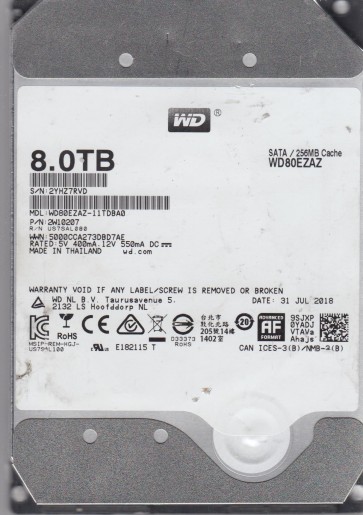
The Western Digital WD80EZAZ is an 8TB, 5400 RPM, SATA 3.5-inch internal hard drive. It is designed for high-capacity storage in desktop computers and external enclosures. It typically employs Conventional Magnetic Recording (CMR) technology, which provides consistent performance for sequential writes and reads, making it suitable for backup, archival, and media storage. Key characteristics include a high areal density platter, a helium-sealed enclosure (in most production runs) to reduce friction and power consumption, and an intelligent power management system.
Common Failure Types
1. Mechanical Head Crash
Symptoms: Loud clicking, grinding, or scratching noises from the drive. The drive may spin up briefly, click repeatedly, and then spin down. In advanced cases, the drive will be completely unrecognized by the BIOS or operating system.
Cause: Physical contact between the read/write head and the spinning platter surface. This can be caused by a sudden shock, manufacturing defect, contamination from external particles (dust), or degradation of the head actuator mechanics over time. A head crash often destroys the magnetic layer and leads to platter damage.
2. SSD/Flash Failures (NAND-related – if drive has a small cache)
Symptoms: The drive becomes read-only or exhibits severe write speed degradation. File system errors may appear, and the drive may fail to boot or become stuck during write operations. SMART attributes related to reallocated sectors and pending sectors can increase rapidly.
Cause: While the WD80EZAZ is a HDD, it contains a small NAND flash cache (often 256MB) and a non-volatile cache (NVC) to hold write data during a power loss. Failure of this small flash component can lead to the drive locking up or failing to spin down properly, mimicking firmware-level issues.
3. Firmware Corruption / Service Area Damage
Symptoms: The drive is detected incorrectly by the BIOS (e.g., wrong model name, 0GB capacity, or detection then drop-out). The drive may spin up normally but remain completely inaccessible to the operating system. It may also exhibit a “click of death” pattern that is actually a firmware routine failure, not a mechanical head crash.
Cause: Corrupted data in the system area or translator modules on the platter. This can be due to improper shutdown, power surges, bad sectors in the firmware zone, or firmware bugs. For WD drives, the most common symptom is the drive locking up and needing a “unlock” or “recalibration” command via a terminal.
4. Bad Sectors (Media Defects)
Symptoms: Slow performance, frequent file read/write errors, file corruption, and system freezes or crashes. Chkdsk or S.M.A.R.T. utility will show reallocated, pending, or uncorrectable sector counts. The drive may work normally for a while but progressively degrade.
Cause: Physical damage to the magnetic media from a head touch, manufacturing defects, or age-related magnetic domain wear. A bad sector is a physical area on the platter that can no longer reliably store or read data.
5. Logical Failures (File System Corruption)
Symptoms: The drive is detected and spins normally, but the operating system shows it as “unallocated”, “RAW”, or displays a message “The disk structure is corrupted and unreadable”. Files may be visible but inaccessible or display an incorrect size.
Cause: Corruption of file system metadata (e.g., MFT, FAT, directory entries) due to improper ejection, virus attack, software bug, or power loss. This is a software issue, not a hardware failure.
Potential Recovery Paths
DIY Methods (Software or Logical Issues Only)
1. File System Repair (Only for logical failures): Use a live Linux CD (e.g., Ubuntu) and employ fsck or testdisk to repair the master boot record or partition table. This can fix volume corruption if the damage is limited to the file system structure. Warning: Running chkdsk /f on a drive with bad sectors can force the drive to reallocate sectors, potentially worsening the situation.
2. Data Imaging with Bad Sector Handling: Use software like ddrescue (Linux) or HDDSuperClone to create a physical sector-by-sector clone of the drive, skipping damaged areas. This is a critical step before any file-level recovery. Warning: Do not attempt this on a drive making mechanical noise. Doing so can cause complete drive failure.
3. SMART Data Analysis: Read the drive’s S.M.A.R.T. attributes using tools like CrystalDiskInfo or GSmartControl. Look for high values in Reallocated Sector Count, Pending Sector Count, or Spin Retry Count. A significant increase (e.g., >100 pending sectors) indicates a failing drive and professional intervention is advised.
Professional Recovery Methods (Hardware & Complex Cases)
1. Head Stack Replacement (Head Change): For head crashes or read/write head failure, a data recovery professional must open the drive in a Class 100 cleanroom. They will precisely swap the head assembly (the actuator arm with read/write heads) with a matched donor unit from an identical drive model (same firmware version). This is extremely delicate and requires specialized tools.
2. Firmware Repair (Terminal Access): For firmware corruption, a professional will use a terminal tool (e.g., PC-3000, Atola) to communicate directly with the drive’s processor. They can reflash the corrupted firmware modules, unlock the drive, or reload translator data. This often bypasses the need for a head swap.
3. Platter Transfer (Extreme Cases): If the platter surface is damaged or the top platter is scratched, a recovery engineer may transfer the platters to a different drive of the exact same type. This requires a specialized tool (platter changer) and is only done for critical data.
4. Clean Room Sector Reading: Even with a mechanical issue, professional tools can read data from partially damaged platters or weak heads by using aggressive retry algorithms, adjusting read/write parameters, and controlling the drive’s behavior at the SATA level.
What Not to Do
1. Never Disassemble the Drive: Opening the drive outside a certified cleanroom will introduce dust, which will contaminate the platters and render the drive permanently unrecoverable. The platters are extremely sensitive; a single speck of dust can cause a head crash.
2. Never Apply Power to a Clicking Drive: If you hear clicking, grinding, or scraping noises, immediately disconnect power. Continuing to power the drive will cause the failed head to scratch the platter surface, destroying data. This is a classic sign of a head crash or a severe actuator problem.
3. Never Run Defragmentation or Chkdsk /f on a Dying Drive: Defragmentation reads and writes data across the entire drive. On a failing drive, this can rapidly kill it. Running chkdsk with the /f (fix) flag attempts to repair the file system by reading and potentially modifying bad sectors, which can cause the drive to reallocate sectors or lock up entirely, destroying the last chance for recovery.
4. Never Freeze the Drive: The old “freezer trick” is a myth. It might temporarily shrink a stuck actuator bearing, but it also causes condensation inside the drive, leading to short circuits or immediate head crashes upon power-up. It does not fix data recovery issues and can permanently damage the drive.
5. Never Use Strong Magnetic Fields: Do not put the drive near speakers, transformers, or degaussers to “wipe” it or “fix” it. A strong magnetic field can erase the data on the platters or demagnetize the read/write heads, making recovery impossible. Do not attempt to “reset” the drive by shaking or hitting it.
Summary
The Western Digital WD80EZAZ is a high-capacity CMR drive that can fail due to mechanical head crashes, firmware corruption, media defects, or logical file system issues. For software problems (logical, file system), DIY imaging with ddrescue and file system repair tools may be attempted, but only if no mechanical symptoms are present. Mechanical failures:such as clicking sounds, grinding, or head crashes:require immediate power disconnection and professional intervention in a cleanroom, typically involving head replacement or firmware repair. Do not attempt to open the drive, run defragmentation, apply the freezer trick, or use magnetic fields. The safest and most effective path for non-logical failures is always a professional data recovery lab.