
Clonezilla is a free, open-source disk cloning and imaging tool based on Linux. It supports bare-metal backup, disaster recovery, and mass deployment of operating systems across multiple machines.
Key Functions
| Function | Description | Usage |
|---|---|---|
| Disk-to-Disk Clone | Clones an entire source disk to a destination disk (sector-by-sector or file-system aware). | Choose disk-to-disk → select source → select destination → follow prompts. |
| Partition-to-Partition Clone | Clones an individual partition to another partition. | Choose partition-to-partition → select source partition → select destination partition. |
| Disk Image Backup | Saves a compressed image of a disk to an external drive or network storage. | Choose save disk image → select source disk → choose storage location. |
| Disk Image Restore | Restores a previously saved image back to a disk. | Choose restore disk image → select image file → select target disk. |
| Partition Image Backup | Backs up only a specific partition to an image file. | Choose save partition image → select source partition → choose storage. |
| Partition Image Restore | Restores a partition image to a target partition. | Choose restore partition image → select image → select target partition. |
| Device-to-Device Clone | Advanced option for cloning entire devices (including partition tables, boot sectors). | Available in expert mode; similar to disk clone but lower-level. |
How to Run Clonezilla
Boot from Clonezilla Live USB
- Download the Clonezilla Live ISO from the official website.
- Create a bootable USB using Rufus, Etcher, or
dd. - Boot from the USB (change BIOS/UEFI boot order if needed).
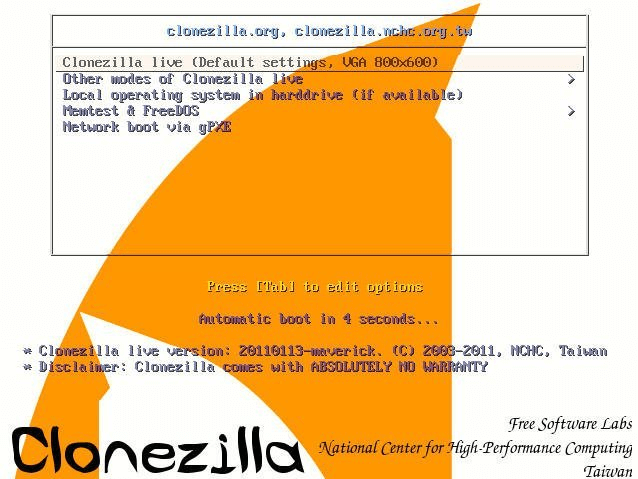
- Select the default boot option (Clonezilla Live with default settings).
- Choose language and keyboard layout (usually default).
- Select Start Clonezilla to enter the main wizard.
Main Wizard Steps
- Choose mode:
- Device-image: Backup/restore using image files (most common).
- Device-device: Direct disk/partition cloning.
- Choose source: Select the disk or partition to clone/backup.
- Choose destination: Select the target disk, partition, or image storage location.
- Check/repair source file system: Runs
fsckbefore cloning (recommended). - Check/repair destination file system: Runs
fsckafter cloning. - Skip checking/repairing: Faster but may clone corrupted data.
- Confirm: Review the summary, then type y or Yes to proceed.
- Wait: Cloning time depends on disk size, speed, and network (if over LAN).
- Finish: Choose to reboot, power off, or continue using the live environment.
Expert Mode Options (Advanced)
- -j2: Clone the boot loader to the target disk.
- -r: Resize destination partition to fill the target disk (auto-expand).
- -k1: Create the partition table on the target before cloning (ignores existing layout).
- -q2: Quiet mode (minimal output).
- -z1..-z9: Compression level for images (z9 = highest, slowest).
- -p true: Use “parted” to handle partition tables (more robust).
Supported File Systems
- Linux: ext2, ext3, ext4, btrfs, xfs, jfs, f2fs, LVM2
- Windows: NTFS, FAT16, FAT32, exFAT
- macOS: HFS+ (experimental)
- Other: swap, UDF, and unformatted raw data (sector-by-sector mode).
Important Notes
- Clonezilla IS the destination: The target disk must be equal to or larger than the source (unless using
-rto resize). - Backup first: Cloning overwrites the destination completely. Ensure you have a backup of any important data on the target.
- Bootable media: Clonezilla does not install to your hard drive; it runs entirely from the USB/CD.
- Network cloning: Supports cloning over SSH, Samba, NFS, or WebDAV for remote backup/deployment.
- Image files: Images are stored as a directory with multiple files (e.g.,
sda1.ext4-ptcl-img.gz.a*). - Check file system: It is highly recommended to check the source file system (using
fsck) before cloning to avoid copying hidden errors. - UEFI/GPT: Clonezilla supports UEFI and GPT; ensure you select the correct boot mode when booting the USB (UEFI vs Legacy).
- Live boot options: You can add kernel parameters like
toramto load the entire OS into RAM for faster cloning. - Clonezilla Server: There is a separate “Clonezilla Server” edition for multicast cloning to dozens of machines simultaneously (enterprise use).
