
TWRP is an open-source custom recovery image for Android devices. It provides a touchscreen-enabled interface for installing custom ROMs, creating Nandroid backups, wiping partitions, and performing system-level maintenance.
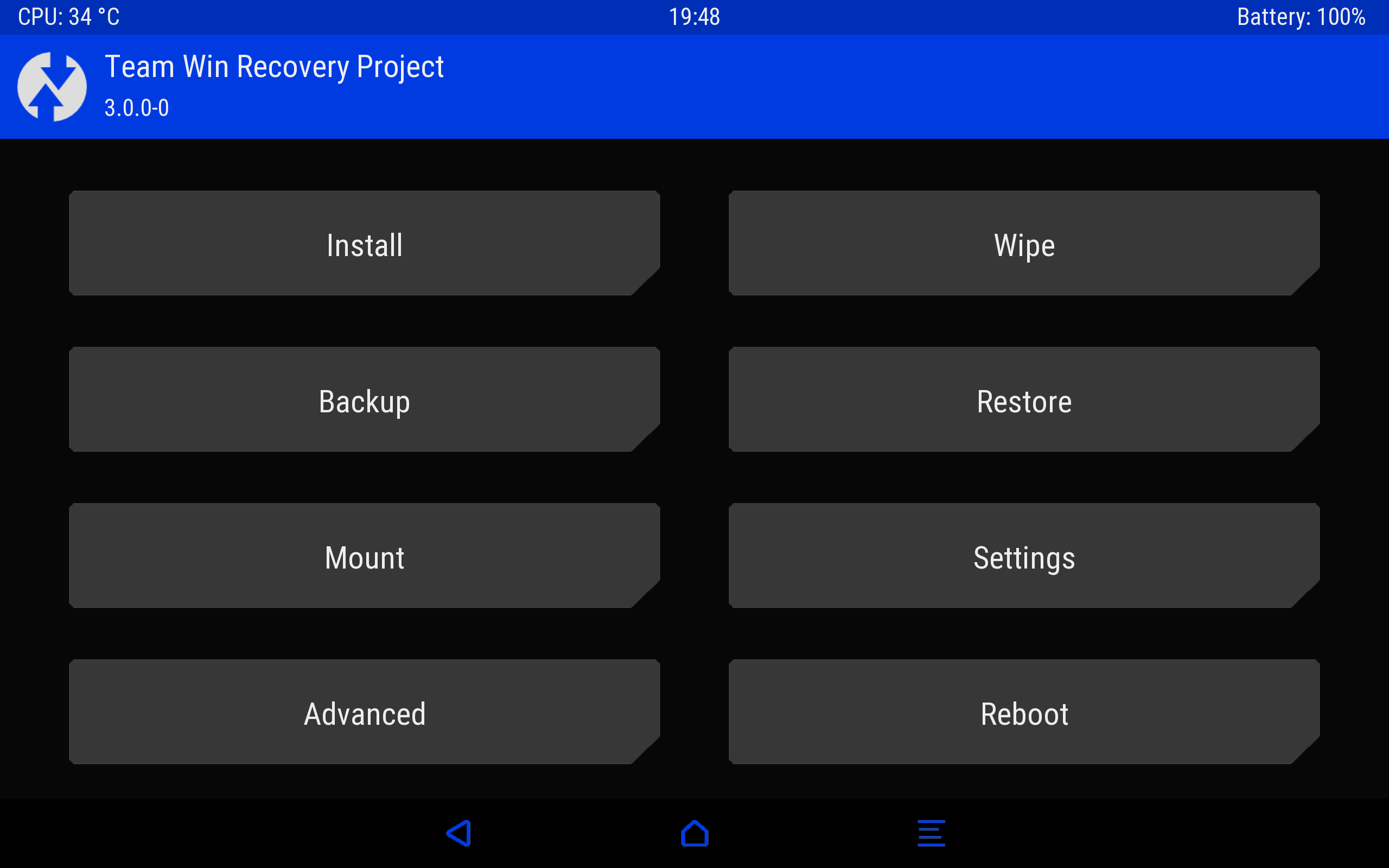
Key Functions
| Function | Description |
|---|---|
| Install (Flash) | Installs ZIP files (ROMs, kernels, mods, root packages) from internal storage or SD card. |
| Backup (Nandroid) | Creates a full backup of selected partitions (system, data, boot, recovery, EFS, etc.) to storage. |
| Restore | Restores a previously created Nandroid backup. |
| Wipe | Clears partitions: cache, Dalvik/ART cache, data, system, internal storage (factory reset), or advanced wipe for individual partitions. |
| Mount | Manually mounts/unmounts partitions (system, data, cache, USB OTG, etc.) for file access. |
| File Manager | Browses, copies, moves, deletes, or renames files on the device (useful for fixing system files). |
| Terminal | Built-in command line for advanced operations (e.g., dd, fsck, partitioning tools). |
| ADB Sideload | Installs ZIP files via USB cable using Android Debug Bridge. |
| Partition SD Card | Creates ext2/ext3/ext4 partitions on external SD cards for use with Link2SD or Apps2SD. |
How to Use TWRP
Booting into TWRP
- Method 1 (Vol keys): Power off device → press and hold Volume Up + Power (or combo varies by device) until recovery appears.
- Method 2 (ADB): With USB debugging enabled:
adb reboot recovery. - Method 3 (Fastboot):
fastboot boot twrp.img(temporarily boots without flashing).
Main Interface (Touchscreen)
- Install: Tap → browse to ZIP file → select → Swipe to confirm flash.
- Backup: Select partitions to backup → choose storage (internal or SD) → Swipe to backup.
- Restore: Select backup file → choose partitions → Swipe to restore.
- Wipe: Tap “Wipe” → Advanced Wipe to select specific partitions → Swipe to wipe.
- Settings: Adjust time zone, screen timeout, compression level (backups), and more.
Nandroid Backup Recommendations
- Minimum: Boot, System, Data (personal apps & settings).
- Recommended: Include EFS (IMEI/network settings) – critical for some devices.
- Compression: Enable in settings to save space (slower backup).
- Encryption: Optionally encrypt backups for security.
Installing a Custom ROM
- Backup current ROM (Nandroid).
- Wipe: Dalvik/ART Cache, System, Data, Cache (not internal storage).
- Install ZIP: Select ROM ZIP → Add more ZIPs (GApps, kernel, root) if needed.
- Queue multiple ZIPs → Swipe to flash.
- Reboot System (first boot may take 5-10 minutes).
Fixing Bootloop or Issues
- Wipe Cache and Dalvik/ART Cache (often fixes minor issues).
- Restore a previous Nandroid backup.
- Flash a different kernel or ROM.
- Use File Manager to delete problematic system files (e.g., in /system/bin or /system/etc).
Advanced Features
| Feature | Description |
|---|---|
| ADB Sideload | In Advanced menu → ADB Sideload → swipe → then on PC: adb sideload rom.zip. |
| Terminal | Run shell commands: ls, mount, dd, fdisk, fsck. |
| Resize Partition | In Advanced → Resize File System (repairs/expands partition to fill available space). |
| Fix Contexts | Restores SELinux security contexts on /system and /data. |
| Recovery Reboot | Options to reboot to System, Recovery, Bootloader, or Power off. |
Important Notes
- Device-specific: TWRP must be built for your exact device model (e.g., OnePlus 9, Pixel 6). Flashing the wrong version can brick the device.
- Unlocked bootloader: Required before installing TWRP (may void warranty).
- Backup EFS: Always backup EFS partition; losing it can break cellular connectivity permanently.
- Wipe caution: Wiping /data or Internal Storage erases all personal files (photos, downloads, etc.).
- OTA updates: Official OTA updates often fail with TWRP; restore stock recovery or flash OTA manually.
- Encryption: Some devices encrypt /data; TWRP may ask for a password/pin to decrypt and access files.
- USB OTG: Supports external USB drives for backup/restore/flashing if device supports OTG.
- Theme: Can customize interface with TWRP themes (install via ZIP).
- Scripting: Supports OpenRecoveryScript (ORS) for automation (e.g., backup scripts).
