
AnyRecover is a comprehensive, multi-platform data recovery software designed to retrieve lost, deleted, or inaccessible files from a wide range of storage devices, including hard drives, SSDs, USB flash drives, memory cards, iOS devices, and Android smartphones. Developed by iMyFone Technology Co., Ltd., AnyRecover has positioned itself as an all-in-one data recovery solution that bridges the gap between computer file recovery and mobile device data retrieval.
Data recovery software is non-destructive and read-only, capable of providing safe and accurate retrieval of data from inaccessible, formatted, corrupted, or undetectable storage media. All data including photos, pictures, videos, audio files, music, documents, emails, archives, and other file types lost due to accidental deletion, virus damage, drive corruption, formatting, partition loss, software failure, or system crash can be effectively recovered from all types of storage devices such as internal/external HDDs, SSDs, USB flash drives, pen drives, thumb drives, SD cards, memory sticks, digital cameras, iPhones, iPads, and Android devices.
AnyRecover works with storage devices of all capacities and supports Windows operating systems from Windows 7 through Windows 11, as well as macOS, iOS, and Android platforms. The software claims to support over 2,000 types of storage devices and over 1,000 file formats, making it one of the most versatile data recovery tools available.
Key Features of AnyRecover
Here are the key features typically associated with AnyRecover:
Comprehensive Device Support
- Computer Storage: Supports HDD, SSD, USB flash drive, memory card (SD, microSD, CompactFlash), external hard drive, and digital cameras.
- Mobile Devices: Supports iOS devices (iPhone, iPad, iPod touch) and Android smartphones and tablets.
- File Systems: Windows: FAT16, FAT32, exFAT, NTFS, ReFS, HFS+; Mac: APFS, HFS+, HFS X, exFAT, NTFS, FAT16, FAT32.
- Storage Interfaces: Compatible with IDE, SATA, SCSI, NVMe, and USB interfaces.
Multiple Data Loss Scenarios
- Accidental Deletion: Recovers files deleted from Recycle Bin (Windows) or Trash (Mac) or using permanent deletion commands.
- Formatting Recovery: Retrieves data from drives that have been quick-formatted or fully formatted.
- Partition Recovery: Restores lost or deleted partitions and rebuilds corrupted partition tables.
- Corrupted Drive Recovery: Extracts data from drives that appear as RAW or are inaccessible.
- System Crash Recovery: Creates bootable recovery USB drives to recover data from unbootable computers.
- Virus Attack Recovery: Recovers files hidden, deleted, or encrypted by malware and ransomware.
- iOS Data Recovery: Recovers lost contacts, messages, photos, notes, WhatsApp chats, and more from iPhone, iPad, and iPod touch (directly from device, iTunes backup, or iCloud backup).
- Android Data Recovery: Recovers lost data from Android smartphones and tablets.
Two Powerful Scan Modes
AnyRecover features multiple scan technologies for different recovery scenarios:
- Quick Scan: For recently deleted files and simple recovery scenarios. Fast and efficient for standard deletions.
- Deep Scan: For formatted, corrupted, or severely damaged drives. This mode thoroughly searches the drive sector by sector using advanced algorithms and can take significant time on large drives.
File Preview Functionality
Allows users to preview recoverable files before initiating the recovery process. The preview feature supports a wide range of file types including images, documents, videos, and audio files. This enables you to verify file integrity and content before committing to recovery, ensuring you only recover files that are intact and needed.
Selective & Filtered Recovery
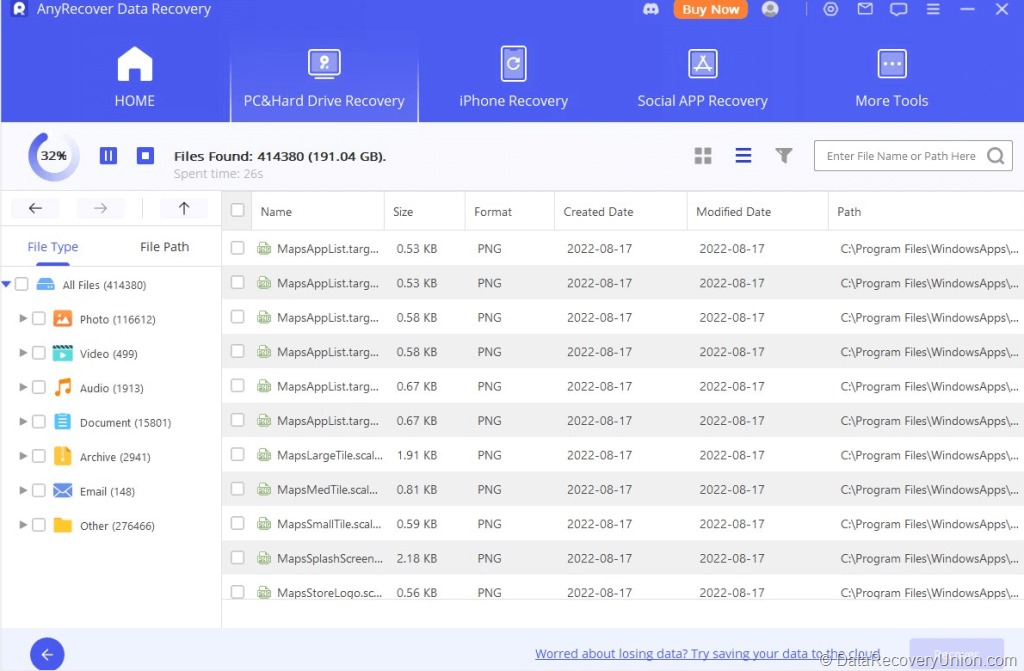
Provides the option to selectively recover specific files or folders rather than restoring the entire scan results. Files are organized by file type (Photos, Audio, Documents, Videos, Archives, Other) for easy browsing. You can select individual files or entire categories for recovery.
Bootable Recovery Media
Creates bootable recovery USB drive, enabling data recovery from computers that fail to boot due to system crashes, blue screen errors, or other startup issues. This feature is available in the Windows version and requires a secondary working computer to create the bootable media.
iOS System Repair
AnyRecover includes iOS system repair capabilities that can fix over 150 iOS system issues, including being stuck on the Apple logo, recovery mode loop, reboot loop, black screen, and other common iOS problems. This feature can resolve these issues without data loss.
Broken File Repair
Beyond basic data recovery, AnyRecover offers file repair functionality for damaged or corrupted photos, videos, and documents. This feature uses AI technology to enhance photo quality and resolution while repairing damaged files.
Secure Deletion and Privacy Protection
The software includes secure file deletion features to permanently erase sensitive files. AnyRecover states that no personal data is collected or stored on their servers during the recovery process – all data remains on the user’s device.
Supported File Types
AnyRecover supports recovery of over 1,000 file types across all major categories, including:
| Category | Supported File Extensions |
|---|---|
| Documents | DOC, DOCX, XLS, XLSX, PPT, PPTX, PDF, RTF, TXT, HTML, XML, ODT, ODS, ODP, PAGES, NUMBERS, KEY, PST, EML, MSG |
| Images & Graphics | JPG, JPEG, PNG, BMP, GIF, TIFF, PSD, CR2, NEF, ORF, RAW, ARW, DNG, HEIC, WEBP, SVG |
| Audio & Video | MP3, WAV, WMA, AAC, FLAC, M4A, OGG, AVI, MP4, MOV, WMV, MKV, FLV, 3GP, MTS, M4V, MPEG |
| Archives | ZIP, RAR, 7Z, TAR, GZ, CAB, ISO |
| Mobile Data (iOS/Android) | Contacts, Messages, WhatsApp Chats, Call History, Notes, Calendar Events, Reminders, Safari Bookmarks |
How to Use AnyRecover
Follow these steps to recover your lost data using AnyRecover:
- Download and Install – Download AnyRecover from the official website. The installer is approximately 4-15MB depending on the version. Important: Do not install the software on the drive from which you want to recover data, as this may overwrite lost files. Install it on your local hard drive or another safe location.
- Launch and Select Recovery Mode – Launch AnyRecover. The software offers different recovery modes based on your needs:
- PC & Hard Drive Recovery – For computer file recovery (Windows/Mac)
- iOS Data Recovery – For recovering data from iPhone, iPad, or iPod touch
- Android Data Recovery – For recovering data from Android devices
- Select the Target Location – For computer recovery, choose the drive, partition, or specific folder you want to scan. You can also select common locations like the Recycle Bin or Desktop for faster scanning.
- Scan the Drive – Click “Start” to begin the recovery process. AnyRecover will automatically determine the best scanning method. The software displays found files in real-time as the scan progresses. For difficult cases where Quick Scan does not find your files, the software will automatically proceed to Deep Scan.
- Preview and Recover – Once scanning is complete, browse the recoverable files. Files are organized by category (Photos, Audio, Documents, Videos, Archives, Other). Use the preview function to verify file integrity. Select the files or folders you wish to restore, then click “Recover” and save them to a different drive to avoid data overwriting.
Editions and Pricing
AnyRecover offers both free and paid versions to accommodate different user needs:
| Edition | Price | Description |
|---|---|---|
| Free Trial Version | Free | Allows scanning and previewing of recoverable files. Recovery limited to 100MB of data or up to 8 files. Use the trial to verify that your files can be recovered before purchasing. |
| 1-Month (Individual) | $59.99/month | Full recovery capabilities for 3 devices + 2 PCs. Includes free scan & preview, mobile (iOS/Android) recovery, WhatsApp/LINE recovery. Auto-renewal, cancel anytime. 30-day money-back guarantee. |
| 1-Year (Individual) | $79.99/year | Same features as monthly plan. Supports 3 devices + 2 PCs. Billed annually. |
| Lifetime (Individual) | $99.99 (one-time) | Supports 5 devices + 3 PCs. One-time purchase with lifetime free upgrades and lifetime customer support. Best value. |
| Annual Business — 3 PCs, 10 Devices | $139.99/year | For business/team use. Includes 1-year free upgrades and 24/7 technical support. |
| Annual Business — Unlimited PCs, Unlimited Devices | $499.99/year | Top-tier business plan for organizations with unlimited devices and PCs. |
Note: Pricing and plan details are subject to change. The free trial allows 100MB of recovery, which is less generous than some competitors (EaseUS offers 2GB). However, AnyRecover’s lifetime license is competitively priced at $99.99 compared to other multi-device recovery tools.
System Requirements
Before installing AnyRecover, ensure your system meets the following requirements:
- Processor: 1GHz Intel/AMD processor or higher
- RAM: 512MB minimum (1GB or more recommended)
- Hard Disk Space: Approximately 50-100MB for software installation, plus additional space for recovered files
- Supported Operating Systems (Windows):
- Windows 11, 10, 8.1, 8, 7, Vista, XP (32-bit and 64-bit)
- Windows Server 2019, 2016, 2012, 2008
- Supported Operating Systems (Mac):
- macOS Sonoma, Ventura, Monterey, Big Sur, Catalina, Mojave
- macOS 11.0 through 13 (beta support)
- Mobile Device Compatibility:
- iOS 7.0 through iOS 17 (iPhone, iPad, iPod touch)
- Android 2.0 through Android 14
- Permissions: Administrative privileges required for installation and certain recovery operations
Known Limitations
While AnyRecover offers comprehensive recovery features across multiple platforms, users should be aware of the following limitations:
- Limited Free Recovery (100MB): The free version only allows recovery of up to 100MB of data or 8 files. This is significantly less generous than competitors like EaseUS (2GB) or Recuva (unlimited).
- Preview Limitations: While preview works for many file types, some users report that preview is only available for certain file types (e.g., JPG and MP3 are supported, but some less common formats may not be previewable).
- Subscription Model: Most plans are subscription-based with auto-renewal. While a lifetime option exists ($99.99), the monthly and annual plans create ongoing costs that may not suit users with infrequent recovery needs.
- Resource Usage on Older Systems: Some users report that AnyRecover can be resource-intensive, particularly during deep scans on older computers. Scans may take hours or occasionally hang.
- SSD Recovery Challenges: Like all data recovery software, AnyRecover struggles with modern SSDs where TRIM has permanently erased deleted data.
- Physical Damage Not Covered: Cannot recover data from physically damaged drives (broken connectors, burned circuit boards, water damage). Hardware repair is required first.
- Overwritten Data Cannot Be Recovered: If lost files have been overwritten by new data on the drive, recovery becomes impossible regardless of software quality.
- Mixed Success Rates: In independent testing, AnyRecover recovered 23 of 25 files from a deleted scenario but only 16 of 25 files from a formatted drive scenario, and 24 of 25 from a corrupted volume scenario. Success varies significantly based on data loss scenario.
- Android Support Status: AnyRecover has separate Android applications, and desktop support for Android may be limited depending on the version.
Independent Test Results
In comprehensive testing by professional reviewers, AnyRecover demonstrated the following recovery rates across different data loss scenarios:
- Deleted Files (Recycle Bin emptied): Recovered 23 of 25 test files (92% success rate). Filenames were preserved for most recovered files.
- Formatted Drive: Recovered 16 of 25 test files (64% success rate). Filenames were missing but files opened without issue.
- Corrupted/Damaged Volume Header: Recovered 24 of 25 test files (96% success rate). Filenames were also recovered intact.
These results indicate that AnyRecover performs best on simple deletion scenarios and corrupted volumes, while formatted drives present more significant challenges.
Comparison at a Glance
| Feature | AnyRecover | Typical Competitors |
|---|---|---|
| Free Tier | 100MB or 8 files | Often 1GB-2GB unlimited |
| Lifetime License | ✓ $99.99 (5 devices + 3 PCs) | Often $70-$150 single device |
| Mobile Device Recovery | ✓ iOS + Android (dedicated apps) | Rarely available |
| iOS System Repair | ✓ Included | Not typically available |
| File Preview | ✓ Limited to certain file types | Standard feature (broader support) |
| Bootable Media | ✓ Included | Often premium feature |
| File Repair | ✓ AI-powered repair | Not typically available |
| File Types Supported | 1,000+ types | Often 400-600 types |
| Platforms | Windows, Mac, iOS, Android | Often Windows only |
Common Data Loss Scenarios Where AnyRecover Excels
- Accidental Deletion on PC/Mac: You emptied the Recycle Bin or Trash – AnyRecover can quickly scan and recover recently deleted files with high success rates.
- iPhone Data Loss: Lost contacts, messages, photos, or WhatsApp chats after an iOS update or accidental deletion – AnyRecover offers specialized iOS recovery with three recovery modes (direct from device, iTunes backup, iCloud backup).
- Corrupted or RAW Drive: When a drive appears as RAW or shows “Not Formatted,” AnyRecover’s Deep Scan can extract files via signature-based recovery.
- System Crash: When Windows won’t boot, the bootable recovery drive feature allows data recovery without a working operating system.
- Formatted USB or Memory Card: After accidentally formatting a USB drive or SD card, AnyRecover can retrieve photos, documents, and other files.
- Virus or Ransomware Attack: When malware deletes or encrypts files, AnyRecover can often recover the original data.
Support and Customer Service
iMyFone Technology Co., Ltd. offers customer support options for AnyRecover users:
- Email Support: Available for technical questions and troubleshooting
- Remote Expert Service: Paid versions include remote desktop support for complex recovery scenarios
- Knowledge Base: Extensive FAQ and tips section covering common issues and data recovery best practices
- Support Portal: Online ticketing system for registered users
Final Verdict: Is AnyRecover Right for You?
AnyRecover is a versatile, multi-platform data recovery solution that stands out for its comprehensive device support. Unlike most competitors that focus solely on computer file recovery, AnyRecover extends its capabilities to iOS and Android devices, making it a true all-in-one solution for users who need to recover data across multiple device types.
This software is ideal for:
- Users with Multiple Device Types: If you need to recover data from iPhones, Android devices, and computers, AnyRecover eliminates the need for separate recovery tools.
- iPhone Users: The iOS data recovery features (direct device, iTunes backup, iCloud backup) are robust and comparable to dedicated iOS recovery tools.
- Small Business Owners: The business plans offer flexible licensing for teams and organizations.
- Users Who Need File Repair: The AI-powered file repair for damaged photos and videos adds value beyond standard recovery.
- Users Who Prefer All-in-One Solutions: Having computer recovery, mobile recovery, system repair, and file repair in a single application simplifies tool management.
Consider alternatives if:
- You need a larger free recovery tier – the 100MB limit is small compared to EaseUS (2GB) or Recuva (unlimited).
- You have infrequent, simple recovery needs – subscription plans may be overkill; consider a lower-cost one-time purchase alternative.
- You are a Mac-only user without iOS needs – dedicated Mac recovery tools may offer better performance and lower prices.
- You need enterprise-grade RAID recovery – professional tools like R-Studio or Ontrack EasyRecovery are more suitable.
- Your drive is physically damaged – professional hardware repair services are required regardless of software.
Pro Tip: After data loss, stop using the affected drive immediately. Do not add new files, run disk repair tools like CHKDSK, or attempt to format the drive. For iPhone users, stop using the device immediately and do not sync or backup to avoid overwriting deleted data. Use AnyRecover’s free trial first to scan and preview your files – the 100MB free recovery limit may be enough for smaller recoveries. For best results on computers, always save recovered files to a different drive than the one you’re recovering from. For iOS devices, disable auto-sync and Wi-Fi to prevent automatic overwriting.
Official website: www.anyrecover.com
Disclaimer: Recovery success depends on multiple factors, including how long ago data was lost, whether the drive has been used since the loss, and the extent of corruption or physical damage. No data recovery software can guarantee 100% recovery in all situations. This article is for informational purposes only. All product names, logos, and brands are property of their respective owners.
