Articles

Regulatory Compliance & Data Recovery

The IT industry has become even more complex in the past few years with the advent of regulatory compliance requirements that all publicly traded companies in the US and other regions must adopt.

Perhaps your organization is already working through these requirements. If you are a consultant or non-publicly traded company, you may not be bound by these regulations – however your clients may be, so this information is critical for anyone in the IT industry.

Regulatory standards affect the broad areas of data privacy, security, retention, protection and accountability. Within these areas, checks and balances act to preserve the information and data. Investigative processes verify the integrity of privacy; security and data protection and audits are required for accountability.

The legal and business requirements protect a company from investigations or consequences but they also help safeguard consumer and patient information. Here’s a list of some of the common regulatory compliance laws.

This is by no means a comprehensive or industry specific list but serves as an example of the amount of data regulations that are already in place:

Data Regulations
Sarbanes-Oxley Act
Known as SOX, this Act requires company financial executives to be culpable for financial reporting. Independent auditors review financial controls and processes to ensure accurate financial reporting. Controls of records and processes are preserved to prevent fraudulent activities.

Healthcare Insurance Portability and Accountability Act
The Healthcare Insurance Portability and Accountability Act requires, among other things, the securing of patient information.

European Union Data Protection Directive
The European Union Data Protection Directive (EUDPD) standardizes the protection of data privacy for citizens throughout the European Union (EU) by providing baseline requirements that all member states must achieve through national implementing legislation

Payment Card Industry Data Security Standard
The four major credit card associations in the United States (Visa, MasterCard, American Express, and Discover Network) adopted a consolidated data security standard (Payment Card Industry Data Security Standard; PCIDSS). Compliance is required of merchants accepting these cards.

Japan’s Personal Information Protection Act
The Personal Information Protection Act. The Personal Information Protection Act applies to government or private entities that collect, handle, or use personal information of 5,000 or more individuals

Gramm-Leach-Bliley Act
The Gramm-Leach-Bliley Act addresses the protection of nonpublic personal information, requiring that financial records are properly secured, safeguarded, and eventually disposed of in a manner that completely destroys the information.

Breach Notification Legislation
California’s Senate Bill 1386 (SB1386) requires notification to California residents regarding any breach to the security of a computing system containing personal information.

Regulatory compliance issues can be really summed up by these simple items: “Keep it, Secure it, and Preserve it.” This can mean extra equipment and IT policies to maintain control over informationthat users may have previously horded on their machines.

One of the most important aspects to regulatory compliance is the 100% accessibility to the stored data. During data storage disasters, companies that require speed and quality turn to Professional Data Recovery Company for getting access back to regulatory data. In other situations, software that facilitates retrieving data is part of some IT department’s compliance process.

One of the least reported risks to electronic information is storage system failures. What happens when the server you have for compliance fails? How do you cope with a quarter-end financial audit when the business system database becomes corrupt? Who do you turn to when your company is in the middle of an SEC investigation and the electronic message server goes offline? These types of situations happen to corporations everyday. To help minimize this risk, several risk mitigation policies that storage administrators can adopt are outlined below:

Offline Storage System — Avoid forcing an array or drive back on-line. There is usually a valid reason for a controller card to disable a drive or array, forcing an array back online may expose the volume to file system corruption.
Rebuilding a Failed Drive — when rebuilding a single failed drive, it is import to allow the controller card to finish the process. If a second drive should fail or go off-line during this process, stop and get professional data recovery services involved. During a rebuild, replacing a second failed drive may change the data on the other drives.
During an Outage – If the problem escalates up to the OEM technical support, always ask “Is the data integrity at risk?” or, “Will this damage my data in any way?” If the technician says that there may be a risk to the data, then stop and get professional data recovery services involved.

Doing the Recovery Yourself – Some IT departments may have staff that has worked with automated data recovery or hard disk storage utilities. Depending on the cause of the data loss these tools could actually limit recovery efforts because the drive is experiencing intermediate failures. Some utilities on the internet are ‘free’ and promise to fix dead hard drives. Verify the source of the software and make sure that it comes from a reputable company that has a standardized development and quality assurance (Q/A) process. Untested software can yield unpredictable results.
When user desktop or laptop computer storage systems fail, do not assume that that their files are backed up, or synchronized, on the file server. At the same time, never assume that the data is completely gone.

Regulatory Compliance & Data Recovery Read More »

Hard Drive History

Today marks the 50th anniversary of hard drive storage. When IBM delivered its first hard drive on September 13th, 1956, few could have imagined the impact it would have on our everyday lives. The RAMAC (also known as ‘Random Access Method of Accounting and Control’) was the size of two refrigerators and weighed a ton. It required a separate air compressor to protect the heads, had pizza-sized platters and was able to store a then whopping 5 megabytes of data. Now you can do all that with a mere pocket drive! What’s more – the RAMAC was available to lease for $35,000 USD, the equivalent of $254,275 in today’s dollars.

25 years later, the first hard drive for personal computers was invented. Using the MFM encoding method, it held a 40MB capacity and 625 KBps data transfer rate. A later version of the ST506 interface switched to the RLL encoding method, allowing for increased storage capacity and processing speed.

IBM made technological history on August 12, 1981, with the launch of their first personal computer – the IBM 5150. At a cost of $1,565, the 5150 had just 16K of memory- just enough for a small amount of emails. It’s difficult to conceive that as recently as the late 1980s 100MB of hard disk space was considered ample. In today’s era, this would be totally insufficient, hardly enough to install the operating system, not to mention a large application such as Microsoft Office.

When asked about the limitations of the early PC, Tom Standage, the Economist magazine’s business editor says: “It’s hard to imagine what people used to do with computers in those days because by modern standards they really couldn’t do anything.”

As a result of these major breakthroughs, the industry has grown from several thousand disk drives per year in the 1950s to over 260 million drives per year in 2003. During this period, the cost of magnetic disk storage has decreased from $2,057 per megabyte in the 1960s to $.005 today.

The future is bright
At present, the standard 3.5 inch desktop drive can store up to 750 gigabytes (GB) in data. But disk drives are set to become even smaller, more powerful and less costly. According to Bill Healy, an executive at Hitachi, drives containing hundreds of gigabytes will be small enough to wear as jewelry. “You’ll have with you every album and tune you’ve ever bought, every picture you’ve ever taken, every tax record.”

Having five disk drives in your household is becoming increasingly commonplace: PCs, laptops, game systems, TiVo® video recorders, iPod® – just to mention a few. Experts believe that someday households will have up to 15 disk drives, some of which may appear in your TV set, cell phone or car.

In fact, the industry is expected to deliver as many drives in the next five years as it did in the last 50 years. Industry analysts such as Gartner, IDC and TrendFOCUS believe that the global hard drive market will continue to experience impressive unit and revenue growth.

Take the good with the bad
As new devices hit the market, and the amount of stored data escalates the potential for data loss is greater than ever. No matter how strict your back-up policy or how heavily you invest in data protection – somewhere along the line data loss will occur.

Hard Drive History Read More »

The Ever Growing Challenges of Data Storage

Electronic data storage needs continue to grow. As your client’s organization produces more information in electronic format, storage space is becoming increasingly important.

Managing data storage for performance, integrity, and scalability is the next summit in Information Technology management and planning.

It wasn’t long ago that having a single volume in the terabyte size range was rare for extremely large organizations. With the advent of IDE RAID and SATA RAID capabilities, large storage systems are within reach of medium to small businesses.

Let’s put things into perspective – how much space is 1TB?

Number of Bytes

What that relates to

1 Byte

One character (letter or number)

1KB (Kilobyte) 1000 bytes

3 or 4 typed manuscript style pages

1MB (Megabyte) 1,000,000 bytes

Average size of a novel (300-400pgs); 1 diskette

1GB (Gigabyte) 1,000,000,000 bytes

Approximately 20 sets of encyclopedias

1TB (Terabyte) 1,000,000,000,000 bytes

A small library (approx. 5,000 books)

Number of Bytes What that relates to

To get the best performance and reliability from any storage space, strategic storage planning is essential. This month’s technical article will review the importance of the file system and planning considerations.
The File System’s Role

The file system’s role is a layer above the storage device(s) itself. The file system manages the individual allocation units of the volume and provides hierarchical organization for the files. Managing the allocation units of the files requires algorithms that will know where to write file data and have a method of verifying that the data was written correctly.

Hierarchical organization is the logical formation of directories and underlying structures. For instance, a storage volume that has millions of files on it will have specific data that describes the directory or folder structure of where these files belong. This directory or folder structure has integrity checks and balances to ensure that the indices reliably point to the user data.

Today’s file systems track more than just the name of the file or directory structure. Additional information called Metadata is also stored. Metadata is data about data. Essentially, the file system is saving more details about your files and is storing this along with attributes of the file. Some file systems record only the minimum of metadata (file name, size, time and date, start address), while other file systems record more information (file name, size, multiple time and dates, security details such as Read/Write/Execute/Delete privileges).

Some file systems are designed for specific hardware and storage media. For instance, the file systems used for CD-ROMs are quite different than those for floppy diskettes. Forcing these file systems on other media may be possible, but not practical. So while specific storage media, such as CD-ROM, DVD-ROM, magnetic-optical disks, and tape, have unique file systems, hard disk and hard disk storage systems can work with many different file systems.

Understanding these extra features of file systems will help in choosing the best one for the needs of the volume.

File System Considerations

During server planning, more time and research is spent on hardware, data space requirements, and application specifications than on how the data will be stored. The file system can become a low priority during the planning stages of a file or data server because the file system is inherent to the operating system. Sometimes it is assumed that this is best fit. However, your storage requirements may call for a more robust method of data organization on the hard disk(s). Investigate whether the operating system you are planning to use allows the other file systems to be used.

If you have a choice of file systems, here are some requirements to consider:

• Volume Size
• Estimated number of files on the volume
• Estimated size of files on the volume
• Shared volume requirements
• Backup Requirements

Volume Size

Volume size is an important place to start for planning. However, this is only the start since strategic planning involves scalability—can it grow as the need arises without interruption of service to the users? The axiom of filling free space is all too true for data volumes. It is not uncommon to add a terabyte of storage and in six months it’s already half full.

Two terabytes (2TB) has become the initial hurdle for many file systems. This limit starts with the SCSI command set being limited to 32-bit logical block addressing. Therefore, a single SCSI LUN using 512 byte block size cannot access over 2TB. File systems that have been used on these systems have been ‘adjusted’ to handle extremely large volumes. However, volumes that are nearing the 2TB limit may be stressing the limits of the file system.

Estimated Number of Files on the Volume

The next item to plan for is the number of files that could potentially be stored on the volume. Earlier we discussed Metadata and how the file system uses this to describe the files that are stored. This means there is going to be a certain amount of volume space used by the file system just to manage the files that are there.

File systems that are not built for excessively large directories will slow down applications that access them. This can adversely affect users that have thousands of files on a volume that has millions of files.
Estimated Size of Files on the Volume

The next consideration is the sizes of the files that will be on the volume. Organizations that are running large database servers usually have the need to be able to pre-allocate very large files in the gigabyte range of sizes. The file system and operating system need to be able to handle this level of input and output. For these types of enterprises’ systems, expectations are high for performance and integrity. Will the file system be able to handle those extremely large files?

Shared Volume Requirements

There are mixed environments in many organizations today. Some organizations may have three or four different platforms of computer systems; from mainframe systems to 64-bit Sun machines, from Apple desktops to Intel based machines. Some of these systems may share storage space. Will the volume support mixed data types? Additionally, will the operating system that manages the file system allow for different types of data streams to be accessed simultaneously?
Backup Requirements

Large volumes present a challenge for backup procedures. Due to the amount of data, restorations can take days. There are some file systems that have ‘Snap-shot’ technology incorporated into the backup software. This technology saves critical file system metadata. This, along with incremental file backups, is part of entire system scheme of data archiving.

These considerations should be matched with hardware specifications to get the best performance, integrity, and growth capability.
The Ever Growing Challenges of Data Storage Read More »

What if the Flash Device Is Damaged?

Data Recovery is always an option for these types of devices. The quality of the recovery depends on how much usable data there is. In the British television program mentioned earlier, after the flash drive was shot out of the cannon and damaged, the producers sent the damaged flash device it to professional data recovery company After working with the device and its pieces, the engineers were able to recover the data on the device and found the data the producers were expecting.

Never assume that the data is gone when physical damage has occurred. The experienced data recovery engineers are capable of repairing complex electronics on USB flash drives.

What about deleted or reformatted USB flash drives? Similar to hard disks, when a USB flash drive is reformatted or data is deleted, the file system addresses to the data are erased—not the data itself. Even if some files are re-saved back to the device, there may be a chance that the information is recoverable. In simple deleted recovery situations, do-it-yourself solutions by using the professional software would be able to find the data and bring it back. In more complex situations where data has been restored back to the device, a trained data recovery engineer would be able to tell the difference between the newly written data and the original data. After an evaluation, the user would know exactly which files sustained damaged and which ones did not.

As long as the flash media is not physically damaged, a quick recovery choice for USB flash drives is that chooses the Remote Data Recovery service from professional data recovery company. The remote engineers can work on your flash drive while it’s still plugged into your computer and has access to the internet or to a modem.

What if the Flash Device Is Damaged? Read More »

What Are the Risks of Using Portable Storage?

As far as reliability goes, USB flash drives are very durable. They are “hot-swappable” (that is, removable without shutting down the computer) and “solid-state” (that is, no moving parts). They’re great for transferring data between computers. A British television program (“The Gadget Show”) decided to put flash drives to the test. They ran over them with a car, blasted them out of cannon, and baked them in a soufflé at 400° F! What was the result? The flash drives shot out the cannon suffered because they were broken into little pieces; the rest worked just fine and retained their data.

For the majority of USB flash drive users, their drives will never go through that type of punishment. It seems that the biggest risk in using these devices is simply losing them! They are so small and compact that it would be easy to misplace a USB flash drive. Most of them come with neck strap or keychain clip that allow them to be with you constantly.

Most industry sites define flash drives as a compact storage and transporting device whereas most dictionaries define flash memory as a computer chip with a read-only memory that can be electronically erased and reprogrammed without being removed from the circuit board. By definition, using a flash drive as an active storage area could pose a risk. For instance, one user used a flash drive like a second document folder. The user was creating and editing documents on the device with their word processor re-saving active documents every five minutes. This constant writing wore out the flash memory. Just like EEPROM chips, flash devices have a lifespan (this depends on the number of write cycles, check with the manufacturer find out the expectancy rates of your particular model), however, there is no limit to the number of times data can be read.

Security is the final risk. A common use for a flash drive is to transfer files from work to home. If the flash drive was lost or stolen during the transport, proprietary company information would be compromised. In fact, most small to large companies have strict policies of what types of information can leave the premises. This highlights the importance of data encryption.

There are a number of software encryption products that will maintain data security even if the flash device falls into the wrong hands. In fact, most USB flash drives come with some sort of free encryption software; however the free software may not meet your data protection requirements. If you use your flash drive for your company’s information or for your own personal information, be sure to purchase quality encryption software. The manufacturer of the flash device should have a recommendation of software on their Web site.

What Are the Risks of Using Portable Storage? Read More »

USB Flash Drives – Instant Storage

Alternate Names: USB flash drives | USB keys | USB memory stick | USB sticks | Flash Drives | Jump Drives | Key Drives | Pen Drives | Thumb drives

What is the hottest back-to-school item this year? So red-hot that Mom and Dad will see it and want it too? It’s a tiny portable data storage device that plugs into the computer’s USB (Universal Serial Bus) port. Just a few of the brand names explain what it is. Here are some examples: TravelDrive™ from Memorex, Mini Cruzer™ from Sandisk, JumpDrive™ from Lexar. These small, pocket-sized storage devices are easy to work with, can plug in to any type of computer that is less than 8 years old or that has a USB port.

The great thing is that USB flash drives are really affordable now and for less than $100 you can get a 1GB USB storage device. Although flash drives have many uses, a common one is for transferring files from your work computer to your home computer, eliminating the need for lugging a laptop back and forth. (Although these devices go by many names, for purposes of this article, we will use the term flash drive.)

This article will take a look at this micro-technology, its history and future; you’ll be surprised to find out how prevalent this technology is and how long it has been around. As always, we will take a look at recovery options for these devices.

Flash Drives
In order to better understand the flash devices we have now, let’s take a moment and look at their history. Rudimentary flash memory began as integrated circuit chips that would come to be a standard in all electronic devices. These were known as CMOS (Complementary Metal-Oxide-Semiconductor, pronounced ‘see-moss’) circuits. These small, low power, high-density circuits could be designed to perform a variety of functions and operations. Initially designed in 1963 and first produced in 1968, these little chips were the beginning of the digital integrated circuit. Perhaps you had a computer 17 years ago and remember the importance of the CMOS chip; the CMOS chip controlled the basic system settings and is similar to the BIOS (Basic Input/Output System) on today’s computers.

CMOS integrated chips were a fantastic innovation; however, they were vulnerable to electro-static discharge, had to be handled carefully, and these chips always needed a constant power source to maintain the data. Did you ever have to replace the CMOS battery on your 8088 or 8086 computer? Then you remember that once the power was gone, you had to re-enter all of your computer’s settings.
A new style of chip called EEPROM (Electrically Erasable Programmable ROM or Read Only Memory) was the successor to the CMOS chip and had significant improvements. The major innovation was that the chips were designed to be written to and then to hold data without power. The on-board memory usually held 64k (65,536 bytes). However, the materials inside the chip would wear out over time due to the number of write operations, so the lifetime of these chips were 10,000 to 100,000 write cycles.

Flash memory was an improvement over the EEPROM circuits in that they provided faster access to the data. Originally designed by Intel in 1988 and followed up by Samsung and Toshiba in 1989, these chips started popping up everywhere as embedded memory on electronic devices. Most of the applications for this non-volatile memory storage were for devices where the chip was part of the internal electronics, for example mobile phones, VCRs, automotive electronics, and handheld devices. In fact, flash memory storage (NAND-type flash memory as it is known) could be used for any electronic application that required the storage of data without electrical current; even hard drives use flash memory chips!

After flash technology had proven its reliability, retail products were the next step. M-Systems (NasdaqNM:FLSH) lead the industry with the flash disk concept in 1989 and in 1995 started to offer retail products that were designed for cameras, PDAs, and removable memory sticks or cards. Quite a long history, wouldn’t you agree? As you read this, flash storage is replacing the floppy diskette for portable, temporary data storage. The beauty of the USB flash drive is that it is universal. Remember the Great Floppy Diskette Debate? Do we install 5¼” drives? 3½” drives? Both? The manufacturers have wisely stuck to a standard this time.

USB Flash Drives – Instant Storage Read More »

How to Recover a Dead Hard Disk?

Your hard drive just stopped working. It never made any odd sounds like screeching, popping, or clicking, and it didn’t crash. It just quit and it has some priceless data that isn’t backed up to another device. This guide may help you troubleshoot and correct any problems related to your drive. Note: this is much more likely to work on a newer drive than an older one, especially when searching for a sacrificial clone. Be sure to read all warnings before proceeding.

Steps:
1. Remove the hard drive from the computer or device.

2. Examine it carefully for ‘hot spots’ or other damage on the external controller board.

3. Move it gently from side to side and then front to back. Listen for metallic rattling noises. Don’t be too rough when you shake the drive. The drive’s heads are probably loose if there is a rattling sound. If so, stop here and contact your computer or drive’s manufacturer for a replacement. Data recovery is extremely expensive. If you need your data regardless of the cost, contact a data-recovery specialist.

4. Place the drive back into the computer or device.

5. Switch drive pin settings. This only applied to PATA (IDE/EIDE) drives. In a computer, if it was slave or ‘cable select’, try making it ‘master’ and plugging it in alone, or plugging it into an external drive adapter or external drive case (i.e. USB).

6. Try it on another IDE, SATA, or SCSI connection, depending upon the drive’s type.

7. Try other IDs and another controller if it is a SCSI drive.

8. Connect the drive with another data cable.

9. Attempt to access the drive on another device. If possible, connect the drive to another computer with a working drive and attempt to access it through that computer’s operating system.

10. Another option to try is to freeze the drive for several hours, let it warm to room temperature, and try the drive again. If successful, backup all data immediately and consider replacing the drive because it will probably fail again soon.

Replace Controller Board
1. Inspect the drive’s controller board carefully to see if it can be removed without exposing the drive’s platters. Most drives will have an externally-mounted controller board. If not, stop here.

2. Find a sacrificial drive. It is important to match the exact same model number and stepping.

3. Remove the controller board of the failing drive. Learn everything about how it is connected to the drive. Most drives are connected via ribbon cables and pin rows. Be gentle. Do not crimp or damage the connectors.

4. Remove the controller board from the working drive. Again, be extremely careful.

5. Attach the working board to the failing drive.

6. Connect the drive to your computer or device and test. If it works, immediately copy your data onto another form of media or a different hard disk drive. If that didn’t work, try to re-assemble the sacrificial drive with the working controller board. It should still work. Re-assemble the failing drive. If that works, it wasn’t the externally accessible board.

Tips
1. Back up your data!

2. If data comes in faster than backups, and is precious like this, consider RAID 1, RAID 5 or RAID 10 disk configurations. A RAID array will keep running when one physical drive dies. A good one will even re-write a replacement drive that’s “hot swapped” into it without stopping.

3. NEVER use RAID 0 for anything but scratch data. It’s fast, but has no redundancy, so it’s much more likely to crash than a single drive, and take your data with it in a really irrecoverable manner. Especially ‘built in’ PC motherboard RAID configurations. Virtually all motherboard RAID controllers are bad.

4. Programs like GRC’s Spin rite does an excellent job at getting down to every last bit and ensuring that everything is working on the most basic of levels, however, if it finds that a sector of a hard drive is corrupted, it will attempt a recovery of it. It has saved many hard drives from failing, and has helped recover gigabytes of data. Spin rite is in its 6th version and has proven very successful. Please note, while Spin rite and other software hard disk recovery programs work well, they will not permanently fix a problem every time. Therefore, it is recommended that software recovery only be used to backup the data.

5. Some programs, such as Spin rite mentioned above, perform maintenance on hard drives to prevent flaws from forming.

6. Putting the hard drive in the freezer has been known to revive a failing hard drive for a short time, possibly long enough to recover files.

Warnings
1. Configuring drives in a RAID 1, 5, or 10 is not a substitute for a regular backup routine. RAID controllers will fail eventually, writing bad data to the drives. RAID controller failure is difficult to detect until it’s to late.

2. If you are not good with delicate hardware tinkering, don’t follow these instructions. Find a professional or someone who is experienced with hardware tinkering to try it for you. Don’t hold it against the person if they fail to recover your data. Most retail outlet technicians are not trained for component-level repair of this type.

3. Static electricity grounding precautions should be observed.

4. You will void both hard drive warranties. These instructions are for recovering data that is far more valuable than the drives themselves.

5. If the failing drive was sold with a computer or device, you may void the manufacturer’s warranty if you follow these instructions. Make sure the data, or your attempt to recover data, is worth voiding that warranty.

6. Do not disassemble a hard drive in a manner that will expose its disks/heads unless you plan to just throw it away afterwards. That operation must be done in a ‘very clean’ clean room. If you don’t have a completely dust-free environment and gear, opening the hard drive and exposing the platters and heads poses a great risk in ruining the drive.

7. Don’t believe you’ve “never had a problem” with RAID 0 array, or even “never had a problem” from not backing up your data. Just because the drive in question was working for a certain period of time before it failed does not mean it was configured properly.

8. After the a controller board swap, you will certainly have two failing hard drives, whether you recovered the data or not. Do not re-use these drives. Consider other identical drives you purchased from the same batch ‘suspect’.

9. This procedure is not for logically erased data (i.e. ‘un-formatting’). This procedure is for physically inoperable drives with intact data.

How to Recover a Dead Hard Disk? Read More »

Hard Disk Recovery Technology

A common misconception about hard drive data recovery is that repairing hard drives means replacing parts. If only it were that easy! Hard drive technology is always changing— manufacturers are constantly using different mechanical designs.

The mechanical precision of today’s hard drives makes head assembly replacement nearly impossible without specialized tools. Platter removal is dangerous and will affect how the drive reads the sectors. As previously mentioned if just one component is out of alignment, the drive will not find the required sectors. If the hard disk electronics cannot find the sectors requested by the controller, it may endlessly try to find those sectors or it will shut down the unit.

Mechanical precision is just one side of hard drive technology – the electronics are just as finite. Exchanging circuit boards between drives used to be a quick way to work around a failed circuit board in the past. The electronics are much more complicated, and as a result the different revisions of a circuit board are rarely compatible. The innovations of the past 15 years have made a circuit board swap as a solution a thing of the past.

Today’s hard drives have no room for errors when it comes to platter and head alignment. The tolerances are so exacting that hard drive manufacturers even design ways to keep the Base-Casting Assembly, where all the components are attached to, from shifting due to high temperature situations. For instance, one hard drive manufacturer of high performance SCSI based drives actually designs their Base-Casting Assembly with pre-stress points. The assembly does not line up from corner to diagonal corner—it’s pre-torqued. When the casting assembly heats up, the unit actually twists back (thermal expansion) into a true line-up from corner to corner. With the byte-density of most large hard drives today being 4gb to 6gb per square inch, absolute precision is required for these high capacity and high speed drives to operate reliably. Hard disk manufacturers are working to increase how many bytes can be squeezed into a square inch.

Today’s hard drives are designed from basic primary components as the foundation first and then other components are built around that. For instance, research and development improvements in platter and magnetic media require research and development improvements in head design. These designs require that the electronics be ‘custom-made’ for that drive. Hard drives are ‘fine-tuned’ to the properties of the storage media and read/write heads. Similar to how a radio is tuned to a specific radio frequency; hard drives are finely tuned to complement data signals that are read from the storage media.

Hard drive manufacturers make large batches of drives so there will be similarities between drive models. However, the Revision Code (proprietary hard drive read-only software that is used by the electronics to manage and operate the hard drive) changes frequently within the same model and batch. Hard drive innovation requires drives to be constantly improved upon. All of this requires extensive training in electronics and computer science to be able to work with these storage devices.

Hard Disk Recovery Technology Read More »

Hard Drive Technology

Hard disk storage manufacturers have been always working to improve the technology. Storage space, data transfer rates, and internal error checking have been the guiding principles of hard drive technology. Data Recovery companies work hard to maintain their capabilities to be compatible with these emerging technologies so that they can provide the best hard drive recovery for their client’s data. What are some of the advancements in hard disk storage devices? What are some common data loss scenarios with hard disk storage? This document will help answer these questions and more. Let’s begin with looking at the inner workings of the hard disk itself.

Hard Drives — Technology in Action

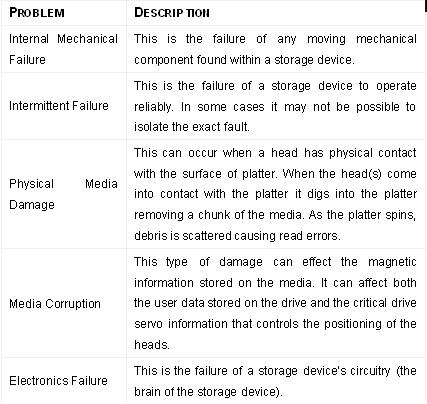
Types of common failures include:

As we know, hard drives are a combination of sophisticated electronic and mechanical systems that incorporate a number of specialized motors and electro-mechanical components to read and write data.

Hard drive technology has substantially advanced in the past 10 years. In fact, hard drives are designed to manage themselves in addition to reading and writing data. Hard drives today use a number of algorithms to verify data on the drive and also maintains a ‘Defect Management’ list internally that constantly monitors their own health and performance. If a sector is beginning to fail, the hard drive’s electronics will remove that sector from use. In addition to this, S.M.A.R.T. (Self-Monitoring, Analysis and Reporting Technology) circuitry has been incorporated on many hard drives and is used to monitor all of the internal systems.

Despite these safeguards, hard drives can fail. There can be a number of reasons for hard drive failure, for instance physical damage can result when the hard drive or case is jarred while operating or even when powered off. Power spikes or fluctuations can damage the electronics or corrupt the data on the drive. Internal mechanical parts can seize up due to high temperatures if the drive does not have enough airflow to keep the unit cool.

Hard Drive Technology Read More »

Platter Scratch Repairing

Hard Disk Drive Crash
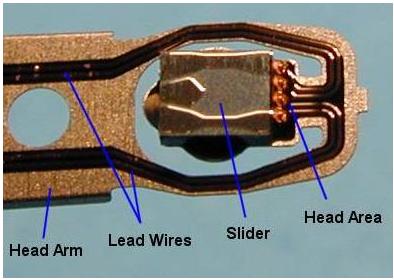
Take the case of computer systems. We become so used to working on the computer on a regular basis that we are rarely ready to face the consequences if things go wrong. This is truer of a computer hard disk drive crash than of anything else. Hard drive malfunction can be divided into two types: one is the so called Firmware Level malfunction that can be repaired using relating software or factory commands; the other one left is the Physical Level malfunction caused by physical hard drive components damage. As to the latter Physical Level crash, the typical case in data recovery practices is that the head crash and serious platter scratches caused by direct contact between the head and the platter surface; such drives manifest themselves as undetected, staying BUSY, besides an ominous scratching sound may start to emanate from the disk. This is a serious problem. It is indicative of nothing less than a crash of the hard disk drive.

Functioning of a Hard Disk Drive
In order to understand the problem of a hard disk drive crash, it is important to first understand the mechanism of a hard drive. Only after knowing how the disk drive functions can one understand the nature of the problem.

Components
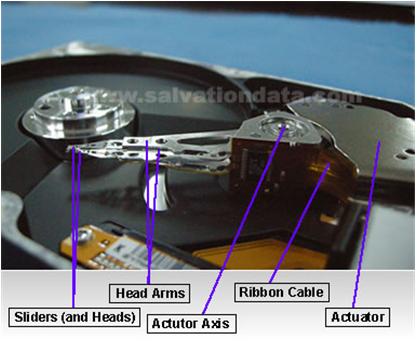
Read-Write Head: The read-write heads of the hard disk drives are those mechanisms that, as the name suggests read or write the data from the magnetic fields of the platters.

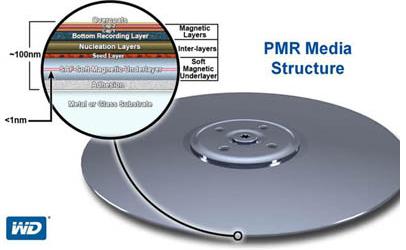
Hard Disk Platter: A hard disk platter is a circular disk within the hard disk drive. It is circular in shape and the magnetic media of the disk drive is stored on it. Generally multiple platters are mounted on a single spindle of the hard disk drive.

Lubricant Layer: This is the topmost layer of the platters and is made of a substance similar to Teflon. Carbon: There is a layer of sputtered carbon just below the lubricant layer. Magnetic Layer: This is below the layer of carbon.

Functioning
The magnetic layer of the hard disk drive stores all the data. The two layers of carbon and the lubricant like material saves this magnetic layer from coming into accidental contact with the read-write head of the disk, we can say they exist as the protection layer of the magnetic layer (of course, another important function of them is to maintain the stability of the flying read-write head)

Platter Scratch Repairing Read More »

Scroll to Top