Articles

File Systems

Different operating systems use different file systems. Some are designed specifically to work with more than one, for compatibility reasons; others work only with their own file system. This section takes brief look at the most common operating systems in use on the PC and the file systems that they use. This enables you to know what parts of the rest of the discussion on file systems is most relevant to your situation.

The most common name of the file system, “FAT”, is problematic, even though it is still often used. The first FAT file system used 12-bit file allocation tables; this was later expanded to 16 bits, and became the most common file system implementation for hard disks from the late 1980s to the late 1990s. To distinguish these versions of FAT from the 32-bit successor called FAT32, the older FAT variants are now sometimes called FAT12 or FAT16. However, you will still hear just “FAT” used a lot; if so, you need to find out what specifically is being referred to, if it matters in that particular context. For more elaboration on the differences between FAT12, FAT16 and FAT32.

Throughout my discussion of file systems, I have referred to the FAT family of file systems. This includes several different FAT-related file systems, as described here. The file allocation table or FAT stores information about the clusters on the disk in a table. There are three different varieties of this file allocation table, which vary based on the maximize size of the table. The system utility that you use to partition the disk will normally choose the correct type of FAT for the volume you are using, but sometimes you will be given a choice of which you want to use.

Since each cluster has one entry in the FAT, and these entries are used to hold the cluster number of the next cluster used by the file, the size of the FAT is the limiting factor on how many clusters any disk volume can contain. The following are the three different FAT versions now in use:

  • FAT12: The oldest type of FAT uses a 12-bit binary number to hold the cluster number. A volume formatted using FAT12 can hold a maximum of 4,086 clusters, which is 2^12 minus a few values (to allow for reserved values to be used in the FAT). FAT12 is therefore most suitable for very small volumes, and is used on floppy disks and hard disk partitions smaller than about 16 MB (the latter being rare today.)
  • FAT16: The FAT used for most older systems, and for small partitions on modern systems, uses a 16-bit binary number to hold cluster numbers. When you see someone refer to a “FAT” volume generically, they are usually referring to FAT16, because it is the de facto standard for hard disks, even with FAT32 now more popular than FAT16. A volume using FAT16 can hold a maximum of 65,526 clusters, which is 2^16 less a few values (again for reserved values in the FAT). FAT16 is used for hard disk volumes ranging in size from 16 MB to 2,048 MB. VFAT is a variant of FAT16.
  • FAT32: The newest FAT type, FAT32 is supported by newer versions of Windows, including Windows 95’s OEM SR2 release, as well as Windows 98, Windows ME and Windows 2000. FAT32 uses a 28-bit binary cluster number–not 32, because 4 of the 32 bits are “reserved”. 28 bits is still enough to permit ridiculously huge volumes–FAT32 can theoretically handle volumes with over 268 million clusters, and will support (theoretically) drives up to 2 TB in size. However to do this the size of the FAT grows very large; see here for details on FAT32’s limitations.
  • Here’s a summary table showing how the three types of FAT compare:


    Virtual FAT (VFAT)
    Microsoft incorporated several enhancements into the disk management capabilities of Windows 95. Access to the file system can be done using high-speed, protected-mode, 32-bit drivers, or for compatibility, the older DOS 16-bit routines. Support was added for long file names and also for better control over such matters as disk locking, so utilities could access the disk in “exclusive mode” without fear of other programs using it in the meantime.

    Despite the new name and new capabilities, VFAT as a file system is basically the same as FAT is. Most of the new capabilities relate to how the file system is used, and not the actual structures on the disk. VFAT handles standard FAT16 partitions, and under Windows 95 OSR2 or later, FAT32 partitions as well. The only significant change in terms of actual structures is the addition of long file names. Even here, VFAT supports these using what is basically a hack, as opposed to anything really revolutionary.

    With the exception of the long file names, Windows 95, using VFAT, shares the same logical disk structures as DOS or Windows 3.x using FAT.

    NTFS
    The NTFS file system used by Windows NT is completely different from, and incompatible with, the FAT file system that is used by DOS and the other Windows varieties. NTFS can only be used by Windows NT–other operating systems do not have the ability to use a disk formatted with NTFS.
    NTFS is in virtually every way, far superior to FAT. It is a robust, full-featured system that includes file-by-file compression, full permissions control and attribute settings, transaction-based operation, and many more features. It also does not have the problems with cluster sizes and hard disk size limitations that FAT does, and has other performance-enhancing features such as RAID support.

    The only way that NTFS is not superior to FAT is in compatibility with older software. NTFS is not nearly as widely-used as FAT, for this reason. For now I am not including a full examination of NTFS on the site, but I may add this at a later time if it seems warranted.

    File Systems Read More »

    Hard Drive Firmwares

    Definition of firmware:
    Since modern hard disks have internal microprocessors, they also have internal “software” that runs them. These routines are what run the control logic and make the drive work. Of course this isn’t really software in the conventional sense, because these instructions are embedded into read-only memory. This code is analogous to the system BIOS: low-level, hardware-based control routines, embedded in ROM. It is usually called firmware, with the word “firm” intending to connote something in between “hard” and “soft”. The functions that run the logic board’s circuitry could be implemented strictly with hardware devices, as was done with early drives. However, this would be expensive and inflexible for today’s sophisticated controllers, since it would make it difficult to update or adapt the logic to match changes in hard disks or the devices they interface with.

    Much the way the system BIOS benefits from being in a changeable ROM chip that can be modified relatively easily, the hard disk’s firmware does as well. In fact, in many drives the firmware can be updated under software control, very much the same way that a flash BIOS works. Unlike the system BIOS, this is only very rarely done, when a particular sort of problem exists with the firmware logic that can be fixed without requiring a physical hardware change. You can check the drive manufacturer’s web site for more details.

    In short, without the firmware code, no communication will be possible between the PC system and the hard disk.

    Where the firmware stores?
    Modern disks normally have their firmware codes located on data platters and also the PCB board. If the firmware area is corrupted, the drive will appear to have failed even all the electrical and mechanical components are still fully functional.

    You may know the importance of firmware on the HDD function. And know the firmware is like the micro codes between the elements of HDD. And what will it happen if there are some firmware corruptions?

    Let’s see the symptoms of firmware corruption before the solutions given:

    1. Drive powers up, but is not recognized /defected by the computer
    2. Drive powers up, but is recognized wrongly, sometimes with nonsensical characters, manufacture alias (Such as N40p for Maxtor 6Y and etc ;);
    3. Drive freezes during booting up;
    4. Drive detect in wrong Capacity, such as 80 GB detected as 1Mb;
    5. S.M.A.R.T error;
    6. Drive is locked by human error; such as Hitachi hard drive by a drop; it is a self protection method of HDD design;
    7. Drive clicking ;( it can be caused by firmware too, the heads try to read the SA on platters and can not positing 😉

    The firmware is very confidential to common users and the HDD manufacturers will never publish to the public.

    Hard Drive Firmwares Read More »

    Data Interface Connector or Card

    Modern hard disk drives use one of two interfaces: IDE (ATA) – Integrated Drive Electronics (also called ST506 drives) and its variants (EIDE – Enhanced Integrated Drive Electronics, or the SCSI (Small Computer System Interface). You can tell immediately by looking at the back of the hard disk which interface is being used.

    1. IDE hard disks use a 40-pin connector, and SCSI hard disks normally use either a 50-pin or a 68-pin or 80-Pin connector.

    2. Note: Older MFM (MODIFIED FREQUENCY MODULATION), RLL (RUN LENGTH KIMITED) and ESDI (ENHANCED SYSTEM DEVICE INTERFACE) hard disks used two data connectors, one 34 pins and the other 20 pins.

    3. The cable usually has a red stripe to indicate wire #1 and the hard disk uses markers to indicate the matching pin #1.

    Led Connector: Originally, hard disks shipped with a faceplate (or bezel) on the front. The hard disk was mounted into an external hard drive bay (in place of a floppy disk drive) and an LED was visible on the front of the drive to indicate when the disk was in use. It was quickly realized that having the disks mounted internally to the case made more sense, but the LED was still desirable. So an LED was mounted to the case and a wire run to a two-pin connector on the hard disk itself. On newer systems that run with integrated IDE controllers on the motherboard, the LED is connected to a special connector on the motherboard itself.

    Drive Bay: The entire hard disk is mounted into a physical enclosure designed to protect it and also keep its internal environment sealed from the outside air. This is necessary because of the requirement of keeping the internal environment free of dust and other contamination that could get between the read/write heads and the platters over which they float, and possibly lead to head crashes.

    DRIVE BAYS are where internal hard drives are mounted inside the PC. They come in internal and external versions, based on whether they allow access from the exterior of the case, and also in two standard sizes: 5.25″ and 3.5″.

    Now, we have rough understanding of the HDD components now and how these parts work in architecture. But you may find the importance of the microprogram inside the HDD. No matter how precise the HDD design, they are a stack of meaningless mechanical parts.
    Data Interface Connector or Card Read More »

    PCBA, control circuitry (Printed Circuit Board Assembly)

    All modern hard disks are made with an intelligent circuit board integrated into the hard disk unit. Early hard disks were virtually all of the control logic for controlling the hard disk itself was placed into the controller plugged into the PC; there were little smarts on the drive itself, which had to be told specifically how to perform every action.

    As newer drives were introduced with more features and faster speed, this approach became quite impractical, and once electronics miniaturization progressed far enough, it made sense to move most of the control functions to the drive itself.

    The most common interface for PC hard disks is called IDE, which in fact stands for Integrated Drive Electronics. This name is something of a misnomer today. When it was introduced, IDE was distinguished from the other interfaces of the day by having the integrated electronics on the drive, instead of on the controller card plugged into the system bus like older interfaces. However, the term really refers to where the control logic is and not the interface itself, and since all hard disks today use integrated electronics the name doesn’t mean anything any more, despite the fact that everyone continues to use it. The other popular PC hard disk interface today, SCSI, also uses drives that have integrated controllers. The more correct name for the IDE interface is AT Attachment or ATA.
     
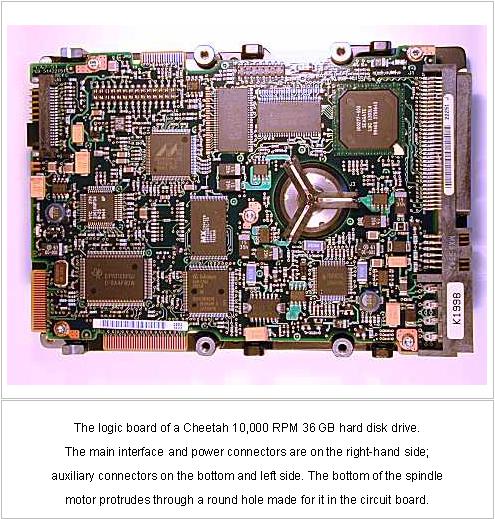
    The logic board of a Cheetah 10,000 RPM 36 GB hard disk drive.The main interface and power connectors are on the right-hand side;auxiliary connectors on the bottom and left side. The bottom of the spindlemotor protrudes through a round hole made for it in the circuit board. 

    What’s the relationship between PCBA and Control Circuitry? Let me give an example. The electric current is like Blood and the Control Circuitry is like the blood vessel distributing on the HDD, and the PCBA is like the brain to process and give orders to particular parts.

    The drive’s internal logic board contains a microprocessor (inside main chip) and internal memory (RAM chip), and other structures and circuits that control what happens inside the drive.

    In many ways, this is like a small embedded PC within the hard disk itself. The control circuitry of the drive performs the following functions (among others):

    1. Controlling the spindle motor, including making sure the spindle runs at the correct speed.
    2. Controlling the actuator’s movement to various tracks.
    3. Managing all read/write operations.
    4. Implementing power management features.
    5. Handling geometry translation.
    6. Managing the internal cache and optimization features such as pre-fetch.
    7. Coordinating and integrating the other functions, such as the flow of information over the hard disk interface, optimizing multiple requests, converting data to and from the form the read/write heads require it, etc.
    8. Implementing all advanced performance and reliability features.

    You may think that the Control Circuitry is not so important. The reason is that the quality or optimization level of the control circuitry doesn’t manifest itself as a single, simple specification. You can’t easily compare the circuitry of five different drive families. Most hard disk manufacturers provide very little information about the “guts” of the logic board, and even if they did, most people wouldn’t know what to do with the information.

    However, the control circuitry of the drive is underrated and misunderstood, even by those interested in hard disk performance issues.

    In fact, differences in control circuitry account for part of the differences in some specifications. This is probably most true of seek performance, Beyond this, you can’t really tell much about what’s inside the circuitry. However, if you use two different drives that have very similar specifications and run on the same interface on the same PC, but one just “feels faster” than the other, differences in their internal circuitry may be part of the answer.

    PCBA, control circuitry (Printed Circuit Board Assembly) Read More »

    Hard Disk Drive Controller

    Since digital information is a stream of ones and zeros, hard disks store information in the form of magnetic pulses. In order for the PC’s data to be stored on the hard disk, therefore, it must be converted to magnetic information. When it is read from the disk, it must be converted back to digital information. This work is done by the integrated controller built into the hard drive, in combination with sense and amplification circuits that are used to interpret the weak signals read from the platters themselves.

    In short, the disk controller consists of a ROM that embedded some disk commands to translate and implement some write and read orders from a PC, it is like a disk controller chip, and a little glue to make it all work.

    I used to imagine that a Hard disk controller is a talented translator who lives in a chip of PCB, translating between the magnet signal of ones of HDD and zeros and commands from PC.

    Modern disk controllers are integrated into the disk drive. For example, disks called “SCSI disks” have built-in SCSI controllers. In the past, before most SCSI controller functionality was implemented in a single chip, separate SCSI controllers interfaced disks to the SCSI bus.

    The most common types of interfaces provided nowadays by a disk controller are ATA (IDE) and Serial ATA for home use. High-end disks use SCSI, Fibre Channel or Serial Attached SCSI.

    Hard Disk Drive Controller Read More »

    Hard Drive Spindle Motor

    The spindle motor, also sometimes called the spindle shaft, is responsible for turning the hard disk platters, allowing the hard drive to operate. The spindle motor is sort of a “work horse” of the hard disk, like a heart of human, it give the motivity of power to the HDD. It’s not flashy, but it must provide stable, reliable and consistent turning power for thousands of hours of often continuous use to allow the hard disk to function properly. In fact, many drive failures are actually failures with the spindle motor, not the data storage systems, such as that the motor bearing seizure, Motor not spin.

    The spindle motor has several important commitments placed upon it. First, the motor must be of high quality, so it can run for thousands of hours, and tolerate thousands of start and stop cycles, without failing. Second, it must be run smoothly and with a minimum of vibration, due to the strict tolerances of the platters and heads inside the drive. Third, it must not generate excessive amounts of heat or noise. Fourth, it should not draw too much power. And finally, it must have its speed managed so that it turns at the proper speed, neither faster nor slower.

    I’ve found that the weather is one of the factors which effect the lifetime of HDD. From some customers from Africa, there are more haunted by the Motor stuck problems than any other places. For some HDD used on server have more demands on the tolerance and quality, they are supposed to be work at 7X24 a week.

    To meet these demands, all PC hard disks use servo-controlled DC spindle motors. A servo system is a closed-loop feedback system; this is the exact same technology as is used in modern voice coil actuators. Let’s see how servo systems work in detail. In the case of the spindle motor, the feedback for the closed-loop system comes in the form of a speed sensor. This provides the feedback information to the motor that allows it to spin at exactly the right speed.

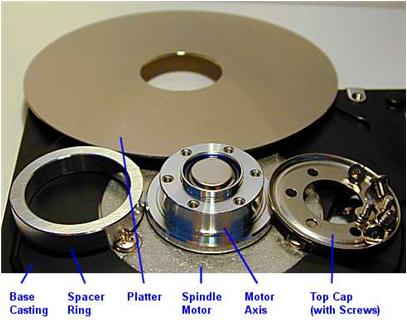
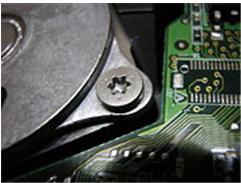
    All hard disk spindle motors are configured for direct connection; there are no belts or gears that are used to connect them to the hard disk platter spindle. The spindle onto which the platters are mounted is attached directly to the shaft of the motor. The platters are machined with a hole at the exact size of the spindle, and are placed onto the spindle with separator rings (spacers) between them to maintain the correct distance and provide room for the head arms. The entire assembly is secured with a head cap and usually, lots of small Torx screws.

    ! By design, TORX head screws resist cam-out better than Phillips head or slot head screws. Where Phillips heads were designed to cause the driver to cam out, to prevent over-tightening, TORX heads were designed to prevent it. The reason for this was the development of better torque-limiting automatic screwdrivers for use in factories. Rather than relying on the tool slipping out of the screw head when a torque level is reached, and thereby risking damage to the driver tip, screw head and workpiece, the drivers were designed to achieve a desired torque consistently. Camcar LLC claims this can increase tool bit life by ten times or more.

    One important quality issue that has become a focus of attention with newer hard disks is the amount of noise, heat and vibration they generate. The reason for this becoming more of an issue is the increase in spindle speed in most drives. On older hard disks that typically spun at 3600 RPM, this was much less of a problem. Some newer drives, especially 7200 and 10,000 RPM models can make a lot of noise when they are running. If possible, it’s a good idea to check out a hard disk in operation before you buy it, to assess its noise level and see if it bothers you; this varies greatly from individual to individual. Heat created by the spindle motor can eventually cause damage to the hard disk, which is why newer drives need more attention paid to their cooling. Newer high-speed drives almost always run cooler and quieter than the first generation of drives at any new spindle speed. It can be painful to be a pioneer;

    Hard Drive Spindle Motor Read More »

    Head-Actuator Assembly

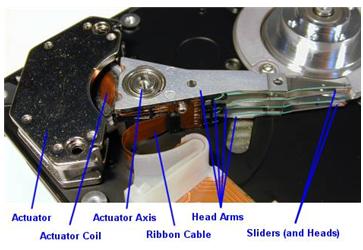
    We often call the Head-Actuator Assembly as head stacks or only heads for short. In fact, we make a mistake in some way. Let’s take a look at a head-actuator Assemble on the flowing photo:

    Mostly, each platter is accessed for read /write operations using two read/write heads, one mounted on the top of the platter and another on the bottom. These heads are mounted onto arms that allow them to be moved from the outer tracks of the hard drive to the inner tracks and back again. The arms are controlled using a device called an actuator that positions the arms to the appropriate track on the disk. The read/write heads don’t touch the platter when the platter is spinning at full speed; instead, they float on an extremely thin cushion of air (10 millionths of an inch, Winchester disk drive). That’s why power surge may cause Head crash and platter scratch due to the fast rotating rolling of platters.

    Notice: In 1973, IBM introduced the IBM 3340 “Winchester” disk drive, the first significant commercial use of low mass and low load heads with lubricated media. All modern disk drives now use this technology and/or derivatives thereof. Project head designer/lead designer Kenneth Haughton named it after the Winchester 30-30 rifle after the developers called it the “30-30” because of it was planned to have two 30 MB spindles; however, the actual product shipped with two spindles for data modules of either 35 MB or 70 MB.

    How they work?
    The hard disk platters are accessed for read and write operations using the read/write heads mounted on the top and bottom surfaces of each platter. Obviously, the read/write heads don’t just float in space; they must be held in an exact position relative to the surfaces they are reading, and furthermore, they must be moved from track to track to allow access to the entire surface of the disk. The heads are mounted onto a structure that facilitates this process. Often called the head assembly or actuator assembly (or even the head-actuator assembly), it is comprised of several different parts.

    The heads themselves are mounted on head sliders. The sliders are suspended over the surface of the disk at the ends of the head arms. The head arms are all mechanically fused into a single structure that is moved around the surface of the disk by the actuator. (Sort of like “the wrist connected to the hand”, why I say it is a hand because it is very skillful and ingenious and the upper site is Arm: D).They play an important role in the function and performance of the drive. In particular, advances in slider, arm and actuator design are critical to improving the seek time of a hard disk.

    Head-Actuator Assembly Read More »

    WD HDDs Noise related to PCB

    The Causes & Solutions of Two Main types of Noise which is occurred in WD HDDs (Especially Related To L-shape PCBs).Continuous Noise & Clicking Noise
    1- The Continuous Noise

    Sometimes there is a continuous noise come from WD HDDs mainly with L-shape PCBs
    with motor ICs (Smooth 1.3) , (L6278 1.7) & (L6278 1.2).
    the noise is like : Trrrrrrrrrrrrrr or Trrrr….Trrrr…Trrrrr

    so all we have to do for fixing this problem is:

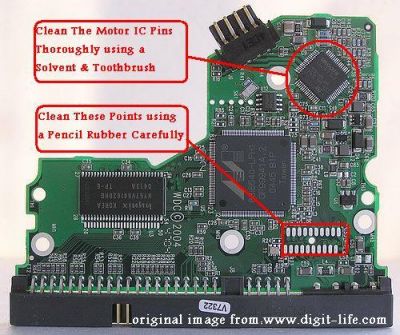
    1- clean the connection points which connect the head stack pins with the PCB using a pencil Rubber …carefully.

    2- clean the motor IC pins thoroughly using a solvent & Toothbrush then wipe it with a piece of smooth handkerchief to remove the dust & dirt from it.

    -Note- the two steps mentioned above solve the problem in few cases.

    3- If the two steps mentioned above didn’t fix the problem , you have to replace the motor IC cause it’s damaged.

    2-The Clicking Noise
    when u power on the hard drive u will hear a noise like (click,click….click,click…click,click)
    this noise may be related to the head stack or PCB, the first thing you have to do is to check the PCB By The following steps:

    1- first u have to clean the Whole PCB With a Solvent & Toothbrush then wipe it with a piece of smooth handkerchief to remove the dust & dirt from it.
    Caution: Cleaning of the PCB must be done carefully to avoid removal of any small electronic components.

    2- Check the Resistor (R120) , [ the right value of this Resistor is (0.12 Ohm) ] ,you may adjust your multimeter to Resistor Measuring Mode to Determine its Value ,if it’s Damaged u have to replace it. but before that, u have to check Transistor Q3 , it’s a 6 pins transistor , for measuring this transistor u may adjust your multimeter to Diode Mode,[ the right Value will be: (first two pins = 0.000 , second two pins =0.000 , Third two pins = nearly over 600)]
    if Q3 is Damaged it will burn ur R120 after u replace it , so be sure that Q3 is ok before replacing R120 & u may also Check Transistor Q6 by the previous method to be completely sure it’s safe to replace R120.
    Note: ( to be sure of The right values of these electronic components u may compare the values u have measured with the values of a working PCB’s Components)

    3- Check The Coils (such as L2 & L7) – adjust your multimeter to diode mode then the right value must be ( 0.000 ) for any coil as u all know.

    4- Inspect the whole PCB for any removed component ( such as small capacitors or Resistors ) … the removal of these small components may occurred while forced cleaning of the PCB …. so be careful while cleaning it.

    5- In rare cases the firmware microchip may be damaged.

    ——————————————————————————————

    -Note- in case of Motor ICs (L6278 1.7) & (L6278 1.2) first try to desolder them then resolder them again before u decide to replace them with a new ones … this sometimes work , but if it didn’t work … replace them directly.
    – in case of Motor IC (Smooth 1.3) you must replace it directly.

    The image below shows you where to clean.

    WD HDDs Noise related to PCB Read More »

    Hard drive sectors

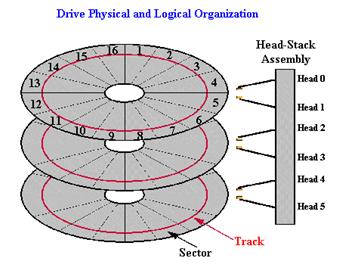
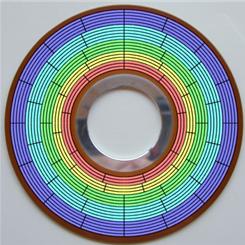
    Each track is further broken down into sectors. A sector is normally the smallest individually-addressable unit of information stored on a hard disk. Each sector of data on the hard disk contains 512 bytes, or 4,096 bits, of user data (1 byte=8 bits it is octal). In modern drives the larger outer tracks hold more sectors than the smaller inner ones. All information stored on a hard disk is recorded in tracks. The tracks are marked by number, starting from zero, starting at the outside of the platter and increasing in number as you go in.

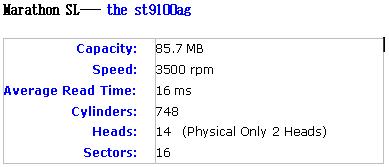
    The first PC hard disks typically held 16 sectors per track. Details as below from Seagate

    Capacity:Speed:Average Read Time: Cylinders:Heads:Sectors: 85.7 MB3500 rpm16 ms74814  (Physical Only 2 Heads)16

    Resource:  Examples: 16 (e.g. the st9100ag), 17 (e.g. the st325ax), 24 (e.g. the st9190ag), 27 (e.g. the st280a), 28 (e.g. the Maxtor 8051A), 29 (e.g. the st1162a), 32 (e.g. the st9051a), 34 (e.g. the st3195a), 35 (e.g. the st3283a), 36 (e.g. the st1239a), 38 (e.g. the st3211a), 47 (e.g. the st9150ag), 50 (e.g. the st3291a), 51 (e.g. the st9385ag), 52 (e.g. the st9240ag), 53 (e.g. the st3271a), 55 (e.g. the st2274a), 56 (e.g. the st2383a), 59 (e.g. the st9550ag), 60 (e.g. the st9300ag), 61 (e.g. the st1401a), 62 (e.g. the st3385a), 63 (e.g. the st3270a).

    (Please go to Seagate website to get the details of above HDD.)

    A sector includes only 512 Bytes?
    In addition to these bits (512 Bytes of user data), an additional number of bits are added to each sector for the implementation of error correcting code or ECC (sometimes also called error correction code or error correcting circuits). These bits do not contain user data; rather, they contain information about the data that can be used to correct any problems encountered trying to access the real data bits.

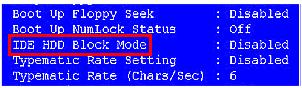
    Block Mode: More than one sector can be transferred on each interrupt notification. Newer drives allow you to transfer as many as 16 or 32 sectors at a time. These sectors are known as Clusters. On some systems you will find an option in the system BIOS called block mode. You may set it on BIOS.

    Block mode is a performance enhancement that allows the grouping of multiple read or write commands over the IDE/ATA interface so that they can be handled on a single interrupt.

    Example of a BIOS option for the IDE Block Mode feature (boxed in red)

    Hard drive sectors Read More »

    Scroll to Top