
DiskGetor Data Recovery is a professional data recovery software designed to retrieve lost, deleted, or inaccessible files from various storage devices, including hard drives, USB flash drives, memory cards, and more.
Hard drive data recovery software is non-destructive and read-only, capable of providing safe and accurate retrieval of data from inaccessible, formatted, corrupted, or undetectable storage media. All data including photos, pictures, videos, audio files, music, documents, emails, archives, and other file types lost due to accidental deletion, virus damage, drive corruption, formatting, partition loss, software failure, or system crash can be effectively recovered from all types of storage devices such as internal/external HDDs, SSDs, USB flash drives, pen drives, thumb drives, SD cards, memory sticks, and more.
DiskGetor Data Recovery works with storage devices of all capacities, ranging from small 32MB, 64MB, 128MB drives to large 1TB, 2TB drives and beyond.
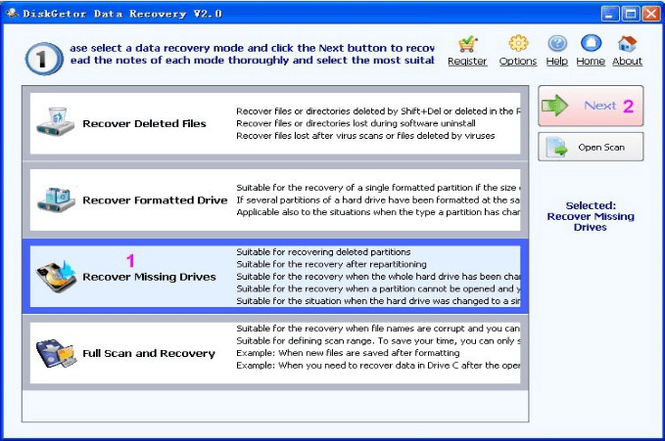
Key Features of DiskGetor Data Recovery
Here are the key features typically associated with DiskGetor Data Recovery:
Comprehensive Device Support
- Supports various storage devices including HDD, SSD, USB flash drive, memory card (SD, microSD, CompactFlash), external hard drive, and more.
- Compatible with IDE, SATA, SCSI, and USB interfaces.
Multiple Data Loss Scenarios
- Accidental Deletion: Recovers files deleted from Recycle Bin or using Shift+Delete.
- Formatting Recovery: Retrieves data from drives that have been quick-formatted or fully formatted.
- Partition Recovery: Restores lost or deleted partitions and rebuilds corrupted partition tables.
- Corrupted Drive Recovery: Extracts data from drives that appear as RAW or are inaccessible.
File System Compatibility
Works with multiple file systems including:
- FAT32 – Commonly used on USB drives and memory cards.
- NTFS – Standard for Windows hard drives.
- exFAT – Used on large-capacity flash drives and SDXC cards.
Custom Recovery Options
DiskGetor allows advanced users to customize recovery settings based on file headers (signatures). This feature enables precise recovery of specific file types, improving scan efficiency for targeted data retrieval.
Simple 3-Step Recovery Process
The software features an intuitive workflow that makes data recovery accessible to users with varying technical expertise:
- Select the recovery mode and target drive.
- Scan the drive for lost files.
- Recover and save the files to a safe location.
Selective Recovery
Allows users to recover specific files or folders rather than restoring the entire drive content, saving both time and storage space.
Supported File Types
DiskGetor Data Recovery can recover over 12 common file types, including:
- Documents: Word (DOC/DOCX), Excel (XLS/XLSX), PowerPoint (PPT/PPTX), PDF, text files.
- Images: JPG, PNG, BMP, GIF.
- Audio: MP3, WAV, WMA.
- Video: AVI, MP4, MOV, WMV.
- Archives: ZIP, RAR.
How to Use DiskGetor Data Recovery
Follow these simple steps to recover your lost data:
- Download and Install – Download DiskGetor Data Recovery from the official website. Important: Do not install the software on the drive from which you want to recover data, as this may overwrite lost files.
- Launch and Select Recovery Mode – Choose the appropriate recovery option based on your data loss situation:
- Recover Deleted Files
- Recover Formatted Drive
- Recover Lost Partition
- Select and Scan the Target Drive – Choose the drive or partition you want to scan, then click “Next” to begin scanning. Scan time typically ranges from 90 to 120 minutes for a 500GB drive, depending on drive size and condition.
- Preview and Recover – Once scanning is complete, browse the recoverable files. Select the files or folders you wish to restore, then click “Recover” and save them to a different drive or partition to avoid data overwriting.
Editions and Pricing
| Edition | Price | Description |
|---|---|---|
| DiskGetor Free | Free | Permanent free use with certain limitations (e.g., recovery size or number of files). |
| Single User License | $69 (one-time) | For one user on one PC. |
| 2-3 User License | $59/user (one-time) | For 2-3 users. |
| Unlimited User License | $199 (one-time) | For unlimited users within an organization. |
Known Limitations
While DiskGetor Data Recovery offers reliable core functionality, users should be aware of the following limitations:
- No Deep Scan Mode – Unlike modern data recovery tools, DiskGetor lacks a deep scan feature, which is essential for recovering fragmented or severely corrupted data.
- No File Preview – The software does not allow previewing files before recovery, meaning you cannot verify file integrity or content beforehand.
- Limited File Type Support – Supports approximately 12+ file types, whereas modern alternatives support hundreds or thousands.
- Outdated Interface – The user interface appears dated and may feel less intuitive compared to contemporary software.
- No Recent Updates – Development appears to have slowed significantly, with the latest version information dating back several years. This may affect compatibility with newer operating systems like Windows 11 and modern hardware (e.g., NVMe SSDs).
Comparison at a Glance
| Feature | DiskGetor Data Recovery | Modern Data Recovery Software |
|---|---|---|
| Deep Scan Mode | Not available | Typically included |
| File Preview | Not available | Standard feature |
| File Types Supported | ~12+ | Hundreds to thousands |
| Interface | Outdated, basic | Modern, user-friendly |
| Regular Updates | No | Yes |
| Latest OS Support | Windows 7/XP primarily | Windows 11, macOS fully supported |
| Pricing Model | One-time fee | Varies (one-time/subscription) |
Final Verdict: Is DiskGetor Data Recovery Right for You?
DiskGetor Data Recovery is a capable, straightforward data recovery tool that performs well in basic recovery scenarios. Its one-time pricing model and simple operation may appeal to users with legacy systems (Windows 7 or older) and very basic recovery needs, such as retrieving a few lost documents from an old USB drive.
However, for most users today, the lack of deep scan, file preview, and ongoing development makes it less competitive than modern alternatives. If you need to recover data from a severely corrupted drive, want to verify files before recovery, or are using the latest version of Windows, we recommend choosing a modern data recovery solution with continuous updates, deep scan capabilities, and preview functionality.
Official Website: www.diskgetor.com
Pro Tip: Regardless of which software you choose, always stop using the affected drive immediately after data loss and do not save recovered files back to the same drive. This maximizes your chances of successful recovery.
Disclaimer: Always download DiskGetor Data Recovery from official sources to avoid counterfeit or malicious software. Recovery success depends on multiple factors, including how long ago data was lost and whether it has been overwritten.