
Data recovery on vintage hard drives like the Fujitsu MHZ2320BH G2 starts with identifying the failure type – electronic, firmware, or mechanical. Each requires a different approach, and misdiagnosis can make things worse. Here’s a quick guide to help you assess your situation and decide on the next step.
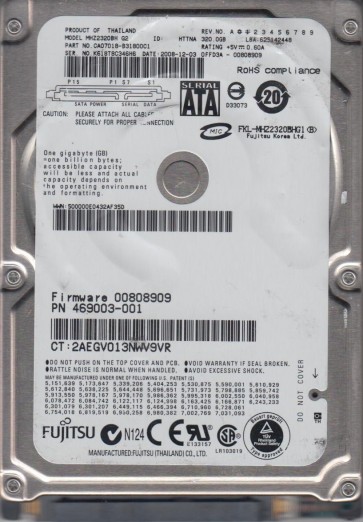
The Fujitsu MHZ2320BH G2 is a 2.5-inch, 320GB SATA hard disk drive from the MHZ2xxxBH series. It features a 5400 RPM spindle speed and an 8MB cache buffer. This drive was commonly used in mid-to-late 2000s laptops, particularly from Toshiba, Acer, and Fujitsu Siemens. It utilizes perpendicular magnetic recording (PMR) technology and has a glass substrate platter(s) with a GMR (Giant Magneto-Resistive) read/write head. Key components include the SATA interface board, the voice coil motor (VCM) for head positioning, the spindle motor, and the internal firmware area (system area) stored on a dedicated service track. Understanding these components is critical for diagnosing failures.
Identifying Common Failure Types
1. Mechanical/Head Failure: The most common physical failure. Symptoms include: repeated clicking or ticking sounds (heads are unable to read servo patterns and are retracting), a grinding or whirring noise (typically spindle motor bearing seizure or VCM failure), or the drive spinning up but producing no sounds as the heads are parked correctly but the media is damaged in the critical system area. This is often caused by a sudden shock, a drop, or wear over time. The magnetic coating on the platter may be damaged by head contact (head crash).
2. Firmware/Logic Failure: The drive may appear to spin up normally (initialization sound is present) but is not detected by the BIOS, or is detected with incorrect capacity (e.g., 0GB or 1MB). Other signs include the drive being detected by its model number but not being accessible, or showing “Unknown Device” in the operating system. This is often caused by corrupted microcode in the system area (SA), a failed service track read, or a damaged RAP (ROM-based adaptive parameters) module. Common on older Fujitsu models after a sudden power loss or during a bad sector scan.
3. Bad Sectors/Media Errors: The drive makes normal sounds and is detected, but the operating system is extremely slow, freezes, or crashes when accessing specific files or folders. You may see disk read error messages, blue screens (BSOD), or file system corruption (e.g., ‘CHKDSK not available for raw drives’). This indicates physical damage to the platter surface, which the drive’s firmware tries to reallocate but fails to do so, leading to increasing latency. A single bad sector can cascade to affect the file allocation table (FAT) or directory structure.
4. Spindle Motor Failure: The drive fails to spin up. No sound, a faint whine, or a repeated spin-up cycle (spins up for 2-3 seconds then stops, repeating). This is a physical motor seizure or a failed motor driver IC on the PCB. This is less common on the MHZ2320BH G2 but can occur due to contamination or a failed bearing.
Potential Recovery Paths
Professional Service (Recommended for Physical Issues):
- For mechanical failures (head crash, spindle seizure): A specialized cleanroom (Class 10 or better) is required. The technician will physically open the drive, replace the read/write heads with a donor unit from an identical MHZ2320BH G2 drive (same firmware revision, same head/platter count), and then use a hardware/software imager (e.g., PC-3000 UDMA, DeepSpar Disk Imager) to create a raw image. This bypasses damaged heads and reads data at a low level.
- For firmware failures: A professional recovery tool (like PC-3000 or MRT) is used to re-read the System Area, repair the modules (e.g., DIR, ID, PST), and reflash the corrupted firmware. This is a delicate process requiring exact matching of firmware versions.
- Cost: Typically $300 – $1500+ depending on urgency and damage severity.
DIY Recovery (Only for Non-Physical, Software-Level Issues):
- Scenario A (Drive detected, no strange sounds, but slow/corrupt): Use a data recovery software (e.g., R-Studio, DMDE, GetDataBack). Do NOT run CHKDSK or format. Create a sector-by-sector disk image to a healthy drive (or a large enough external drive) using a tool like HDD Raw Copy Tool or ddrescue (Linux). This bypasses file system errors and allows recovery software to work on the image, not the failing hardware. Expect this to take days for 320GB if bad sectors are present.
- Scenario B (Drive not detected, powers on, no clicks): Check the SATA cable, power cable, and try the drive in a different computer or USB enclosure. Sometimes a failing interface PCB can be temporarily fixed by re-seating the cable or cleaning the contacts with isopropyl alcohol. If the drive is detected but with 0GB, it is likely a firmware issue and DIY is not safe.
- Warning: Any DIY attempt on a physically clicking drive will cause further platter damage and make professional recovery impossible or far more expensive.
What Not to Do
- Never open the drive’s internal chamber. The platters are extremely sensitive to dust particles. Even a single speck of dust can destroy the read/write head and data. Opening the drive voids any chance of a standard professional recovery due to contamination.
- Never apply high voltage to the drive’s PCB or use a power supply not matching the drive’s specifications (5V DC, 0.7A typical). This can burn out the preamp or controller chip.
- Never run CHKDSK /F or /R on a drive showing physical symptoms (clicks, grinding). This forces the drive to attempt to read bad sectors repeatedly, causing head thrashing and rendering the data unrecoverable on those areas.
- Never freeze the drive. This is an old internet myth. Condensation inside the drive will short circuits and cause corrosion. It does not fix mechanical issues.
- Never tap or hit the drive to “unstick” a stuck spindle. This will damage the precision bearings and potentially shatter the platter.
- Never attempt to swap the PCB from another drive unless you are fully aware of the need to transfer the unique ROM (U12 chip) from the original PCB. The MHZ2320BH G2 uses adaptive parameters stored in its flash ROM; simply swapping the board will not match the drive’s heads and media, and may cause further failures.
Summary
The Fujitsu MHZ2320BH G2 is a reliable but aging drive. The primary failure modes are mechanical (head crash/clicks), firmware corruption (not detected, incorrect capacity), and media surface degradation (bad sectors). For any physical sound (clicking, grinding), or if the drive is not detected after a drop, immediate professional intervention in a cleanroom is the only safe path. DIY is only viable when the drive powers up normally and is detected, but exhibits logical corruption or slow reads, and you have a clear plan to create a sector image first. Do not attempt DIY on a physically failing drive; this will destroy the remaining data. Prioritize data backup as the best prevention.