
Glarysoft File Recovery is a lightweight, user-friendly data recovery tool developed by Glarysoft, a company best known for its popular system optimization suite, Glary Utilities. Designed as a standalone utility, Glarysoft File Recovery specializes in quickly and effectively retrieving accidentally deleted files from Windows-based storage devices.
Data recovery software is non-destructive and read-only, capable of providing safe and accurate retrieval of data from accidentally deleted files. Glarysoft File Recovery can help recover photos, documents, videos, and other common file types lost due to accidental deletion, virus damage, or emptying the Recycle Bin from all types of storage devices such as internal/external HDDs, SSDs, USB flash drives, pen drives, thumb drives, and SD cards.
The software is available in both a completely free version and a Pro version, with the free version offering unlimited scanning and preview capabilities, making it an excellent choice for users who need to recover recently deleted files.
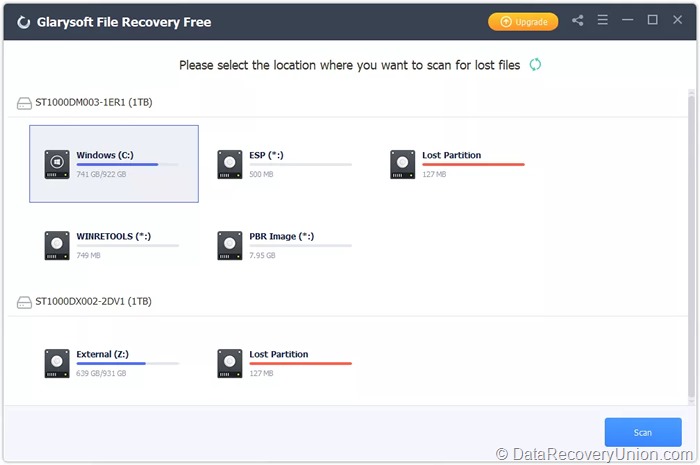
Key Features of Glarysoft File Recovery
Here are the key features typically associated with Glarysoft File Recovery:
Simple and Fast Recovery Process
Glarysoft File Recovery is designed for simplicity and speed. The recovery process involves just a few steps:
- Select the drive or folder to scan
- Choose quick scan or deep scan
- Browse recoverable files
- Recover selected files to a safe location
This streamlined approach makes it accessible to users with minimal technical expertise.
Two Scan Modes
Glarysoft File Recovery features two scan modes to balance speed and thoroughness:
- Quick Scan: For recently deleted files and simple recovery scenarios. Fast and efficient for standard deletions.
- Deep Scan: For more difficult cases where files cannot be found by the standard scan. This mode thoroughly searches the drive sector by sector, looking for any traces of deleted files. Deep Scan takes longer but can find files that Quick Scan misses.
File Type Filtering
To help users quickly locate specific files among potentially thousands of results, Glarysoft File Recovery includes file type filtering. You can filter scan results by:
- Images (JPG, PNG, BMP, GIF, etc.)
- Documents (DOC, DOCX, PDF, XLS, etc.)
- Audio (MP3, WAV, WMA, etc.)
- Video (AVI, MP4, MOV, etc.)
- Archives (ZIP, RAR, etc.)
- Email files
Preview Functionality
Allows users to preview recoverable files before initiating the recovery process. The preview feature supports images and text documents, enabling you to verify file integrity and content before committing to recovery. This ensures you only recover files that are intact and needed.
Search and Filter Options
The software includes search functionality that allows you to locate specific files by name within the scan results. You can also sort results by:
- File name
- File type
- File size
- Date modified
- Recovery status
Selective Recovery
Provides the option to selectively recover specific files or folders rather than restoring the entire scan results. You can browse the scan results, preview files, mark individual files or entire folders, and recover only what you need.
Recovery to Original Folder Structure
When recovering files, Glarysoft File Recovery can preserve the original folder structure. This feature is particularly useful when recovering multiple files from different locations, as it maintains organization and makes it easier to integrate recovered files back into your system.
Support for All Windows Storage Devices
The software supports a wide range of storage devices:
- Internal hard drives (HDD and SSD)
- External hard drives
- USB flash drives
- SD cards and memory cards
- Digital camera storage
- MP3 players and other portable devices
Lightweight and Fast
Glarysoft File Recovery is designed to be lightweight, with a small installation footprint and minimal system resource usage. The software is known for its scanning speed, often completing Quick Scans in minutes on typical hard drives.
Supported File Types
Glarysoft File Recovery supports recovery of over 100 common file types, including:
| Category | Supported File Extensions |
|---|---|
| Documents | DOC, DOCX, XLS, XLSX, PPT, PPTX, PDF, RTF, TXT, HTML, XML, WPD, PSD |
| Images & Graphics | JPG, JPEG, PNG, BMP, GIF, TIFF, TIF, PSD, CR2, NEF, RAW, DNG |
| Audio | MP3, WAV, WMA, AAC, FLAC, M4A, OGG |
| Video | AVI, MOV, MP4, MKV, WMV, FLV, 3GP, MTS, M4V, MPEG, VOB |
| Archives | ZIP, RAR, 7Z, TAR, GZ, CAB, ISO |
| PST, OST, DBX, EML, MSG, MBOX |
How to Use Glarysoft File Recovery
Follow these simple steps to recover your lost data using Glarysoft File Recovery:
- Download and Install – Download Glarysoft File Recovery from the official website (part of Glarysoft’s product line). Important: Do not install the software on the drive from which you want to recover data, as this may overwrite lost files. Install it on your local hard drive or another safe location.
- Launch the Software – Double-click the Glarysoft File Recovery icon to run the program.
- Select the Target Drive – From the dropdown menu, select the drive where the files were originally located. This could be your C: drive, an external USB drive, or a memory card.
- Choose Scan Mode – Select the appropriate scan type:
- Quick Scan: For recently deleted files. This is the fastest option and works well for most standard deletions.
- Deep Scan: For more difficult recovery cases. Use this if Quick Scan does not find your files.
- Apply Filters (Optional) – You can apply file type filters to narrow the scan to specific categories like Documents, Pictures, or Video. This can speed up the scan and reduce the number of results.
- Start the Scan – Click “Scan” to begin searching for deleted files. The software will display found files in real-time as the scan progresses.
- Browse and Preview Results – Once scanning is complete, browse through the list of recoverable files. Files are organized by their original folder structure when available. Use the preview function to verify file integrity.
- Recover Files – Select the files or folders you wish to restore. Click “Recover” and choose a destination location on a different drive to avoid overwriting data. The software can preserve the original folder structure during recovery.
Editions and Pricing
Glarysoft File Recovery is available in two editions:
| Edition | Price | Description |
|---|---|---|
| Free Edition | Free | Includes scanning, previewing, and recovery capabilities. No time limits. Fully functional for personal use. |
| Pro Edition | Approximately $20-$30 | Adds priority technical support and additional features (varies by version). The free edition already provides core recovery functionality. |
Note: The free edition of Glarysoft File Recovery provides full recovery functionality with no limits on the amount of data you can recover. Unlike many competitors that cap free recovery at 500MB or 2GB, Glarysoft’s free version is genuinely free for personal use. The Pro version primarily adds customer support and potentially a few advanced features.
System Requirements
Before installing Glarysoft File Recovery, ensure your system meets the following requirements:
- Processor: 1GHz Intel/AMD processor or higher
- RAM: 512MB minimum (1GB or more recommended)
- Hard Disk Space: Approximately 50MB for software installation, plus additional space for recovered files
- Supported Operating Systems:
- Windows 11, 10, 8.1, 8, 7 (32-bit and 64-bit)
- Windows Vista, XP (limited support)
- Supported File Systems: FAT, NTFS, exFAT
- Permissions: Administrative privileges may be required for certain recovery operations
Known Limitations
While Glarysoft File Recovery offers effective basic recovery features, users should be aware of the following limitations:
- No Deep Scan on Some File Systems: Deep Scan functionality may have limitations on certain file systems or drive configurations.
- No Bootable Media: Cannot create bootable recovery media for system crash scenarios. If Windows won’t boot, you cannot use this software without first repairing or reinstalling the operating system.
- Limited Partition Recovery: Does not specialize in recovering entire lost partitions. Its primary focus is file-level recovery, not partition reconstruction.
- No Disk Imaging: Cannot create disk images of failing drives for safe recovery.
- Basic Interface: The interface is functional but lacks the modern polish of some competitors.
- Windows Only: Designed for Windows operating systems only. Mac users need alternative solutions.
- Physical Damage Not Covered: Cannot recover data from physically damaged drives (broken connectors, burned circuit boards, water damage, or mechanical failures). Hardware repair is required first.
- Overwritten Data Cannot Be Recovered: If lost files have been overwritten by new data on the drive, recovery becomes impossible regardless of software quality.
- TRIM on SSDs: On modern SSDs with TRIM enabled, recently deleted files may be permanently erased almost immediately. This affects all data recovery software, including Glarysoft File Recovery.
- No Preview for All File Types: Preview functionality may be limited to certain file types like images and text documents. Video and audio preview may not be available.
Comparison at a Glance
| Feature | Glarysoft File Recovery | Typical Competitors |
|---|---|---|
| Free Tier | Unlimited free recovery | Often 500MB-2GB free limit |
| Price (Pro) | $20-$30 one-time | $70-$150 one-time or subscription |
| Deep Scan Mode | ✓ Included | Usually included |
| File Preview | ✓ Included (limited types) | Standard feature (broader support) |
| File Type Filtering | ✓ Included | Usually included |
| Preserve Folder Structure | ✓ Included | Often available |
| Bootable Media | Not available | Often premium feature |
| Partition Recovery | Basic | Often available |
| Platforms | Windows only | Often Windows & Mac |
Common Data Loss Scenarios Where Glarysoft Excels
- Accidental Deletion from Recycle Bin: You emptied the Recycle Bin – Glarysoft File Recovery can quickly scan and recover recently deleted files.
- Shift+Delete Mistakes: Files deleted without going to Recycle Bin can be recovered effectively if not overwritten.
- USB Drive Recovery: Files deleted from USB flash drives, memory cards, and external drives are well-supported.
- Virus-Affected Drives: Files hidden or removed by malware can often be recovered.
- Quick File Checks: Need to see if a deleted file is still recoverable – the software’s fast scanning provides quick answers.
- Recovery for Home Users: The completely free unlimited recovery makes it an excellent choice for personal use.
Scenarios Where Glarysoft May Not Be Sufficient:
- Formatted Drives: While Deep Scan can help, dedicated partition recovery tools may be more effective for formatted drives.
- Severely Corrupted Drives: Drives with extensive file system damage may require more powerful tools.
- Lost Partitions: Glarysoft does not specialize in recovering entire lost partitions.
- System Crash Recovery: No bootable media means you cannot recover from a computer that won’t start.
- SSD Recovery: On SSDs with TRIM enabled, time is critical – Glarysoft faces the same limitations as all recovery software.
- Physically Damaged Drives: Hardware issues require professional repair first.
Glarysoft Product Family
Glarysoft File Recovery is part of a larger ecosystem of PC maintenance and security tools from Glarysoft:
- Glary Utilities: The flagship all-in-one system optimization suite
- Glarysoft Malware Hunter: Anti-malware protection
- Glarysoft Registry Repair: Registry cleaning and optimization
- Glarysoft Disk SpeedUp: Disk defragmentation and optimization
- Glarysoft Quick Startup: Startup program management
- Glarysoft Soft Update: Software update management
File Recovery is one of several standalone utilities offered by the company, separate from the bundled tools in Glary Utilities.
Final Verdict: Is Glarysoft File Recovery Right for You?
Glarysoft File Recovery is an excellent choice for home users who need a simple, fast, and genuinely free data recovery tool for basic undelete scenarios. Its unlimited free recovery, straightforward interface, and quick scanning make it one of the best free options available for recovering recently deleted files.
This software is ideal for:
- Home Users: Perfect for recovering accidentally deleted family photos, school documents, or personal files without spending any money.
- Budget-Conscious Users: The completely free version with unlimited recovery is rare and valuable.
- Quick Recovery Needs: When you need to recover a recently deleted file quickly without complex setup.
- Beginners: The simple interface makes it accessible to users with minimal technical experience.
- USB Drive and Memory Card Recovery: Effective for recovering deleted files from external storage devices.
- Glarysoft Ecosystem Users: If you already use Glary Utilities, this tool complements the ecosystem well.
Consider alternatives if:
- You need to recover from a formatted drive or lost partition – dedicated partition recovery tools may be more effective.
- You need to recover from a computer that won’t boot (no bootable media available).
- You need advanced features like disk imaging, RAID recovery, or file repair.
- You are a Mac or Linux user – Glarysoft is Windows-only.
- Your drive is severely corrupted or physically damaged – professional tools or hardware repair may be required.
Pro Tip: After data loss, stop using the affected drive immediately. Do not add new files, run disk repair tools like CHKDSK, or attempt to format the drive. The more you use the drive, the higher the chance that lost files will be overwritten and become permanently unrecoverable. Glarysoft File Recovery is completely free for unlimited use – there’s no risk in trying it first before considering paid alternatives. For best results, always save recovered files to a different drive than the one you’re recovering from. If you have files that are particularly valuable, recover them as soon as possible after deletion.
Official website: www.glarysoft.com
Disclaimer: Recovery success depends on multiple factors, including how long ago data was lost, whether the drive has been used since the loss, and the extent of corruption. No data recovery software can guarantee 100% recovery in all situations. This article is for informational purposes only. All product names, logos, and brands are property of their respective owners.
