
GParted (GNOME Partition Editor) is a free, open-source graphical partition manager for Linux and other operating systems. It allows you to create, resize, move, copy, check, and delete disk partitions without losing data.
Key Functions
| Function | Description | Usage |
|---|---|---|
| Check | Verifies file system integrity and repairs errors (uses underlying fsck tools). | Right-click partition → Check → Apply. |
| Resize/Move | Changes partition size or relocates it on the disk. | Right-click partition → Resize/Move → drag slider or enter values → Apply. |
| Create | Creates a new partition in unallocated space. | Right-click unallocated → New → choose size, file system, label → Apply. |
| Delete | Removes a partition (data is lost). | Right-click partition → Delete → Apply. |
| Format | Formats a partition with a chosen file system (ext4, NTFS, FAT32, exFAT, etc.). | Right-click partition → Format to → choose file system → Apply. |
| Copy/Paste | Copies a partition to another location or disk. | Right-click partition → Copy → right-click unallocated → Paste → Apply. |
| Label | Sets or changes the partition label/name. | Right-click partition → Label → enter new name → Apply. |
| Manage flags | Sets partition flags (boot, lvm, raid, etc.). | Right-click partition → Manage Flags → toggle options → Apply. |
How to Run GParted
From a Live USB (Recommended)
- Download a GParted Live ISO or any Linux live distribution (Ubuntu, Fedora) that includes GParted.
- Create a bootable USB using tools like Rufus (Windows), Etcher, or
dd. - Boot from the USB (may need to change BIOS/UEFI boot order).
- Launch GParted from the system menu (or type
sudo gpartedin Terminal).
From an Installed Linux System
- Install GParted:
sudo apt install gparted(Debian/Ubuntu) orsudo dnf install gparted(Fedora/RHEL). - Launch from application menu or type
sudo gpartedin Terminal. - Note: You cannot modify a mounted partition that is in use (e.g., root partition).
Basic Workflow
- Select disk: From the top-right dropdown, choose the correct disk (e.g., /dev/sda, /dev/nvme0n1).
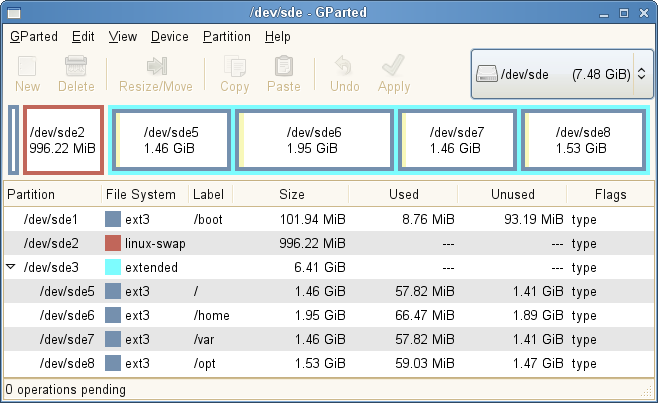
- View layout: The GUI shows partitions graphically with size, used space, and file system type.
- Perform operations: Right-click a partition or unallocated space to select an action.
- Queue operations: Actions are added to a pending queue (visible at the bottom).
- Apply: Click the green checkmark Apply to execute all queued operations (this is irreversible).
Supported File Systems
- Linux: ext2, ext3, ext4, btrfs, xfs, jfs, f2fs
- Windows: NTFS, FAT16, FAT32, exFAT
- macOS: HFS+ (limited support, requires additional tools)
- Other: linux-swap, LVM2 PV, UDF, etc.
Important Notes
- Unmount partitions: Most operations require the partition to be unmounted. GParted will prompt you if it needs to unmount or if it cannot proceed.
- Backup data: Although GParted is stable, resizing/moving partitions carries risk. Always back up critical data before making changes.
- Apply is final: Clicking Apply permanently executes all operations. There is no “undo” after Apply.
- Partition table types: Supports both MBR (msdos) and GPT partition tables. You can view the partition table type under Device → Partition Table.
- Check operation: The Check function uses
fsckinternally and can fix file system errors; it is equivalent to Disk Utility’s First Aid or Windows CHKDSK. - Boot flags: For BIOS boot, set the
bootflag on the active partition. For UEFI, ensure an EFI System Partition (ESP) withespandbootflags. - Pending operations: You can view all pending operations in the bottom pane; right-click any pending operation to cancel it before applying.