
Data recovery on vintage hard drives like the Hitachi HTS545025B9A300 starts with identifying the failure type – electronic, firmware, or mechanical. Each requires a different approach, and misdiagnosis can make things worse. Here’s a quick guide to help you assess your situation and decide on the next step.
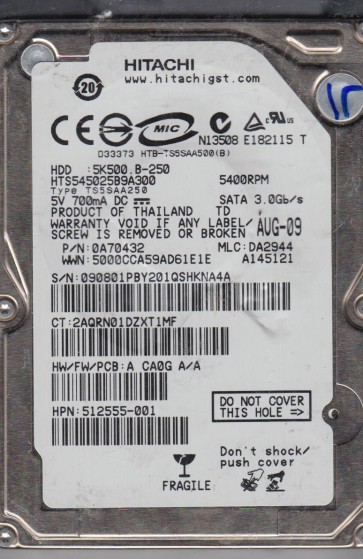
The Hitachi HTS545025B9A300 is a 2.5-inch, 5400 RPM, 250GB SATA hard disk drive from the Travelstar 5K500.B series. This drive typically uses perpendicular magnetic recording (PMR) technology and features a fluid dynamic bearing (FDB) motor for quieter operation. It is commonly found in laptops, external enclosures, and some older gaming consoles. The internal architecture includes a single platter and a single read/write head assembly. The controller board, often based on a Marvell or LSI chipset, is responsible for translating host commands into physical head movements. The firmware on the service area (SA) manages bad sector reallocation from a reserved pool of sectors. Understanding this specific model is critical because its failure modes often stem from its age (introduced around 2009), the head’s susceptibility to stiction, and the firmware’s vulnerability to specific logical errors.
Identifying Common Failure Types
1. Mechanical Failure: Head Stiction and Click of Death
This is the most common physical failure. The drive’s heads are designed to park on a ramp when powered off. Over time, or after a physical shock, the heads can adhere to the platter surface (stiction). When powered on, the voice coil motor attempts to move the heads, but they are stuck. The drive will emit a series of short, regular clicking sounds (1-4 clicks) as it retries the spin-up and head movement sequence. The motor may spin up, but the drive will fail to initialize and become undetectable in the BIOS. This is a hardware failure requiring a cleanroom intervention. Data recovery success is high if the platters are undamaged, but the heads must be replaced with a compatible donor set.
2. Firmware Corruption: Slow Response or Bad Sector Flooding
Hitachi drives in this family are prone to firmware corruption, often triggered by unsafe shutdowns, power surges, or age-related degradation of the SA. Symptoms include the drive being detected in BIOS with a wrong capacity (e.g., 0GB or 5GB), taking an extremely long time to respond to any read command, or the operating system reporting a massive number of reallocated, pending, or uncorrectable sectors (SMART attributes 05, C5, C6). Physically, the drive sounds normal (no clicks). This is a software/firmware issue. DIY recovery is extremely risky because any write operation to the SA can permanently brick the drive. Professional tools can rewrite or repair the firmware modules (like the translator module) without touching the user data.
3. Logical Failure: Bad File System or Partition Table
This is a pure software problem where the drive mechanics and firmware are healthy. Symptoms include the drive being detected but appearing as “raw” or “unallocated” in Disk Management, or asking to be formatted. The physical drive sounds normal. This can be caused by accidental formatting, deleted partitions, virus attacks, or file system corruption (e.g., NTFS Master File Table damage). It is often recoverable with DIY software, provided the user does not write any new data to the drive. The key is to create a forensic image onto a separate healthy drive first using tools like ddrescue or a professional imager.
Potential Recovery Paths
Professional Service (Recommended for Mechanical & Firmware Issues)
For any clicking, grinding, or SMART attribute errors involving reallocation counts, professional intervention is required. A specialized lab like a class 100 cleanroom will: (A) Diagnose the specific failure type using diagnostic tools like PC-3000 or MRT. (B) For head failures: source a matching donor drive from the same model and firmware revision, replace the head stack assembly in a cleanroom, then use specialized software to extract a raw image. (C) For firmware issues: use hardware tools to read the SA in safe mode, repair or rebuild the corrupted modules, and then extract data. (D) For platter damage: swap the platters into a known-good donor drive frame. Cost ranges from $300 to $1500+ depending on complexity and urgency. Success rate for mechanical cases is 60-90%, for firmware issues it is 90-95%.
DIY Path (Only for Logical Failures)
If the drive sounds perfectly normal (no clicks, no whining) and is detected correctly, you can attempt logical recovery. Step 1: Immediately power down the drive. Step 2: Connect the drive to a secondary computer via a USB-to-SATA adapter. Do not use it as a boot drive. Step 3: Use a data recovery software like R-Studio, DMDE, or GetDataBack. Step 4: Create a full sector-by-sector image of the drive to a healthy destination disk using the software’s imaging feature. Step 5: Scan the image file (not the original drive) for lost partitions and file signatures. Step 6: Recover the needed files to a third drive. WARNING: Do not use the “chkdsk” command or any disk repair utilities on the failing drive. These can modify the file system and permanently destroy data any point of fragility.
What Not to Do
- Do not open the drive’s inner chamber. The HTS545025B9A300 has a sealed head-disk assembly. Even a single dust particle or fingerprint on the platters will destroy the data and the heads. This should only be done in a certified cleanroom.
- Do not use “freezer” tricks. Freezing a hard drive can cause condensation, which leads to head corrosion and catastrophic failure. It is an urban legend and will kill the drive.
- Do not run CHKDSK /F or SCANDISK. These tools will attempt to mark bad sectors and repair the file system. If the drive has firmware issues or marginal platter damage, this will cause the drive to reallocate healthy sectors or overwrite critical file system structures with garbage.
- Do not repeatedly power cycle the drive if it is clicking. Every failed spin-up stresses the motor and can damage the spindle bearing or head-arm pivot. This turns a recoverable head issue into an unrecoverable platter scratch.
- Do not use “quick format” or “delete partition” tools. Any write operation to the surface will reduce your chances of successful recovery. Always work on a block-level image.
Summary
The Hitachi HTS545025B9A300 is a reliable but aging drive that fails due to mechanical head stiction, firmware corruption, or simple logical errors. The single most important step is to identify the failure type by listening for clicks and checking the drive’s SMART data. If the drive clicks, it is a hardware failure requiring professional cleanroom recovery. If it sounds normal but is slow or has bad sectors, it is likely firmware or minor media damage, also best left to professionals. If it sounds perfect but is unallocated, and SMART is clean, you can attempt a DIY logical recovery using imaging software. Never open the drive, freeze it, or run repair tools. Always prioritize creating a sector-by-sector image to a healthy disk before attempting file recovery. A correct diagnosis is 80% of the solution; the wrong actions will make recovery impossible.