
Data recovery on vintage hard drives like the Hitachi HTS723232L9A362 starts with identifying the failure type – electronic, firmware, or mechanical. Each requires a different approach, and misdiagnosis can make things worse. Here’s a quick guide to help you assess your situation and decide on the next step.
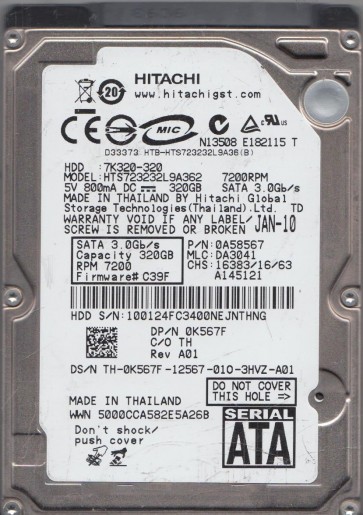
The Hitachi HTS723232L9A362 is a 320GB 2.5-inch SATA hard drive belonging to the Travelstar 7K320 family. This is a 7200 RPM drive featuring a perpendicular recording technology and a SATA 3Gb/s interface. It was widely used in laptops and external enclosures from the late 2000s. Understanding its architecture is critical: like most modern HDDs, it stores data on magnetic platters read and written by a moving actuator arm assembly. The drive’s firmware manages error correction, bad sector remapping, and the translation of logical block addresses (LBAs) to physical locations. Due to its age and mechanical nature, this model is susceptible to a range of failure modes, from simple logical corruption to complex mechanical breakdown.
Identifying Common Failure Types
1. Failed Read/Write Heads (Mechanical Failure)
Symptoms include the drive powering up (spinning up the platters) but making a repetitive clicking, scraping, or chirping sound. The system may detect the drive but cannot read any data, or it may not detect it at all. This is a hardware failure where one or more of the read/write heads have physically crashed into the platter or become stuck. The platters themselves may be scratched. This requires immediate professional attention.
2. Stiction or Unstable Motor (Mechanical Failure)
The drive may power on but fail to spin up, emitting a beeping or whirring sound, or it may spin up and then rapidly spin down repeatedly. This is often caused by the spindle motor bearings seizing or the read/write heads becoming stuck to the platter surface (stiction). Attempting to force the platters to spin can cause severe platter damage.
3. Bad Sectors and Degraded Firmware (Logical/Electronic Failure)
The drive is detected by the BIOS and operating system but exhibits extreme slowness, file read errors, or fails to boot. In more severe cases, the drive may show an incorrect capacity (e.g., 0GB or 32GB) or report a specific error code like “SMART status Bad”. This points to a large number of bad sectors that the drive’s internal error correction cannot handle, or corruption in the drive’s system files (firmware) that manage bad sector lists or the translator. This can be a logical issue, but can also be a precursor to head failure.
4. PCB Failure (Electronic Failure)
The drive is completely dead with no signs of power (no spin, no sound). This is often due to a failed preamplifier chip or other component on the printed circuit board (PCB). Power surges or physical damage to the connector are common causes. While a PCB swap is sometimes a DIY possibility, it often requires transferring the drive’s unique firmware (ROM) to the donor PCB.
Potential Recovery Paths
Professional Data Recovery Services
For mechanical failures (clicking, scraping, stiction), electronic failures requiring ROM transfer, or severely damaged firmware, professional recovery is the only reliable path. Experts have access to a cleanroom (Class ISO 5 or better) for head swaps and platter transfers. They use specialized tools (like PC-3000 or DeepSpar) to image the drive at a hardware level, bypassing failing components. This is expensive (typically $500 – $3000+) but offers the highest chance of success for physical damage. Seek a provider with direct experience on Hitachi Travelstar series drives.
DIY Recovery (Software-Only & Limited Hardware)
Software Recovery (Logical Issues): If the drive boots and is detected normally but shows file system errors (e.g., “The disk is not formatted”), use a read-only data recovery tool in a controlled environment. Connect the drive via a SATA-to-USB adapter (ensuring it does not get secondary power from a USB hub) and use software like DMDE, R-Studio, or GetDataBack to scan and copy files. Never install the software on the failing drive.
PCB Replacement (Electronic Failure): If the drive is completely silent but the connector shows no damage, you may try a PCB swap. Critical Warning: The donor PCB must have the exact same Hitachi model number (HTS723232L9A362) and firmware revision. You almost always need to swap the original drive’s serial-flash ROM chip (often an 8-pin SPI chip) onto the donor board to retain the drive’s unique calibration data. Simply swapping a PCB without this step will not work and can confuse the firmware. This requires precision soldering skills and is high-risk.
What Not to Do
- Never run disk checking tools like CHKDSK (Windows) or fsck (Linux) on a failing drive. These tools write to the drive, potentially overwriting the very directory structures needed for recovery. For a clicking drive, it can cause the heads to crash further.
- Never open the hard drive casing. The internal platter chamber is critically sealed. Opening it in a dusty room will contaminate the platters, making professional recovery impossible or enormously more expensive.
- Never apply excessive force. Do not tap, shake, or bang the drive, even if it is stuck. This can break the read/write heads or displace platters, destroying data.
- Never freeze the drive. This is a persistent myth. Ice crystals and condensation will destroy the platters and internal electronics. It does not fix mechanical binding.
- Never try to spin a non-spinning drive manually. Inserting tools into the spindle motor hole or rotating the platters by hand will cause irreversible damage to the magnetic layer.
- Never continue using the drive after the first sign of failure (click, slow speed, SMART warnings). Every second of operation increases the damage.
Summary
The Hitachi HTS723232L9A362 is a classic 7200RPM laptop drive prone to head crashes, spindle motor issues, and firmware corruption. The first and most critical step is to identify the failure type by listening to the drive and checking system recognition. For any physical noise, complete power loss, or severe slowness, power off immediately and do not attempt further DIY. Your only viable option in these cases is a professional data recovery service with cleanroom capabilities. For simple logical problems (accidental formatting, virus, bad file system), read-only software may suffice, but strict precautions against writing data must be observed. The highest priority is always preventing further physical damage to the platters, as data recovery from this model becomes exponentially more expensive and difficult once the magnetic surfaces are scratched or heads are damaged.