
Lazesoft Recovery Suite is a comprehensive all-in-one recovery toolkit designed to help users recover lost data, repair crashed Windows systems, reset forgotten passwords, and clone or back up disks. Developed by Lazesoft, a company specializing in system recovery tools, this software has gained popularity for its completely free Home Edition and its ability to create bootable recovery media when Windows cannot start.
Unlike many data recovery tools that only focus on file recovery, Lazesoft Recovery Suite combines multiple utilities into a single package. It includes data recovery, Windows system repair, password reset, disk cloning, partition management, and bootable media creation all in one application. This makes it a valuable tool for both home users and IT professionals who need a reliable recovery solution when a computer fails to boot.
Lazesoft Recovery Suite works with all versions of Windows from Windows 7 through Windows 11, as well as Windows Server editions. The software can be run directly from within Windows or from a bootable CD/USB disk created using the built-in Boot Media Builder.
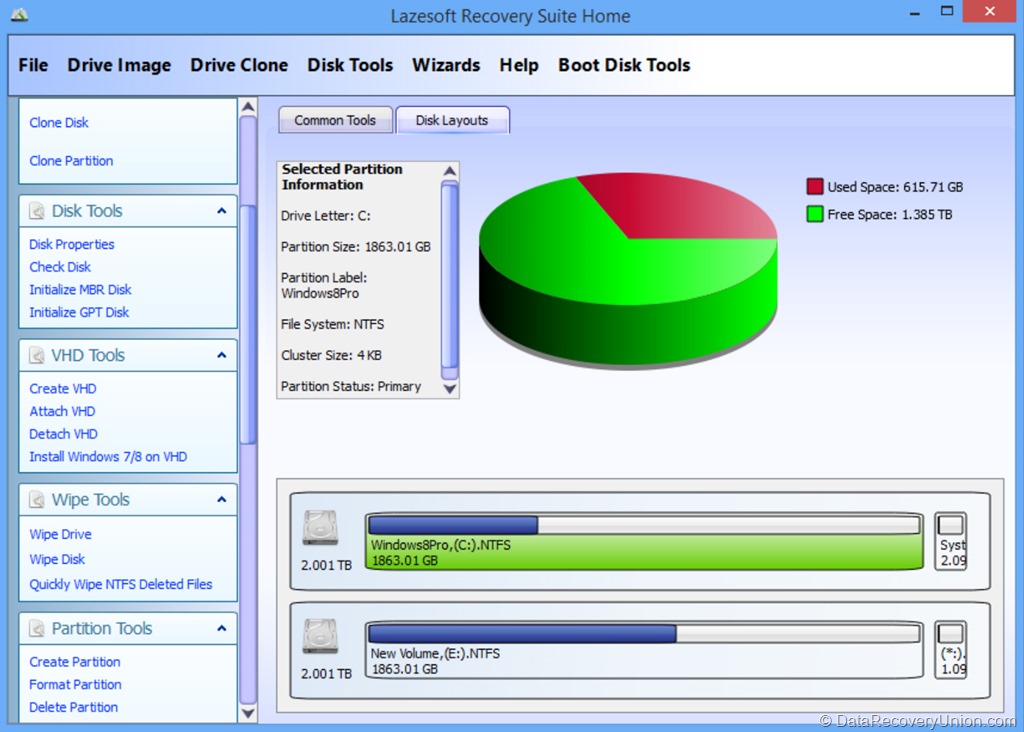
What Is Lazesoft Recovery Suite?
Lazesoft Recovery Suite is an all-in-one bootable recovery toolkit that brings together five core utilities:
- Lazesoft Data Recovery: Recovers deleted, formatted, or lost files
- Lazesoft Windows Recovery: Repairs crashed Windows and fixes boot problems
- Lazesoft Recover My Password: Resets forgotten Windows local and domain passwords
- Lazesoft Disk Image & Clone: Backs up, clones, and manages disk partitions
- Lazesoft Bootable Media Builder: Creates WinPE or Linux-based bootable recovery disks
The core philosophy of Lazesoft Recovery Suite is simple: a recovery tool should not become another problem during a crisis. The software is designed to be reliable, predictable, and easy to use when your computer cannot start normally.
Key Features of Lazesoft Recovery Suite
Lazesoft Data Recovery
The data recovery module is designed to retrieve lost files from various data loss scenarios:
- Deleted File Recovery (Undelete): Recovers files deleted from the Recycle Bin or using Shift+Delete
- Unformat Recovery: Retrieves data from reformatted drives or partitions
- Fast Scan & Deep Scan: Provides two levels of scanning for different recovery needs
- Partition Recovery: Recovers entire lost or deleted partitions
- RAW Drive Recovery: Extracts data from RAW partitions or inaccessible drives
- File Preview: Allows preview of recoverable files during and after scanning
Data Recovery Options Explained:
- File Recovery (Undelete): Best used when the hard drive is running correctly but files have been accidentally deleted, emptied from the Recycle Bin, deleted by a virus, or removed using Shift+Delete
- Partition Recovery: Best used when a partition has been reformatted, Windows has been reinstalled on a partition, a drive letter is missing, a partition is inaccessible, or there are serious problems making files inaccessible on a drive
Lazesoft Windows Recovery
The Windows recovery module can repair boot and crash errors caused by virus infections or accidental file corruption:
- One-Click Windows Repair: Automatically repairs corrupted MBR, boot sectors, boot files, and registry
- Boot Manager Repair: Fixes Windows boot issues including “ntldr is missing”, “bootmgr is missing”, and other startup errors
- BCD Doctor: Manages and repairs the BCD (Boot Configuration Data) file/store with one-click fix capability
- Registry Editor & Recovery: Edits and repairs corrupted registry entries, including virus-infected registry key values
- System File Recovery: Replaces missing or corrupted Windows system files
- Undelete Partitions: Restores accidentally deleted or damaged partitions
The Windows Recovery module can rescue Windows 7, 8, 8.1, 10, and 11 (32-bit and 64-bit) systems, as well as Windows Server editions.
Lazesoft Recover My Password
The password recovery module helps regain access to locked Windows systems:
- Windows Local Password Reset: Resets forgotten local administrator passwords
- Windows Domain Password Reset: Resets Active Directory domain controller passwords
- Microsoft Account Recovery: Converts Microsoft Live ID accounts to local accounts
- User Account Management: Unlocks and enables disabled user accounts
- Windows Product Key Recovery: Recovers Windows CD installation keys, including OEM keys from BIOS for Windows 8/8.1/10/11
- 100% Recovery Rate: The password reset function has a 100% success rate
Unlike many password recovery tools that only work on the installed Windows system, Lazesoft can reset passwords from the bootable recovery environment, making it useful even when Windows cannot start.
Lazesoft Disk Image & Clone
The disk imaging and cloning module provides comprehensive backup and disk management capabilities:
- System Backup: Backs up the entire Windows system disk including boot, EFI, recovery, and reserved partitions
- Flexible Scheduling: Supports daily, weekly, monthly, and event-based (logon/startup) backup triggers
- Backup Schemes: Supports full, incremental, and differential backup strategies
- Compression & Encryption: Compresses backup files and supports encryption for security
- Disk Clone: Clones entire hard drives or partitions to internal or external disks
- Partition Transfer: Transfers partitions from old hard drives to new ones with optional resizing
- Clone Modes: Offers fast mode (only copy used blocks) and complete mode (sector-by-sector copy)
- GPT Disk Support: Fully supports GPT disk cloning and backup/restore
- Excluded Files: Automatically excludes pagefile.sys, hiberfil.sys, and swapfile.sys to reduce backup image size and improve speed
The System Backup Wizard auto-detects system partitions, supports backups to internal drives, external storage, or network shares, and includes built-in browsing, editing, and validation tools for backup images.
Partition Management Tools
Lazesoft Recovery Suite includes a full suite of partition management utilities:
- Create Partitions: Creates partitions of any type
- Delete Partitions: Removes partitions
- Format Partitions: Formats FAT, FAT32, and NTFS partitions
- Hide/Unhide Partitions: Toggles partition visibility
- Set Active Partition: Marks partitions as active for booting
- Wipe Partitions/Disk: Securely wipes partitions or entire disks for data security
- Check File System & Bad Sectors: Scans for file system errors and disk failures
- Rebuild MBR & Boot Sector: Rebuilds the Master Boot Record and boot sector
- Change Drive Letter: Modifies volume drive letters
- Change GPT Partition Type: Edits GPT partition attributes
- Disk Properties & Sector Editing: Shows disk details and allows hex sector editing
- Create & Attach VHD: Creates and mounts virtual hard disks
- Install Windows on VHD: Installs Windows 7/8.1/10/11 on VHD disks
- Install Windows on USB: Installs Windows 8.1/10/11 on USB disks
Bootable Recovery Media
One of Lazesoft’s most powerful features is the ability to create bootable recovery media when Windows cannot start:
- Bootable CD/DVD Creation: Creates bootable recovery discs
- Bootable USB Drive Creation: Creates bootable USB recovery drives
- WinPE Support: Supports building WinPE 5 (Windows 8.1), WinPE 10 (Windows 10), and WinPE 11 (Windows 11) boot disks
- Linux-Based Boot Disk: Alternative Linux-based boot disk option
- UEFI & BIOS Support: Supports both UEFI boot mode and traditional BIOS boot mode
- Custom Driver Support: Options to add custom drivers while building boot disks
- RAID Controller Support: Auto-loads common RAID and disk controllers such as Intel RST
- Network Support: Includes network mapping capabilities in the boot environment
- Start Menu: User-friendly start menu on the boot disk for quick access to tools
Once booted from the recovery media, users have full access to all Lazesoft tools including the file manager, registry editor, network settings, and all recovery modules.
Lazesoft File Manager
The bootable file manager allows users to:
- Copy valuable files from non-bootable PCs to another hard disk or partition
- Access and copy files even when Windows cannot start
- Browse and recover files from the boot environment
Supported File Types
Lazesoft Data Recovery supports recovery of all common file types across all major categories:
| Category | Supported File Types |
|---|---|
| Documents | DOC, DOCX, XLS, XLSX, PPT, PPTX, PDF, RTF, TXT, HTML, and more |
| Images & Graphics | JPG, JPEG, PNG, BMP, GIF, TIFF, PSD, CR2, NEF, RAW, DNG, HEIC, and more |
| Audio | MP3, WAV, WMA, AAC, FLAC, M4A, OGG, and more |
| Video | AVI, MOV, MP4, MKV, WMV, FLV, 3GP, MTS, M4V, MPEG, and more |
| Archives | ZIP, RAR, 7Z, TAR, GZ, CAB, and more |
| PST, OST, DBX, EML, MSG, MBOX, and more |
Additionally, Lazesoft Recovery Suite supports Mac OS HFS+ file system data recovery in the Professional edition and above.
How to Use Lazesoft Data Recovery
Follow these simple steps to recover your lost data using Lazesoft Recovery Suite:
- Download and Install – Download Lazesoft Recovery Suite from the official website. Important: Do not install the software on the drive from which you want to recover data, as this may overwrite lost files. Install it on your local hard drive or another safe location. Alternatively, you can create a bootable USB drive to run the software without installation.
- Launch and Select Recovery Mode – Launch Lazesoft Recovery Suite. The Start Data Recovery Wizard presents two options:
- File Recovery: For recovering deleted files (use the Undelete option first)
- Partition Recovery: For reformatted, lost, or damaged partitions (use Unformat or Fast Scan options)
- Select the Target Drive – Choose the drive, partition, or storage device you want to scan. The software displays all accessible drives in your system. Select the “problem” drive from this list.
- Choose Scan Mode – Select the appropriate recovery option:
- File Recovery: Use Undelete for deleted files, Unformat for reformatted drives, or Fast Scan for corrupt disks
- Scan Options: Choose between “Automatic partition recovery (Recommended)” or “Partition recovery using selected file types”
- If Fast Scan doesn’t work: Use the Deep Scan option
- Scan the Drive – Click “Start” to begin the recovery process. The search for deleted files is fast and may only last several minutes. Partition Recovery may take a few hours depending on the size of the search object, storage device type, disk read speed, and count of lost files.
- Preview and Select Files – Unlike other software, Lazesoft allows you to preview found files in real-time during the scan. When you open a folder on the left side, the files are displayed on the right side. Click files to preview them. If you find all the files you want to restore, you can stop the scan immediately without waiting for completion.
- Recover Files – Select the files or folders you wish to restore. Important: Never copy recovered files back onto the drive they are being recovered from (the “bad” drive), or you will overwrite them and they will be gone forever. Copy the recovered files to another location, such as a different hard disk or partition.
How to Create a Bootable Recovery Disk
When Windows cannot start normally, you can use the bootable recovery disk feature:
- On a working computer, download and install Lazesoft Recovery Suite
- Launch the Boot Media Builder
- Select the type of boot disk you want to create (WinPE or Linux-based)
- Choose the destination media (CD/DVD or USB drive)
- Follow the wizard to create the bootable disk
- Insert the bootable disk into the non-working computer and boot from it
- Access all Lazesoft recovery tools from the boot environment
Editions and Pricing
Lazesoft Recovery Suite offers multiple editions to accommodate different user needs, with a completely free Home Edition:
| Edition | Price | Best For | Key Features |
|---|---|---|---|
| Home Edition | Free | Personal / Home use | Unlimited free data recovery, Windows repair, password reset, disk clone & image (for disks under 1TB), bootable media builder. Non-commercial use only. |
| Professional Edition | $49.99 / $27.95 | Business / Commercial use | Adds 1TB free recovery quota, Mac OS HFS+ data recovery, Windows AD Domain password reset, commercial usage rights. |
| Server Edition | $99.49 | Windows Server | Supports Windows Server 2008 through 2022. Full commercial license. |
| Unlimited Edition | $499.29 / $199.29 | Corporations / Government / Education | Unlimited worldwide licensing for organizations. No per-user or per-device restrictions. |
| Technician Edition | $599.29 / $299.29 | Data Recovery & Repair Service Providers | Provides technical services to clients. Commercial use for service businesses. |
Note: The Home Edition provides unlimited free data recovery, Windows repair, and password reset with no hidden limits. This is one of the most generous free tiers available. Disk cloning and imaging are also completely free when disk capacity is under 1TB. The Professional Edition includes a 1TB free quota and adds commercial usage rights.
Free Usage Policy (Version 5.1+)
Starting with version 5.1, Lazesoft has clarified its free usage policy:
Data Recovery
- Home Edition: Unlimited free recovery
- Professional Edition: 1TB free quota
Inside the Boot Disk Environment
- Home Edition: Unlimited free recovery
- Professional Edition: 1TB free per session
Disk Clone & Drive Image
- Home Edition: Completely free
- Professional Edition: Free when disk capacity is under 1TB
This means home users can safely migrate or back up their systems without worrying about hidden restrictions.
System Requirements
Before installing Lazesoft Recovery Suite, ensure your system meets the following requirements:
- Processor: Any Intel-compatible processor
- RAM: 512MB minimum (1GB or more recommended)
- Hard Disk Space: Approximately 100MB for software installation, plus additional space for recovered files and disk images
- Supported Operating Systems (Windows):
- Windows 11, 10, 8.1, 8, 7 (32-bit and 64-bit)
- Windows Server 2025, 2022, 2019, 2016, 2012 R2, 2012, 2008 R2, 2008, 2003
- Supported File Systems: FAT, FAT32, NTFS, exFAT, HFS+ (Professional Edition)
- Permissions: Administrative privileges required for installation and certain recovery operations
Bootable Media Creation Requirements
To create bootable recovery media:
- Windows 7, 8.1, 10, or 11 system for building WinPE boot disks
- USB flash drive (512MB or larger) or blank CD/DVD
- For USB boot disks: BIOS/UEFI must support booting from USB
- For UEFI boot: Supports both UEFI and BIOS boot modes
Known Limitations
While Lazesoft Recovery Suite offers comprehensive features and a generous free tier, users should be aware of the following limitations:
- Home Edition is Non-Commercial Only: The free Home Edition is for personal, non-commercial purposes only. Businesses must purchase a Professional or higher license.
- Professional Edition Free Quota: The Professional Edition’s free recovery is limited to 1TB. Beyond that, a license purchase is required.
- Disk Clone Limits for Free: In the Home Edition, disk clone is completely free regardless of disk size. In the Professional Edition, disk clone is free only when disk capacity is under 1TB.
- No Mac OS HFS+ in Home Edition: Mac file system (HFS+) recovery is only available in Professional Edition and above.
- No AD Domain Password Reset in Home Edition: Windows Active Directory domain controller password reset is only available in Professional Edition and above.
- No Server OS Support in Home/Pro: Windows Server operating systems are only supported in Server Edition and above.
- Partition Recovery Can Take Hours: Deep scanning for lost partitions can take several hours depending on drive size and speed.
- Physical Damage Not Covered: Cannot recover data from physically damaged drives (broken connectors, burned circuit boards, water damage). Hardware repair is required first.
- Overwritten Data Cannot Be Recovered: If lost files have been overwritten by new data on the drive, recovery becomes impossible regardless of software quality.
- TRIM on SSDs: On modern SSDs with TRIM enabled, recently deleted files may be permanently erased almost immediately due to garbage collection. This affects all data recovery software, including Lazesoft.
Comparison at a Glance
| Feature | Lazesoft Recovery Suite | Typical Competitors |
|---|---|---|
| Free Tier | Unlimited (Home Edition) | Often 500MB-2GB limit |
| All-in-One Toolkit | ✓ Data + System + Password + Clone | Usually data recovery only |
| Bootable Media | ✓ WinPE + Linux (both free) | Often premium feature |
| Windows Repair | ✓ One-click repair | Not typically included |
| Password Reset | ✓ Local + Domain (Pro) | Rarely included |
| Disk Clone & Backup | ✓ Included | Not typically included |
| HFS+ (Mac) Support | ✓ Professional edition | Often not available |
| File Preview | ✓ Real-time during scan | Standard feature |
| Platforms | Windows only | Often Windows + Mac |
Common Data Loss Scenarios Where Lazesoft Excels
- Windows Won’t Boot: When Windows displays “ntldr is missing”, “bootmgr is missing”, blue screen errors, or black screen – Lazesoft’s bootable recovery disk can access the system and repair boot problems in one click.
- Forgotten Windows Password: When you cannot log into your computer because you forgot your password – Lazesoft can reset local administrator passwords from the bootable recovery disk.
- Accidental Deletion: You emptied the Recycle Bin or used Shift+Delete – the Undelete feature can recover files.
- Formatted Drive: After accidentally formatting a drive that contained important data – the Unformat feature is specifically designed for this scenario.
- Lost Partition: When a partition is deleted or becomes inaccessible due to partition table damage – Partition Recovery can find and restore the lost partition.
- System Backup & Restore: Before upgrading hardware or as ransomware protection – the System Backup module backs up the entire Windows system for easy restoration.
- Hard Drive Upgrade: When replacing an old hard drive with a new one – the Disk Clone feature transfers all data to the new drive.
- Corrupted Registry: When Windows crashes due to corrupted registry entries or virus infection – the Registry Editor and Recovery module can repair registry problems.
System Backup Features (Version 5.0+)
Starting with version 5.0, Lazesoft Recovery Suite includes a complete System Backup module:
- System Partition Auto-Detection: Automatically identifies all system partitions including boot, EFI, recovery, and reserved partitions
- Flexible Scheduling: Configure daily, weekly, monthly, or event-based (logon/startup) backups
- Backup Strategies: Choose from full, incremental, or differential backup schemes
- Compression: Reduces backup file size to save storage space
- Encryption: Protects backup data with encryption
- File Splitting: Splits backups into smaller files for easier storage
- Destination Options: Back up to internal drives, external storage, or network shares
- Restore Options: Restore entire disks or just selected files
- Built-in Tools: Browse, edit, and validate backup images
Final Verdict: Is Lazesoft Recovery Suite Right for You?
Lazesoft Recovery Suite is one of the most comprehensive free recovery toolkits available. Unlike most competitors that only offer data recovery, Lazesoft provides a complete solution that includes Windows repair, password reset, disk cloning, system backup, and bootable media creation – all in one package. The completely free Home Edition with unlimited data recovery is exceptionally generous.
This software is ideal for:
- Home Users: The free Home Edition provides unlimited data recovery, Windows repair, password reset, and bootable media – everything a home user needs when a computer fails.
- Users with Non-Booting Computers: When Windows won’t start, Lazesoft’s bootable recovery disk can access the system and recover data, repair boot problems, or reset passwords.
- IT Professionals and System Administrators: The Professional and Technician editions provide commercial licensing, HFS+ support, AD domain password reset, and server OS support.
- Data Recovery Service Providers: The Technician Edition is designed for businesses that provide data recovery and computer repair services to clients.
- Budget-Conscious Users: The completely free Home Edition has no hidden limits – truly free unlimited recovery.
- Users Who Want All-in-One Solution: Instead of buying separate tools for data recovery, Windows repair, password reset, and disk cloning, Lazesoft combines everything into one package.
Consider alternatives if:
- You need Mac or Linux support – Lazesoft is Windows-only (though it can recover HFS+ files in Professional edition).
- You need to recover from physically damaged drives – professional hardware repair services are required regardless of software.
- You need a purely graphical, modern interface – Lazesoft’s interface is functional but not as polished as some consumer-focused competitors.
- You need advanced RAID recovery beyond basic disk cloning – tools like R-Studio or Ontrack EasyRecovery are more suitable for complex RAID scenarios.
Pro Tip: After data loss, stop using the affected drive immediately. Do not add new files, run disk repair tools like CHKDSK, or attempt to format the drive. For non-booting systems, Lazesoft’s bootable recovery disk is invaluable – create one on a working computer before you need it, so you are prepared when disaster strikes. The Home Edition is completely free for personal use, so there is no reason not to have a Lazesoft boot disk ready for emergencies. When recovering files, always save them to a different drive than the one being recovered. For the best results, use the “File Recovery” option for deleted files and “Partition Recovery” for reformatted or lost partitions.
Official website: www.lazesoft.com
Disclaimer: Recovery success depends on multiple factors, including how long ago data was lost, whether the drive has been used since the loss, and the extent of corruption or physical damage. No data recovery software can guarantee 100% recovery in all situations. Lazesoft Recovery Suite Home Edition is for non-commercial use only. This article is for informational purposes only. All product names, logos, and brands are property of their respective owners.
