
Data recovery on vintage hard drives like the Maxtor 6L120P0 starts with identifying the failure type – electronic, firmware, or mechanical. Each requires a different approach, and misdiagnosis can make things worse. Here’s a quick guide to help you assess your situation and decide on the next step.
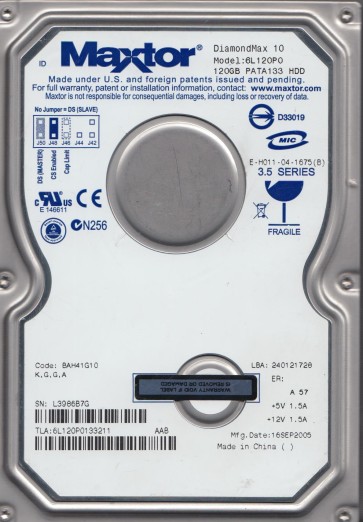
The Maxtor 6L120P0 is a 120GB hard disk drive from the DiamondMax Plus 9 family, utilizing an ATA/IDE interface and a rotational speed of 7200 RPM. These drives are known for using the N40P (or similar) firmware architecture and a single 120GB platter. As a product of the early 2000s, these drives are now quite old and subject to age-related degradation. Common failure mechanisms include firmware corruption, head assembly stiction, and PCB (Printed Circuit Board) component failure. The drive’s controller chip is particularly sensitive to voltage irregularities, and the preamp on the head stack assembly can fail over time. Understanding that this is a legacy drive with limited modern controller support is critical for planning recovery.
Identifying Common Failure Types
1. Electronic (PCB) Failure
The most common symptom is a completely dead drive: no spin-up, no sound, and not detected by the BIOS. This often results from a failed TVS (Transient Voltage Suppression) diode or a damaged motor controller chip (such as the L7251 or similar). In some cases, the firmware EEPROM (typically a 25P05) on the PCB can become corrupt. A visual inspection may reveal a charred or cracked component on the PCB surface.
2. Mechanical Failure (Head Crash / Stiction)
If the drive powers on but emits a clicking, tapping, or grinding sound, it indicates a head crash or severe stiction. The 6L120P0’s heads can stick to the platter surface after long periods of inactivity (stiction), or the heads may have physically damaged the platter surface. A drive that spins up but then clicks repeatedly has likely lost its servo positioning data or has a damaged head. Data is only recoverable via specialized cleanroom procedures.
3. Firmware Corruption (SA Failure)
A drive that spins up, is detected but with an incorrect model name (e.g., “Maxtor N40P” or “0GB”), or hangs the system, is suffering from firmware corruption in the System Area (SA). The 6L120P0’s SA modules can become corrupt from repeated power loss or normal aging. The drive may make a “whirring” sound as it tries to read its modules repeatedly without success. This is a common software-level failure that specialized tools (PC-3000, etc.) can address.
4. Bad Sector / Degradation
If the drive is detected but slowly reading, freezing, or producing I/O errors, it may have developed significant bad sectors or weak media. While not catastrophic, this can indicate the early stages of head wear. Continued use in this state can cause further damage. The drive may also produce a “grinding” noise during retry operations, which is the actuator arm moving back and forth.
Potential Recovery Paths
Professional Services (Recommended for Physical & Complex Failures)
For any clicking, grinding, non-spin, or unrecognized drive model, professional intervention is essential. A data recovery lab will perform a cleanroom inspection, replace the PCB with a donor board (often with transplanted firmware EEPROM), and, if necessary, replace the head assembly in a Class 10 cleanroom. For firmware corruption, labs use tools like the PC-3000 or MRT to rewrite the damaged SA modules. This is the only safe path for mechanical failures. Costs typically range from $300 to $1500+ depending on damage severity.
DIY Options (Software-Only Failures Only)
DIY is only appropriate if the drive is detected correctly and makes zero abnormal noises. For bad sectors or logical corruption (deleted files, formatted partition), try the following in order of safety:
Step 1: Create a Bit-For-Bit Image (Highest Priority)
Use a tool like HDD Raw Copy Tool (Windows) or ddrescue (Linux) to clone the drive to a stable, healthy hard drive. This tool will skip over bad sectors and retry them later, preventing the drive from grinding on a single bad area. NEVER work directly on the failing drive. Clone first.
Step 2: File Recovery Software
Run data recovery software (e.g., R-Studio, DMDE, Recuva) on the cloned image. Do not install the software onto the failing drive. Scan the image for lost partitions or deleted files.
Step 3: PCB Replacement (Advanced DIY – Risk of Data Loss)
If the drive is completely dead (no spin) and you are certain the fault is electrical, you can attempt to swap the PCB. You MUST locate a donor drive of the exact same model (6L120P0) with the same PCB revision number. After swapping the board, you must transplant the original drive’s firmware EEPROM (a small 8-pin chip) to the donor board. Simply swapping the board without the EEPROM will result in “No Access” or “Clicking” because the sa remains mismatched. This is a high-risk operation requiring fine soldering skills or a programmer.
What Not to Do
- NEVER open the drive enclosure. The platters are sealed in a cleanroom environment. A single dust particle can destroy the magnetic coating and the read/write heads. Opening the drive will make professional recovery exponentially more expensive or impossible.
- Do not run CHKDSK (CMD: chkdsk /f) or ScanDisk. These tools attempt to repair the file system by writing to the drive. On a failing drive, this writing can cause the heads to read over bad areas, inducing a head crash or destroying residual data.
- Avoid freezing the drive. This is an old myth. Freezing can cause moisture condensation, which leads to corrosion and head stiction. It is not a viable recovery technique for modern (or even this era) drives.
- Do not repeatedly power-cycle the drive. If the drive clicks, power it off immediately. Repeated power cycles can destroy the spindle motor bearing or further damage the heads.
- Do not use defragmentation software. Defragging is a high-intensity read-write process. On a failing drive, it will accelerate physical damage and likely result in complete data loss.
Summary
The Maxtor 6L120P0 is a legacy IDE hard drive prone to PCB failure, head stiction, and firmware corruption. Its age makes component-level repair challenging. If the drive makes any unusual noise (click, grind), do not power it on again; seek a professional data recovery lab. If the drive is silent and undetected, a careful PCB swap with firmware transplant may be a viable high-risk DIY option. If the drive is detected and quiet, create a bit-for-bit clone immediately before performing any file recovery. The golden rule is: when in doubt, or if the data is irreplaceable, stop using the drive and contact a professional. The cost of professional recovery is far less than the cost of lost memories or critical business data.