
Data recovery on vintage hard drives like the Seagate ST380215AS starts with identifying the failure type – electronic, firmware, or mechanical. Each requires a different approach, and misdiagnosis can make things worse. Here’s a quick guide to help you assess your situation and decide on the next step.
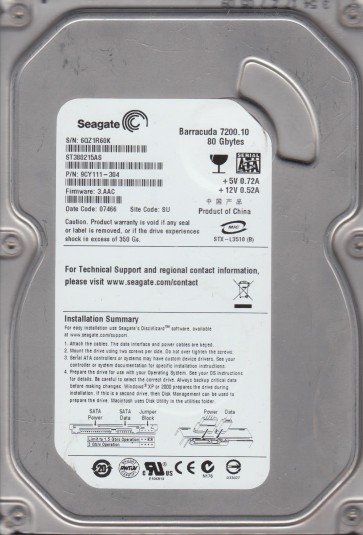
The Seagate ST380215AS is a 3.5-inch SATA hard disk drive from the Barracuda 7200.10 series with a formatted capacity of 80GB and a rotational speed of 7200 RPM. This generation of drives utilizes perpendicular magnetic recording and a single-platter design. Key components include the system on chip (SOC), the voice coil motor (VCM) controller, and a solid-state preamplifier on the head stack assembly. These drives are known for specific firmware and mechanical failure patterns, particularly related to the LSI-based controller chip and the thin internal flex cable. Understanding the drive’s internal layout is crucial as physical damage to the head preamplifier or a degraded firmware module can render the drive inaccessible without specialized tools.
Identifying Common Failure Types
1. Mechanical Head Crash or Media Damage
A common failure is the physical contact of the read/write head with the platter surface. Symptoms include a repetitive clicking or scratching noise, the drive spinning up but failing to be recognized by the BIOS, or a spinning sound followed by a series of loud clicks. This is often caused by particle contamination, sudden shock, or age-related degradation of the air bearing. Once the heads touch the media, data recovery becomes highly complex and risky without a cleanroom environment.
2. Firmware Corruption (Media Cache & Translator Issues)
The ST380215AS is prone to firmware failures, particularly involving the “Media Cache” or “SMART” modules. The drive may spin up normally but not be detected by the host system, or it may report a “0GB” capacity. The drive may also remain in a “BSY” (busy) state continuously. This is a logical failure where the firmware cannot properly read the system area on the platters, often due to weak magnetic domains or a corrupted adaptives table. A technician with a PC-3000 or similar tool can often repair this by rewriting the firmware modules.
3. Electronic Failure (Controller Board Damage)
The most obvious electronic failure is a blown TVS (Transient Voltage Suppression) diode on the SATA power connector, often caused by a faulty power supply. The drive will not spin up at all. Less common but more severe failures include a burned-out preamplifier chip on the head stack or a failed main controller IC. Visual inspection of the circuit board for burn marks, cracked components, or a short circuit is essential. Replacing the PCB with a matched donor board can sometimes resolve the issue, but it often requires transferring the original drive’s firmware ROM chip.
4. Bad Sectors and Degradation
This drive can develop a large number of reallocated sectors over time. Symptoms include extreme slowness during file access, operating system freezes, or repeated CRC errors when copying data. The drive may click or sound normal but take a long time to respond. This is a progressive failure where the media is degrading physically. While software tools can attempt to image the drive, the process often stresses the heads and may lead to a full head crash if not handled carefully.
Potential Recovery Paths
Professional Service
Recommended For: Any clicking, scratching, or non-spin drive; firmware failures visible in a PC-3000 terminal; or severe bad sector problems. Professional recovery for the ST380215AS involves opening the drive in a Class 100 cleanroom to replace the read/write heads (if crashed) and using specialized tools like the PC-3000 or DeepSpar to create a sector-by-sector image. For firmware corruption, a technician can repair the modules using a terminal connection. Expect costs from $300 to $1500+ depending on the severity and the need for a donor drive. Always choose a cleanroom-certified lab with experience in Seagate F3 architecture.
DIY – Firmware Repair (Advanced Users Only)
If the drive spins up and is detected with the correct model but shows “0GB” or remains in a BSY state, you may attempt a firmware repair using a PC-3000 or a cheaper tool like a Seagate terminal adapter (e.g., FTDI TTL-232R). WARNING: This is highly technical. Incorrect commands can permanently brick the drive. You will need to identify the drive in terminal mode, read the proper ROM and modules, and use the virtual donor method to rebuild the Media Cache module. This is only for users with thorough knowledge of Seagate F3 commands.
DIY – Bad Sector Imaging (For Degradation Only)
If the drive is still spinning, not clicking, and recognized by the OS but slow or giving errors, you can use software like DDRescue (Linux) or HDDSuperClone (Linux/Mac) to create an image. Connect the drive as a secondary (not boot) drive. Use a command like: ddrescue -d -r3 /dev/sdb /mnt/usb/image.img /mnt/usb/mapfile.log. The key is to use a mapfile to skip bad areas and retry later. Never use Windows chkdsk or any “repair” tool on a failing drive as it can cause further damage.
DIY – PCB Swap (For Electronic Failure)
For a dead PCB (no spin, no power), locate a donor drive with the exact same model, board number (e.g., 100470607), and firmware revision. Remove the original board and transfer the 8-pin serial flash ROM chip (usually a 25Q chip) from the original board to the donor board. This preserves the drive’s unique adaptives and encryption. If you cannot solder, a technician can do this. Simply swapping boards without the ROM will result in a “click of death” or no data access.
What Not to Do
DO NOT open the drive’s internal chamber under any circumstances without a cleanroom. Even a single dust particle can destroy the platter surface. DO NOT apply more than 5V on the SATA power pins if you are testing a PCB with a multimeter, as you can short the internal protection circuit. DO NOT run chkdsk, scandisk, fsck, or any file system repair utility on a drive with bad sectors or mechanical issues, as this forces the drive to scan and reallocate sectors, potentially causing the heads to fail. DO NOT freeze the drive. This old myth can cause condensation and rust, permanently ruining the media. DO NOT repeatedly power-cycle a clicking drive in hopes it will work, as this can grind the heads further into the platter. DO NOT use data recovery software that installs or writes to the failing drive, as it can overwrite the very files you are trying to recover.
Summary
The Seagate ST380215AS is a reliable but aging drive that suffers from common mechanical, firmware, and electronic failures. For clicking or non-spin drives, professional cleanroom recovery is the only safe path. Firmware issues (0GB or BSY) can be tackled by advanced users with appropriate tools but carry a high risk of total data loss if mishandled. Bad sector degradation can be managed with careful imaging software like DDRescue. The golden rule is to assess the symptoms accurately: if you hear a scratch or click, stop all DIY attempts and seek a professional. The cost of professional recovery is always less than the value of irreplaceable data. Always work from a clone or image, never directly on the failing drive.