
Data recovery on vintage hard drives like the Western Digital WD5000YS starts with identifying the failure type – electronic, firmware, or mechanical. Each requires a different approach, and misdiagnosis can make things worse. Here’s a quick guide to help you assess your situation and decide on the next step.
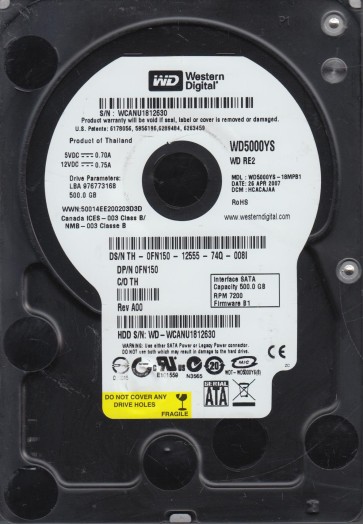
The Western Digital WD5000YS is a 500GB 3.5-inch SATA hard drive from the WD RE (RAID Edition) series, designed for 24/7 operation in enterprise and business-critical environments. It features a 7200 RPM spindle speed, a 16MB cache, and utilizes perpendicular magnetic recording (PMR) technology. Key characteristics include a robust build with enhanced rotational vibration (RV) tolerance, making it suitable for multi-drive RAID arrays. The controller board typically employs a Marvell 88i8040-TFJ2 or similar main controller, with a power management IC (PMIC) prone to failure. The head stack assembly (HSA) has a low mass, but the platters are susceptible to damage from contamination or sudden shock. This model is known for experiencing gradual degradation from normal wear, and less abrupt failure compared to consumer drives, though still vulnerable to specific issues like stuck heads and firmware corruption.
Common Failure Types
1. Mechanical: Stiction (Stuck Heads). The read/write heads can park on the platter surface and become stuck due to lubricant degradation or contamination, especially after prolonged inactivity or high temperature. Symptoms include the drive spinning up, hearing a brief click, and then stopping, or no movement at all. The drive may be detected as a “0GB” or “N/A” capacity in the BIOS under Western Digital Bridge Diagnostics (WDBBD).
2. Mechanical: Bad Sectors and Scratched Platters. Over time, weak magnetic domains or head damage can create physical bad sectors (scratches) on the platters. Symptoms include slow read/write performance, files that cannot be opened, and a rapid ticking or grinding sound as the head repeatedly attempts to access a failing area. This is often preceded by reallocated sector counts in S.M.A.R.T. data (Attribute 05, C4, C5, C6).
3. Electronic: PCB (Printed Circuit Board) Failure. The TVS (Transient Voltage Suppression) diodes on the PCB (D5, D6) can short or fail due to a power surge, or the Marvell main controller chip can overheat and fail. Symptoms: The drive is completely dead (no sound, no spin) or spins down immediately. The drive may be detected as a “USB Device” with zero capacity if the controller is partially working but corrupted.
4. Firmware: Corrupted Microcode. The WD5000YS is prone to firmware corruption in the SA (Service Area) on the platters, often from bad sectors or a sudden power loss during a firmware update. Symptoms: The drive spins up normally, clicks a few times, and then becomes “inaccessible” or “uninitialized” in Disk Management. It may show as “0MB” or “Unknown” in WDBBD. The drive may be detected with a strange capacity like “4GB” or “8GB”.
5. Logical: File System Corruption. This is not a hardware failure but a software issue, often from a virus, improper shutdown, or file system errors (CHKDSK scan stuck). Symptoms: The drive appears in Disk Management but shows as “RAW” or “Unallocated”. Files appear with incorrect names, sizes, or show 0 bytes. Data is still intact but inaccessible due to lost file table entries.
Potential Recovery Paths
DIY Methods (For Logical Failures Only)
Attempt only if the drive spins normally, makes no abnormal noise, and is not clicking. Immediately clone the drive to a healthy drive using ddrescue or HDD Raw Copy Tool. Run a file system repair (CHKDSK /f) ONLY on the clone, never the original. Use data recovery software (e.g., DMDE, R-Studio, ReclaiMe) to recover files from the clone. For severe logical damage, use a file carver like PhotoRec on the clone. Warning: Running CHKDSK on a physically failing drive can destroy all data. For RAW drives, attempt to rebuild the partition table using DMDE’s “Partition Scanner” on a clone.
Professional Service Methods (For Hardware Failures)
For mechanical failures (stuck heads, scratched platters): A certified cleanroom (Class 100 or better) is mandatory. The repair involves replacing the Head Stack Assembly (HSA) from a donor drive of the same model (WD5000YS with matching DCM (Drive Configuration Module) number). After HSA replacement, the drive must be tuned and the firmware adapted to the new heads using specialized tools like PC-3000 UDMA or Atola Insight. Firmware corruption (Service Area damage): Requires a computer to flash corrected firmware modules or rebuild the translator using a tool like PC-3000 UDMA or MRT Ultimate. PCB failure: May be fixable by replacing the fuse or TVS diodes, or by swapping the PCB with a donor board and transferring the original ROM chip (typically an 8-pin SOIC) to the new PCB. The ROM is unique to each drive and contains critical alignments. Simply swapping a PCB without ROM transfer will result in a “wrong size” or “access denied” error. Do not attempt platter swaps (surgical extractions) as a DIY method; this requires cleanroom tools and precision training.
What Not to Do
1. Never apply power to a drive that makes a scratching, grinding, or high-pitched whining sound. Immediate power-off is critical to prevent further platter damage. Do not try to spin it a second time.
2. Do not open the drive enclosure yourself. Even a single dust particle or a micro-fiber can cause a fatal head crash. Any attempt to remove the top cover voids all professional recovery warranties and often makes the data irrecoverable at a high cost.
3. Never run CHKDSK, scandisk, or any file system repair tool (like Windows chkdsk /f) on a drive that is making unusual noises, has bad sectors, or is detected as RAW. This causes the heads to re-read failing areas repeatedly, further destroying data.
4. Do not freeze the drive. This is a dangerous internet myth. Freezing can cause condensation that short-circuits the PCB, damages the spindle motor bearing, and delaminates platter coatings. It will not fix bad sectors or stuck heads.
5. Avoid using “recovery software” that attempts to repair or write to the original drive (e.g., “File Repair” or “Smart Fix” tools). Always use imaging tools (ddrescue) to create a raw clone first, then work exclusively on the clone. Writing to a failing drive is the most common cause of permanent data loss.
Summary
The Western Digital WD5000YS is an enterprise-grade drive that fails primarily through mechanical stiction, head damage, PCB electronic failure, and firmware (SA) corruption. Successful recovery depends on accurately diagnosing the failure type. Logical issues (file system corruption) are DIY-safe if the drive is physically healthy and cloned first. All hardware failures (mechanical, electronic, firmware) require a cleanroom and professional tools such as PC-3000 or Atola Insight. The most common disastrous user errors are applying power to a clicking drive, running chkdsk, freezing the unit, or opening the drive. Always clone first, repair second, and never power a noisy drive.