
Data recovery on vintage hard drives like the Seagate ST8000VX0002 starts with identifying the failure type – electronic, firmware, or mechanical. Each requires a different approach, and misdiagnosis can make things worse. Here’s a quick guide to help you assess your situation and decide on the next step.
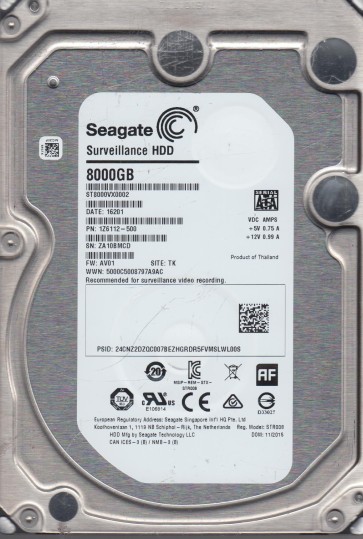
The Seagate ST8000VX0002 is an 8TB 3.5-inch hard disk drive designed for surveillance and video analytics applications. It is part of Seagate’s SkyHawk series, optimized for 24/7 continuous recording workloads. This drive typically operates at 7200 RPM and uses a SATA 6Gb/s interface. It features traditional Perpendicular Magnetic Recording (PMR) technology and a standard MTTF rating of 1 million hours. Understanding its intended workload:heavy writes with sequential access patterns:is crucial when diagnosing failures, as issues often relate to thermal stress, mechanical wear from constant operation, or firmware complications specific to video recording environments.
Identifying Common Failure Types
1. Mechanical Failure (Head Crash or Stiction)
The most catastrophic failure involves the drive’s read/write heads physically contacting the platters. Symptoms include a clicking, scraping, or grinding noise upon power-up, coupled with the drive not being recognized by the BIOS or operating system. This is common in surveillance drives due to vibration from multiple drives in a DVR or NVR array. The drive may spin up for a few seconds, then stop. Immediate power-off is critical.
2. Firmware Corruption or Translation Degradation
This drive uses complex firmware to manage bad sectors and optimize write cycles. Corrupted firmware can lead to the drive being detected with an incorrect capacity, showing as “LBA 0” only, or hanging during initialization. The drive might spin up normally but be inaccessible. It often presents as a slow or unresponsive drive that eventually times out. This is sometimes triggered by improper shutdowns during video recording.
3. Bad Sector Development and Surface Degradation
Over time, especially under continuous 24/7 write loads, the magnetic media can develop weak sectors. The drive’s firmware will attempt to reallocate these, but when the spare sector pool is exhausted, the drive will start to fail. Symptoms include extremely slow read/write speeds, recurring read errors for specific files (especially older recordings), and eventually, the operating system reporting “I/O device error”. The drive may still be visible but becomes increasingly unreliable.
4. Spindle Motor Failure
The spindle motor that rotates the platters can seize or fail over time. Symptoms include a complete silence when power is applied, or a brief hum and then nothing. The drive will not spin up at all. This is less common but is exacerbated by high operating temperatures often found in poorly ventilated NVR enclosures.
Potential Recovery Paths
Professional Recovery Services (Recommended for Mechanical/Firmware Issues)
Hardware-Level Recovery: For mechanical failures like head crashes or stiction, a cleanroom (Class 10 or better) is required. A specialist will swap the headstack assembly (HSA) with a donor drive of the exact same model and firmware revision. For spindle motor issues, a platter transfer may be necessary, which is extremely risky and expensive. Expect costs between $500 and $2500+ depending on severity.
Firmware/Tool Recovery: Specialized tools like PC-3000 or Atola are used to recover corrupted firmware tables, read system modules, and create sector-by-sector images of failing drives. These tools can bypass locked firmware or read sectors with weak magnetic signals using advanced filtering. This is not a DIY procedure as it requires specific hardware and training.
DIY Recovery (Limited to Logical or Bad Sector Scenarios)
For Bad Sectors (If drive is still recognized but slow): Use a Linux live CD (e.g., Ubuntu) and the `ddrescue` tool. Boot from the live CD, do not mount the failing drive. Open a terminal and run: `sudo ddrescue -d -f -r3 /dev/sdX /path/to/image.img /path/to/logfile.log` (replace sdX with the correct device). The `-d` flag uses direct disk access, and `-r3` tries three passes. This creates a partial image, skipping bad areas. After cloning, attempt file recovery from the image file using tools like PhotoRec or R-Studio.
Important Warning: Never attempt to run chkdsk or fsck on a failing drive. These tools force the drive to work harder on bad sectors, often causing secondary head damage. Do not freeze the drive, tap it, or try to open the case:it is not hermetically sealed in a user-serviceable way.
What Not to Do
- DO NOT apply power repeatedly if you hear clicking. This can grind the heads into the platters, destroying data.
- DO NOT use commercial “data recovery” software on a failing mechanical drive. This forces the drive to attempt multiple reads, worsening the condition.
- DO NOT attempt to open the drive enclosure. The internal chamber is cleanroom-assembled; household dust will destroy the platters instantly.
- DO NOT freeze the drive. This is an urban legend; thermal contraction can cause the heads to stick to platters and condensation can short-circuit electronics.
- DO NOT attempt to write new data to the drive. This can overwrite the data you want to recover and may dislodge damaged heads.
Summary
The Seagate ST8000VX0002 is a robust surveillance drive but is vulnerable to mechanical failure from vibration and heat, firmware corruption from abrupt power loss, and sector degradation from constant writes. For any audible mechanical noise (clicking, scraping) or a non-spinning motor, immediately power off and seek professional cleanroom recovery. For drives that are recognized but sluggish or error-prone, a DIY approach using ddrescue from a Linux environment is possible but must be done with extreme caution:stop at the first sign of degradation worsening. The golden rule: if the drive makes unusual noise or is not detected, do not operate it further. Professional recovery is always safer for valuable data. Do not rely on software fixes for hardware problems.