
Data recovery on vintage hard drives like the Western Digital WD10JPCX starts with identifying the failure type – electronic, firmware, or mechanical. Each requires a different approach, and misdiagnosis can make things worse. Here’s a quick guide to help you assess your situation and decide on the next step.
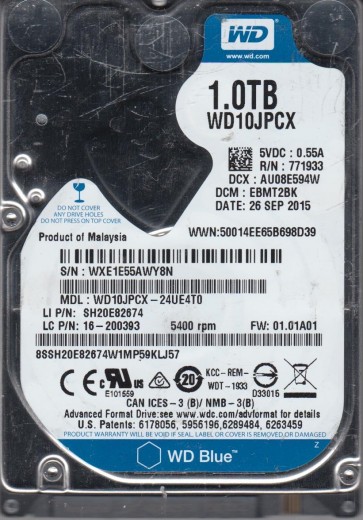
The Western Digital WD10JPCX is a 1TB 2.5-inch SATA hard drive commonly found in external portable drives and older laptops. It features a 5400 RPM spindle speed and typically uses Advanced Format (4K sectors). Understanding its construction is critical for recovery, as its specific head stack assembly (HSA) and controller firmware are unique to this model. The drive is known for its power efficiency but is susceptible to certain failure modes common to thin-profile 2.5-inch drives, including head stiction and PCB (Printed Circuit Board) damage from physical shock.
Common Failure Types
1. Mechanical Head Crash or Stiction
Symptoms: The drive produces a clicking sound (repetitive head park and seek), a grinding noise, or is completely silent but not spinning. The system may detect the drive as an unrecognizable device or not at all. This often occurs after a drop or sudden impact.
Causes: Physical shock causes the read/write heads to contact the platter surface (head crash) or stick to the platter lubrication (stiction). Contamination from internal particulates can also cause this.
2. PCB (Printed Circuit Board) Failure
Symptoms: The drive is completely dead. It does not spin up, and the system provides no indication that the drive is connected. This can happen without any physical trauma to the drive enclosure.
Causes: A damaged or shorted SATA connector, failed SATA bridge board (in external enclosures), or failed voltage regulators and motor controller chips on the main PCB. Power surges or incorrect power connections are common triggers.
3. Firmware Corruption (Media Cache or Translator)
Symptoms: The drive spins up normally and may appear in the BIOS or Device Manager but is incorrectly identified (often as “0GB” or with a strange model number). The system may hang when trying to access the drive, or it immediately fails to read sectors. Files and folders may appear as garbled names.
Causes: Sudden power loss during a write operation, logical bad sectors corrupting the system files (modules) stored on the platters, or a failing read/write head causing bit errors in the firmware area.
4. Bad Sectors (Logical and Physical)
Symptoms: The drive operates but is extremely slow. File read/write operations fail, or the operating system reports “CRC errors” or “I/O device errors.” A CHKDSK scan shows numerous bad sectors. The drive may emit a scratching noise when reading certain files.
Causes: Logical bad sectors can be caused by a virus, improper shutdown, or magnetic interference. Physical bad sectors are caused by genuine media degradation, a microscopic head touch, or contamination on the platter surface.
5. Stuck Spindle Motor (Seized Bearing)
Symptoms: The drive makes a humming or buzzing sound but the platters do not rotate. The drive may spin up briefly and then stop. Manual rotation of the platters is not possible without professional tools.
Causes: Wear and tear on the motor bearings, often exacerbated by heat and poor ventilation in an external enclosure. This is less common but very severe.
Potential Recovery Paths
DIY Methods (Low-Risk Situations Only)
1. PCB Replacement for Dead Drive: If the drive is completely dead and a PCB failure is suspected (no clicking, no spin), find an exact donor drive with the same board number (P/N). Swap the PCB. To maintain proper electrical tuning, you must transfer the original drive’s U12 serial flash ROM chip to the donor board. Without this chip, the drive will likely not work. Use a hot air station or a soldering iron for this. This is a medium-skill task.
2. Software Imaging for Bad Sectors: If the drive spins and is detected but has logical bad sectors or is slow, use data recovery software like DDRescue or R-Studio. Boot from a live Linux USB (e.g., SystemRescue) and use `ddrescue` to clone the drive to a healthy one. Use the `-d` (direct disk access) and `-r` (retry passes) options. Never use CHKDSK (chkdsk /f) on a failing drive as it can make data permanently unrecoverable.
3. Freeze Trick (Temporary & Risky): For drives that only work for a short time after being turned on (due to thermal expansion affecting a stuck head), placing the drive in a sealed anti-static bag and freezing it for 2-4 hours may allow a single, short successful cloning session. This is a desperation method and can irrevocably damage the platters.
Professional Services (Mandatory for Mechanical Issues)
1. Head Replacement (Head Stack Assembly Swap): For clicking or scratching drives. Requires a cleanroom (Class 10 or better), specialized tools to unlock the heads, and precise alignment. The donor drive must match the model, manufacturing date, and head firmware.
2. Firmware Repair in Cleanroom: Professional tools (e.g., PC-3000, MRT) can read and repair damaged firmware modules even if the drive is partially mechanically healthy. This can fix the “0GB” problem or a drive that locks up on access.
3. Platter Transfer: For a seized motor or severe head crash, the platters must be transferred to a new chassis. This is the most complex and expensive recovery (often starting at $1000+). It requires precise mechanical work and a donor drive of identical construction.
4. No-Data-Change Policy: A professional lab will never write to the original drive. They will clone it first. Always ask if they provide a free evaluation and a “no data, no charge” guarantee.
What Not to Do
1. Do Not Open the Drive Enclosure. WD10JPCX drives use a non-sealed internal filter. Opening the drive in a normal room will introduce microscopic dust particles that will quickly destroy the platter surface and kill any chance of recovery. Only open in a professional cleanroom.
2. Do Not Run CHKDSK /F or /R. CHKDSK (Check Disk) tries to repair the file system. On a failing drive, it attempts a “dirty shutdown” repair by rewriting bad sectors, which can cause the heads to crash or corrupt the data on top of bad areas. This can turn a recoverable logical issue into an irretrievable physical one.
3. Do Not Use Disk Utility Tools on a Clicking Drive. Software like SpinRite or commercial disk repair tools are designed for logical issues, not mechanical failures. Running them on a mechanically failing drive will aggressively move the heads over the damaged platters, causing further damage and possibly a complete head failure.
4. Do Not Continually Power Cycle the Drive. If the drive is clicking or not spinning, power cycling it repeatedly can overheat the motor controller chip or damage the spindle motor windings. Each power cycle sends a sudden current surge. If it does not spin up on the second attempt, stop and seek professional help.
5. Do Not Attempt In-Home “Heating” or “Tapping.” Do not tap on the drive body or use a heat gun to try to free a stuck motor. Heating the drive can warp the platters and damage the magnetic coatings. Tapping can cause the heads to scratch the platters.
Summary
The Western Digital WD10JPCX is a robust drive but fails primarily due to mechanical shock (head crash/stiction) and PCB electrical failure. If the drive is quiet and not spinning, a DIY PCB swap is possible (with ROM transfer). If it clicks, grinds, or shows a “0GB” size, you face a mechanical or firmware issue requiring a professional cleanroom. Never run CHKDSK on a failing drive, never open it without a cleanroom, and never power cycle a clicking drive. The golden rule: immediately stop all use, clone the drive (using ddrescue) to a healthy disk before attempting any repair. If you cannot successfully clone it after two attempts, or if the drive makes noise, send it to a professional data recovery lab that offers free evaluation and a no-data-no-charge policy.