
Data recovery on vintage hard drives like the Hitachi HTS542512K9SA00 starts with identifying the failure type – electronic, firmware, or mechanical. Each requires a different approach, and misdiagnosis can make things worse. Here’s a quick guide to help you assess your situation and decide on the next step.
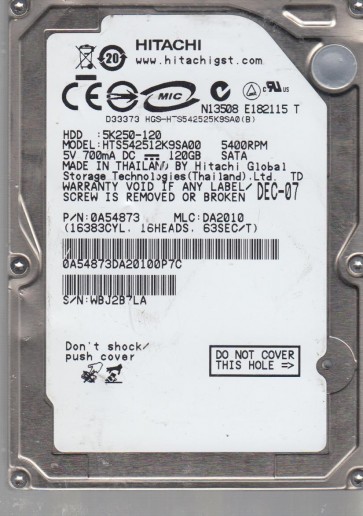
The Hitachi HTS542512K9SA00 is a 2.5-inch, 120GB SATA hard disk drive from the Travelstar 5K250 series. It operates at 5400 RPM and features a 8MB cache buffer. This specific model utilises perpendicular magnetic recording technology and is commonly found in older generation laptops and external enclosures. The drive typically contains one or two platters with an areal density that makes it sensitive to both mechanical shocks and electrical anomalies. A key component of this drive is its firmware which manages the head positioning, error correction, and defect management. When this firmware becomes corrupted or the drive’s mechanical components fail, recovery becomes complex. Understanding that this is a PMR (Perpendicular Magnetic Recording) drive is crucial as it dictates the types of physical failure patterns you may encounter.
Identifying Common Failure Types
1. Mechanical Head Crash or Stiction
This is a hardware failure where the read/write head physically contacts the spinning platter surface. Signs include a loud clicking, scraping, or grinding noise when power is applied. The drive may spin up but produce repeated rhythmic sounds. After a crash, the drive will often not be recognised by the BIOS or OS. Stiction occurs when the head parking ramp material adheres to the platter, preventing the motor from spinning. This often results in a single “thump” sound followed by silence as the motor fails to overcome the friction. Both of these failures permanently damage the platter surface at the point of contact.
2. PCB (Printed Circuit Board) Electronics Failure
Common in the HTS542512K9SA00 due to power surges or component age. Symptoms include the drive not spinning at all, no audible motor sound, and no detection in the BIOS. The PCB may show visual damage like a burnt chip or bulging capacitors. However, sometimes a failed preamplifier (often a small IC near the head connector) will cause the drive to spin but with no heads operation, leading to a “click of death” that sounds soft and regular. This is different from a mechanical crash. Electronic failures often allow the platters to spin freely but the drive cannot read or write data.
3. Firmware Corruption / Media Degradation (Bad Sectors)
Firmware issues often manifest as the drive being detected with an incorrect model name, zero capacity, or a “Device not ready” error. The drive may spin normally and be quiet. Media degradation refers to developing an increasing number of reallocated, pending, or uncorrectable sectors. Performance will degrade drastically, with the drive becoming unresponsive, freezing the system, or causing file copy errors. This is a progressive non-mechanical failure. The drive may work intermittently before failing completely. Overuse of S.M.A.R.T. data (if accessible) will show high values for Reallocated Sector Count (05) or Current Pending Sector Count (C5).
4. Stuck Spindle Motor (Common in this series)
After long periods of inactivity, the bearing lubricant inside the motor can dry out or congeal. When power is applied, the motor emits a single, quiet “chirp” or hum and then stops. The platters do not spin. Unlike a PCB failure, the motor has electrical continuity but lacks mechanical torque. This is a physical failure but does not involve head-platter contact. It requires a controlled motor replacement or a specialised procedure to free the rotor.
Potential Recovery Paths
Professional Service (Recommended for Hardware Failures)
For any clicking, scraping, or non-spinning symptoms, professional intervention is strongly advised. A reputable data recovery lab will have a cleanroom (Class 10 or better) for head replacement and platter transplants. For the HTS542512K9SA00, a specialist may perform a “head stack replacement” using a matching donor drive of the exact same model, firmware version, and manufacturing date. For PCB failure, they will either repair the board or perform a “PCB swap” with a firmware transfer (ROM must be moved from the original board to the donor board). A professional service can also handle firmware corruption by using specialised tools like PC-3000 or DeepSpar to rebuild translator modules and bypass bad sectors. Typical costs range from $300 to $2500+ depending on the complexity and parts needed. Look for services offering free evaluation and a “no data, no charge” policy.
DIY Software Recovery (For Logical or Early Media Issues)
If the drive is detected normally and makes no unusual sounds, you can attempt software recovery. First, do not attempt to use chkdsk or format the drive. Use a disk imaging tool focused on bad sector handling, such as ddrescue (Linux) or HDDSuperClone. Run the tool in a read-only mode to clone the failing drive to a healthy, larger target drive. The tool will skip unreadable sectors and retry them later, extracting as much data as possible. Then, use file recovery software (e.g., R-Studio, DMDE, GetDataBack) to extract files from the clone. Do not install the recovery software on the failing drive itself. This path is only viable if the drive has no physical damage and is not making mechanical noises.
DIY PCB Swap (Advanced – Only for non-mechanical, non-spinning issues)
If the drive is completely silent (no motor spin) and you are certain it is a PCB failure, a PCB swap might work. This requires finding an exact donor PCB (same model number and board revision). However, for the HTS542512K9SA00, you cannot simply swap the boards because the drive uses adaptive data stored on a serial EEPROM chip (usually a 8-pin or 3-pin component) on the original PCB. You must physically desolder and transplant this ROM chip to the donor board. Without this, the drive will either spin but not work, or not spin at all due to mismatched head parameters. This is a delicate micro-soldering process. If you lack hot air rework skills, skip this step. A failed attempt can render the drive unrecoverable.
What Not to Do
- Do not open the drive’s cover. The platters are extremely sensitive to airborne dust particles that can scrape off the magnetic coating and permanently destroy data. This requires a cleanroom.
- Do not apply power repeatedly to a clicking or scraping drive. Each spin cycle can physically gouge the platter surface, making data recovery impossible.
- Do not run disk repair tools (CHKDSK, ScanDisk, fsck), defragmenters, or format commands on a failing drive. These processes write to the drive, potentially overwriting critical file system structures or causing the head to park on bad areas.
- Do not freeze the drive. This is an outdated, dangerous myth. Condensation inside the drive can cause corrosion and short circuits. It does not fix any failure mode.
- Do not use a magnet to “reset” the drive. This can corrupt low-level servo data on the platters and destroy the magnetic structure of the data.
- Do not attempt to replace components without proper tools and electrostatic discharge (ESD) protection. Static electricity can permanently damage sensitive electronic components.
Summary
The Hitachi HTS542512K9SA00 is prone to three primary failure modes: mechanical (head crash, stuck spindle), electronic (PCB failure, preamp failure), and firmware/media degradation. For any audible mechanical issue, immediate professional service is the only safe option. A non-spinning drive may be a PCB failure that a skilled technician can repair, but DYI ROM transplant is risky. A drive that spins but is slow or corrupt can be imaged with bad sector handling software as a DIY project. Never attempt to open the drive or run destructive software utilities. The key to success is an accurate diagnosis. If you hear clicking, stop all power attempts and contact a specialist. If the drive is silent and undetected, consider PCB repair. If the drive works but is slow, your best chance is a sector-by-sector clone to a healthy drive. Prioritise preserving the original drive in its current state. Recovery is always more expensive after unsuccessful attempts.