
Data recovery on vintage hard drives like the Western Digital WD40EFZX starts with identifying the failure type – electronic, firmware, or mechanical. Each requires a different approach, and misdiagnosis can make things worse. Here’s a quick guide to help you assess your situation and decide on the next step.
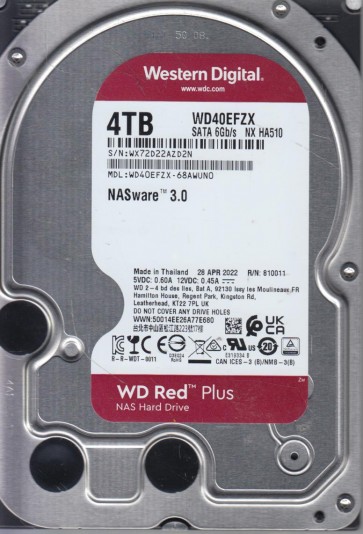
The Western Digital WD40EFZX is a 4TB CMR (Conventional Magnetic Recording) hard drive from the WD Red Pro series, designed for NAS (Network Attached Storage) environments with up to 24-bay enclosures. It features a 5400 RPM spindle speed, 256MB cache, and HelioSeal technology for reduced power consumption and noise. Its CMR architecture ensures consistent read/write performance, making it suitable for RAID arrays. However, like all mechanical drives, it is susceptible to specific failure modes due to its physical complexity and firmware design.
Common Failure Types
1. Mechanical Head Crash
Symptoms: Repetitive clicking or scratching sounds (often described as a “click of death”), drive not spinning up, or immediate failure after a drop or power surge. The drive may be detected in BIOS but with zero capacity or an unrecognizable model number.
Cause: The read/write head physically contacts the platter surface, damaging the magnetic layer. Often triggered by physical shock, manufacturing defects, or particulate contamination (e.g., from a failed spindle bearing).
2. Spindle Motor Seizure (Stiction)
Symptoms: Drive will not spin up at all; no vibration or noise when powered on. The system may detect the drive but report it as “not ready” or “unresponsive.”
Cause: The spindle bearing loses lubrication and seizes, often due to age, excessive heat, or a manufacturing defect. HelioSeal drives are generally less prone but can still occur if the helium seal leaks and air enters.
3. Firmware Corruption / Translator Failure
Symptoms: Drive clicks but spins (sometimes described as a “chirping” or “squeaking” sound), shows incorrect capacity (e.g., 0GB or 4TB but no partitions), fails to be recognized by the OS, or freezes during initialization. Often occurs without physical impact.
Cause: Corruption in the firmware modules stored on the platters, particularly the translator (P-list, G-list, SMART). This can be triggered by a sudden power loss, a bad sector affecting critical firmware areas, or a firmware bug. WD drives are notorious for translator issues.
4. Bad Sectors / Logical Damage
Symptoms: Slow read/write speeds, file corruption, “cyclic redundancy check” (CRC) errors, file system becomes RAW (unformatted), or chkdsk/fsck hangs.
Cause: Physical degradation of the magnetic media (non-recoverable errors), or logical corruption (e.g., from a virus, improper disconnection, or file system driver bug). On WD drives, this can be confused with the “System Reserved” partition issues.
5. PCB (Printed Circuit Board) Failure
Symptoms: No power (drive does not spin at all), burning smell, visible damage (e.g., burnt components, blown TVS diodes), or drive detected but with SMART errors indicating electrical issues.
Cause: Power surge, lightning strike, or component aging. The preamp on the head stack is also a common failure point, sometimes leading to a “head short.”
Potential Recovery Paths
Professional Services
Clean Room Recovery (for Mechanical & Spindle failures): Required for head crashes, spindle seizures, or any failure involving platter damage. Specialists use a Class 10 ISO 4 clean bench to dismantle the drive, replace the heads (with donor parts), and image the platters using specialized readers (e.g., PC-3000, DeepSpar). Cost: $300-$3000+ depending on complexity.
Firmware Repair (for Translator/Corruption): Professionals use tools like PC-3000 or WD specific utilities to read and rewrite corrupted firmware modules directly via a serial port (UART) or by accessing SA (Service Area). This is non-invasive but requires deep knowledge of WD firmware structures.
PCB Replacement with ROM Migration: If the PCB is damaged, a donor PCB of the exact same model and firmware revision must be used, and the unique ROM chip (or its binary) from the original PCB must be transferred to the donor. This is a delicate soldering or hot-air process.
Head Stack Replacement: For head crashes with visible platter damage, the heads are swapped from a donor drive. This is extremely risky as heads can further damage platters if misaligned.
DIY Methods
Software Imaging for Logical Damage (Bad Sectors): Use tools like ddrescue (Linux) or DDRescue-GUI (Windows). Run in “direct” mode to bypass OS caching. First pass recover all readable sectors; second pass (directed) recovers damaged areas. Do not use chkdsk or fsck on a failing drive:image first.
Freezing the Drive (Risky): For a seized spindle motor, some users place the drive in a sealed bag in a freezer for 2-4 hours, then immediately power it on. This can temporarily shrink components enough to free the bearing. This is a last-resort and unreliable method.
USB Bridge Replacement: If the external USB controller (if using a USB enclosure) fails, you can remove the drive and connect it directly via SATA. For WD external drives, the USB is often integrated onto the main PCB, making this harder.
SMART Data Analysis: Use tools like CrystalDiskInfo or smartctl to read SMART attributes (e.g., Reallocated Sector Count, Current Pending Sector, Raw Read Error Rate). A high number of relocated sectors (>500) is a strong indicator of physical degradation. Warning: Do not run a surface scan or chkdsk /R on a drive with pending reallocations:it may accelerate failure.
What Not to Do
1. Do not open the drive outside a clean room. Even a tiny speck of dust can cause a head crash. The platters are sealed in a helium environment (HelioSeal) which cannot be recreated. Opening the drive exposes the platters to oxygen and contaminants, causing immediate and irreversible damage.
2. Do not run chkdsk /r or fsck on a mechanically failing drive. This forces the drive to read every sector, causing the heads to repeatedly retry and potentially crash into the platter surface. Always use a sector-by-sector imager first.
3. Do not repeatedly power cycle the drive. If it clicks or does not spin, each power-on can cause additional damage to the heads or spindle. Diagnose the cause first (listen for spinning vs. clicking) before trying any DIY steps.
4. Do not use software that claims to “repair” bad sectors by writing zeros or overwriting data. This permanently destroys the original data. The magnetic layer is physically degraded; writing to it will cause further damage and make professional recovery impossible.
5. Do not assume data on a RAID array is safe. The WD40EFZX is a NAS drive. If it fails in a RAID set, do not force the array online. Stop the array, image each drive individually, then rebuild the array in software. Forcing a degraded RAID can cause massive unrecoverable data loss.
Summary
The WD40EFZX is a robust NAS drive but shares common failure paths: mechanical shocks cause head crashes, spindle seizure can occur from heat, firmware corruption (especially translator issues) is a known weakness, and logical bad sectors can degrade performance. The most critical lesson is that physical failures (head crashes, spindle seizure) require professional clean-room intervention and are not DIY-recoverable. Logical damage (bad sectors, file system errors) can often be tackled with careful sector-by-sector imaging tools like ddrescue, but only if the drive is spinning and not clicking. Never attempt hardware disassembly, repeated power cycling, or running repair utilities on a failing drive. Prioritize imaging over scanning, and consult a specialist immediately if you hear clicking, grinding, or the drive remains silent.