Articles

Install Old Boot Hard Drive in New Computer

I have a computer running Vista, with a single hard drive (multiple partitions, one with the operating system, the others for applications, data, etc.). I just bought a new computer, and am going to install Windows 7 on it.

I want to put the OLD drive in the new computer so I can just copy all my files and data over.

In the old days with the IDE drives… if memory serves… I’d have to mess with some jumpers so it’d know the OLD drive was no longer the master drive and to boot off the new Windows7 drive. Do I have to do anything fancy like that when I stick the old drive in the new computer so it knows not to boot off that drive, and to boot off the new Windows 7 drive? If so, what do I do?

install sata hard drive

Install Old SATA Boot Drive

IF your “old” HDD is a SATA unit, there are NO jumpers to adjust. (In fact, although some do have a jumper on them, you should NOT change it unless you know what you’re doing!) A SATA port only allows the connection of ONE unit to it, so there is no need to give its connected device some unique identity. Just plug the old HDD into any available SATA port, and connect power to it also. Just to be sure, when you reboot go into BIOS Setup and check that the HDD is showing up properly on the correct SATA port. Then check where the Boot Priority is set and make sure the old HDD is NOT one of the devices available as a boot device.

Now, IF your “old” HDD is an IDE unit that you must connect to an IDE port on the mobo, then you DO have to set its jumper correctly. ANY IDE port MUST have a Master device on it to be used, and MAY have a Slave device additionally. So if this old HDD is the ONLY drive on an IDE port, it MUST have its jumper set to Master (or to Master with no Slave present, if that is a different option). Then it should be plugged into the END connector on the ribbon cable for it. On the other hand, if this is an IDE HDD and you’re plugging it into an IDE port as the second device on the ribbon cable (on the middle connector), make sure its jumper is set to Slave. BUT in this latter case, IF the first device already on the cable has its jumper set to “CS” (for Cable Select), and not to Master, then the second drive on the cable also must be set to “CS”.

“Master” and “Slave” are settings of jumpers that are related solely to the drive’s function on one IDE port. There is no such thing as a “Master Drive” of the whole machine. You already have a Boot Drive in your machine, and you are just installing a second unit that will be used as a storage device, but NOT as a Boot Drive.

Install Old Boot Hard Drive in New Computer Read More »

Hard Drive Compatible

I’m reinstating a very old computer I once used back in the days as use for a spare computer and I’m in need of a new hard drive.

I was wondering if all SATA hard drives are compatible with my computer since I consider myself barely computer savvy.

MB: GIGABYTE GA-M61PME-S2P AM2+/AM2 NVIDIA GeForce 6100 Micro ATX AMD Motherboard

PSU: APEVIA WIN-500XSPX 500W ATX12V / EPS12V Power Supply

I’m also wondering if my Nvidia Geforce GT 220 would work on this too since I just upgrade to another GPU on my main computer.

I don’t need those 250+ GB hard drives, just wondering if I can just go around and buy a cheap one just to make this computer functional.

I also have the OS CD available,both xp,visa and 7.(not pirated,they’re legal versions)

If I get a answer soon, I’m looking to buy this:

NIB HP 80GB SATA HDD Seagate Barracuda 7200 rpm
Brand new in factory wrap HP Seagate Barracuda 80GB SATA HDD. These drives are compatible with many HP servers including the Proliant ML110. This item is guaranteed not DOA and has never been installed in a server. These were spare drives and would be perfect for increasing the storage capacity in your HP server.

Any advice, or recommendations are welcomed. Have a nice day.

Your motherboard has SATA 3GB and PCIe X16 slot so any SATA HDD should work and your GT220 should work just as well. Your PSU although not the best will drive this fine.

Hard Drive Compatible Read More »

SATA Hot Swap Drive Bay Stopped Working

A few months back my boot drive died on me. I got another drive, reinstalled XP and off I went again. Well, I have a SATA hot swap drive bay. Before the crash it worked fine. I don’t remember ever installing any driver or utility for it when I first installed it (when I originally built the system). Well, it stopped working, kind of. If I shut down XP, swap the drive and turn the system back on it will see the different drive. So it swaps, just not hotly. So, what might be going on? I did not modify anything in my BIOS. The only thing different in my setup is having to manually download the XP updates since MS has stopped it’s support. I am at a loss.

The problem is not the dock but the SATA controller it’s connected to. Check for newer drivers for it.

SATA Hot Swap Drive Bay Stopped Working Read More »

SATA Cables

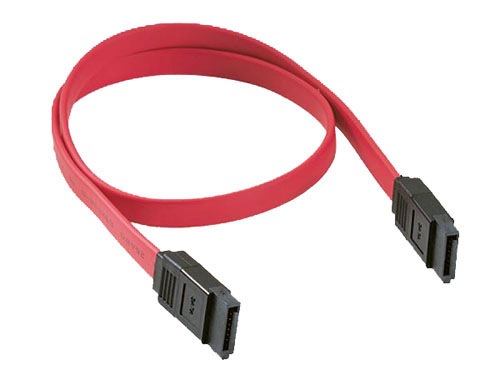
A hard drive (3.0 Gb/s) I have recently bought just came, without a SATA cable. I have a 6.0 Gb/s capable SATA cable sitting around. Are these 6.0 Gb/s cables backwards compatible? If I use it, would I have to plug it into the 6.0 enabled port on the mobo or can I just use the normal SATA ports?

satacables

SATA Cables

They are backwards compatible. And you can plug it into any SATA port you like.

SATA Cables Read More »

Replace Primary Master Hard Disk with Primary Slave

I have a desktop computer with following specs :
2.93 gigahertz Intel Core2 Duo
Board: ASUSTeK P5QPL-AM Rev X.0x
266 megahertz
BIOS: American Megatrends Inc. 0408
Intel(R) ICH7 Family Ultra ATA Storage Controllers – 27DF
Intel(R) N10/ICH7 Family Serial ATA Storage Controller – 27C0
Primary IDE Channel [Controller] (2x)
Secondary IDE Channel [Controller] (2x)

I recently purchased a 160 gig HD and used it as the Slave disk. I formatted it and installed Windows XP while booting from and using the windows XP on the old disk. Then I removed the primary master (Old HD) and used its power and data connectors on the new HD. However, the computer does not boot and asks for a boot media.

If I read your tale correctly, you now have only ONE IDE HDD connected to the Primary IDE port. Any IDE port MUST have a Master device, and MAY have a second device as Slave. There are two options for designating the single HDD as the port’s Master. The most straightforward is to set the jumpers on it to the Master position. Use the diagram on this drive to guide you, NOT the diagram from another drive. Then connect this drive to the END connector on the ribbon cable if at all possible.

The other option is to set the drive’s jumpers to CS (for Cable Select) and then the drive MUST be on the END connector in order to serve as Master.

Replace Primary Master Hard Disk with Primary Slave Read More »

Change From RAID 0 to RAID 1

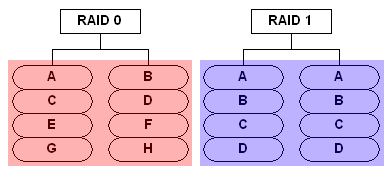
I am puchacing a new computer that is configured for raid 0. I would like to reconfigure it for raid 1. I prefer to reinstall win 7 to get rid of the junk new machines are shipped with so OS reinstallation is not a problem. Will I need new drivers or hardware (it is a Dell XPS system).

RAID0_RAID1

Change From RAID 0 to RAID 1

It should be fine. Just download all necessary drivers from dell. You may want to create media disks before doing this so that you can restore to factory settings if need be.you need not new hard drives, as we know the raid 0 is congifure with two hard drive, and raid 1 also need 2 hard drives, you just recongigure the raid array, and reinstall the windwos 7, that’s OK, you’d better do a fresh format before reconfigure.

Change From RAID 0 to RAID 1 Read More »

Use External Hard Drive as an Internal Hard Drive

Hi guys. Hard drive prices as you all know have been hiked up terribly. Here in South Africa, internal hard drives 1Tb was R600 = $75. The world shortage caused the hard drives to skyrocket in price from R600 to R1800. That’s a $150 price increase!

Now down to business. I have an external hard drive. Samsung Story. 1TB. I would just like to know what the possibility is, to take the hard drive out of it’s enclosure, connecting it via a SATA port and using it as the internal hard drive. (booting windows, installing games and programs)

You should easily be able to do this, however, I would be careful when removing the case. A lot of them are made not to come off, so be careful not to damage the drive when removing the case. It should be a standard hard drive inside. You might want to make sure it’s out of warranty before opening the case though. Also, I don’t think the enclosure’s controller is doing anything funny with the data, but if it is, you may need to reformat the drive once it’s in your computer.

Use Internal Hard Drive as an External Hard Drive

It is easy and inexpensive to convert an internal hard drive to an external one. All you need is a hard drive enclosure that fits your existing internal hard drive. Hard drive enclosures are widely available at computer stores and online. Prices range from as little as five dollars for a basic one-drive USB 2.0 enclosure to over a hundred dollars for enclosures that hold multiple internal drives in RAID arrays with eSATA interfaces. You probably don’t need to spend more than $20 for a basic one-drive enclosure.

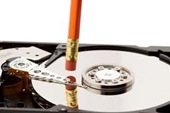
Removing a hard drive from a laptop or desktop is easy. Power down and unplug the computer. On most laptops, you’ll remove a plastic panel from the underside of the laptop with one or two small screws. Remove the drive by gently tugging it free from the connectors, and you’re done. On a desktop, open the system case, and locate the hard drive in its metal bay. Disconnect the power and data cables, remove the screws holding the drive in the bay, and slide it out. Just remember, you’re removing the hard drive, but NOT opening it up. Doing so will damage the sensitive internal components.

You do need to make sure you buy the right kind of drive enclosure kit, so it will be compatible with the drive you’ve removed from the desktop or laptop.

The first consideration is the size of your hard drive. Laptop drives are all 2.5 inches, while desktop drives are usually 3.5 inches. Determine the size of your internal hard drive and shop for a hard drive enclosure into which it fits. Note that 3.5 inch drives generally require an external power supply, while 2.5 inch drives can pull their power from the computer to which they connect.

The drive interface is another critical factor. Old hard drives may use an IDE interface. Many new drives use the speedier SATA interface. Make sure the enclosure you select supports your internal hard drive’s interface. If you have any confusion about the size or interface for your drive, just Google the name. For example, I have an old hard drive that I pulled from a defunct desktop computer. The markings on the drive say “WD Caviar 36400” so a quick search for that phrase tells me it’s a 6.4GB Western Digital, 3.5 inch, IDE drive.

Use internal hard drive as an external drive

Connecting the External Hard Drive to Your Computer

The connector on a hard drive enclosure is the means by which it is connected to your computer. USB 2.0 is a common connector because most computers support it. Firewire is another option if your computer has an available Firewire port. An eSATA connector is faster than USB 2.0 or Firewire, but relatively few computers and enclosures support eSATA at this time.

The enclosure box may be made of aluminum, plastic, or some other material. A box sporting LED indicators helps you observe drive activity. Other bells and whistles are optional.

Installing an internal drive is into an enclosure is easy. You may need a screwdriver, but no special tools are required. Just avoid static electricity and don’t force any connectors. If you are enclosing an IDE drive, make sure to set its master/slave jumpers to the positions recommended in the enclosure’s instructions. SATA drives do not require jumper settings.

Connect the enclosure’s interface cable to the internal hard drive’s interface connector. Plug the enclosure’s power cable into the drive. Fasten the drive into the enclosure with the fasteners provided. Close up the enclosure.

If necessary, plug in the external drive’s power cord. If you don’t need external power, just plug the connector cable into the appropriate USB, Firewire, or eSATA port on your computer. Mac and Windows computers should recognize the new drive automatically. It should appear in your drives list with its own drive letter. Copy a few files to and from the new drive to make sure everything is working. Then enjoy your new external hard drive!

Use External Hard Drive as an Internal Hard Drive Read More »

Unable to Access System Disc When Hard Drive is Connected

First, I got a BSOD that initiated the problem. After I restarted my computer, I got a message that said Disk Boot Failure, Insert System Disk and Press Enter. I put in the system disc in the disc drive and pressed enter.

The keyboard was not working so I changed the BIOS so that the first priority was the disk drive and all the other priorities were disabled so I could run the system disk.

The same problem occurred(It said Disk Boot Failure, Insert System Disk and Press Enter) and then I removed the hard drive to test the computer. Once I removed the hard drive, the system disk ran like normal and took me to the Windows Vista Installation Menu. Once I reconnected the hard drive, the problem reoccurred.

The keyboard doesn’t properly respond in anywhere other than the motherboard starting screen and the BIOS. The keyboard didn’t even work when I went to the boot menu.

The System Disk request is appearing because your HDD has failed most likely. The reason why it will boot up to the installation menu is because when you unplug the HDD the BIOS detects the bootable DVD in your DVD Drive. When you plug the HDD in your BIOS is set to boot off that first and when it fails to do so the system halts. It then asks for a System Disk. What that means is the BIOS is seeking out a boot able disk. This could be a boot able DVD or CD or HDD or in some cases a USB stick. That is why the System Disk request is worded in a generic fashion.

Also, you may need to turn on legacy usb devices in the bios in order for your keyboard to register outside of windows.

Unable to Access System Disc When Hard Drive is Connected Read More »

RAID 1 Disadvantages

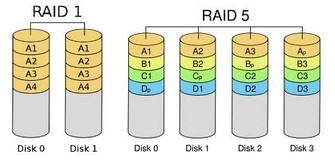
I am in the process of building a new PC and since my data is important. I am considering using RAID. I currently have an external HD which is being backed up using Norton Ghost, but I would feel much more comfortable with real-time protection I’ve read that with on-board RAID controllers, the performance hit for RAID 5 is enormous, so I’m leaning towards RAID 1. I will be using WD 750 Gb Black hard discs on a GIGABYTE GA-P55A-UD4P motherboard using Windows 7. Is the only disadvantage to RAID 1, the ‘loss’ of a hard disc and a slightly more complicated O/S install with the advantages of data protection and a potentially slightly better read performance?

RAID1_RAID5

The big advantage or RAID1 is “instant recovery” from HDD failure. That is, if a member of the array fails, the RAID system immediately should detect that situation and convert the operation to using only the remaining good drive so that you can keep on functioning normally right away. It should also immediately send out a warning message so that you know of the problem and can plan its repair as soon as possible. The “downside” of this is that it can work so smoothly that the warning message goes un-noticed or is ignored by untrained users and the tech guys are unaware a problem needs attention. That’s probably not your situation.

The RAID1 systems I have used have very good tools for fixing a drive failure. Basically they will pinpoint exactly which drive is faulty so you can replace it. Then they will allow you to control re-establishing the array by copying everything from the good drive to the replacement unit. There is no need to re-install an OS or restore data from a backup dataset. They even can do this while the system is in use, although my preference would be to do the re-establishment as a separate operation on a system that is NOT being used for anything at the time.

My wife runs a retail store with a POS software package on a dedicated computer. The data files for that operation are kept in one subdirectory and amount to about 60 to 70 MB of data that are updated with every sale. The files are generally in ASCII character strings with some numerical data, so they compress well to .zip files. I set up the machine with a pair of drives in RAID1 as the only drive system. I installed WnZip Pro and set up a scheduled task that runs every day at 10 minutes before midnight (store is closed). It zips all the files in the specific subdirectory into a daily .zip file named with a date string and puts them in a designated subdirectory. This guards against data file corruption by providing end-of-day archived versions. Once a month (probably should be more often) I simply copy the end-of-month .zip file to a USB drive and take it home where I put it on my home computer – thus an off-site backup monthly. Then I delete all the daily .zips at the store, except for that month-end one. (So the store computer has on its RAID1 array an end-of-month .zip file (for every month since its start), each containing a snapshot of all the data that changes over time.) Small important step: the POS computer normally runs 24/7, so when I do the monthly .zip file copy I also reboot the machine and watch the POST messages to be sure there are no errors in the RAID system that I have not heard about.

We had a failure, but not of a hard drive. The mobo failed and had to be replaced. That can be a big problem with any RAID array based on mobo built-in “controllers” because there is no real universal RAID standard. That means often a RAID array written in one system cannot be read by another. In choosing the original mobo (by Abit) I deliberately chose one that had an nVidia chipset because their website claimed that they guarantee that ALL of their mobo chipset RAID systems use the same RAID algorithms and would continue to do so, so that any yet-to-come nVidia chipset could handle any older RAID disks made with their chips. When the mobo failed I selected a Gigabyte replacement mobo with a similar (but not identical) nVidia mobo chipset. Swapped everything, plugged it all together, and booted expecting maybe I’d have to do a Repair Install at least. It just booted and ran perfectly first time – no trouble at all! WOOHOO! I never had to reconfigure or re-install anything, other than updating the mobo device drivers from the Gigabyte CD.

So if you plan for possible changes to the RAID controller system as well as for changes to a hard drive that fails, a RAID1 system can give you some data security and continued operation through disk failure. You just have to recognize the need for real data backups and do them (AND VERIFY, as you say), probably more often than I do it.

RAID 1 Disadvantages Read More »

Cannot Access Old Hard Drive Documents

I recently transferred my old hard rive to my new computer. The hard-drive picks up and I can access the the hard-drive until I click on documents< owner. It says access denied. I go to the security tab and all I see is “you do not have permission to view or edit this objects permission settings“. How can I access my old documents?

In the box that lets you choose what the new owner will be, there’s a checkbox labelled “Replace owner on subcontainers and objects“. Make sure that box is checked when you click the “OK” button to change the owner.

Cannot Access Old Hard Drive Documents Read More »

Scroll to Top