
Data recovery on vintage hard drives like the Fujitsu MHZ2320BH FFS G1 starts with identifying the failure type – electronic, firmware, or mechanical. Each requires a different approach, and misdiagnosis can make things worse. Here’s a quick guide to help you assess your situation and decide on the next step.
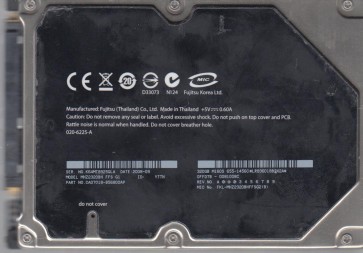
The Fujitsu MHZ2320BH is a 2.5-inch, 320GB SATA hard disk drive (HDD) originally designed for laptop computers. It features a 5400 RPM spindle speed and an 8MB cache. The “FFS G1” in its model designation typically refers to a specific firmware family or hardware revision. This drive uses perpendicular magnetic recording (PMR) technology. Understanding that this is a mechanical device with a limited lifespan is crucial. Key components include the platters (magnetic disks), read/write heads, spindle motor, actuator arm, and a complex system-on-a-chip (SoC) controller with embedded firmware. The main circuit board (PCB) is attached to the bottom of the drive and contains the motor driver, preamplifier, and SATA interface controller. Data is stored on the platters and accessed via heads that float nanometers above the surface.
Identifying Common Failure Types
1. Mechanical Failure (Heads & Motor)
Symptoms: Clicking, grinding, or whining sounds. The drive may spin up and then immediately stop. It may not be detected by the BIOS. The most common mechanical failure in this series is a head crash, where the read/write head contacts the platter surface, causing physical damage and data loss. Another is a seized spindle motor, often indicated by a complete lack of spin-up sound.
2. Electronic (PCB) Failure
Symptoms: The drive is completely silent (no spin-up) or does not power on. You might smell burning components. The drive may be detected but with incorrect capacity (e.g., 0GB). The PCB, particularly the motor controller chip or the preamplifier, can fail from power surges, static discharge, or age. The firmware EEPROM on the PCB can also become corrupted.
3. Firmware/Logical Failure
Symptoms: The drive spins up normally but is not recognized by the system or has a corrupted file system (e.g., RAW partition, “not accessible” error). The drive may click a few times initially but then hang. This can stem from bad sectors, a corrupted File Allocation Table (FAT), or a damaged translation layer (P-List/G-List issues) in the system area. The FFS G1 firmware is sensitive to developing SA (Service Area) defects.
4. Bad Sector Proliferation
Symptoms: Files become corrupted, system hangs during file reads/writes, slow performance, S.M.A.R.T. data showing high Reallocated Sector Count, Current Pending Sector Count, or Uncorrectable Sector Count. The drive may remap sectors internally, but once the spare pool is exhausted, data loss accelerates.
Potential Recovery Paths
Professional Data Recovery (Recommended)
Scenario: Any physical damage (head crash, motor seizure, severe clicking), electronic failure requiring PCB replacement with firmware adaptation, or complex firmware corruption. DIY attempts here will almost certainly cause permanent data loss. Professional services use cleanroom facilities (Class 10 or better) to replace heads, transplant platters, and perform advanced firmware repairs with specialized tools (e.g., PC-3000, MRT, or DeepSpar). Expect to pay $300-$3000+ depending on severity.
DIY Recovery (Low-Risk Cases Only)
Important Warning: DIY is ONLY safe for logical failures where the drive has no physical damage and is reliably detected.
- For Logical Corruption: Use stable, read-only tools like R-Studio, DMDE, or GetDataBack. Create a full disk image to a healthy drive first using tools like ddrescue (Linux) or HDDSuperClone (Windows). Then extract files from the image. Never write to the failing drive.
- For PCB Failure (Advanced DIY): If the drive is silent but has no physical damage, you can attempt a PCB swap. You must find an exact donor PCB (same board number, e.g., 100448386). Critical: You must transfer the original drive’s firmware ROM (usually a 8-pin serial flash chip) to the donor board using a hot-air station or a programmer. Simply swapping boards without ROM transfer will not work due to adaptive tuning data. This is high-risk and requires soldering skills.
- For Bad Sectors: Use ddrescue in “no-scrape” mode first to map good areas, then attempt the retry passes. Do not use chkdsk /f or scandisk as these can write to the drive.
What Not to Do
- Never disassemble the drive platters. Opening the lid in a non-cleanroom environment will introduce dust that will land on the platters, and even a single speck can destroy data when the drive spins up.
- Never apply power to a physically damaged drive. Doing so can grind the heads further into the platters, creating unrecoverable scratches.
- Do not run anti-virus, chkdsk, defrag, or any file system repair tool on a clicking or noisy drive. These tools write to the disk, which can overwrite critical data blocks and cause permanent loss.
- Do not freeze the drive. This is an urban myth that causes condensation damage and warps internal components. It will not fix any real failure.
- Do not try to re-solder the PCB without experience. Overheating a BGA or resistor can crack the board or destroy nearby components.
- Do not use data recovery software that asks for a license to “fix” the disk. Always work on a cloned copy, not the original.
Summary
The Fujitsu MHZ2320BH FFS G1 is a reliable but aging mechanical drive. The most common failure points are head crashes (clicking sound), PCB failure (no spin), and firmware corruption (unrecognized drive). For any physical or electronic failure, the only safe path is professional data recovery. DIY methods are only appropriate for logical errors (deleted files, formatted partition) on a perfectly functioning drive. The golden rule is: if the drive makes unusual noises, smells, or is not detected, stop immediately. Power it off and consult a professional. Action before diagnosis is the biggest cause of permanent data loss.